This tutorial will walk you through connecting a Shopify data source and how to use the automatically created block in the WordPress editor.
To use the Shopify data source, you need a Storefront API access token for the store you want to connect. Remote Data Blocks queries Shopify's Storefront API, so the token must include the unauthenticated_read_product_listings scope. This allows Remote Data Blocks to read products and collections without requesting broader Admin API permissions.
For new stores, follow Shopify's current Storefront API getting started guide:
- Log in to your Shopify admin account.
- Install the Headless sales channel.
- Create a storefront to generate Storefront API access tokens.
- Edit the storefront's Storefront API permissions and enable product listing access. In Shopify API scope terms, this is
unauthenticated_read_product_listings. - Copy the private Storefront API access token.
If you are using a custom app created in Shopify's Dev Dashboard after January 1, 2026, follow Shopify's Dev Dashboard access token guide to create and install the app, request the unauthenticated_read_product_listings Storefront API scope, and exchange your app credentials for an access token. Use that token with Shopify's storefrontAccessTokenCreate mutation to create the Storefront API access token for Remote Data Blocks. Do not paste the short-lived Admin API access token into Remote Data Blocks. Existing admin-created custom apps can continue using their existing Storefront API access tokens.
- Go to Settings > Remote Data Blocks in your WordPress admin.
- Click on the "Connect new" button.
- Choose "Shopify" from the dropdown menu as the data source type.
- Name the data source. This name is only used for display purposes.
- Enter the subdomain of your Shopify store. To find this, log into Shopify, the subdomain of your store is the portion of the URL before
myshopify.com. - Enter your access token.
If the credentials are correct, you can save the data source. If you receive an error, check the token and try again.
Create or edit a page or post, then using the Block Inserter, search for the block using the name you provided in step four.
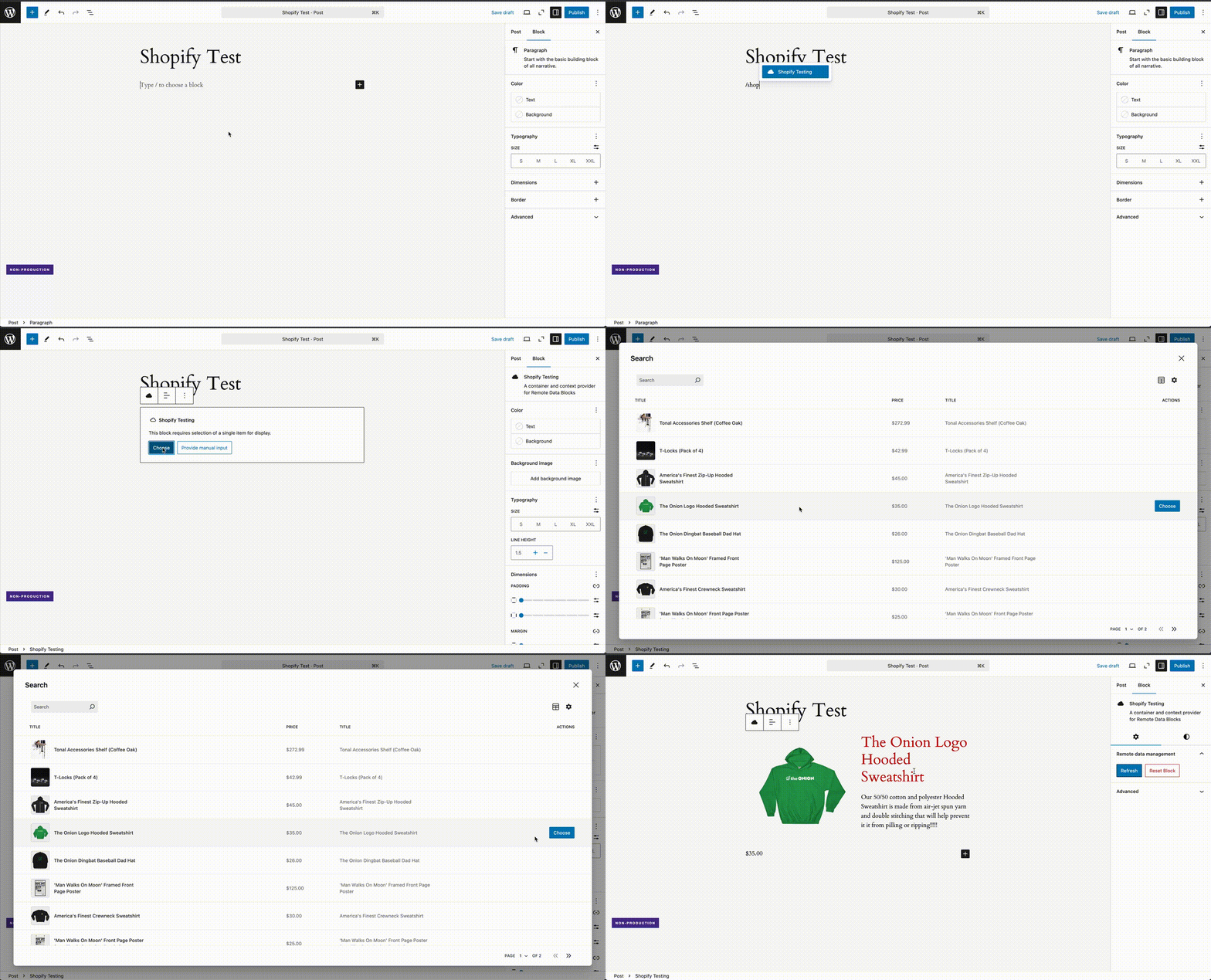
You can use patterns to create a consistent, reusable layout for your remote data. You can read more about patterns.
Remote data blocks can be styled using the block editor's style settings, theme.json, or custom stylesheets. See the example child theme for more details.
You can also configure Shopify integrations with code. These integrations appear in the WordPress admin but can not be modified. You may wish to do this to have more control over the data source or because you have more advanced data processing needs.
This working example will replicate what we've done in this tutorial.