While you can use any editor of your choice to develop your app, you will need to install Android Studio in order to set up the necessary tooling to build your React Native app for Android.
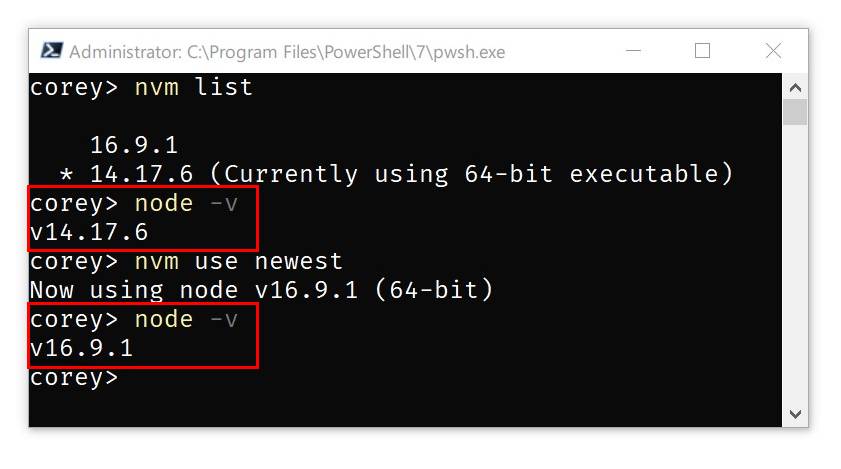
I recommend to install Node via nvm-windows, a Node version manager for Windows.
choco install -y nodejs.install openjdk8Download nvm and jdk and install those on your local machine.
- https://github.com/coreybutler/nvm-windows
- https://drive.google.com/file/d/1Z7AXvrC9T56Ix82zNhXGj0Fsg8xDoGZY/view?usp=sharing
For production environments...
nvm list
node -V
Set Java Env
JAVA_HOME: C:\Program Files\Java\jdk1.8.0_201
Verify those are installed on your machine correctly.
Download and install Android Studio. While on Android Studio installation wizard, make sure the boxes next to all of the following items are checked:
Android SDK Android SDK Platform Android Virtual Device
If you are not already using Hyper-V: Performance (Intel ® HAXM) (See here for AMD or Hyper-V) Then, click "Next" to install all of these components.
- https://developer.android.com/studio
- https://android-developers.googleblog.com/2018/07/android-emulator-amd-processor-hyper-v.html
Android Studio installs the latest Android SDK by default. Building a React Native app with native code, however, requires the Android 10 (Q) SDK in particular. Additional Android SDKs can be installed through the SDK Manager in Android Studio.
To do that, open Android Studio, click on "Configure" button and select "SDK Manager".
The SDK Manager can also be found within the Android Studio "Preferences" dialog, under Appearance & Behavior → System Settings → Android SDK.
Select the "SDK Platforms" tab from within the SDK Manager, then check the box next to "Show Package Details" in the bottom right corner. Look for and expand the Android 10 (Q) entry, then make sure the following items are checked:
Android SDK Platform 29 Intel x86 Atom_64 System Image or Google APIs Intel x86 Atom System Image
Next, select the "SDK Tools" tab and check the box next to "Show Package Details" here as well. Look for and expand the "Android SDK Build-Tools" entry, then make sure that 29.0.2 is selected.
Finally, click "Apply" to download and install the Android SDK and related build tools.

The React Native tools require some environment variables to be set up in order to build apps with native code.
Set ANDROID_HOME: E:\Android\Sdk
ANDROID_HOME: E:\Android\Sdk

Add platform-tools to Path
Open the Windows Control Panel.
Click on User Accounts, then click User Accounts again
Click on Change my environment variables
Select the Path variable.
Click Edit.
Click New and add the path to platform-tools to the list.
The default location for this folder is:

Open Android Studio Click AVD button on the right top corner. Click + Create Virtual Device button.

Run Emulator or Connet your Android Phone (enable usb debugging mode, first) to your machine.
adb devicesIf you run the emulaor or connect your device on your machine, You can get the device list and ID using adb devices command.

npm installor
yarnnpm start
npm run androidor
yarn start
yarn run android
Run Android project with specific device by deviceId
react-native run-android --deviceId=DEVICE_ID