This guide walks you through installing Python on Windows 11 so that python and pip work correctly from PowerShell and Command Prompt.
Why can I double-click .py files but
pythondoesn't work in the terminal? This usually means Python was installed from the Microsoft Store, which registers file associations but doesn't always add Python to your system PATH. Follow the steps below to fix this.
To avoid conflicts, remove any existing Python installations first.
- Open Settings → Apps → Installed apps
- Search for Python
- Uninstall any entries you find (e.g., "Python 3.x" or "Python 3.x (Microsoft Store)")
- Also search for and uninstall any Python Launcher entries
- Go to https://www.python.org/downloads/
- Click the large Download Python 3.x.x button
- Save the installer to your Downloads folder
-
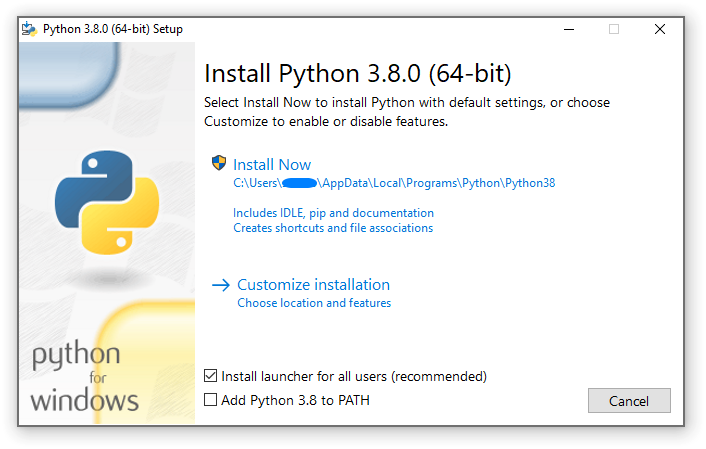
Right-click the downloaded installer and select Run as administrator
-
⚠️ On the very first screen, check BOTH boxes at the bottom:- ✅ Use admin privileges when installing py.exe
- ✅ Add python.exe to PATH ← THIS IS THE CRITICAL STEP
-
Click Install Now (the default option is fine for most users)
-
Wait for the installation to complete
-
If you see a Disable path length limit option at the end, click it
-
Click Close
Close and reopen any PowerShell or Command Prompt windows (they won't pick up PATH changes until restarted).
Open a new PowerShell window and run:
python --versionYou should see something like Python 3.x.x.
Then verify pip:
pip --versionYou should see something like pip 24.x from ....
If python --version still doesn't work after a fresh PowerShell window:
- Open Settings → search for Environment Variables → click Edit the system environment variables
- Click Environment Variables...
- Under System variables, find and select Path, then click Edit...
- Verify these two entries exist (the version number may differ):
C:\Users\<YourUsername>\AppData\Local\Programs\Python\Python3xx\C:\Users\<YourUsername>\AppData\Local\Programs\Python\Python3xx\Scripts\
- If they are missing, click New and add them
- Click OK on all dialogs
- Restart PowerShell and try again
Tip: To quickly find your Python install path, open File Explorer and navigate to
C:\Users\<YourUsername>\AppData\Local\Programs\Python\— you should see a folder likePython312orPython313.
Windows has built-in app execution aliases that redirect python to the Store.
- Open Settings → Apps → Advanced app settings → App execution aliases
- Turn OFF both App Installer - python.exe and App Installer - python3.exe
- Try
python --versionagain
Run the following to ensure pip is installed:
python -m ensurepip --upgradeIf you set environment variables (like API keys) in the same PowerShell session before installing Python, you need to close and reopen PowerShell for PATH changes to take effect. Alternatively, run:
refreshenv(This command is available if you have Chocolatey installed. Otherwise, just restart PowerShell.)