This page lists details on how to work with artifacts in this repository.
- Contributing
The easiest way to get started developing in this repository is to create a Codespace for yourself.
This repository is configured to work out-of-the-box with Codespaces.
Learn more here.
You need the following dependencies installed locally to build the ARM template and test scenario queries.
-
PWSH version 7 or higher.
-
Azure CLI (
az, not the Azure PowerShell modules). -
(To run tests)
azure-streamanalytics-cicdinstalled globally (requires Node and NPM).npm install -g azure-streamanalytics-cicd
To add a new Sensor Data Intelligence scenario, at least the following steps must be performed:
- Azure Stream Analytics query: Add a new folder in
stream-analytics-queriesfor the new scenario- similar to the other scenarios, then a new<scenario-name>.asaqlfile containing the query. - Add the new scenario in
main.bicep'sstreamScenarioJobsvariable (object array). Values forreferenceDataNameandreferencePathPatternused here must also be used in the reference data Logic Apps (pull and clean). - Add branches to the Logic Apps for pulling reference data and cleaning outdated reference data to cover the new scenario.
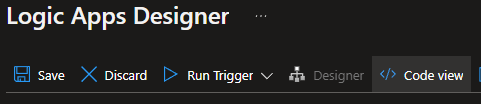
The most effective way to work with and make changes to the Logic Apps in this repository is to deploy azuredeploy.json to Azure, make changes in the Logic App designer, then copy the Code definition into the corresponding Logic App JSON file under logic-apps.
To get the code for a Logic App, click the Code button:
The Build-ARMTemplate.ps1 script will prune secrets from the Logic App parameters, so make sure to run that before Git-committing changes.
Install extension to VS Code and you can click "Run locally" above the query (IntelliSense).
Run the script Invoke-StreamAnalyticsTests.ps1 to run all tests. The script can be invoked with a -Scenario parameter, choosing one of the scenarios implemented in this solution.
New test cases can be added by creating a new folder inside the "Test" folder of the scenario to be tested. The name of the folder will be the name of the test. Add json files that fit the names of the inputs to the stream. Also add a file with the name "ExpectedMetricOutput.json" and/or "ExpectedNotificationOutput.json", depending on the test. The "testConfig.json" in the "Test" folder file will be automatically updated when the tests are run. Any manual changes to it will be overwritten!
If any new parameters are added, make sure to also add corresponding parameters to createUiDefinition.json.
Run the script Build-ARMTemplate.ps1 to build azuredeploy.json from the current main.bicep.
If main has changed and you need to pull in those changes to your branch, you will most likely get a merge conflict on the file azuredeploy.json. Do not waste time resolving the conflicts- simply invoke Build-ARMTemplate.ps1 after resolving conflicts in any other files- then the azuredeploy.json file will be updated to reflect changes from both main and your branch (without any merge conflicts).
Find general documentation on how to work with the createUiDefinition.json at Azure Documentation.
To find a list of available user interface elements, see this.
Changes to the UI definition can be tested in the createUiDefinition sandbox.