| title | Developer Mode |
|---|---|
| description | |
| published | true |
| date | 2019-09-06 01:13:49 UTC |
| tags |
If you're going to make use of the Discord API, for instance to create a bot, then Discord's Developer Mode will be of great help to you.
Enabling Developer Mode is easy. Open your Discord settings (the next to your name at the bottom left) and click on Appearance. There you will find Developer Mode. Click the toggle to enable it.

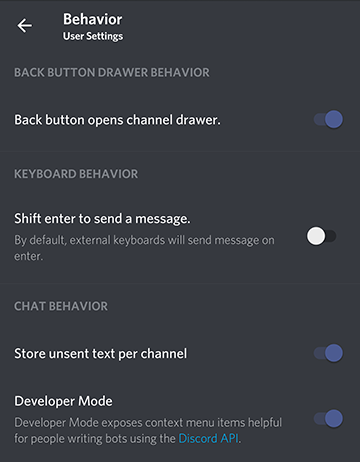
On Android, you can enable Developer Mode by going to your Discord settings (the next to your name at the bottom left) and tap on Behavior. There you will find Developer Mode. Tap the toggle to enable it.
If you have iOS, you can enable Developer Mode by opening your Discord settings in the bottom-right corner of the screen, tapping on Appearance, and flicking the switch labeled Developer Mode.

Developer Mode adds a simple Copy ID option to your context menu. Right click or long press on any server, user, message or channel to get its unique ID.
To get the unique ID for the server, right click on the server icon, and click "Copy ID".

To get the unique ID for a user, right click on their profile in either the channel they are in, or in the member list, and click "Copy ID".


To get the unique ID for a message, right click on that message in the channel it was sent in, and click "Copy ID".

