This document covers the internal architecture, data flow, flag behavior, analyzer algorithms, report formats, and known limitations of File Analyzer.
- Architecture Overview
- How Each Flag Works
- Combining Flags
- Data Flow Walkthrough
- Analyzer Deep Dives
- Report Formats
- Known Limitations
File Analyzer is built in layers. Each layer has a single responsibility and only communicates with the layers directly above or below it. No layer skips another.
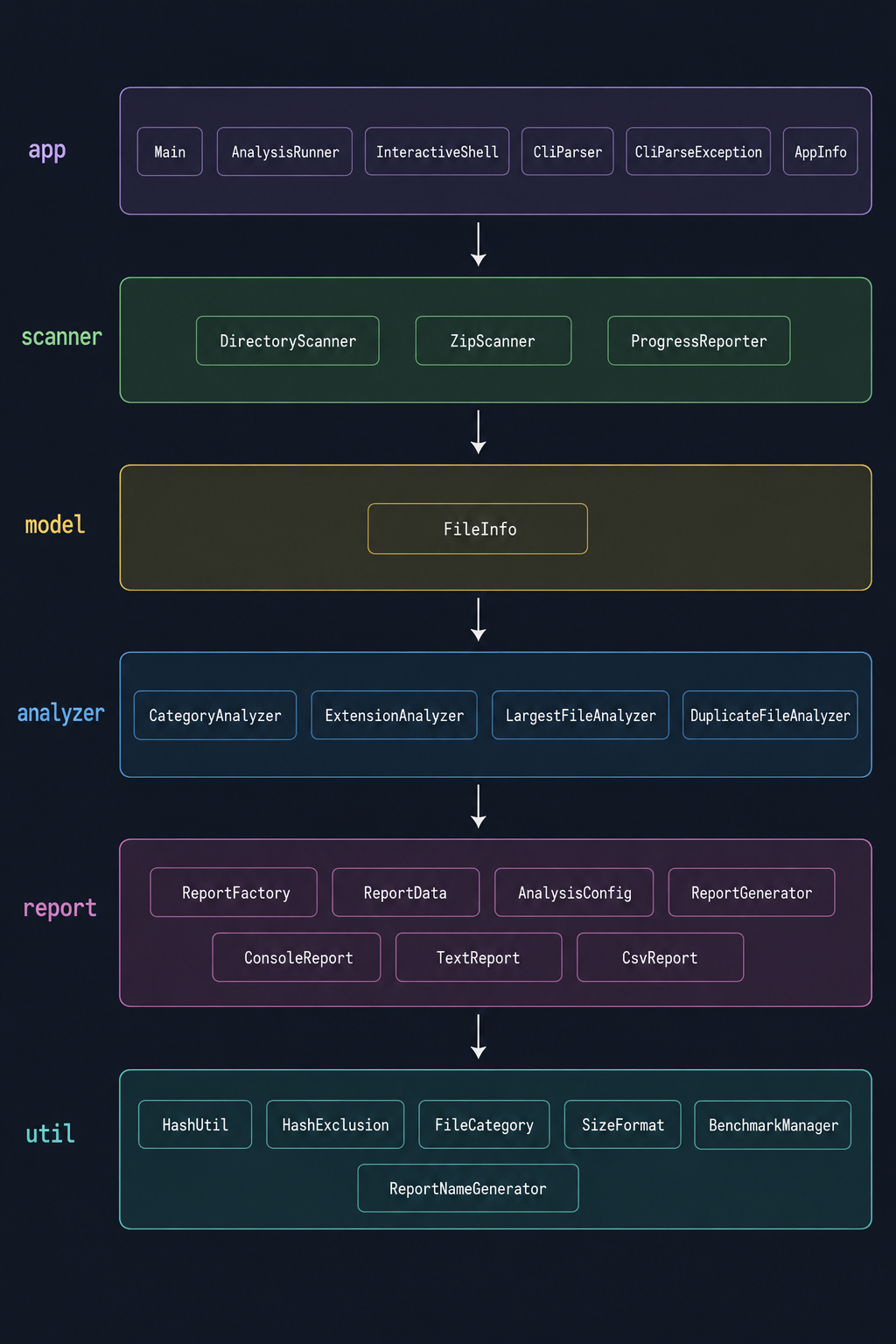
| Package | Responsibility |
|---|---|
app |
Entry point, mode routing (CLI vs shell), argument parsing |
scanner |
File system traversal, ZIP extraction, progress display |
model |
Data structure representing a single file |
analyzer |
Independent analysis algorithms run on the file list |
report |
Parallel analyzer orchestration, result packaging, output generation |
util |
Stateless helpers shared across all packages |
Stack-based traversal instead of recursion
DirectoryScanner uses an explicit Stack to walk directory trees. Recursive directory
walking can cause a StackOverflowError on very deeply nested folder structures. The
stack approach handles any depth without risk.
Analyzers run in parallel
ReportFactory submits each enabled analyzer to a 4-thread ExecutorService. Since
extension, category, largest-file, and duplicate analyzers don't depend on each other's
results, they can all run simultaneously. Total wait time is the slowest analyzer,
not the sum of all four.
Single source of truth — ReportData
All analyzer results are packed into one ReportData object after analysis completes.
Every report generator reads from this same object. Nothing is computed twice.
Null means not requested
Fields in ReportData that correspond to analyzers the user didn't request are left
as null. Report generators check for null before printing each section. This keeps
the conditional logic simple and centralized.
Two modes, one engine
Main routes to either InteractiveShell (no arguments) or direct CLI execution
(arguments provided). Both modes call AnalysisRunner.run() — the actual scan and
analysis logic is identical regardless of how the app was launched.
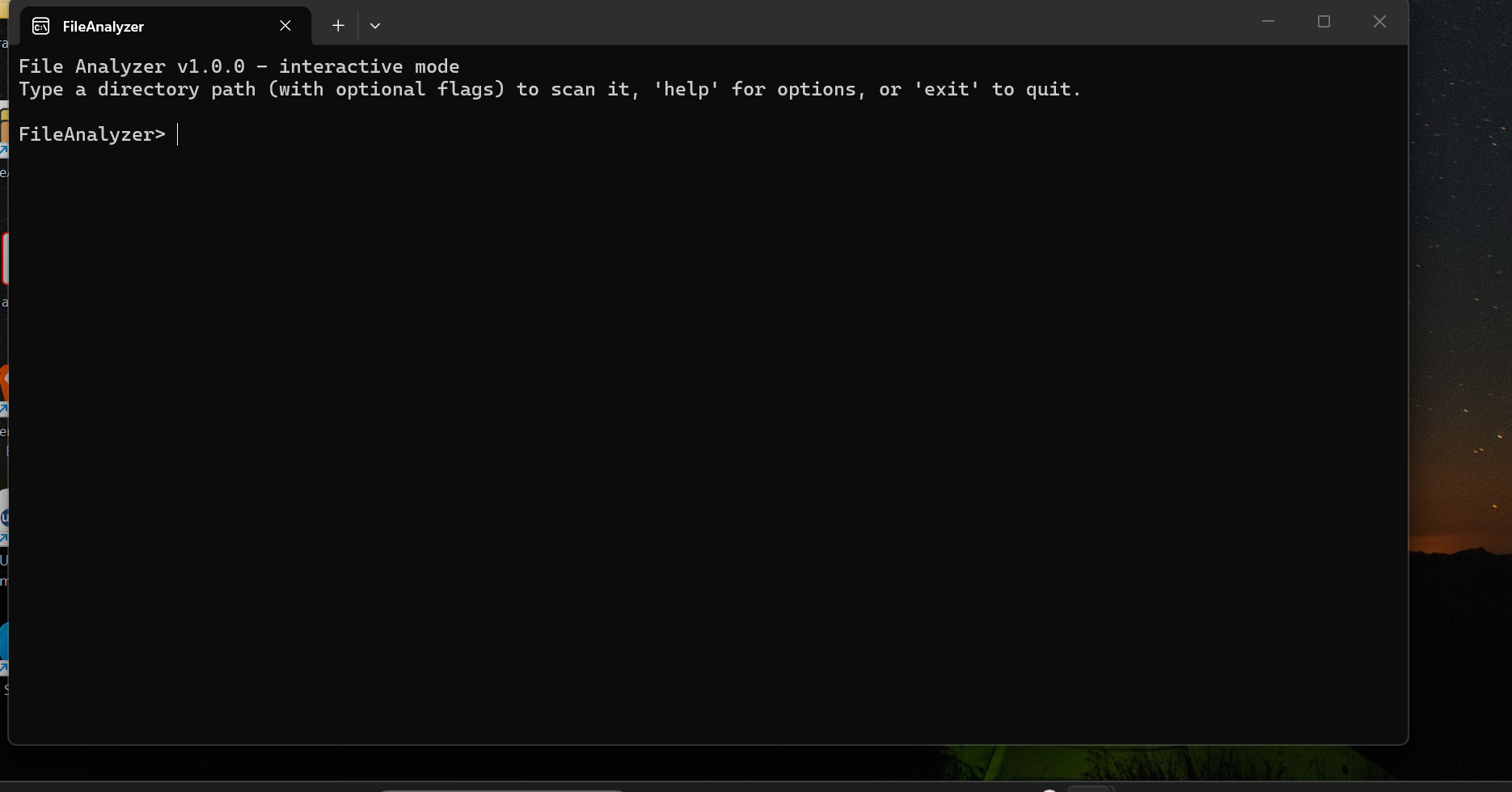
When launched with no arguments, File Analyzer opens a persistent interactive shell instead of printing help and closing. Commands are typed directly at the prompt.
Enables every analyzer and writes both report files. Also the default behavior
when no flags are passed — running FileAnalyzer C:\Docs is identical to
FileAnalyzer C:\Docs --full.
What it enables internally:
extensionAnalysis = truecategoryAnalysis = truelargestFiles = trueduplicateDetection = truetxtReport = truecsvReport = true
Example:
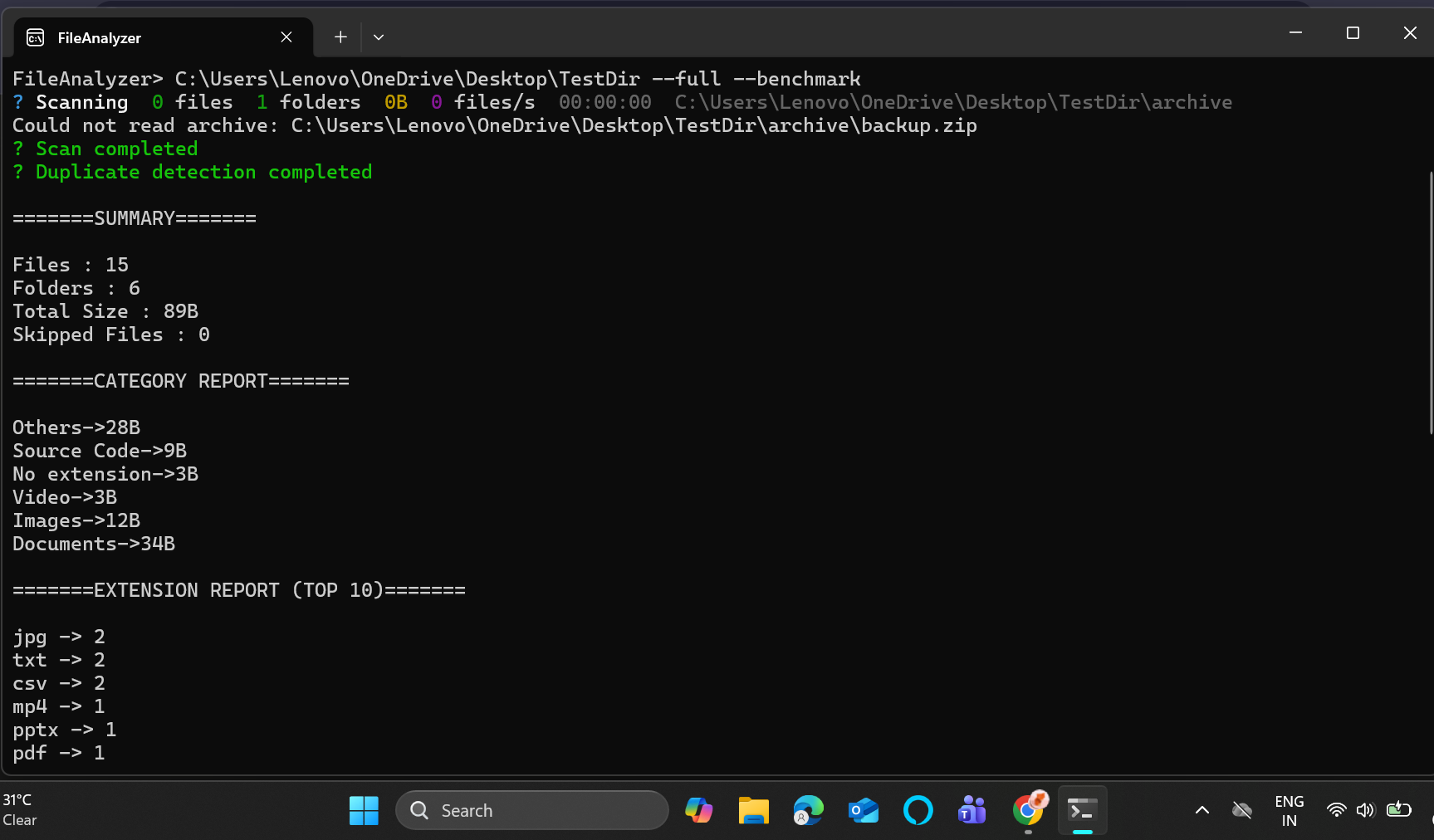
FileAnalyzer> C:\Users\Lenovo\OneDrive\Desktop\TestDir --full
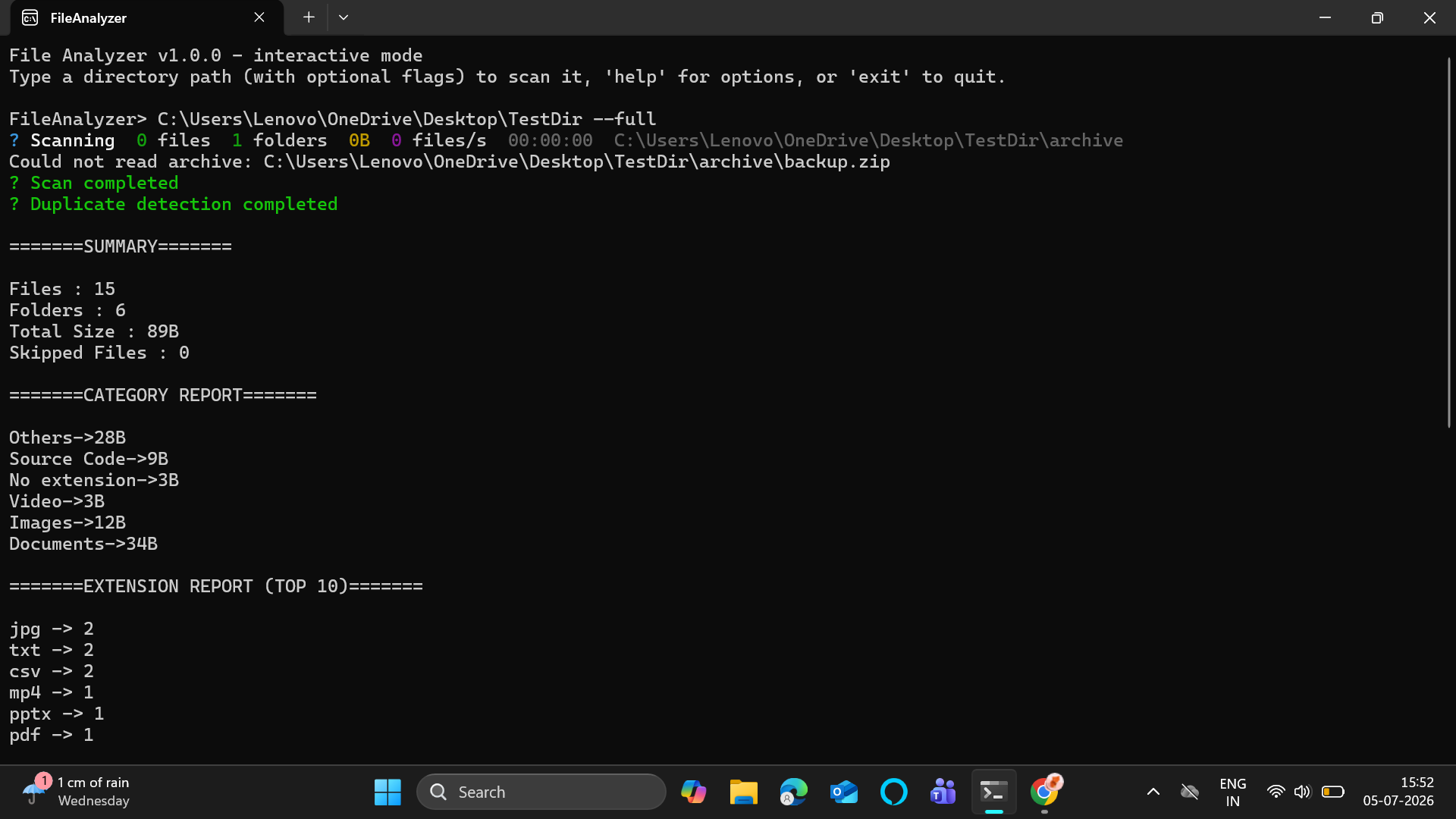
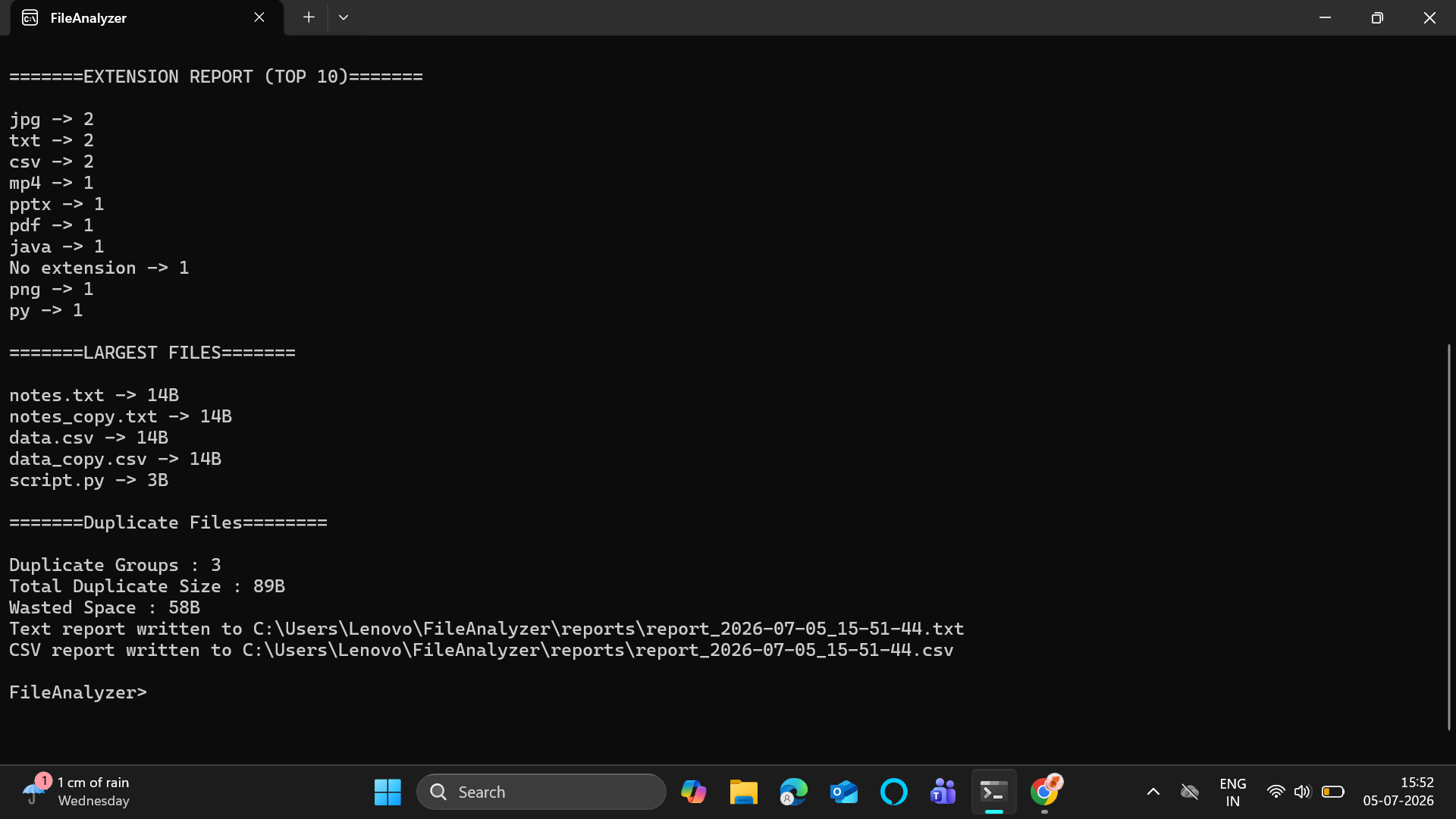
What to verify against TestDir:
- Files: 15, Folders: 6, Total Size: 89B
- 6 categories shown (Images, Documents, Source Code, Video, No extension, Others)
- Top 10 extensions: jpg×2, txt×2, csv×2, mp4×1, pptx×1, pdf×1, java×1...
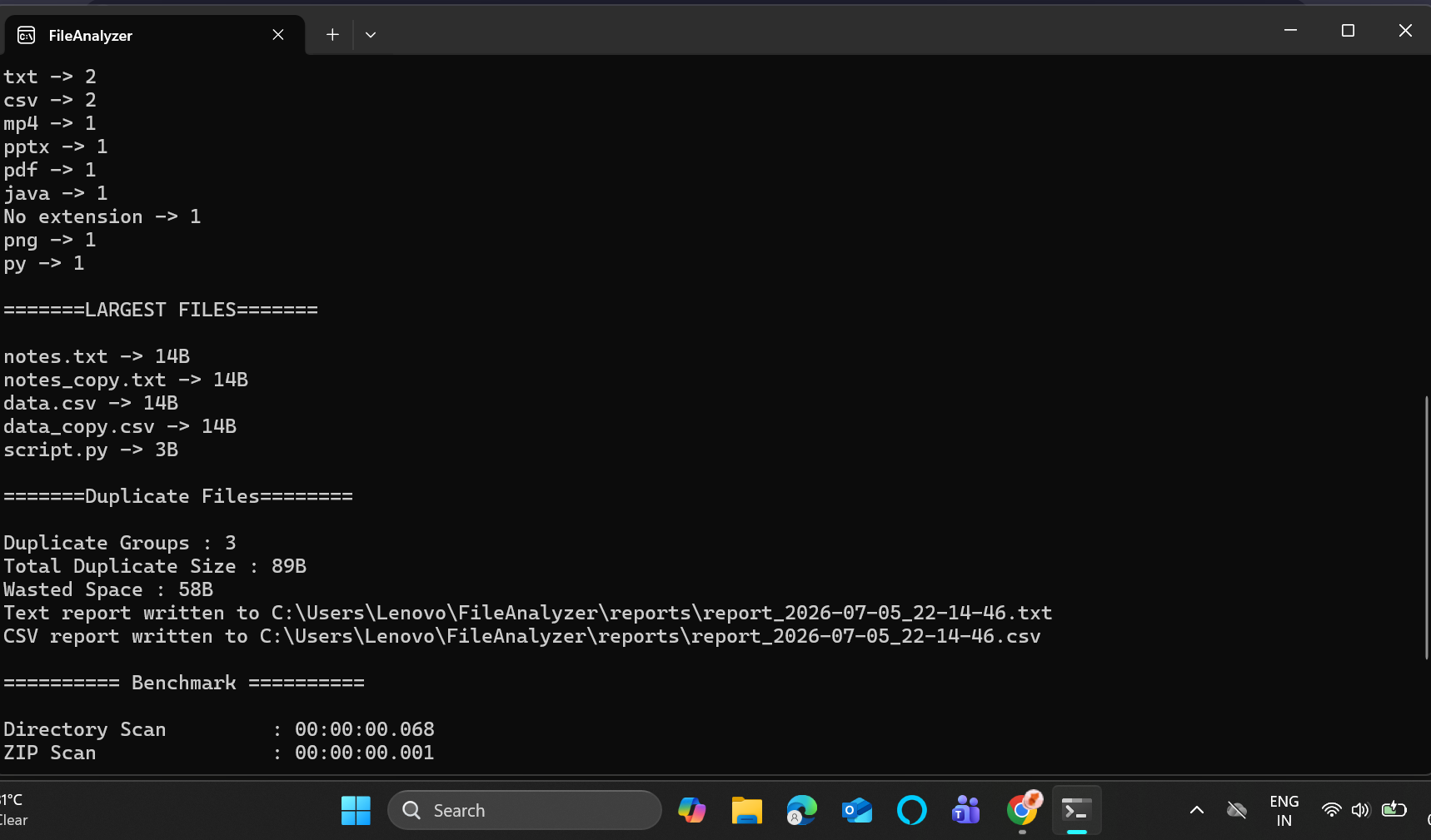
- Largest files: notes.txt, notes_copy.txt, data.csv, data_copy.csv (14B each)
- Duplicate Groups: 3, Wasted Space: 58B
- TXT and CSV reports written to
~/FileAnalyzer/reports/
Fast mode — runs extension, category, and largest-file analysis but skips duplicate detection since hashing files is the slowest part.
Example:
FileAnalyzer> C:\Users\Lenovo\OneDrive\Desktop\TestDir --quick
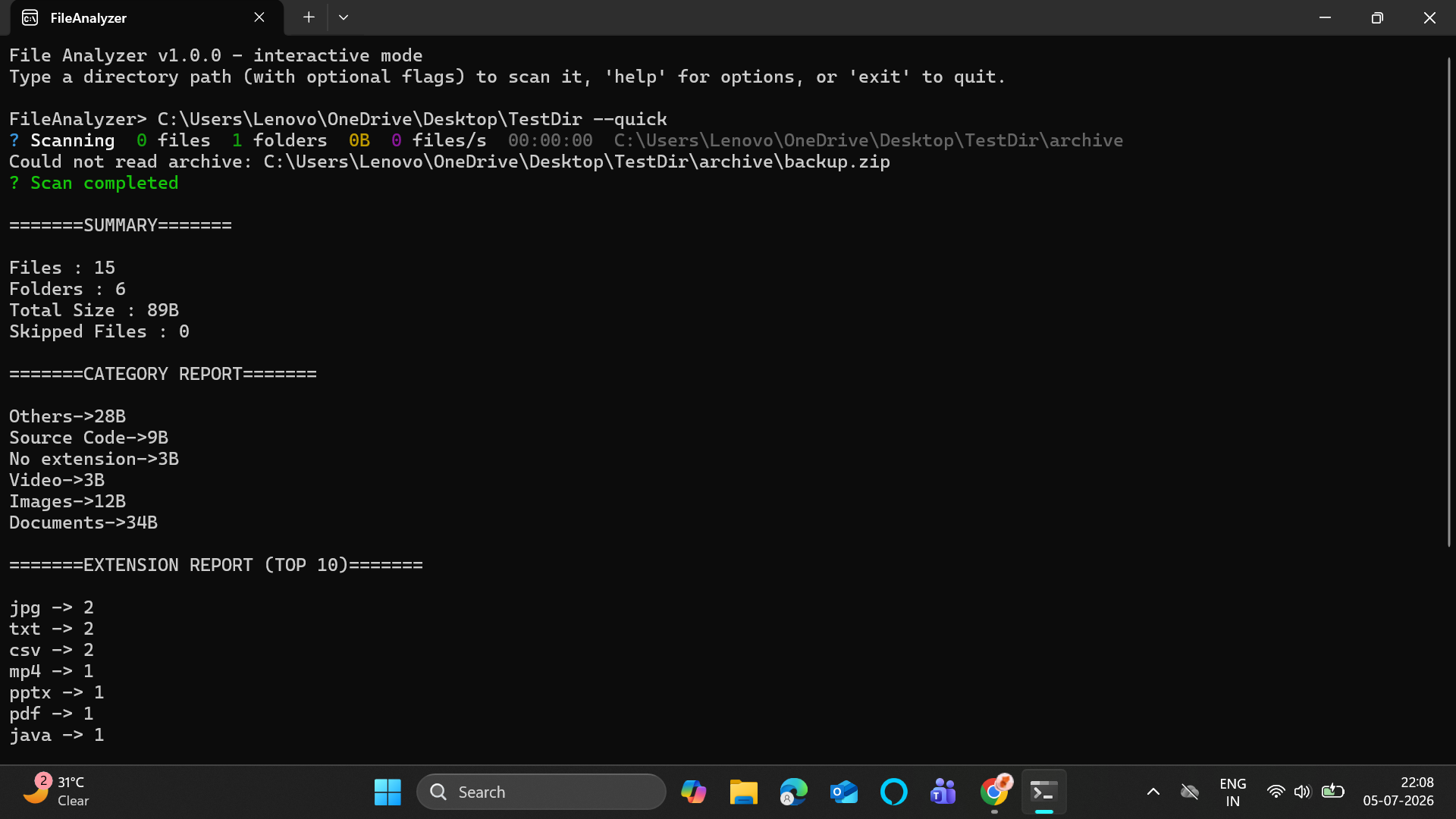
Difference from --full: No duplicate section in output. No report files
unless --txt or --csv is also passed.
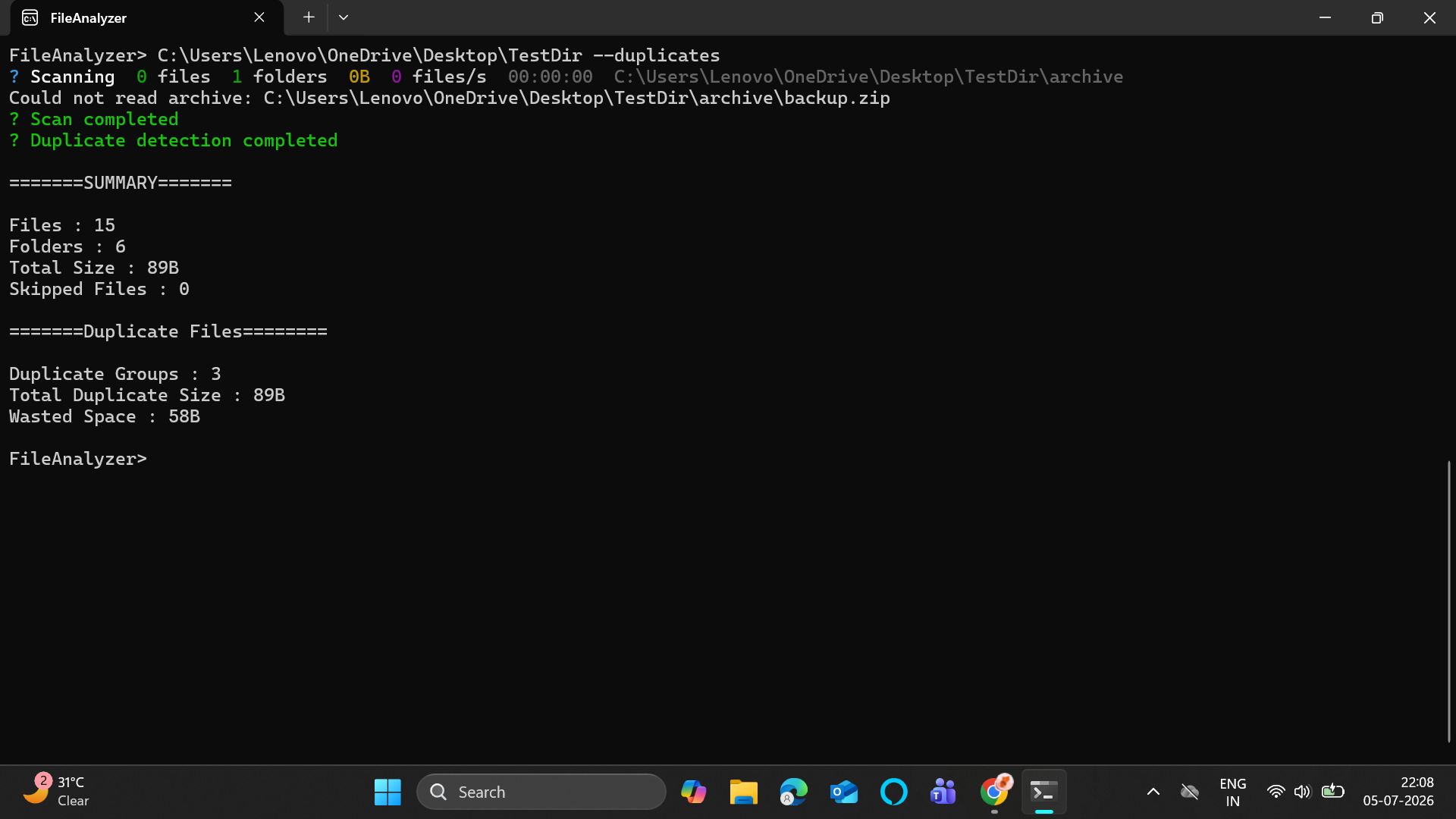
Runs only duplicate detection. Finds files with identical content using a three-tier algorithm (size → quick hash → full SHA-256).
Example (interactive shell):
FileAnalyzer> C:\Users\Lenovo\OneDrive\Desktop\TestDir --duplicates
Example (CMD one-shot):
FileAnalyzer C:\Users\Lenovo\OneDrive\Desktop\TestDir --duplicates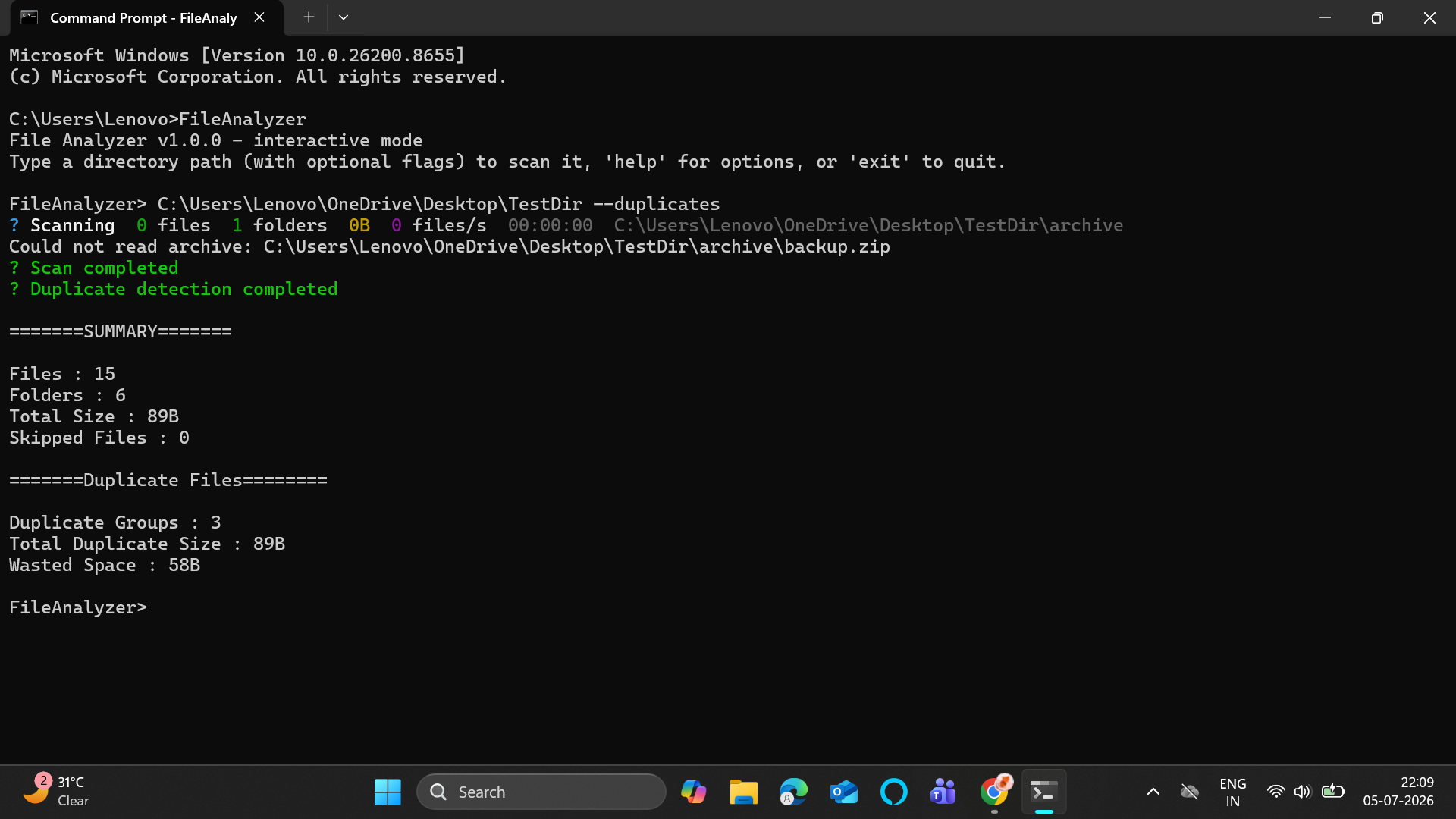
What to verify against TestDir:
- Duplicate Groups: 3 (photo1/photo2, notes/notes_copy, data/data_copy)
- Total Duplicate Size: 89B
- Wasted Space: 58B (the 3 extra copies)
Counts every file extension and shows the top 10 most common by default.
Example:
FileAnalyzer> C:\Users\Lenovo\OneDrive\Desktop\TestDir --extensions
Shows every extension found, not just the top 10. The header changes from
EXTENSION REPORT (TOP 10) to EXTENSION REPORT.
Example (CMD):
FileAnalyzer C:\Users\Lenovo\OneDrive\Desktop\TestDir --extensions --all-extensions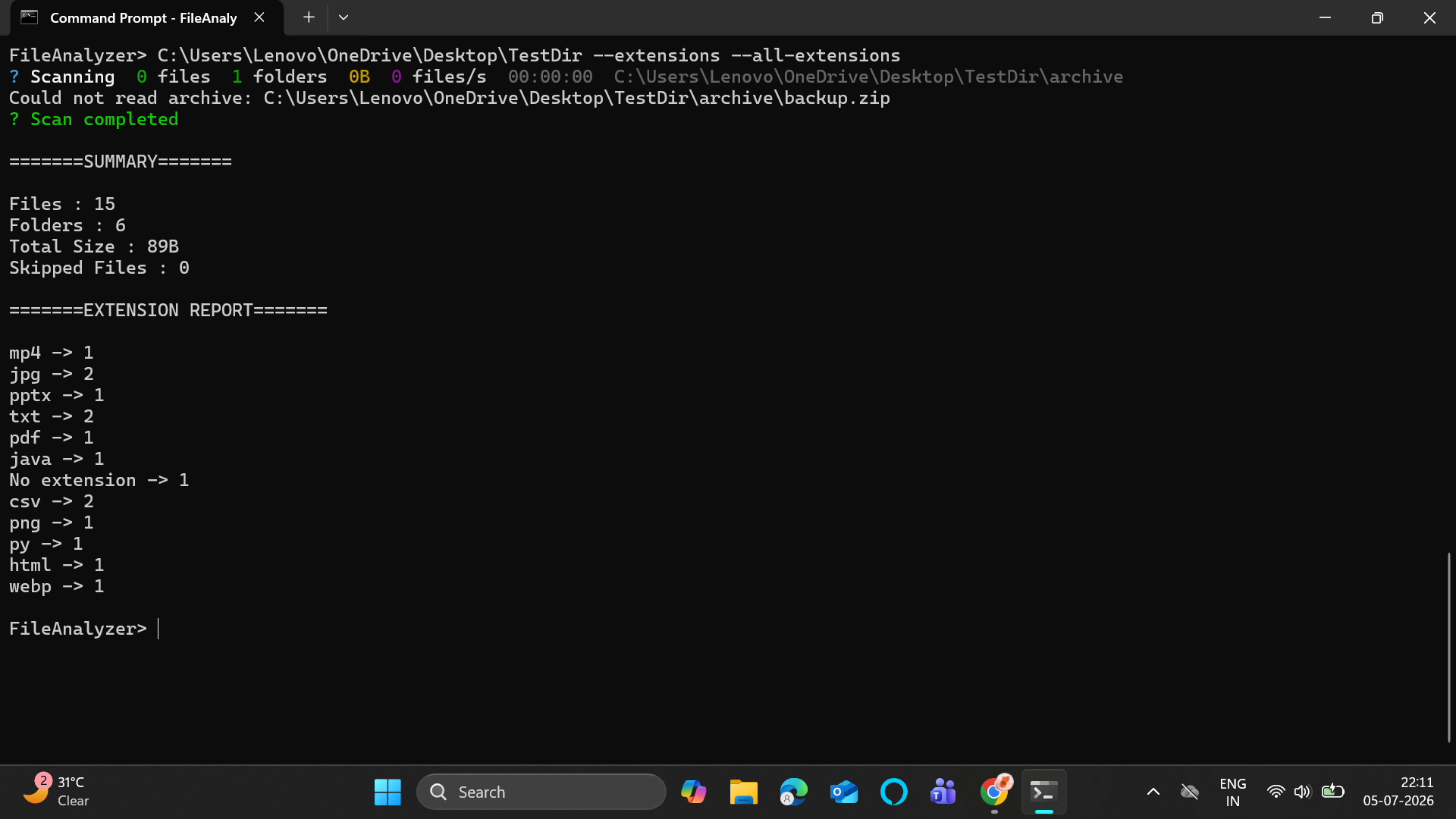
Example (interactive shell):
FileAnalyzer> C:\Users\Lenovo\OneDrive\Desktop\TestDir --extensions --all-extensions
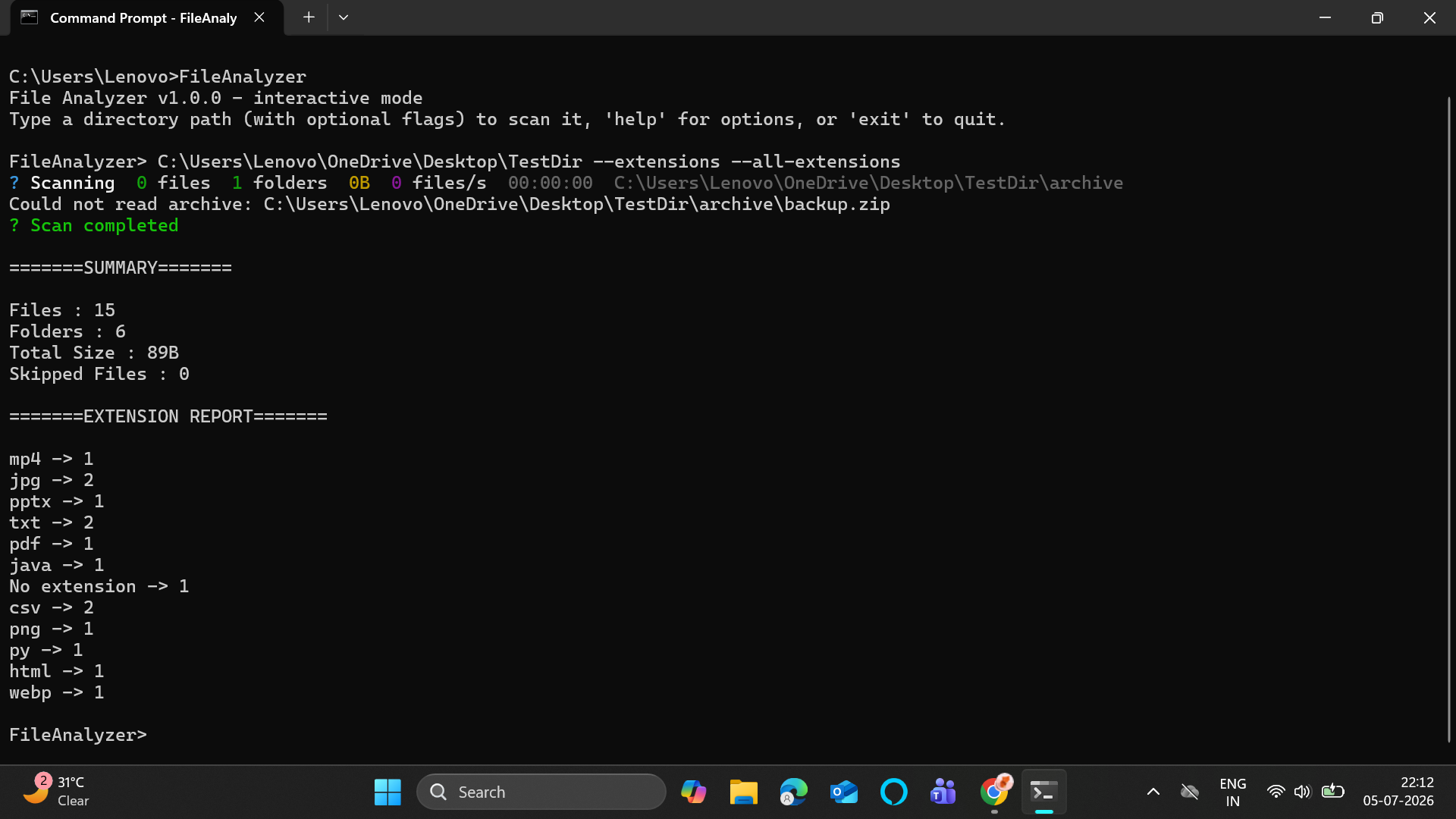
What to verify against TestDir: All 12 extensions appear: jpg, txt, csv, mp4, pptx, pdf, java, No extension, png, py, html, webp
Groups files into broad categories and shows total space used per category.
Example:
FileAnalyzer> C:\Users\Lenovo\OneDrive\Desktop\TestDir --categories
Finds the 5 largest files using a min-heap algorithm — fast even on huge directories.
Example:
FileAnalyzer> C:\Users\Lenovo\OneDrive\Desktop\TestDir --largest
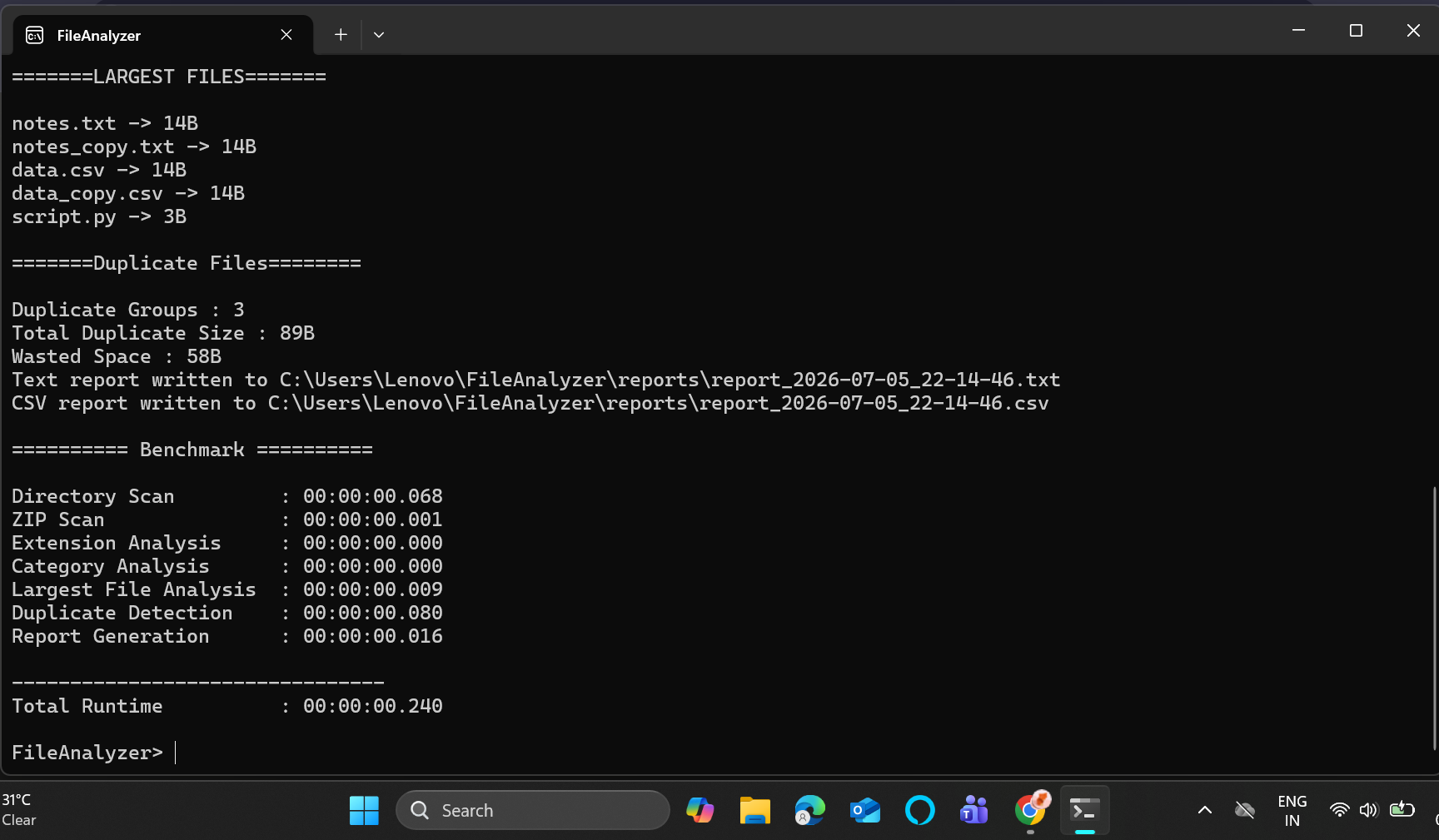
Prints a timing table after the scan showing how long each stage took.
Example:
FileAnalyzer> C:\Users\Lenovo\OneDrive\Desktop\TestDir --full --benchmark
Write report files to disk. --txt includes the full path of every duplicate file.
--csv contains category and extension data for spreadsheet use.
Reports are saved to ~/FileAnalyzer/reports/ by default with a timestamp in the filename.
Changes where report files are saved. Directory is created automatically if it doesn't exist.
Example:
FileAnalyzer> C:\Users\Lenovo\OneDrive\Desktop\TestDir --full --output C:\MyReports
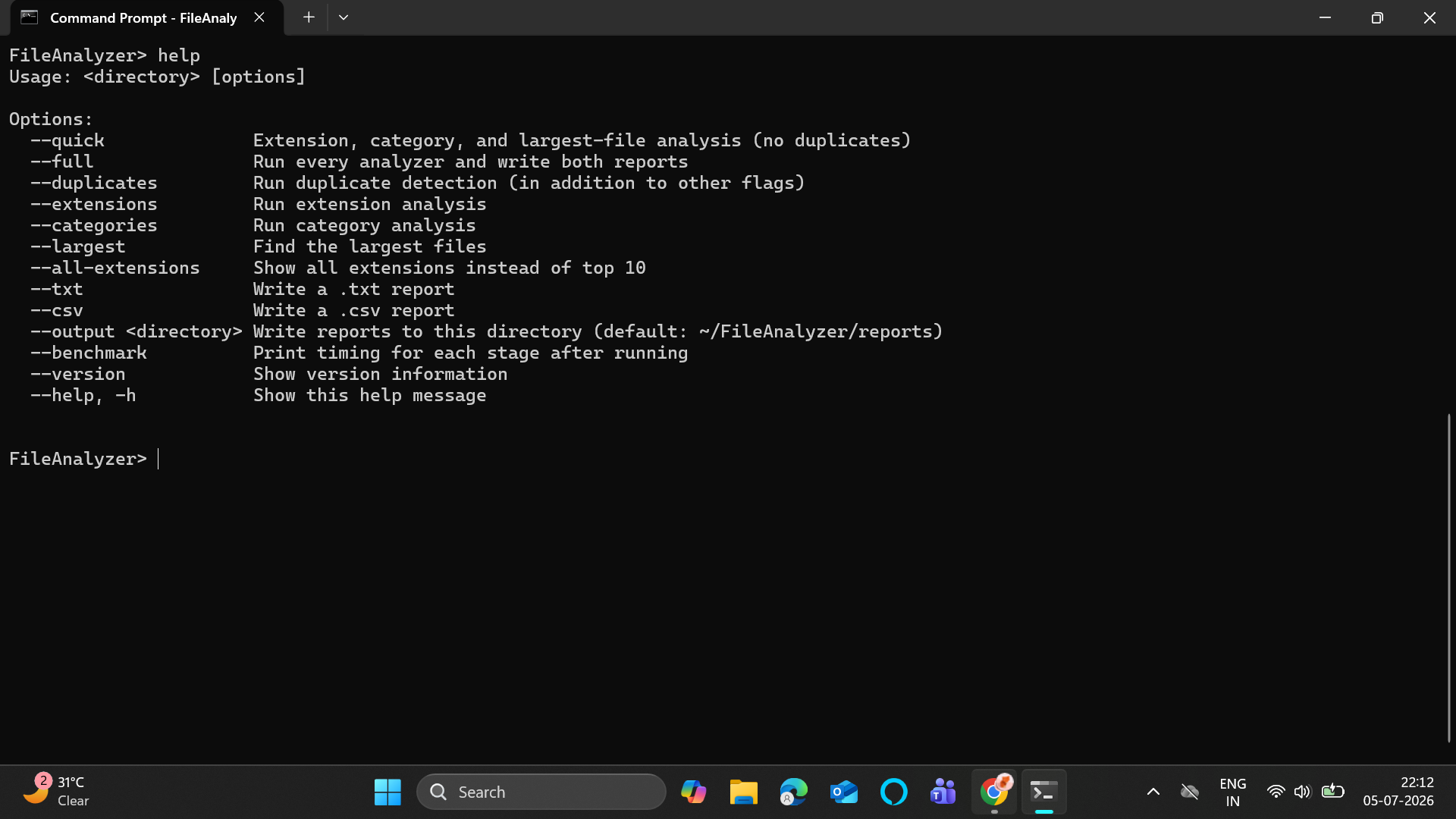
Prints the full usage guide with every available flag and description.
Prints app name, version, Java version, and author. Exits immediately.
Flags stack on top of each other — each one adds to what's enabled.
FileAnalyzer> C:\Users\Lenovo\OneDrive\Desktop\TestDir --categories --extensions --largest --benchmark
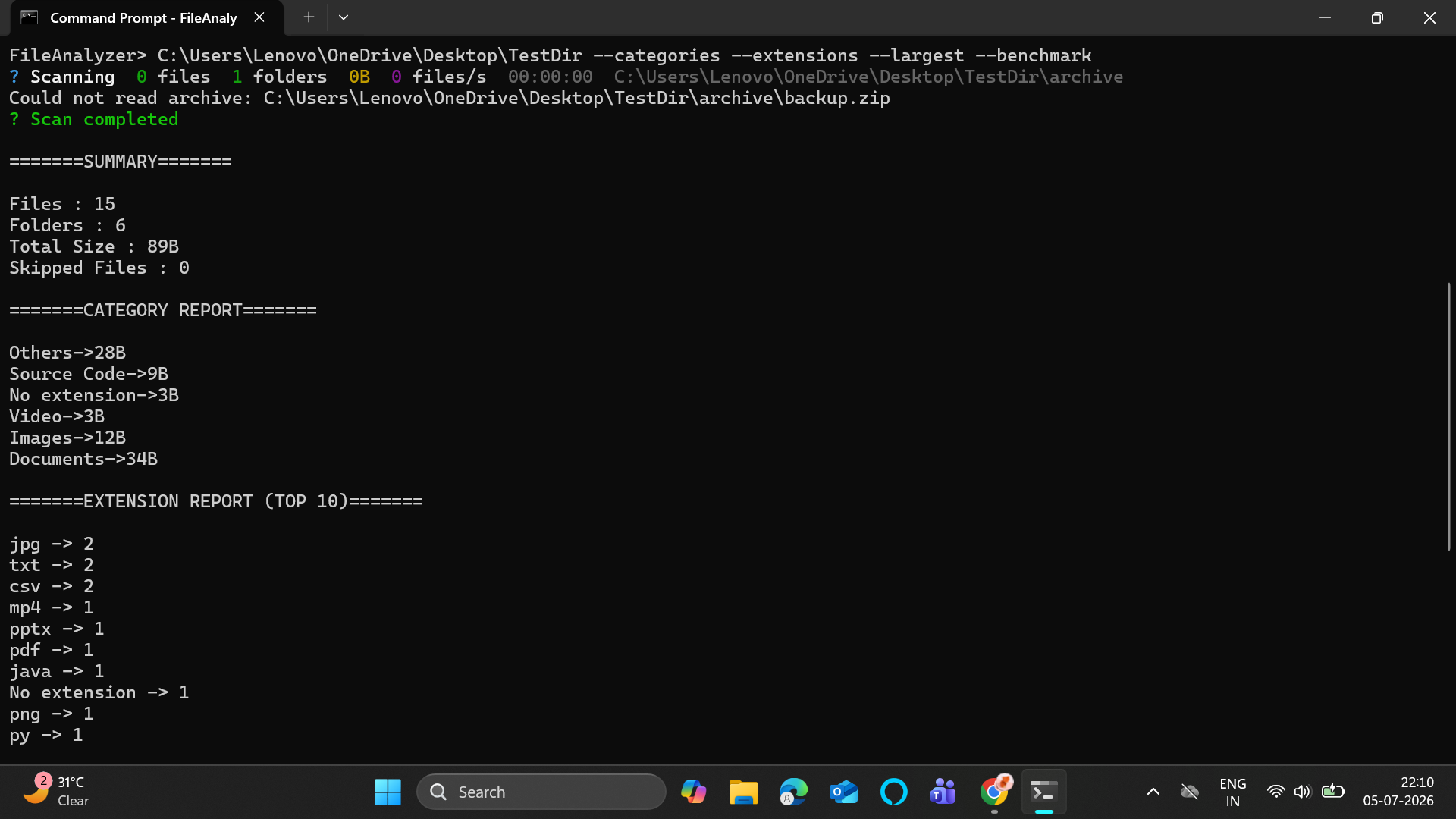
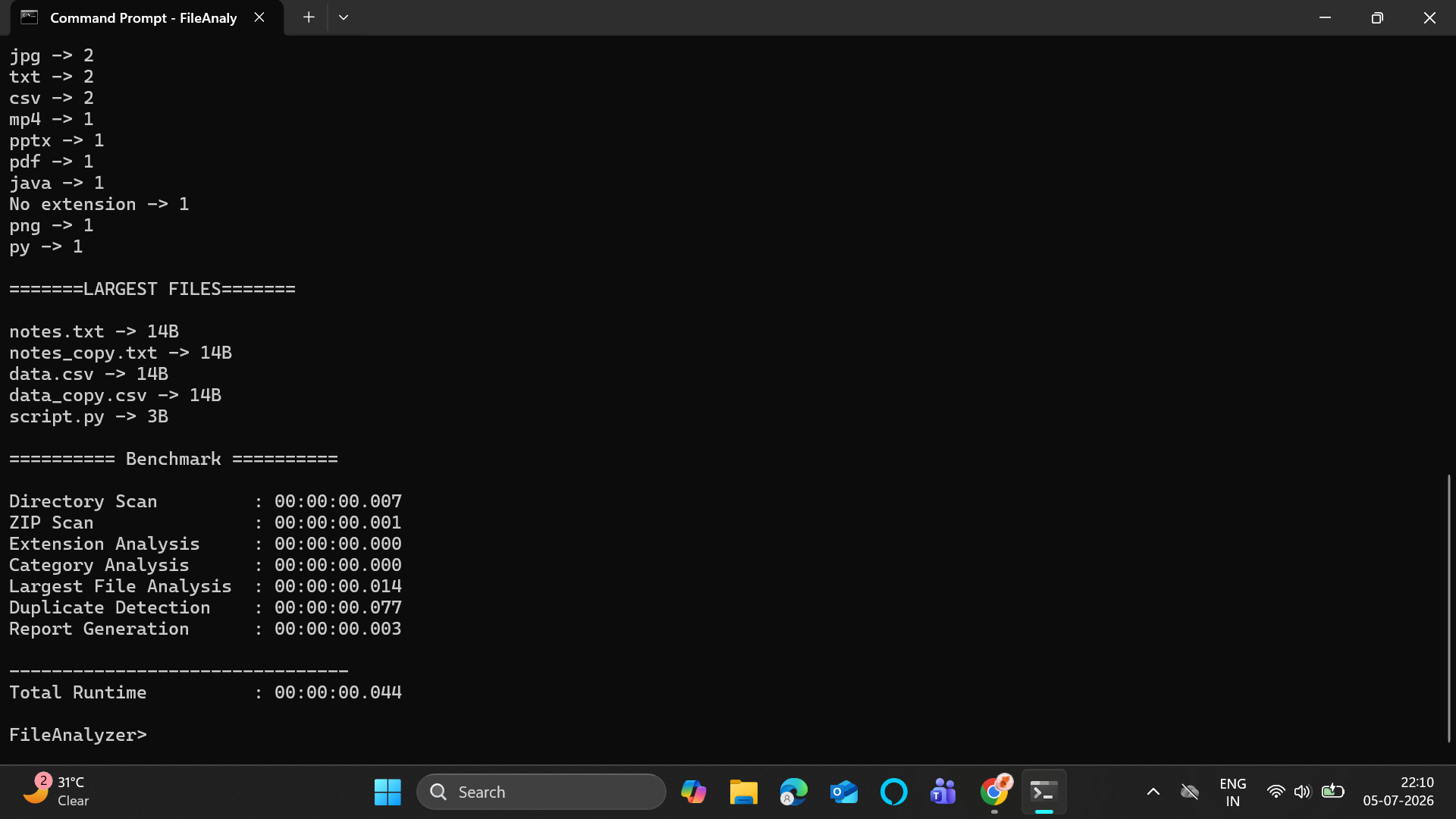
Runs three analyzers simultaneously (in parallel), skips duplicate detection,
and prints a benchmark table showing how long each stage took. No report files
written since neither --txt nor --csv was passed.
FileAnalyzer> C:\Users\Lenovo\OneDrive\Desktop\TestDir --full --benchmark
Runs everything, writes both report files, and prints the full timing table. The most complete scan possible in one command.
FileAnalyzer> C:\Users\Lenovo\OneDrive\Desktop\TestDir --duplicates --txt
Runs only duplicate detection and writes a TXT report with full file paths of every duplicate. The most useful combination for actually finding and cleaning up duplicate files.
Some flag combinations are explicitly rejected. The shell prints the error and loops back to the prompt — it never closes.
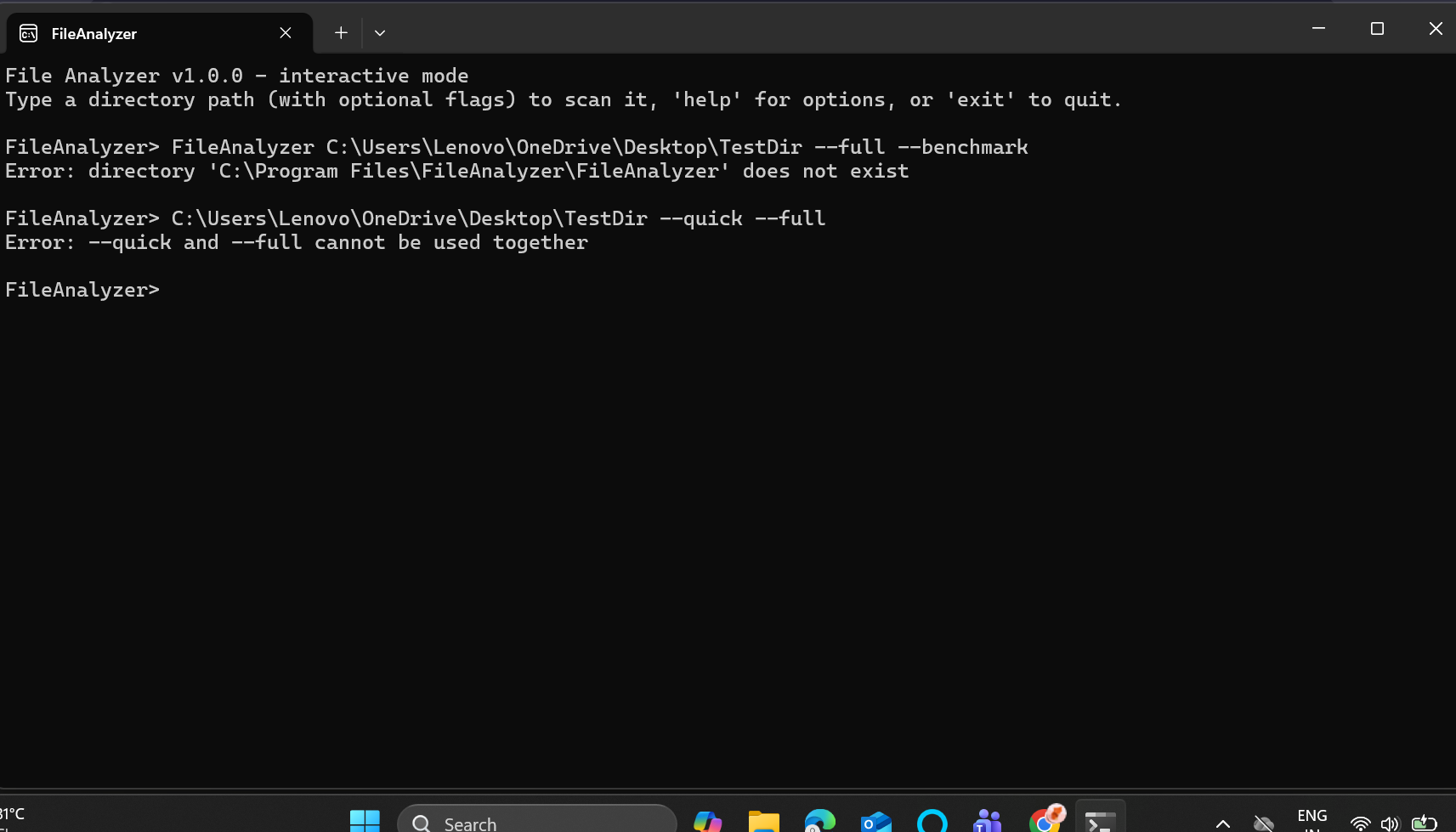
--quick + --full: Rejected because they're opposites.
--quick skips duplicates, --full runs them — using both is ambiguous.
Unknown flag --badFlag: Rejected with the full help text shown.
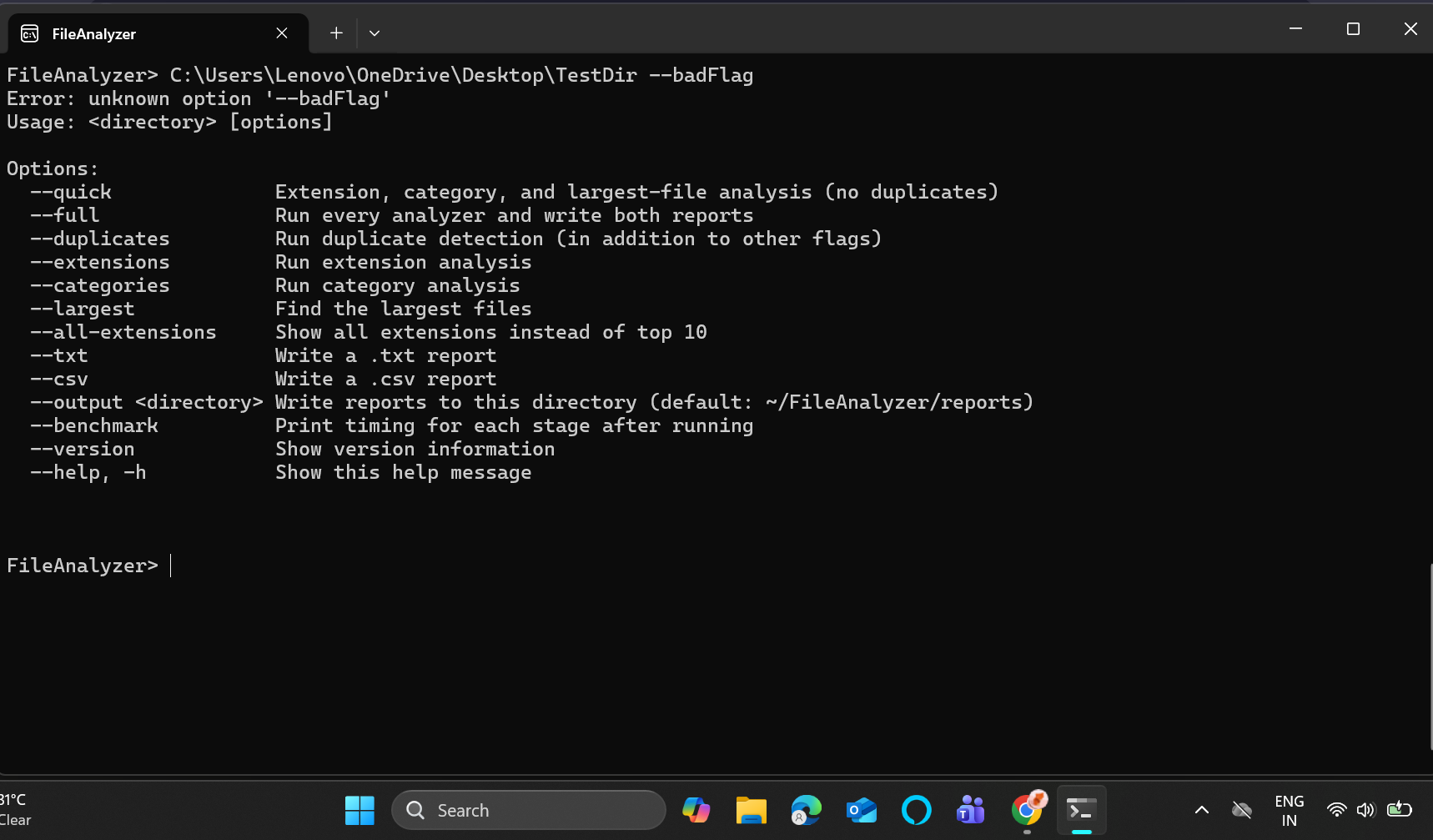
| Combination | Error message |
|---|---|
--quick + --full |
--quick and --full cannot be used together |
--quick + --duplicates |
--quick disables duplicate detection, so it conflicts with --duplicates |
This section traces exactly what happens from the moment you type a command to the moment results appear on screen.
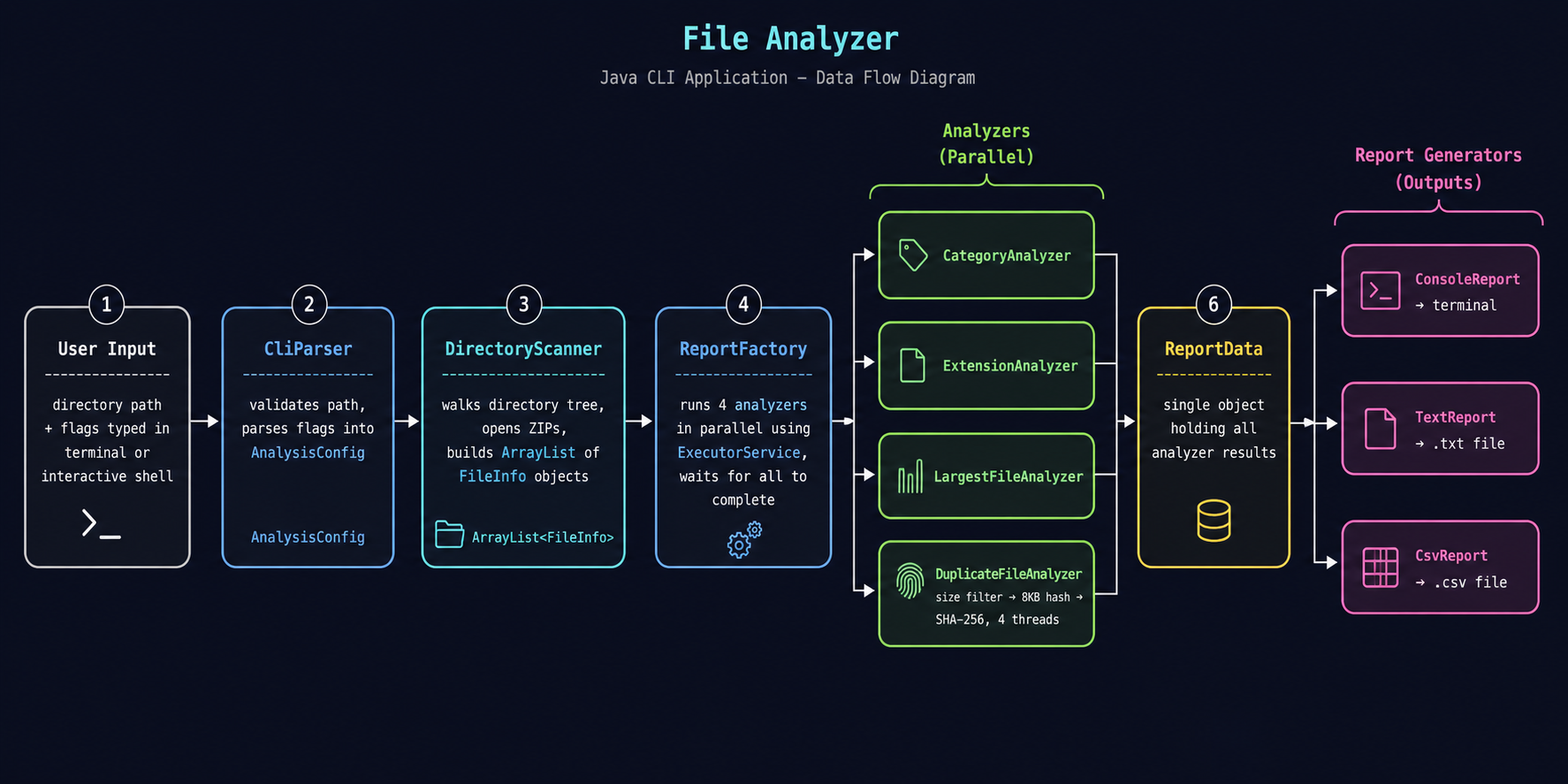
Main.main() checks if any arguments were provided.
- No arguments →
InteractiveShell.run()opens the persistent prompt. - Arguments present →
CliParser.parsePath()andCliParser.parseConfig()are called, thenAnalysisRunner.run().
parsePath() validates the directory:
- Resolves relative paths to absolute.
- Checks existence, is-directory, and is-readable.
- Returns a
Fileobject or exits with an error.
parseConfig() reads all flags:
- Extracts
--outputand its value separately (it takes a parameter). - Converts remaining flags to a
Setfor O(1) lookup. - Validates against
KNOWN_FLAGS. - Checks for conflicting combinations.
- Builds and returns an
AnalysisConfigwith all boolean flags set.
scanner.scan(root) walks the entire directory tree:
- Uses a
Stackto avoid recursion. - For each file: extracts name, path, size, extension → wraps in
FileInfo. - For each ZIP: calls
ZipScanner.scan()→ adds each archive entry as aFileInfo. - Unreadable files/folders: counted as skipped, added to
skippedPaths. - After every item:
ProgressReporter.update()redraws the live progress line. - After finishing: records
Directory ScanandZIP Scandurations inBenchmarkManager.
ReportFactory.create() receives the file list and config:
- Creates a 4-thread
ExecutorService. - Submits each enabled analyzer as a
BenchmarkManager.time()wrapped task. - Calls
future.get()on each to wait for completion. - Shuts down the executor.
- Collects results from each analyzer into a
ReportDataobject. - Sets
outputDirectory,reportTimestamp, andallExtensionsonReportData.
Back in AnalysisRunner.run(), wrapped in BenchmarkManager.time("Report Generation"):
ConsoleReport.generateReport(data)always runs — prints to terminal.TextReport.generateReport(data)runs ifconfig.isTxtReport().CsvReport.generateReport(data)runs ifconfig.isCsvReport().
If config.isBenchmark(), BenchmarkManager.print() is called with the total
elapsed time. It prints the timing table in DISPLAY_ORDER sequence, skipping
any stage that wasn't recorded (i.e. wasn't run).
If running in interactive mode, after Step 6 the shell prints a blank line and
loops back to Step 2 — ready for the next command. This continues until the user
types exit or quit.
Algorithm: Single pass, O(N).
For each file, calls FileCategory.getFileCategory(extension) which does a Set
lookup against six predefined extension sets. The result (e.g. "Images") is used
as the map key and the file's size is added to that key's running total.
File list → [for each file] → getFileCategory(ext) → categorySize.put(category, total + size)
Result: HashMap<String, Long> — category name → total bytes.
Algorithm: Single pass, O(N) + O(K log K) for top-10 sort where K = unique extensions.
First pass counts every extension into a HashMap. The getTopTenExtension() method
then streams the map entries, sorts by value descending, limits to 10, and collects
into a List<Map.Entry>. The list preserves sort order (a HashMap wouldn't).
File list → [for each file] → extensionCount.put(ext, count + 1)
getTopTenExtension() → stream → sort by count desc → limit 10 → List
Result: HashMap<String, Integer> (full) + List<Map.Entry<String, Integer>> (top 10).
Algorithm: Two passes — O(N) for largest single file, O(N log 5) ≈ O(N) for top 5.
Single largest: Simple linear scan keeping track of the current maximum.
Top 5 — min-heap approach:
A PriorityQueue ordered smallest-first keeps at most 5 entries at a time.
For each file: add it, then if size exceeds 5, remove the smallest (poll).
After processing all files, the heap contains exactly the 5 largest.
Drain into a list and reverse for largest-first order.
Why not just sort? Sorting all N files costs O(N log N). The heap approach costs O(N log 5) which is effectively O(N) — significantly faster on large directories.
[for each file]
  heap.offer(file)
  if heap.size() > 5: heap.poll()   ← removes the smallest
drain heap → reverse → topFiles
Algorithm: Three-tier funnel + parallel hashing.
Group all files by exact byte size. Any group with only one file is immediately discarded — two files must be the same size to possibly be duplicates. This eliminates the vast majority of files from consideration with zero I/O cost.
Before hashing, each candidate is checked:
isFromArchive()→ skip (can't open files inside ZIPs)isHidden()→ skipHashExclusion.isExcluded()→ skip (system directories)
computeHashes() is called with HashUtil.getQuickHash as the hash function.
A 4-thread ExecutorService hashes each candidate file's first 8KB concurrently.
An AtomicLong tracks progress safely across threads for the progress bar.
Results are grouped by (size, quickHash). Only groups with 2+ members proceed.
computeHashes() is called again with HashUtil.getSHA256.
Only the survivors of the quick-hash filter are processed here.
Same parallel infrastructure — 4 threads, AtomicLong for progress.
Results grouped by full hash. Groups with 2+ members are confirmed duplicates.
For each confirmed duplicate group:
duplicateSize += fileSize × groupSize(total space all copies occupy)wastedSpace += fileSize × (groupSize - 1)(space freed by keeping one copy)
Always generated. Designed for quick human reading in the terminal. Duplicate file paths are intentionally omitted to avoid flooding the terminal — they appear in the TXT report only.
Written to ~/FileAnalyzer/reports/report_TIMESTAMP.txt.
Contains everything the console shows, plus the full path of every file in every duplicate group. This is the format to use when you actually want to find and delete duplicates.
Written to ~/FileAnalyzer/reports/report_TIMESTAMP.csv.
Contains two tables: category sizes and extension counts. Designed to be opened in Excel or Google Sheets for further analysis or charting.
This section honestly documents where the app falls short or produces unexpected results.
Only .zip files are opened and their contents included in the analysis.
.rar, .7z, .tar, .gz and other formats are treated as single opaque files.
Why: Java's standard library only supports ZIP natively. No external libraries are used.
Workaround: Extract archives manually before scanning.
ZIP files created with echo. > backup.zip are not real ZIP archives — they're
empty files with a .zip extension. ZipScanner attempts to open them, fails,
and prints a "Could not read archive" message. This is visible in the TestDir
screenshots above since backup.zip was created as an empty placeholder.
Similarly, Windows Recycle Bin stores deleted files with names like .zip
that retain a .zip extension but aren't real ZIP files.
Why: There's no reliable way to distinguish a real ZIP from an empty/fake one by extension alone.
Workaround: Use real ZIP files in test directories, or avoid scanning the Recycle Bin directly.
If a file is deleted or moved between the scanning phase and the hashing phase,
HashUtil returns null for that file. The file is silently skipped from
duplicate detection.
Impact: At most, a duplicate pair might go undetected. The rest of the scan is unaffected.
Two different files could share the same first 8KB but differ later. Both pass the quick hash filter and proceed to full SHA-256 hashing, where they're correctly found to be different. The quick hash is a pre-filter only — it never causes false duplicate reports.
The progress bar and completion messages use ANSI escape codes. These display correctly in Windows Terminal but appear as raw characters in the classic Windows Command Prompt without UTF-8 enabled. The spinner uses Braille Unicode characters that require UTF-8.
Fix: Run chcp 65001 before launching, or use Windows Terminal.
The .exe installer is Windows-only. The app is pure Java and runs on any
platform, but the jpackage installer targets Windows specifically.
Workaround for macOS/Linux:
java -jar FileAnalyzer.jar /path/to/directory --quickScanning C:\ includes Windows\ and Program Files\ which contain thousands
of same-sized system files. These are excluded from hashing via HashExclusion
but still go through the size filter, adding time.
Workaround: Scan specific user directories rather than entire drives.
All FileInfo objects are kept in memory for the entire analysis duration.
On a directory with millions of files this can add up significantly.
Approximate impact: 1 million files ≈ 200–400MB of heap depending on path lengths.
Workaround: Increase JVM heap when running from the jar:
java -Xmx1g -jar FileAnalyzer.jar C:\ --quickThis section shows the app running on real directories — not the controlled TestDir — to demonstrate actual behavior, scale, and limitations.
Windows stores deleted files in $Recycle.Bin using internal names that sometimes
retain a .zip extension (e.g. $IG46KSY.zip, $I5U0EGV.zip). These aren't real
ZIP archives — they're deleted-file placeholders. ZipScanner attempts to open each
one, fails, and prints "Could not read archive" for every fake ZIP it encounters.
FileAnalyzer C:\$Recycle.Bin --quick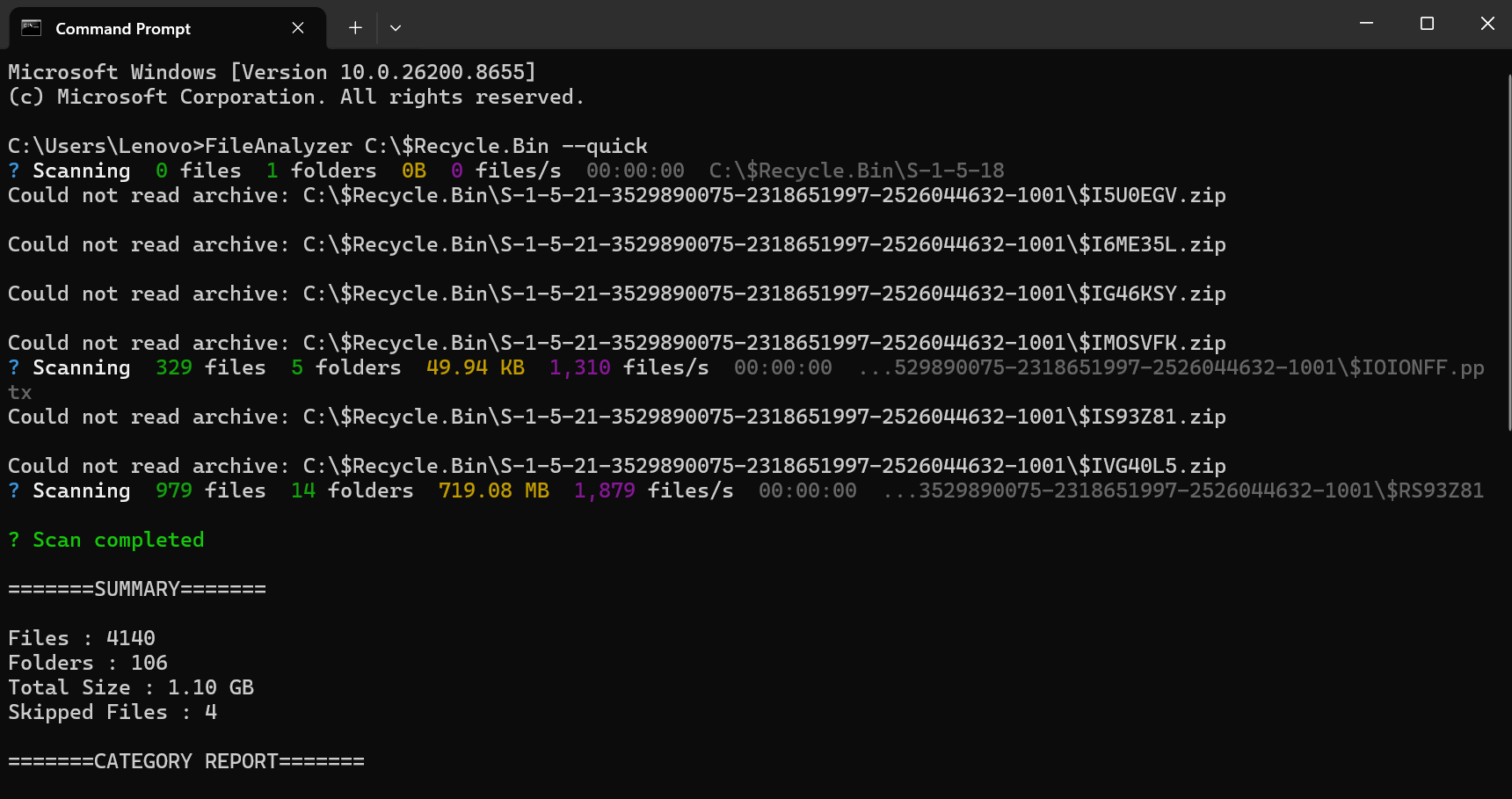
What you see: Multiple "Could not read archive" messages during scanning, one per fake ZIP in the Recycle Bin. The scan still completes successfully — the noise is annoying but not harmful.
Why it happens: There's no reliable way to distinguish a real ZIP from a Recycle
Bin placeholder by extension alone. The only fix is to exclude $Recycle.Bin from
scanning entirely — currently it's not in the exclusion list.
System directories actively deny read access to many files and folders. Scanning
C:\Windows demonstrates how the app handles this gracefully.
FileAnalyzer C:\Windows --quick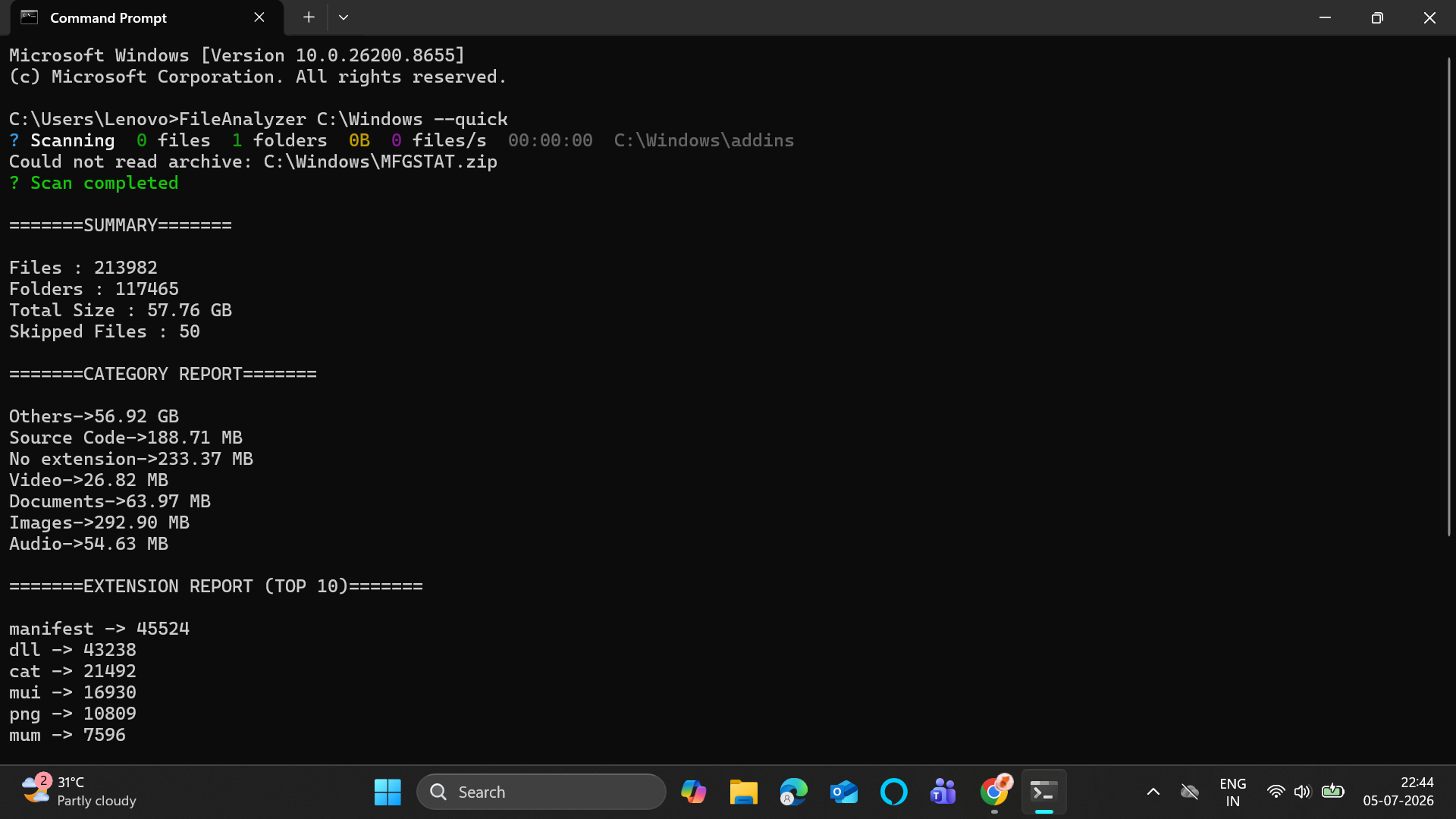
What you see: 213,982 files across 117,465 folders, 57.76 GB total — but 50 files skipped due to permission restrictions. The scan never crashes or stops — unreadable items are counted and skipped, everything else is analyzed normally.
Notable: The top extensions are manifest, dll, cat, mui — entirely
Windows system file types. This confirms the app correctly identifies and categorizes
system file formats it has never been explicitly told about, simply by their extension.
Scanning a real user folder with duplicate detection shows both the hashing progress bar in action and the scale of real-world duplicate detection.
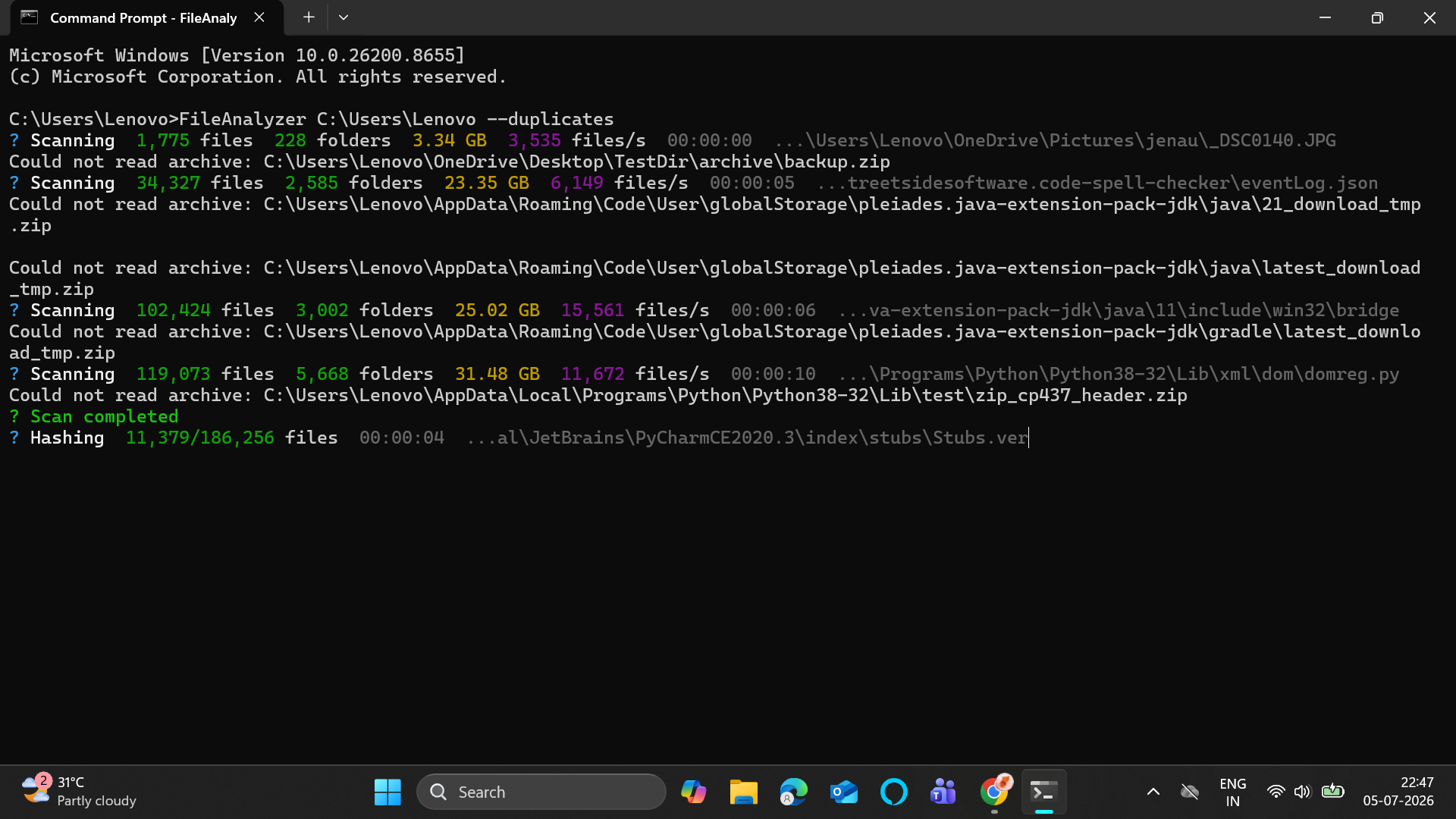
FileAnalyzer C:\Users\Lenovo --duplicatesHashing progress — early stage (4 minutes in):
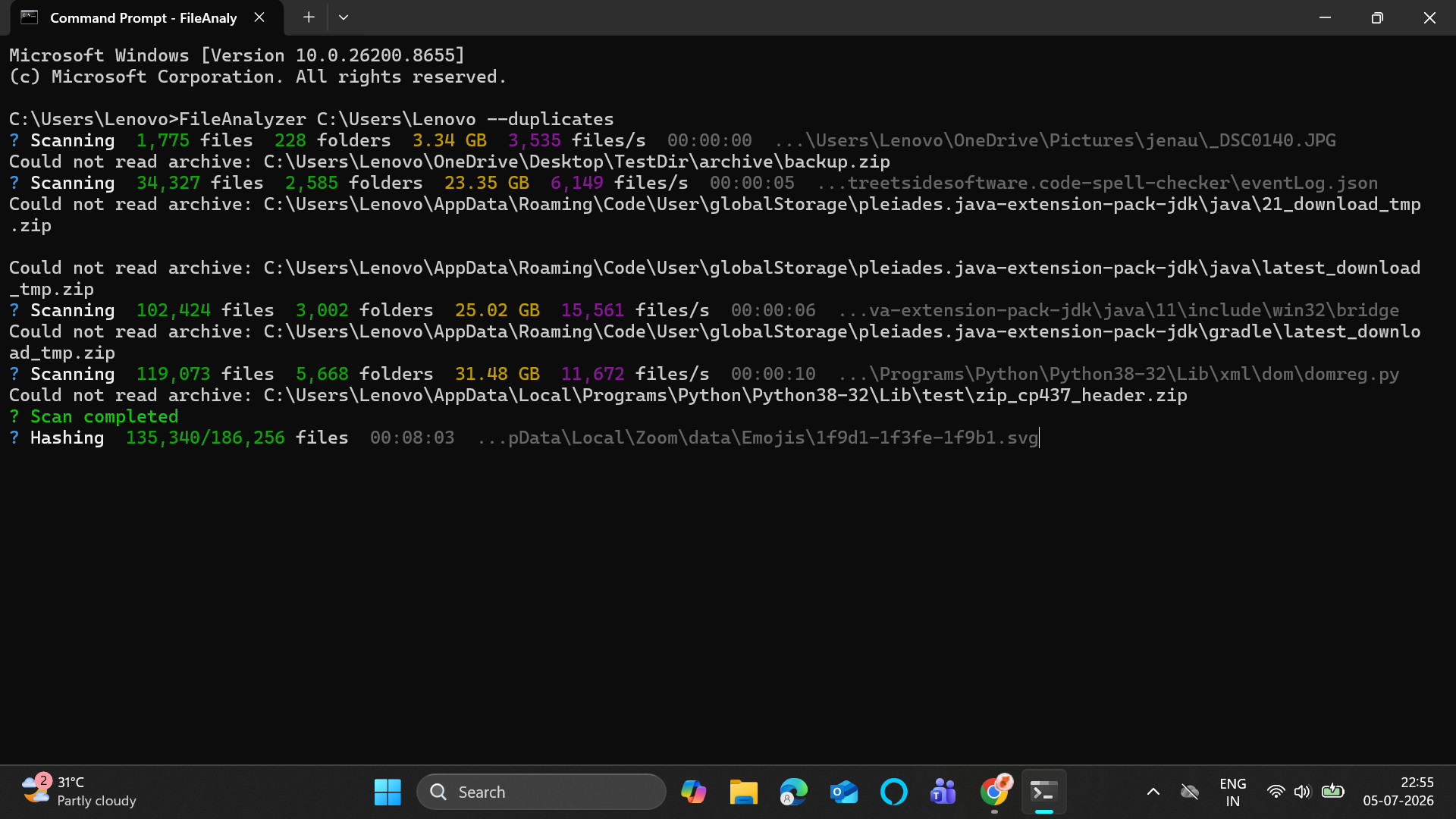
Hashing progress — mid stage (8 minutes in):
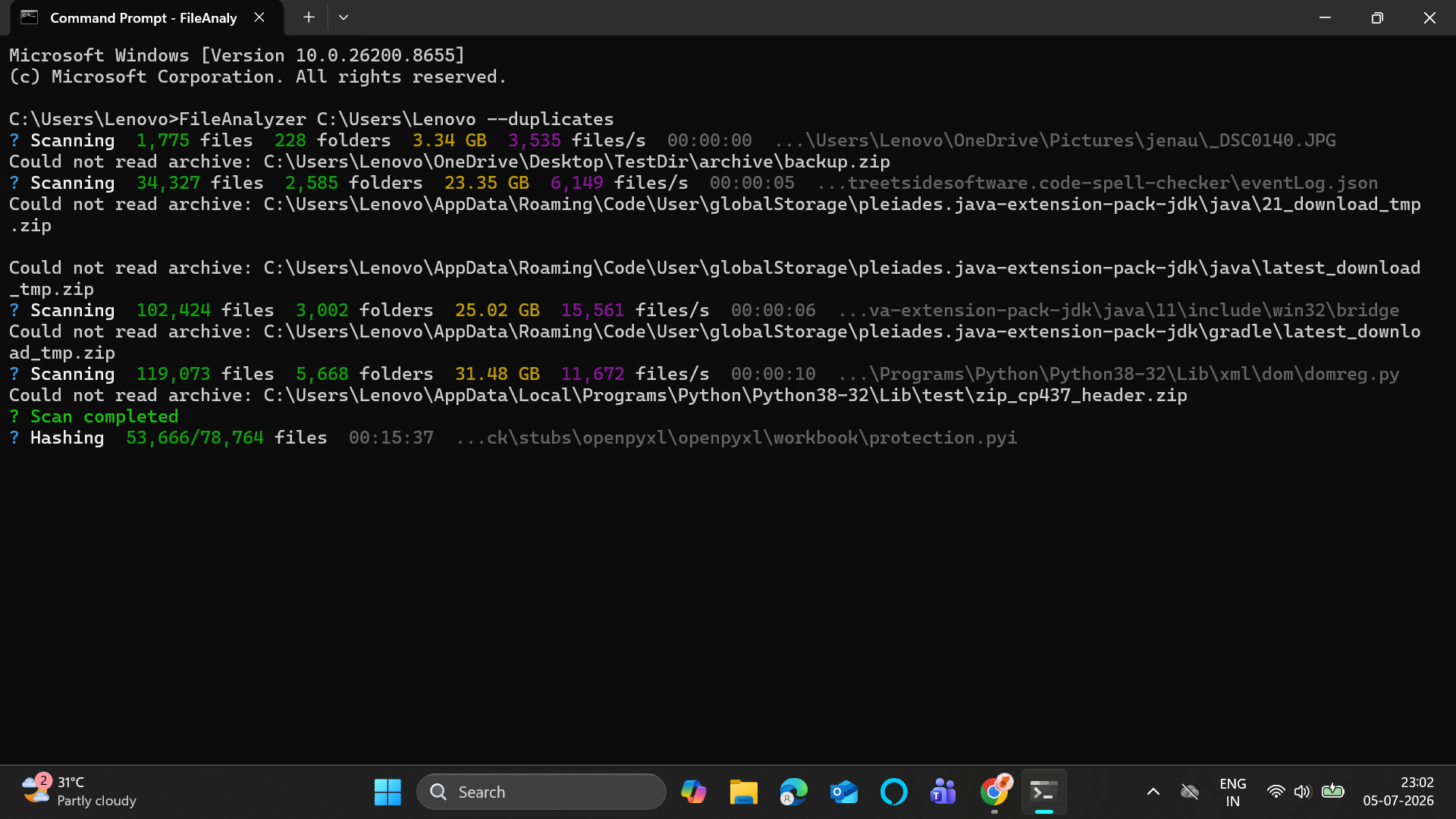
Hashing progress — late stage (15 minutes in):
Final result:
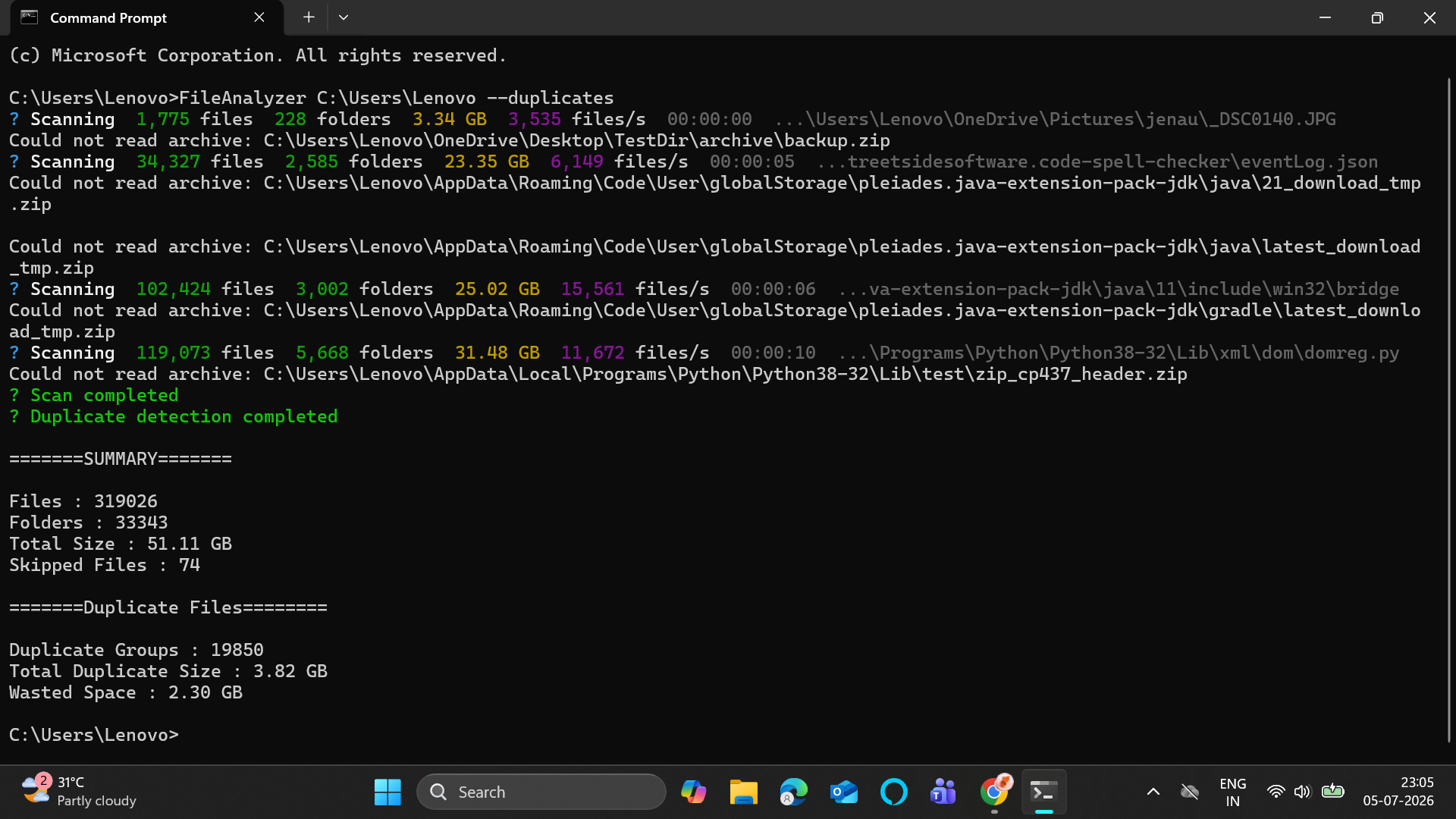
Results: 319,026 files scanned across 33,343 folders (51.11 GB total). 19,850 duplicate groups found — 2.30 GB of wasted space that could be freed.
Why it takes so long:
C:\Users\Lenovocontains AppData, JDK installations, Python environments, IDE caches, and OneDrive — all with thousands of same-sized files that pass the size filter and become hashing candidates (186,256 candidates in this scan)- OneDrive adds read overhead as files may trigger cloud sync checks during hashing
- Windows Defender scans files as they're opened — rapid parallel hashing triggers Defender on every file, adding significant overhead
- Thermal throttling: 4 parallel hashing threads sustained over 10-15 minutes pushes the CPU hard. On less powerful laptops the processor heats up, thermal throttling kicks in, and hashing slows down further — creating a feedback loop where a hot machine takes significantly longer than a cool one. This is why the same scan can take 3 minutes on a cool machine and 10+ minutes after the CPU is already warm from a previous scan.
Workaround for less powerful machines: Reduce THREAD_COUNT from 4 to 2 in
DuplicateFileAnalyzer.java. This halves CPU load at the cost of roughly doubling
hash time — but avoids thermal throttling on weaker hardware, which often makes
it faster overall on those machines.
The same directory with --quick skips duplicate detection entirely and completes
in seconds instead of minutes.
FileAnalyzer C:\Users\Lenovo --quick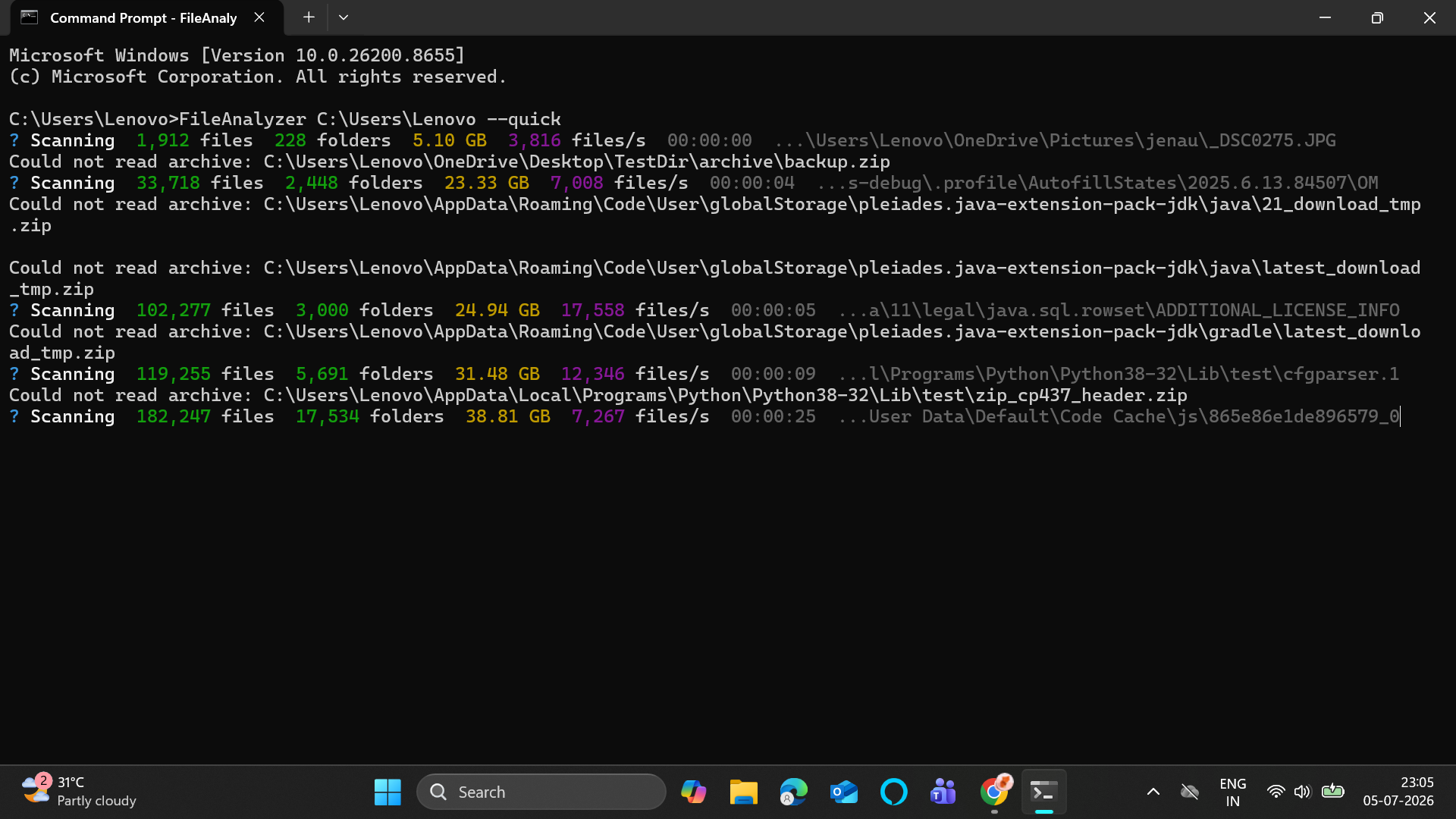
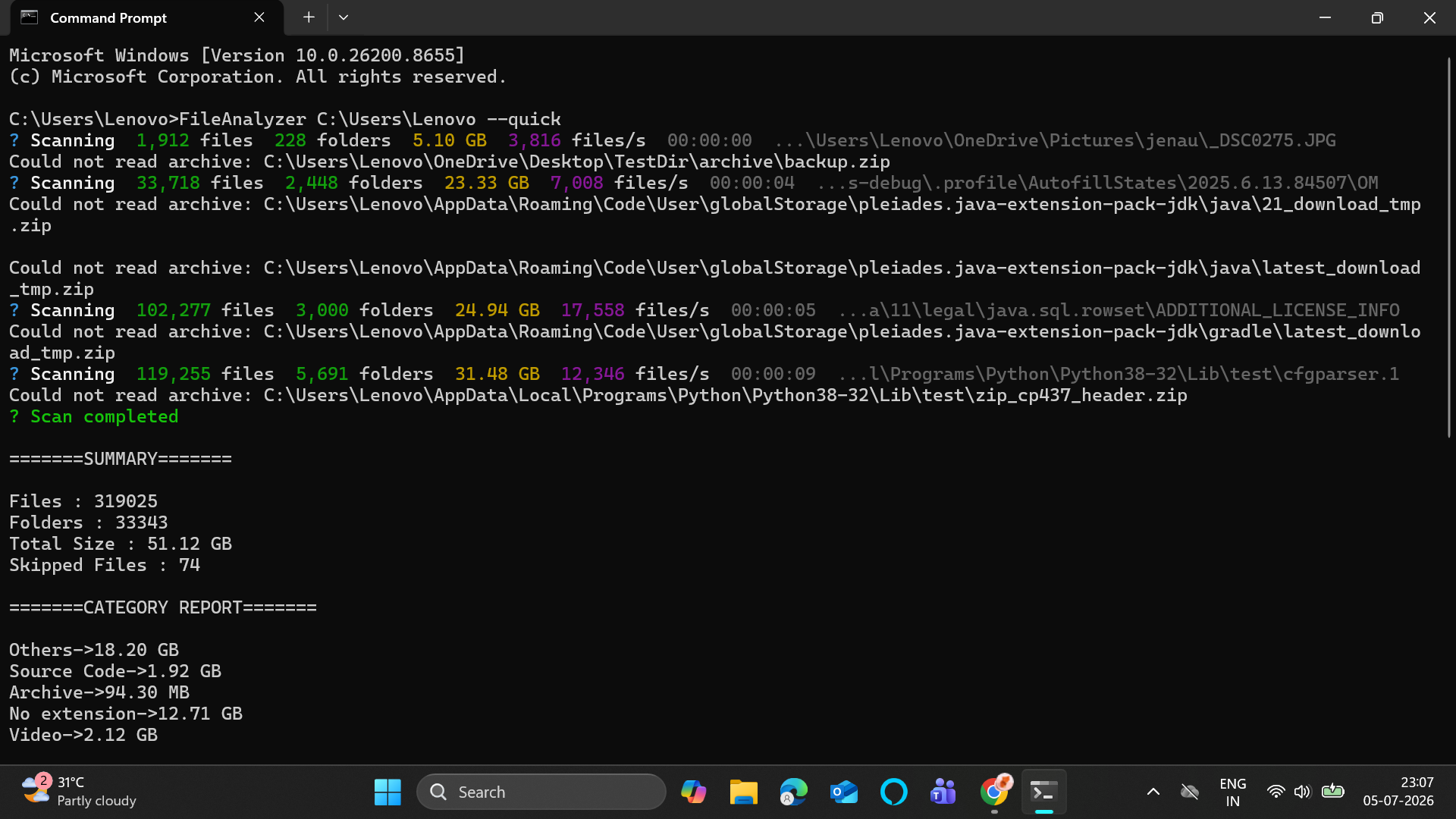
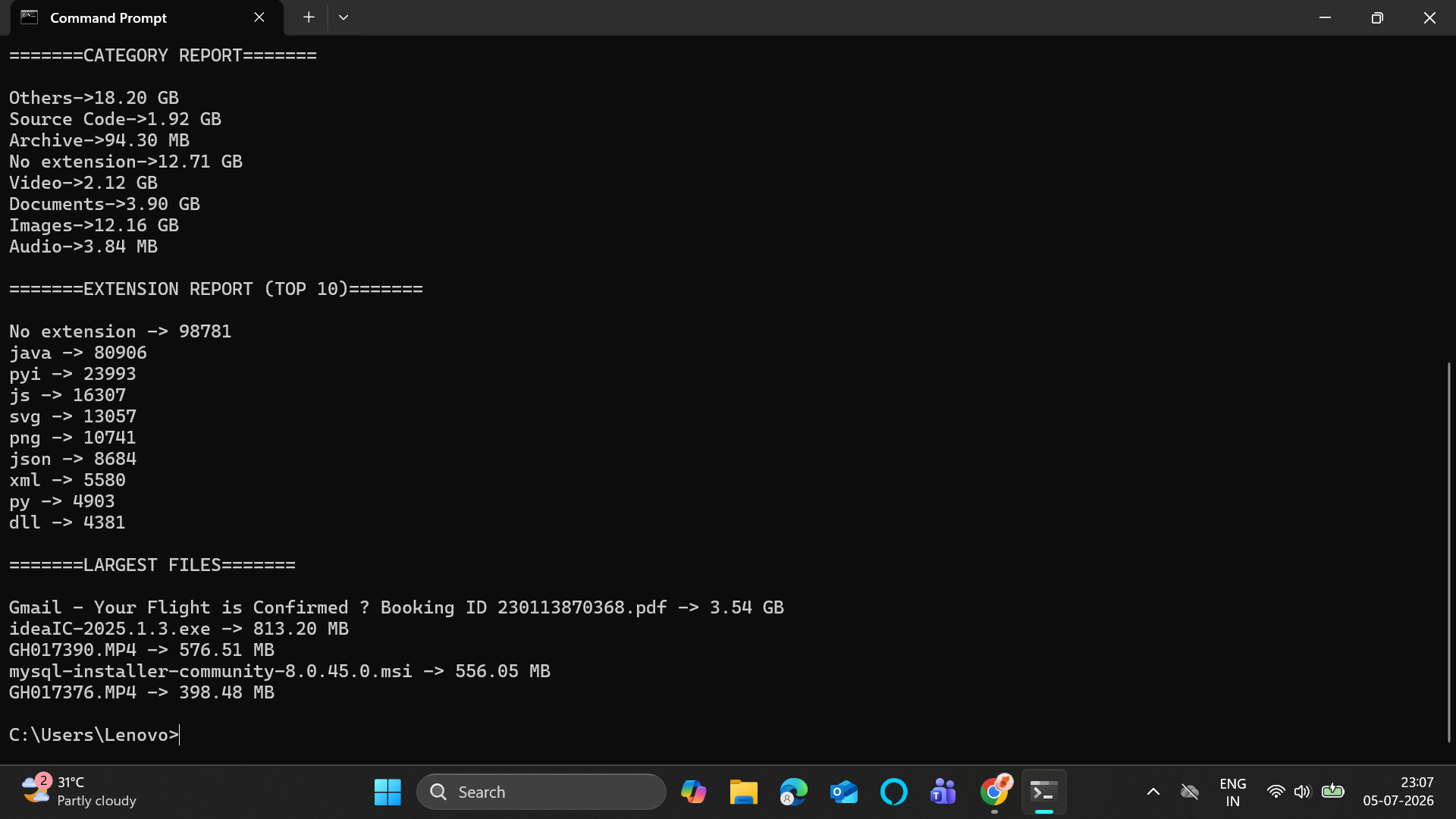
Results: 319,025 files, 51.12 GB, 74 skipped. Top extensions: No extension (98,781 files — mostly JDK/Python internals), java (80,906), pyi (23,993). Largest file: a 3.54 GB PDF flight booking confirmation.
This demonstrates the core use case for --quick — get a complete picture
of what's on a large drive in seconds, without the time cost of duplicate detection.
These are planned improvements with brief notes on how each would be implemented.
Current limitation: Only ZIP files are opened and their contents scanned. RAR, 7z, tar, and gz files are treated as single opaque files.
How to add it:
- Add Apache Commons Compress as a dependency — it supports RAR, 7z, tar, gz, and more with a unified API
- Create
RarScanner,SevenZipScanner,TarScannerclasses mirroring the existingZipScannerpattern - Add the new extensions to
ARCHIVE_EXTENSIONSinDirectoryScanner - Each scanner returns
List<FileInfo>just likeZipScanner— no other classes need to change
Effort: Medium — the pattern is already established, just needs new scanner classes.
Current limitation: Every scan re-hashes every candidate file from scratch. On large directories this takes minutes. Repeat scans of the same directory are just as slow as the first scan.
How it works:
After hashing a file, store the result in a local cache file (e.g.
~/.fileanalyzer/hash-cache.json) keyed by (absolutePath, fileSize, lastModified).
On subsequent scans, before hashing a file, check the cache — if the key matches
(same path, same size, same last-modified timestamp), use the cached hash instead
of reading the file again. Files that haven't changed don't need to be re-read.
Why this makes repeat scans feel instant: The first scan is the same speed as today. But on the second scan, most files haven't changed — their cached hashes are used directly. Only new or modified files get hashed. This is exactly how phone apps achieve "instant" duplicate detection — they cache results between scans.
Implementation sketch:
// In DuplicateFileAnalyzer or a new HashCacheManager class:
String cacheKey = path + "|" + size + "|" + lastModified;
String cachedHash = cache.get(cacheKey);
if (cachedHash != null) return cachedHash;

String hash = HashUtil.getSHA256(file);
cache.put(cacheKey, hash);
return hash;
Cache is loaded from disk at the start of analyze() and saved back at the end.
Effort: Medium — new HashCacheManager utility class, small changes to
DuplicateFileAnalyzer.computeHashes().
Current limitation: Reports are plain text (.txt) or structured data (.csv).
Neither renders charts, colors, or clickable links.
How to add it:
- Create
HtmlReportimplementingReportGenerator— same pattern asTextReportandCsvReport - Generate a self-contained single-file HTML with inline CSS and JavaScript
- Include a pie chart for categories (using Chart.js via CDN), a sortable table for extensions, and a collapsible list for duplicate groups
- Add
--htmlflag toCliParserandAnalysisConfig
Why it's valuable: An HTML report can be opened in any browser, shared as a file, and presents the data in a much more readable format than plain text — especially for duplicate groups where clickable file paths would let users navigate directly to each file.
Effort: Medium-High — the report generation pattern is straightforward but building a good HTML template with charts takes time.
Current limitation: Scanning C:\$Recycle.Bin or directories containing
fake ZIP placeholders produces "Could not read archive" noise. System folders
like $Recycle.Bin and System Volume Information are never useful to scan.
How to add it:
- Add
$recycle.binandsystem volume informationtoDirectoryScanner's skip logic (currently only used for unreadable directories) - Create a
ScanExclusionutility class similar toHashExclusionthat checks directory names against a predefined exclusion set before pushing them onto the stack
This is a one-line change in DirectoryScanner.scan():
if(item.isDirectory()){
    if(!item.canRead() || ScanExclusion.isExcluded(item)){
        skippedFiles++;
        continue;
    }
    ...
}
Effort: Low — simplest of all the future developments.
Current limitation: Only a Windows .exe installer is available. macOS
and Linux users must run the app via java -jar.
How to add it:
- macOS: Run
jpackagewith--type dmgon a Mac to produce a.dmginstaller. The Java source code is identical — only the build step differs. - Linux: Run
jpackagewith--type debor--type rpmfor Debian/Ubuntu or Red Hat/Fedora respectively. - GitHub Actions: Set up a CI workflow with three jobs — one on
windows-latest, one onmacos-latest, one onubuntu-latest— each building and uploading the platform-specific installer as a release asset. This means installers for all three platforms are produced automatically on every release without needing three separate machines.
Effort: Low for the build steps, Medium for setting up GitHub Actions CI.
This section documents the real development journey behind each major feature — not just what the final code does, but why it changed, what failed first, and what was learned along the way.
Version 1 — Size filter + full SHA-256 (single-threaded)
The first approach was already smarter than brute force. Rather than comparing every file to every other file (which would mean billions of comparisons on a large drive), files were grouped by exact size first. Only same-size groups were hashed. This eliminated the vast majority of files with zero I/O cost.
Within each same-size group, full SHA-256 hashes were computed sequentially — one file at a time, one thread.
This was correct. But when run on a root directory for the first time on a real laptop, it was painfully slow. The terminal went silent and stayed that way for minutes. Something had to change.
Version 2 — Quick hash prefilter (8KB)
The insight: most files that are different, are different near the start. If two files differ in the first 8KB, there's no point reading the rest of them.
A quick hash was added — read only the first 8KB of each candidate file and hash just that. Files that don't match on the quick hash are immediately eliminated without reading their full content. Only files that match on both size AND quick hash proceed to full SHA-256.
This was a meaningful improvement — especially for large files like videos and archives where reading the full file was expensive. But on a root directory with hundreds of thousands of candidates, it was still noticeably slow.
Version 3 — Parallel hashing
Hashing is CPU and I/O bound. Running it on a single thread leaves the other
cores completely idle. A 4-thread ExecutorService was added — each thread
hashes a different file concurrently. The ExecutorService was already familiar
from ReportFactory, but this was the first time implementing it from scratch
for a custom use case.
The result was faster. But the terminal was now completely silent during the entire hashing phase — scan completed, then nothing for minutes. It looked frozen.
Version 4 — Progress bar during hashing
The progress bar already existed for directory scanning. It was extended to cover the hashing phase too — showing how many files had been hashed out of the total candidates, the elapsed time, and the current file being processed.
This required synchronizing the progress reporter since multiple threads now
called it concurrently — solved with synchronized on updateHashing() and
display(), and AtomicLong for the thread-safe counter.
The terminal was no longer silent. Users could see exactly where the app was and how much was left.
Version 1 — New line per file
The first progress implementation printed a new line for every file scanned. On a directory with tens of thousands of files this meant tens of thousands of lines flooding the terminal — the output was completely unusable and scrolled past faster than anyone could read.
Version 2 — Carriage return overwrite (\r)
The fix was to use \r (carriage return) instead of \n (newline). \r moves
the cursor back to the start of the current line without advancing to a new line,
so the next print overwrites what was there before. One line, updating in place.
This worked. But it was plain white text with no visual hierarchy — hard to read at a glance.
Version 3 — ANSI colors, spinner, and Git Bash inspiration
Git Bash was the inspiration. The way git clone and git push display live
progress — a spinner, colored stats, truncated path — was exactly the target UX.
ANSI escape codes were used with AI assistance to implement colors (cyan spinner, green counts, yellow size, magenta speed, dim path), the Braille spinner animation, and 250ms throttling so the line doesn't flicker on every file.
One subtle bug required careful fixing: ANSI codes add invisible characters to
the string length. Using line.length() for the overwrite padding would leave
ghost characters behind when the new line was shorter than the previous one.
A visibleLength() method was added to strip ANSI codes before measuring,
ensuring the old line is always fully erased.
Recursion was the first instinct for walking a directory tree — it's the natural
fit for a nested structure. But the StackOverflowError risk on deeply nested
directories was recognized immediately. Real file systems can have hundreds of
levels of nesting, and Java's default stack size would not survive them.
An explicit Stack<File> was used from the start instead. The stack lives on
the heap, not the call stack, so there's no depth limit. Directories are pushed
and popped iteratively — no recursion, no risk.
This was a deliberate upfront design decision rather than a reactive fix after a crash.
The first implementation printed every extension found — a simple loop over the full map. The assumption was that a typical directory would have maybe 50-100 unique extensions. That felt manageable.
The first real scan proved that wrong immediately. A real Windows user directory has hundreds of unique extensions — app cache files, IDE internals, Python environment files, browser data, JDK class files, and dozens of obscure formats nobody asked for. The output was hundreds of lines long and completely unreadable.
The fix was to cap the default output at the top 10 most common extensions —
the ones that actually matter for understanding a directory's contents. The full
map is still computed and stored internally. The --all-extensions flag was
added for users who genuinely want everything.
The original implementation printed every duplicate file path to the console — full paths for every file in every group. On a small test directory with a few duplicate pairs, this looked fine.
Then the app was run on a real machine. 19,850 duplicate groups were found. The console was completely flooded — thousands of file paths scrolling past, pushing the summary and stats completely off screen. The output was not just unreadable, it was actively counterproductive.
The fix: the console shows only the three stats that matter at a glance —
duplicate group count, total duplicate size, and wasted space. The full
file-by-file listing is written to the .txt report only, where it belongs —
a file the user can open, search, and read at their own pace.
The original app was a pure one-shot CLI tool. You ran it, it printed results, it exited. That worked fine from an existing terminal.
But the goal was to package it as a Windows exe that users could double-click from the desktop. Double-clicking a one-shot CLI tool opens a window, prints help, and immediately closes — completely useless.
The inspiration was Git Bash. When you open Git Bash, a window appears with a prompt that stays open and waits for commands. That was exactly the target experience — click the icon, a terminal opens, type scan commands, the window stays alive between them.
InteractiveShell was built to deliver this. When launched with no arguments,
the app drops into a persistent prompt instead of printing help and exiting.
Commands are parsed and run in a loop until the user types exit.
Building the shell immediately exposed a problem in the CLI parser: every error
called System.exit(), which would close the entire shell window if the user
mistyped a flag. This led directly to the next evolution.
The original CliParser handled every error by printing a message and calling
System.exit(1). For a one-shot CLI tool, this is correct — the app is done,
exit cleanly.
The problem became obvious while building InteractiveShell. If the user types
a bad flag inside the shell, System.exit() would close the entire window —
not just cancel the current command. A user mistyping --extensins instead of
--extensions would lose their whole session.
The fix was CliParseException — a custom exception that the shell can catch,
print the error message, and loop back to the prompt without killing the process.
Each parser method was split into two versions:
parsePath()/parseConfig()— used by one-shot CLI, catches exceptions and callsSystem.exit()parsePathOrThrow()/parseConfigOrThrow()— used by the shell, throws instead of exiting
HelpRequested and VersionRequested were added as separate signal classes
because --help and --version aren't errors — they're intentional requests
that needed to be handled differently from parse failures.
The first report implementation used fixed filenames — report.txt and
report.csv. Simple, predictable, and immediately problematic: every scan
overwrites the previous report.
Before this ever caused a problem in practice, the issue was spotted upfront. Users might want to compare reports from different scans — a scan before and after cleaning up files, or scans of different directories. A fixed filename makes that impossible.
Timestamps were added to every report filename: report_2026-07-05_15-51-44.txt.
Each scan produces a uniquely named file. Nothing is ever overwritten.
The timestamp is generated once per scan in ReportFactory and shared across
all report generators so the .txt and .csv from the same scan always have
matching names.