EasingStyle Editor
Get and install the editor into studio here, It's completely free!
Once installed correctly, in the Plugins tab should be a button to open the editor.
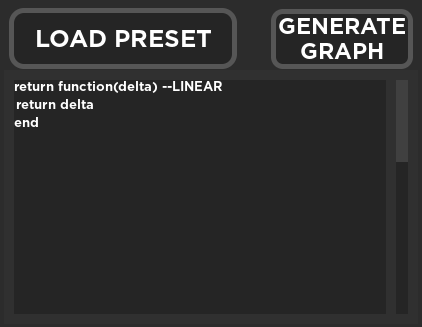
To create an easing style you must provide the code editor a function with a number argument attached to the function.
return function(x) -- linear
   return x
end
In the example above, the x variable is the durationDelta, a number between 0 and 1 that determines the position of the tween. The editor comes with pre-made easing equasions. To load a pre-made easing, click the "LOAD PRESET" button and select of the pre-made easing styles.
THE FUNCTION MUST ALWAYS RETURN A NUMBER!
The grapth window generates a grapth of the tweenDelta, or the function of the easing.
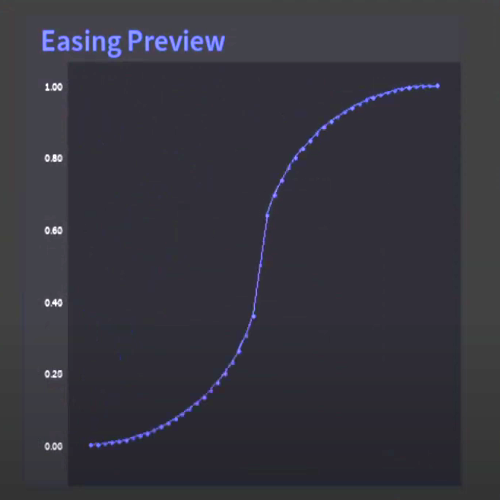
The easing tester window allows the user to test the custom made easing style. The ball represents the delta position of the tween in a line.

The editor does not save the custom made easing style to the game's files, to add the easing to the game we must use the TweenStep:AddCustomEasingStyle() function, copy the equasion from the editor, paste it in the TweenStep function and remove the "return" keyword from the start of the function.