SpeedUpUtils was inspired by the Double Mirror workflow in SolidWorks, especially after watching CAD modeling competition videos.
The broader vision is to build a set of utility tools for Autodesk Fusion that help designers spend less time modeling and more time thinking.
Right now, the add-in includes one command: Double Mirror, which is the default command when the add-in launches.
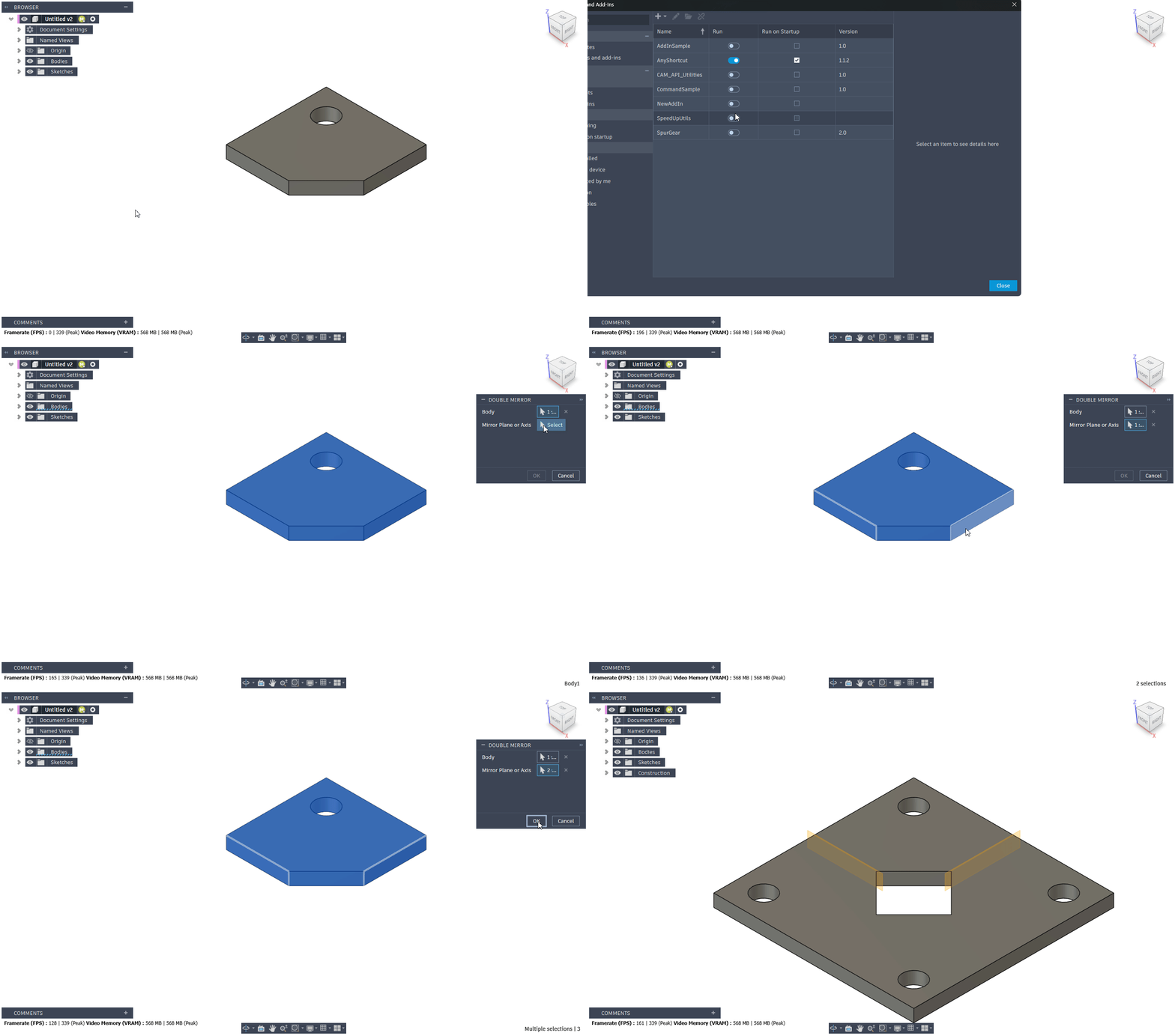

The tool supports 5 entity types as input to compute/use as your mirror plane: Sketch Lines, Construction Axes, BRepEdges, BRepFaces and Construction Planes.
Internally, the add-in builds construction planes from the selected lines/axes/planar surfaces, or it uses existing construction planes. It uses 3D vector methods from Fusion API to convert lines/axes to planes.
Once that's done, it uses the mirror command twice to build the final output.
The installation pattern follows the standard Fusion add-in layout used by Autodesk samples. See the official support article here.
0. Download the DLL from GitHub Actions in this repo, and manifest (Or build from source)
-
Windows:
%APPDATA%\Autodesk\Autodesk Fusion 360\API\AddIns\ -
macOS (web install):
~/Library/Application Support/Autodesk/Autodesk Fusion 360/API/AddIns/
Create a folder named SpeedUpUtils under the AddIns directory.
At minimum, keep these files together inside the folder:
-
SpeedUpUtils.manifest -
SpeedUpUtils.dll(Windows build output)
-
Launch Fusion.
-
Open
Utilities->Scripts and Add-Ins. -
Go to the
Add-Instab. -
Select
SpeedUpUtilsand clickRun. -
Optional: enable
Run on Startupif you want it loaded automatically.
If Fusion is already open when you copy/update files, restart Fusion before checking the add-in list.
You need to start with one body, and have the body's component activated in your Design workspace.
-
Launch the tool (From the Scripts & Add-Ins menu, shortcut:
Shift + S) -
Select your body
-
Select your mirror planes/lines
-
The tool supports selection of Sketch Lines, Construction Axes, BRepEdges, BRepFaces and Construction Planes.
-
Selections must be the same type of entity (i.e. both construction planes or both sketch lines)
-
-
Press OK
The build process documented below is for Windows only. I don't know how to build on MacOS.
-
Windows SDK
-
MSVC Toolset v143 (Build Tools for VS 17.x)
-
Navigate to
%AppData%\Autodesk\Autodesk Fusion 360\API\AddIns\ -
Clone this repo
-
Open the project directory in
Developer Command Prompt for VS 2022 -
Run
msbuild .\SpeedUpUtils.vcxproj /p:Configuration=Release /p:Platform=x64 -
The compiled
.dllbinary will automatically be copied fromRelease(orDebug) folder to the project root folder- Fusion will search recursively for add-ins in the
AddInsfolder, and it will load the.dllfound in the project root folder.
- Fusion will search recursively for add-ins in the
-
The add-in does not show up in Fusion Add-ins menu
-
Fusion expects the manifest and
.dllfiles in the project folder. Make sure these items are in the project folder -
Also make sure that the folder is located in the folder specified in Step 1 of Build Steps.
-
-
Compiler can't locate Fusion API headers
-
The MSVC project configurations are set to look for headers in
$(APPDATA)/Autodesk/Autodesk Fusion 360/API/CPP/includeand libraries in$(APPDATA)/Autodesk/Autodesk Fusion 360/API/CPP/lib. -
The API headers will be automatically installed if you already have an installation of Autodesk Fusion.
-
Make sure both folders exist and include the required libs (
core.lib,fusion.lib,cam.lib). The CI workflow validates these same dependencies.
-
-
Can't complete the
xcopycommand after compilation- The
.dllfile in project root folder is in use and it can't be overwritten. Stop the add-in in Fusion.
- The
-
The tool works with 3D BRep body only. You cannot select more than one solid body.
-
Working across components is not supported.
-
The operation for the mirror command is hardcoded to "Join"
- It might give you warnings in your timeline if you use it to create 4 bodies instead of just one joined body
-
As of now (planned for future work):
-
No button mapped to the Command Ribbon of Fusion UI.
-
No preview before confirmation.
-
No grouped timeline items.
-
This repository includes a workflow at .github/workflows/build-dll.yml that builds SpeedUpUtils.vcxproj with MSBuild on windows-latest and uploads the resulting DLL as an artifact.
By default, the workflow pulls the Fusion C++ SDK from Autodesk's official Fusion API reference repository at a pinned commit:
-
Repository:
AutodeskFusion360/FusionAPIReference -
Folder:
Fusion_API_CPP_Reference
If you prefer to provide your own SDK package, add a repository secret named FUSION_CPP_SDK_ZIP_URL and point it to a ZIP file containing:
- `include/`
- `lib/`
The workflow maps this SDK to the path expected by the project:
%APPDATA%/Autodesk/Autodesk Fusion 360/API/CPP
On each push or pull request, GitHub Actions will:
-
Set up MSBuild on Windows.
-
Download and validate the Fusion C++ SDK.
-
Build the Release x64 DLL.
-
Upload
SpeedUpUtils.dllandSpeedUpUtils.dll.sha256as downloadable artifacts.
You can verify the downloaded DLL with PowerShell:
Get-FileHash .\SpeedUpUtils.dll -Algorithm SHA256
Compare the Hash value with the value in SpeedUpUtils.dll.sha256.