Basic Usage
When you want to schedule a message for later delivery, either select the File > Send Later menu command in the message composition window, or hit Ctrl-Shift-Enter, or click on the “Send Later” button in the composition window’s toolbar. This will pop up the following dialog:
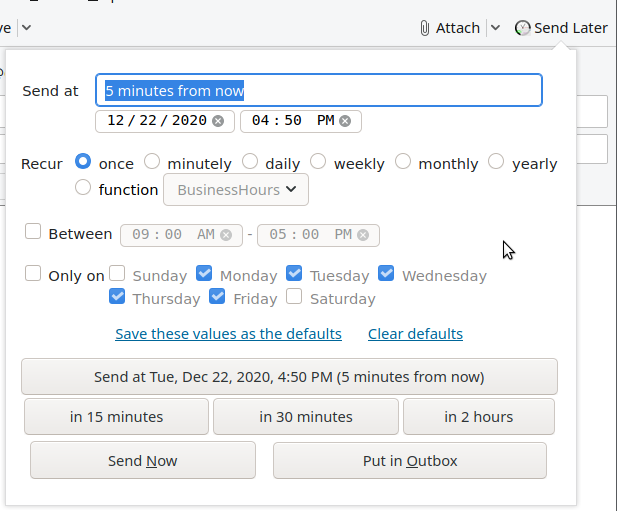
- Specify a specific time at which to send the message. Tell Send Later in the text box when you would like the message to be sent, or use the date and time pickers below the text box if you prefer. The text box understands lots of different formats, so give it a try! When you’ve entered a date/time that the add-on (thinks it) understands, the button below it will show you what it believes you meant and allow you to schedule the message to send at that time.
- Schedule a recurring message. See below.
- Schedule a one-shot or recurring message using one of the built-in scheduling functions, or a function you’ve written or imported yourself. See below.
- Send the message using one of the shortcut buttons. Click “15 mins later”, “30 mins later”, or “2 hours later” to send the message the indicated amount of time into the future. The functionality of these shortcuts can be customized.
-
Deposit the message into your Outbox for later delivery by Thunderbird. If you click “Put in Outbox” the message will be copied immediately into your Outbox. This is the behavior of the standard Thunderbird “Send Later” command before you installed the add-on. The message will then be sent if you execute
File > Send Unsent Messages, or if you go into and out of offline mode, or if you exit and restart Thunderbird. In the latter two cases, Thunderbird may or may not prompt for confirmation before sending unsent messages, depending on how you have configured it. - Send the message immediately. If you click “Send Now” the message will be delivered immediately, as if you had executed the “Send” command instead of “Send Later”. Note that you can activate this button by hitting Alt+Shift+N or the equivalent on your platform or in your language.
You can also specify time-of-day and day-of-week restrictions for when your message will be delivered.
These restrictions have different (but, I hope, somewhat intuitive) effects based on what kind of scheduling you are doing:
- If you enter restrictions with an explicit, one-shot (i.e., not recurring) send time, then Send Later will adjust the send time you specify to fall within those restrictions. Furthermore,
- If you enter restrictions with a recurring send time or dynamic scheduling function, then they will be applied as above and also each time the message is rescheduled. If Thunderbird can’t send the message at the scheduled time, the restrictions you specify will be enforced when it can send the message– if the “Enforce time and day restrictions at delivery time” preference (see below) is enabled.
You can save whatever settings you enter here as the default settings for when you bring up this dialog in the future, or clear previously saved defaults, by making the appropriate selection above the big scheduled send button.
You can do some pretty fancy things with this. For example, if you enter “now” in the text box and check that you only want the message to be delivered between 9:00am and 5:00pm Monday through Friday, and then save those as your defaults, then whenever you pop up the dialog, the default behavior will be to send the message now or reschedule it for when it is during business hours. Nifty, eh?
As noted above, the “Send Now” button in the Send Later dialog causes the message to be sent immediately, i.e., it bypasses the scheduled send process, and the “Put in Outbox” button causes the message to be put directly into the Thunderbird Outbox, also bypassing the scheduled send process, but in a different way.
The part of Send Later that interprets the send times you type into the text box is pretty smart. You’re welcome to type a full date and time, e.g., “10/4/2012 3:00pm”, if you want to, but it isn’t actually necessary. In addition to making intelligent guesses about the parts you leave out, the interpreter also understands quite a few neat shortcuts. Here are some examples, but they don’t include everything, so when in doubt, try it out, and see if it works!
- Don’t type the year if the date you’re entering is in the coming year. It’ll default to that automatically!
- Don’t type the date at all if you’re just entering a time in the next 24 hours.
- You can type a day of the week for the next instance of that day, or “next day-of-week” for the one after.
- You can type “tomorrow” or “the day after tomorrow”.
- You can type “in 3 minutes” or “3 minutes from now”.
When you schedule a message for delivery, it is saved in your Drafts folder with the necessary scheduling information embedded in it. If you wish to reschedule a message later, just edit the saved draft and do “Send Later” again to specify the new send time. If you wish to cancel a scheduled message delivery, edit the draft and save it normally without “Send Later” (or just send it immediately, if that’s what you want to do), and the scheduling information will be removed.