1. Installation
Foxy is a cross-platform tool that supports Linux, Windows, and macOS. It offers real-time web scraping, Optical Character Recognition (OCR), data labeling, and modeling, with export options to databases and spreadsheets.
- Linux: Ubuntu 24.04 LTS
- Windows: Windows 11 Professional
-
Download Foxy
Download the latest version of Foxy from the link below and extract theFoxy.zipfile. -
Folder Structure
Once extracted, you will see the following system folders:
- Files beginning with "w-" are PowerShell commands designed for Windows.
- To install, run
w-foxy-install.ps1using Windows PowerShell.
-
Use the script
foxy-install.shfor Linux and macOS. -
Ensure the script has executable permissions by running the following command:
chmod +x foxy-install.sh
-
Then, execute the installation script:
./foxy-install.sh
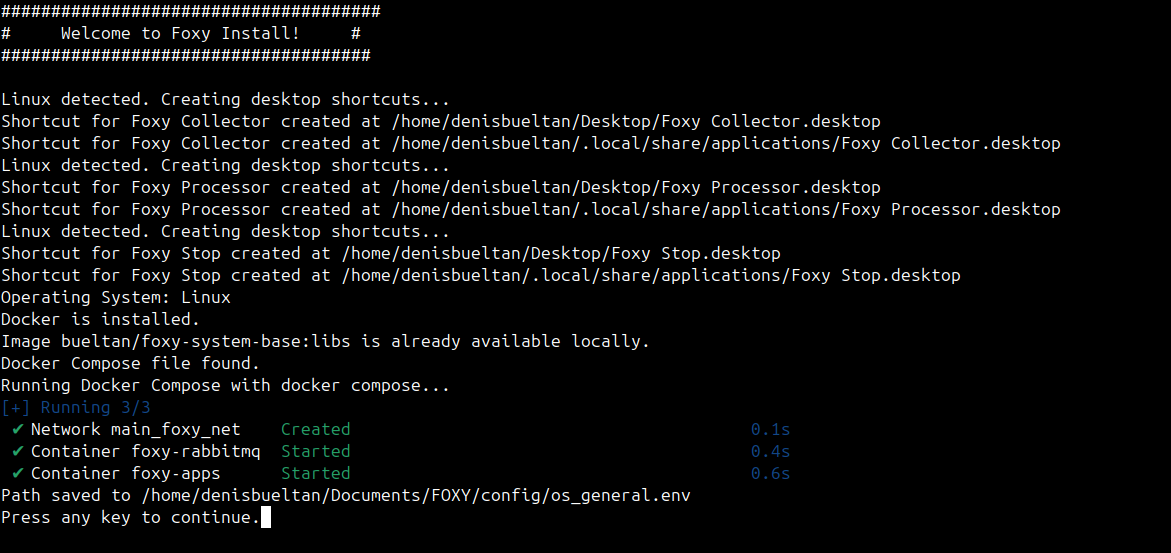
Foxy runs inside Docker containers to isolate your system environment, ensuring security and minimizing system interference. Make sure Docker is installed and running.
-
Docker Engine: Ensure you have Docker installed and running.
For more details, visit the Docker website.
-
Download Docker Desktop
Download Docker Desktop from the official Docker website. -
Install Docker Desktop
Run the installer and follow the instructions. This will enable Hyper-V and WSL 2 if necessary. -
Enable Hyper-V and WSL 2
- Go to Control Panel → Programs → Turn Windows features on or off.
- Enable Hyper-V and Virtual Machine Platform.
- Restart your PC if prompted.
-
Install WSL 2
Open PowerShell as administrator and run:wsl --install
This installs WSL and sets WSL 2 as the default. Restart your PC if required.
-
Configure Docker Desktop
- Open Docker Desktop and go to Settings → General.
- Ensure "Use the WSL 2 based engine" is enabled.
- Under Resources → WSL Integration, enable integration with your Linux distributions.
-
Verify Installation
Open cmd, PowerShell, or WSL and run:docker --version
To test Docker, run:
docker run hello-world
This will confirm that Docker is correctly installed and running.
-
Download Docker Desktop for Mac
Download the installer from the Docker Desktop for Mac page. -
Install Docker Desktop
Open the.dmgfile and drag the Docker icon to the Applications folder. -
Launch Docker Desktop
Navigate to Applications and start Docker. -
Verify Installation
Open the terminal and run:docker --version
Test the installation by running:
docker run hello-world
To install Docker on Linux, follow the instructions in the official Docker Linux Install Guide.
To make full use of Foxy’s capabilities, you’ll need the following additional software:
-
VLC Media Player
Required for video processing. Download it from the VLC Official Site. -
Image Editors
- Windows: Paint
- Linux: Pinta
- macOS: Paintbrush