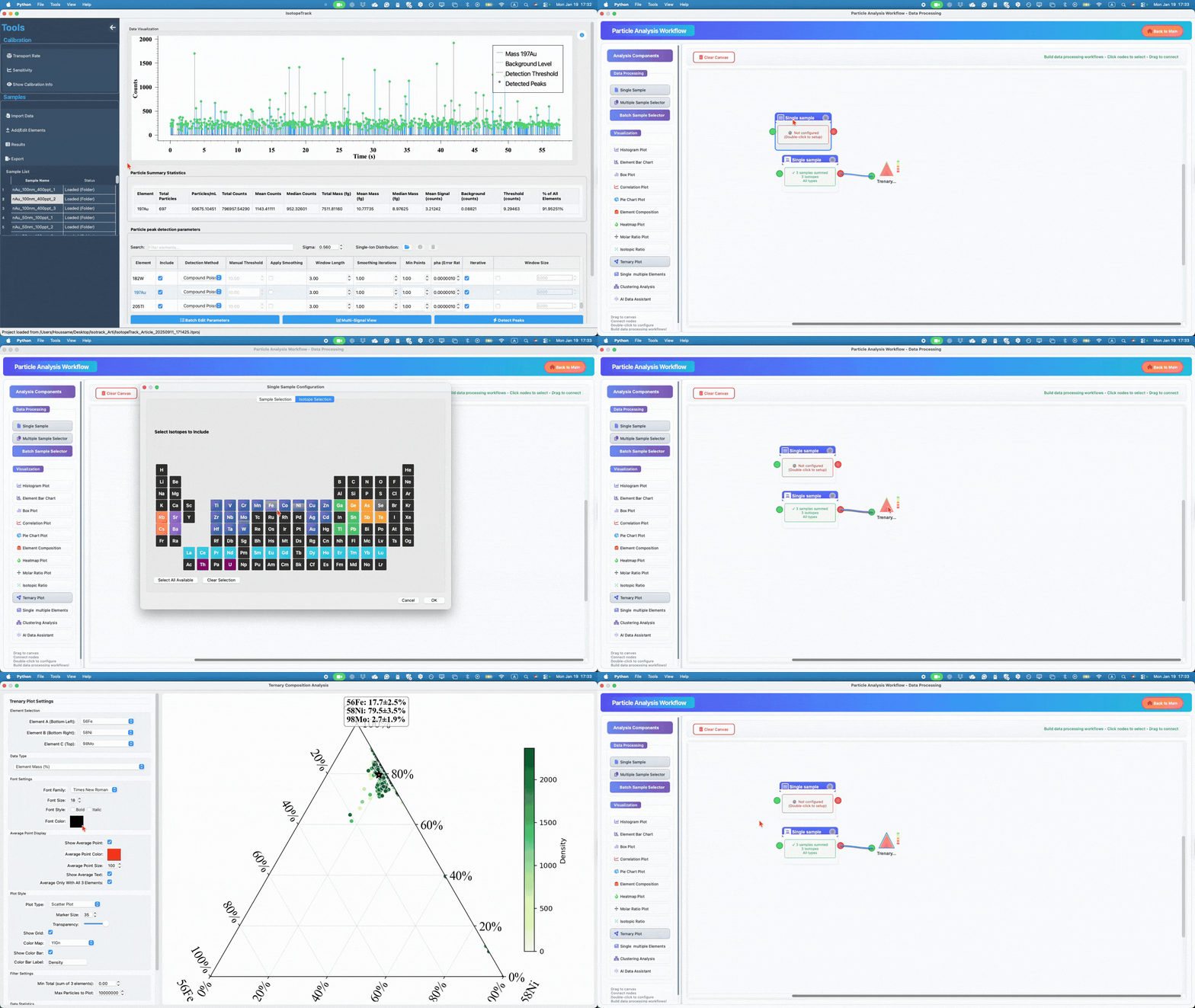
IsotopeTrack v1.0.0 - Initial Release First stable release! A comprehensive software application for analyzing single particle ICP-ToF-MS (Inductively Coupled Plasma Time-of-Flight Mass Spectrometry) data. Download macOS (Apple Silicon - M1/M2/M3) [IsotopeTrack-v1.0.0-macOS-arm64.dmg] Windows [IsotopeTrack-v1.0.0-Windows-x64.exe]
Installation
macOS
- Download the DMG file
- Open and drag to Applications
- Right-click → Open (first time only)
Windows
- Download the Windows exe
What's New • Multi-isotope particle detection • Transport rate & ionic calibration • Support for NU, CSV, and TOFWERK formats (futur version) • Interactive visualization • Comprehensive export options
System Requirements macOS • macOS 11.0 (Big Sur) or later • Apple Silicon (M1/M2/M3) recommended • 4 GB RAM (8 GB recommended) • 3 GB free disk space Windows • Windows 10 (64-bit) or later • 4 GB RAM (8 GB recommended) • 3 GB free disk space
When employing this software in your work, please cite:
Ahabchane H, Goodman A, Hadioui M, Wilkinson K. IsotopeTrack: A fast and flexible application for the analysis of SP-ICP-TOF-MS datasets. Environmental Chemistry 2026; EN25111 https://doi.org/10.1071/EN25111
Thank you!
- Folder with
run.info: Raw data from TOF Vitesse and for multiple files from TOFWERK .h5 type file - CSV files: Time-series data
- Click Import Data in the File menu or sidebar
- Select Folder(s) with
run.infoor CSV file(s) or TOFWERK .h5 - Browse to your data location and select one or more folders/files
- The application validates the data and displays loading progress
- Successfully loaded samples appear in the Samples table in the sidebar
If using CSV files, they must follow this structure:
- The first column must be Time (units:
ms,ns, ors) - Each element column must include mass number + element symbol
- Example:
107Ag
- Example:
- Data must be provided in counts
Once data are loaded, you can:
- Click a sample in the sidebar to switch between samples
- Right-click a sample to view additional metadata
- Process all samples simultaneously using the same parameters
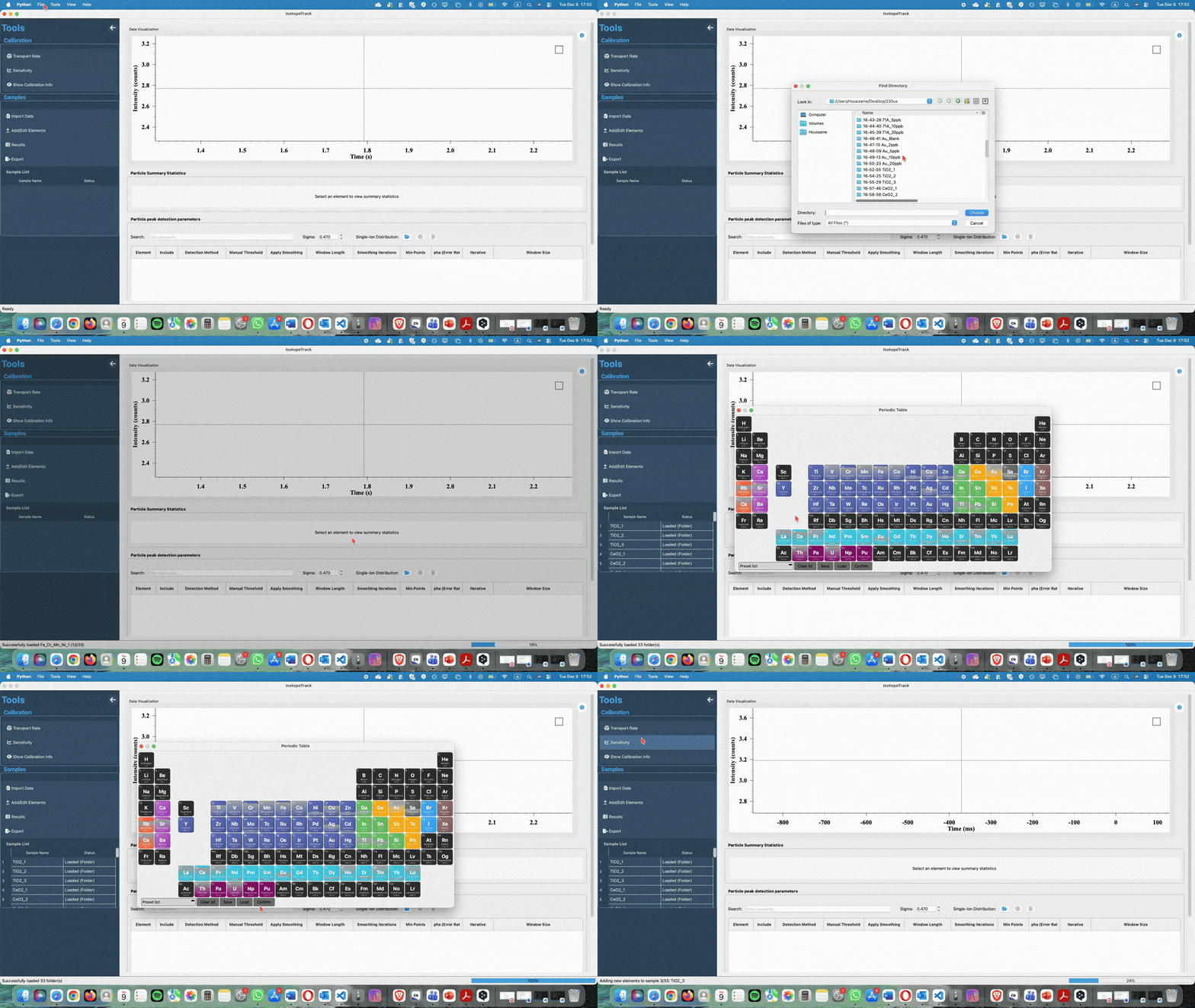
The interactive periodic table allows selection of elements and specific isotopes for analysis:
- Left-click an element to select the most abundant isotope with minimal interferences
- Right-click an element to display all available isotopes and select specific ones
- Right-click again on a selected element to deselect it
- Click Confirm to finalize the selection
- Gray elements indicate elements not present in the loaded dataset
Establishes the relationship between elemental concentration and instrument response.
- Selected isotopes are automatically imported from the main window
- Create one or more calibration sets
- Enter
-1to exclude samples from specific calibration sets - The system automatically evaluates three calibration models:
- Simple Linear (no intercept)
- Linear (with intercept)
- Weighted Linear
- The model with the highest R² is automatically selected
- Manual override is available
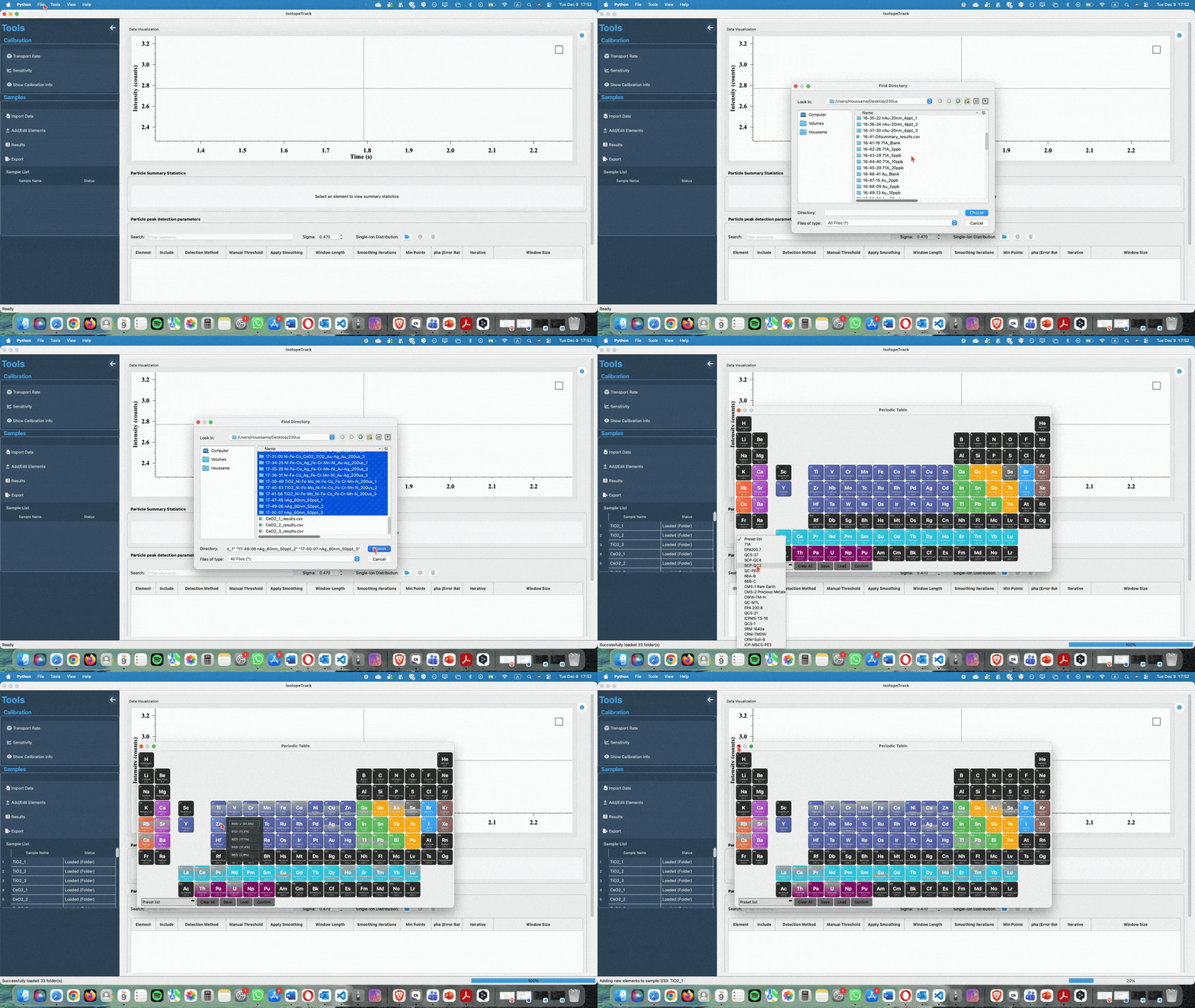
Determines the efficiency of aerosol transport into the plasma.
- Mass-based method
- Number-based method
- Weighted liquid method
Reference:
Pace, H. E., et al. (2011).
Determining transport efficiency for the purpose of counting and sizing nanoparticles via single-particle ICP-MS.
Analytical Chemistry, 83, 9361–9369.
https://doi.org/10.1021/ac201952t
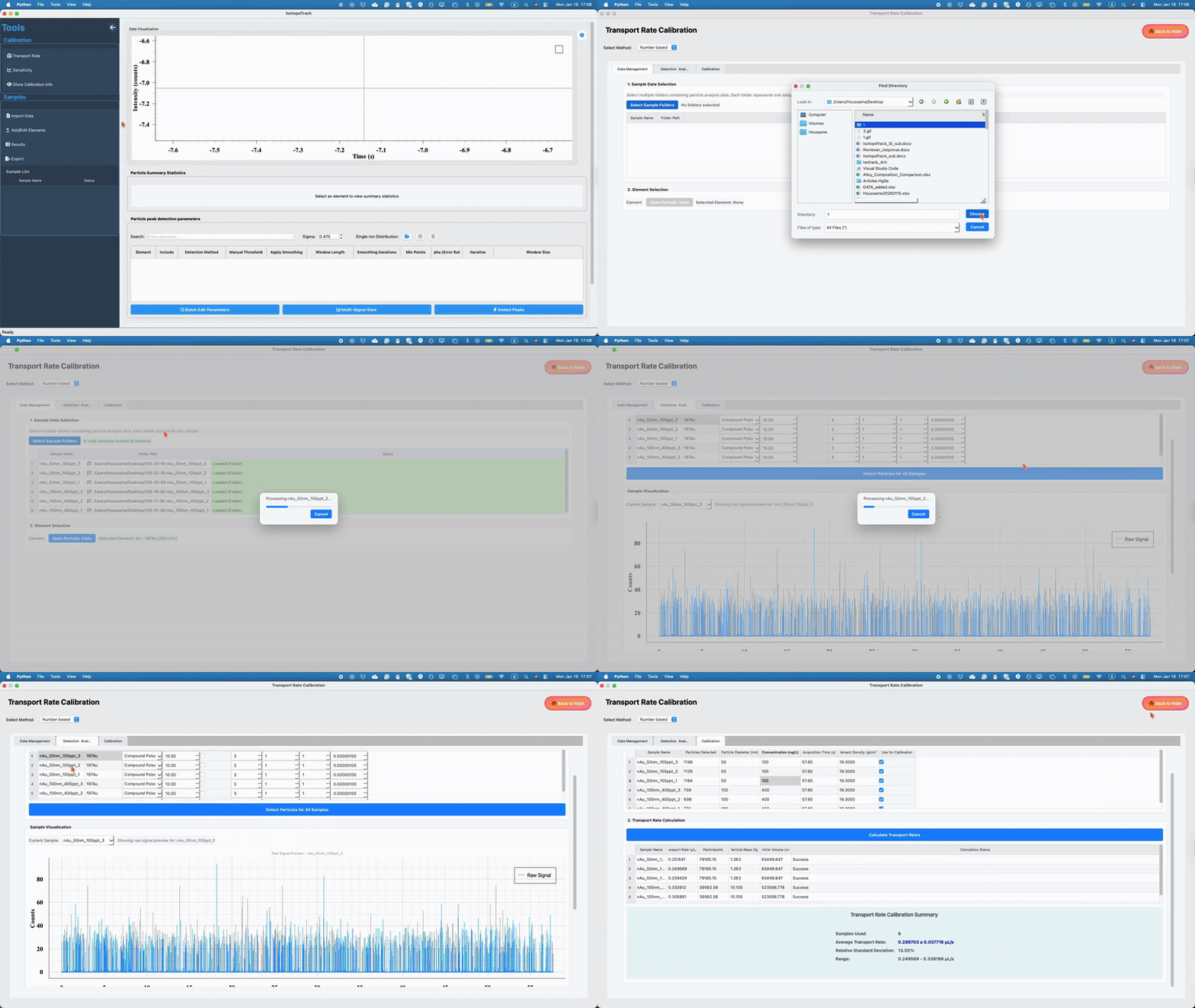
- Average multiple transport efficiency measurements or
- Select the most reliable single value
The chosen transport rate is applied to all subsequent particle mass and number concentration calculations.
For accurate particle sizing, specify for each sample:
- Mass fraction of the target element in the particles
- Particle density selected from the materials database
Single Element Results
The "Single Element Results" tab displays data for individual elements, including:
Start and end times of each detected particle.
Total counts for each particle.
Peak height and signal-to-noise ratio.
Particle Results
The "Particle Results" tab provides information on multi-element particles, such as:
Particle identification numbers.
Temporal overlap information.
Count data for each element in coincident particles.
Data Export Options
Summary File Export
Ideal for comparative analysis, this export includes:
Data for all samples and elements.
Statistical summaries (mean, median, and standard deviation).
Particle concentrations.
Calibration information and method parameters.
Each element includes customizable detection parameters:
- Include: Enable or disable the element in analysis
- Method: Detection algorithm
- Currie
- Formula C
- Compound Poisson Log-Normal
- Manual
- Min Points: Minimum consecutive points above threshold to define a particle
- Confidence Level: Statistical confidence for threshold determination (default: 99.999%)
- Optional smoothing
- Alpha error rate
- Iterative threshold calculation
- Window size for threshold calculation
Classical detection approach based on Poisson statistics and critical level determination.
Reference:
Currie, L. A. (2008). Detection and quantification limits: Origins and historical overview.
Journal of Radioanalytical and Nuclear Chemistry, 276, 285–297.
https://doi.org/10.1007/s10967-007-0451-1
MARLAP-based method offering a balanced trade-off between false positives and false negatives.
Reference:
MARLAP Manual, Volume III – Chapter 20: Detection and Quantification Capabilities (Formula C, Eq. 20.52).
U.S. EPA.
https://www.epa.gov/radiation/marlap-manual
Advanced method accounting for signal distribution characteristics; includes a sigma parameter describing distribution shape.
Reference:
Lockwood, T. E., Schlatt, L., & Clases, D. (2025).
SPCal – an open-source processing platform for ICP-TOFMS-based single-event data.
Journal of Analytical Atomic Spectrometry.
https://pubs.rsc.org/en/journal/jaas
SIA
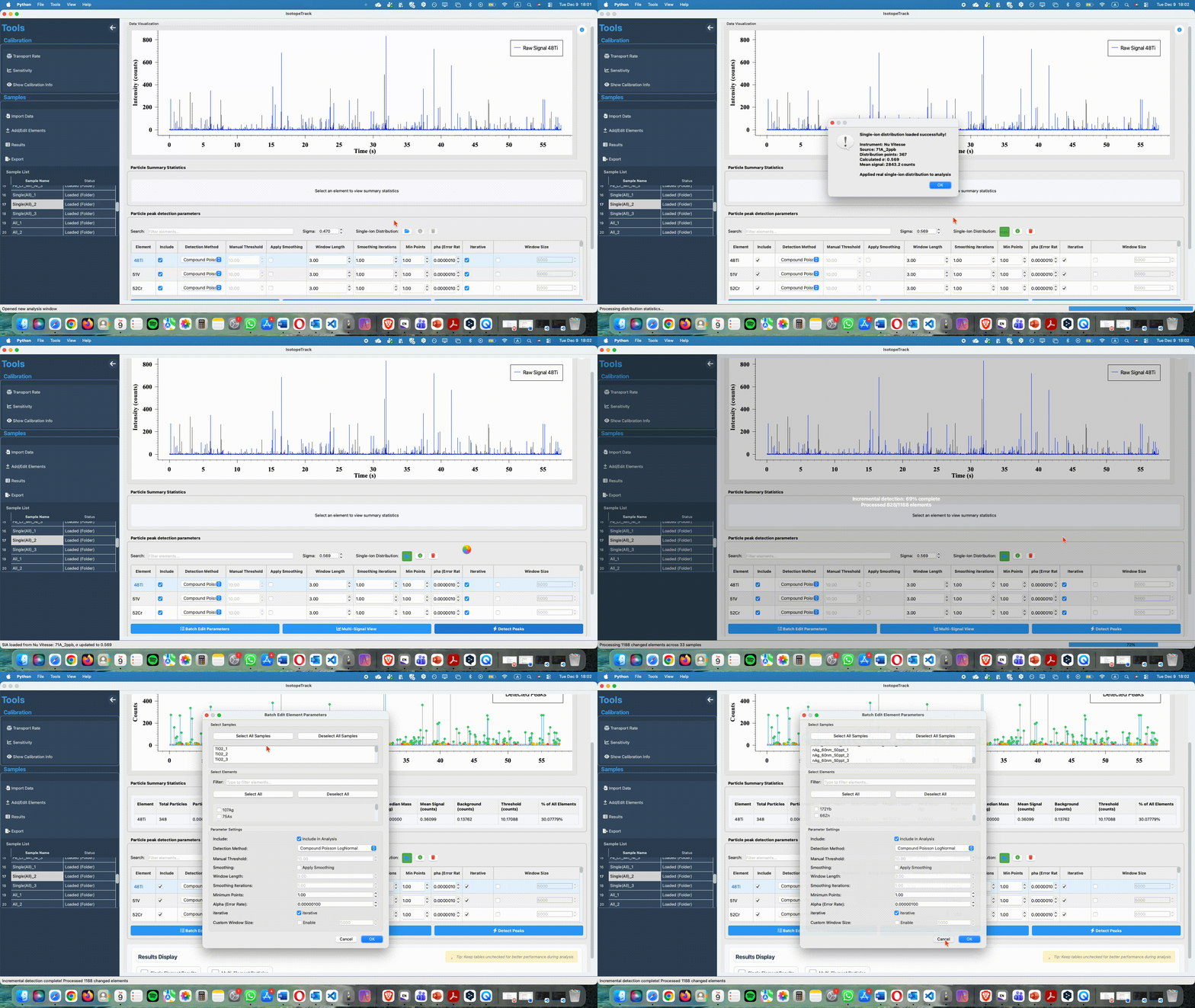
To apply identical parameters to multiple elements:
- Click Batch Edit Parameters
- Select elements to modify
- Define shared parameters
- Optionally select target samples
- Apply settings to all selected elements simultaneously
This approach is particularly useful when analyzing identical elements across multiple samples.
Results Canvas
The results canvas provides interactive visualization of your analysis. This tool allows you to:
- Select specific samples from the dropdown menu.
- Choose elements to display from available options.
- Select different figure types for various visualization needs.
- View updates in real-time as you change your selections.