Getting Started
- Download the latest release build from the releases page.
- Unzip the downloaded release and run the AirsimUGC.exe file. The first time that you run the app it will create a folder named AirSim in C:\Users\UserName\Documents\AirSim, this is where settings.json and recorded images will be saved. For more info on Settings check out the AirSim Docs.
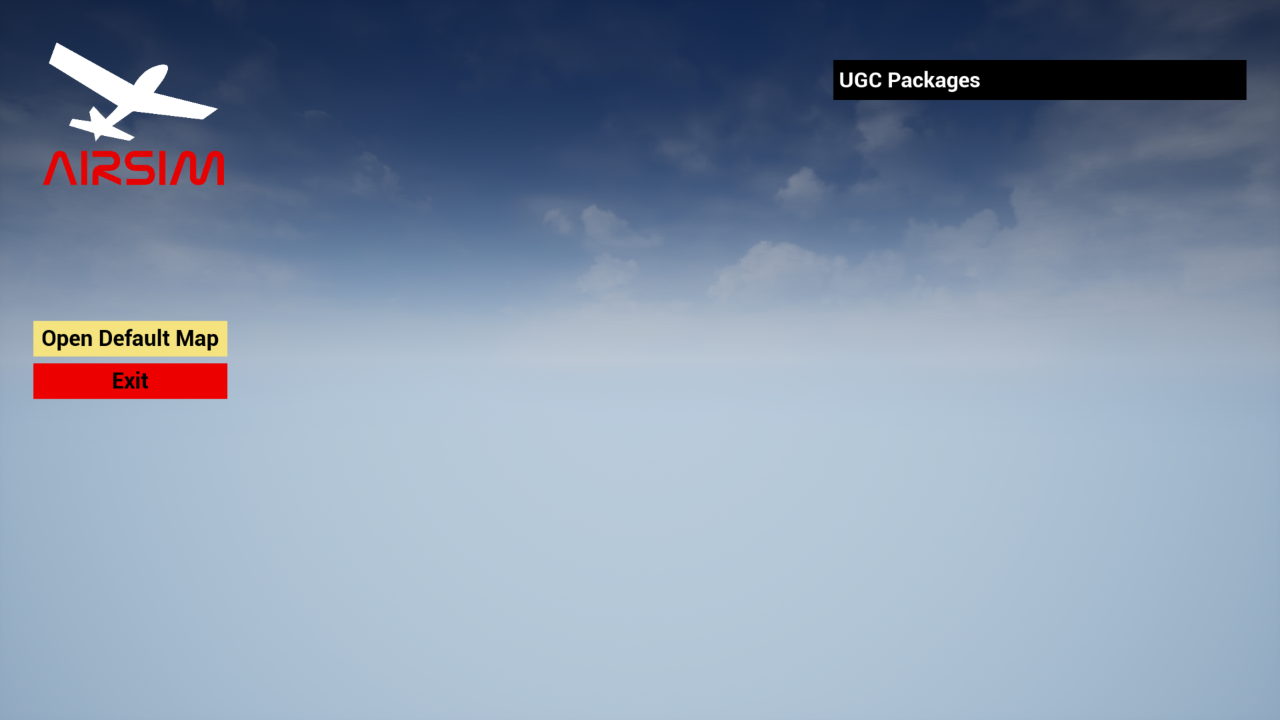
- Once the app opens it should look like the picture below. By default there aren't any UGC Packages, once you add some UGC Packages they will show up under the UGC Packages tab.
- Go to the folder where you downloaded AirSim-UGC and add a new folder called Mods under the AirSimUGC directory.
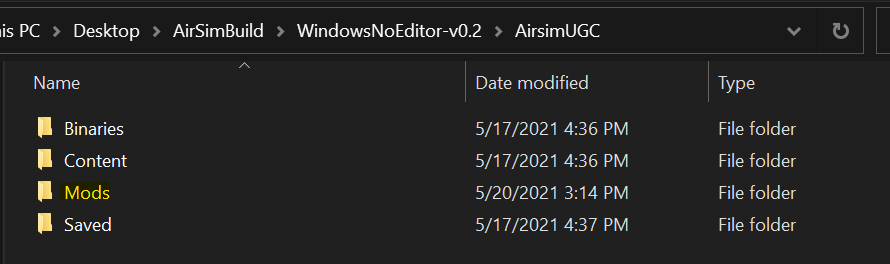
- Unzip Mods you want to use into the new Mods directory.
- When you run AirSim-UGC again the mod packages should show up under the UGC Packages tab. To Enable a mod select Apply on actor override mods or Open for a map mod. To disable the mod select Clear All Overrides.
For more info on setting up your development environment see Setup Your Development Environment.
For more info on creating a UGC Mod see Creating A New Drone and Creating a New Map.