A Discord bot that listens to GitHub webhook events (commits, pull requests, issues, releases) and posts formatted notifications to Discord channels.
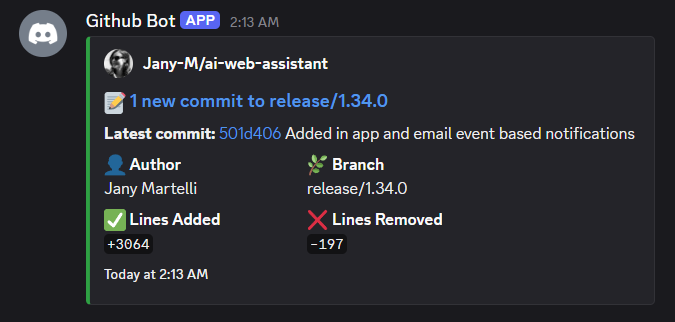
This bot automatically notifies your Discord server about GitHub activity:
- Real-time notifications for commits, pull requests, issues, and releases
- Beautiful Discord embeds with rich formatting and metadata
- Flexible filtering by repository, branch, and event type
- OAuth-based authentication (no need to create personal access tokens manually)
- Secure token storage with AES-256-GCM encryption
- Manual event replay for testing or recovering failed webhooks
- Multi-repository support with channel routing
- Discord server with admin access
- GitHub account with repository access
- For production: render.com free account or similar cloud hosting service
- For testing locally: ngrok.com
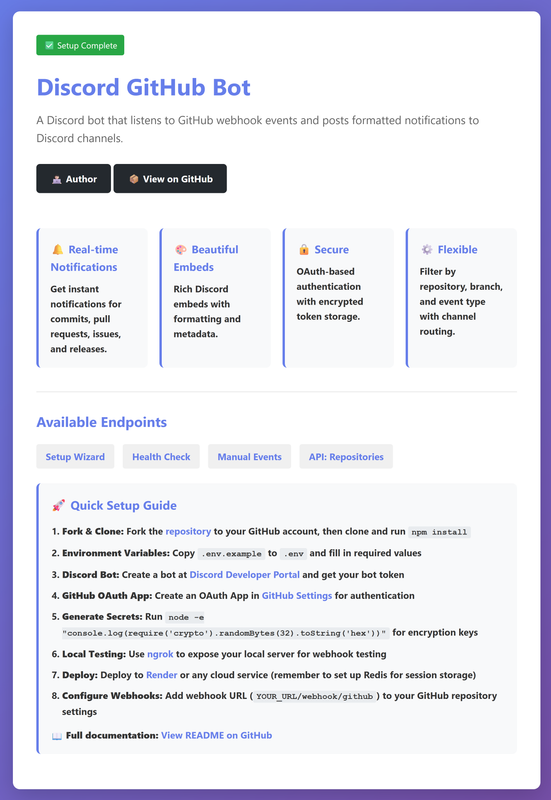
Follow these steps in order to set up the bot locally or in the cloud.
Important: You need to fork this repository to your own GitHub account first, as Render (and most cloud services) require access to your own repository for deployment.
-
Fork the repository:
- Go to https://github.com/Jany-M/discord-github-bot
- Click the Fork button in the top right
- This creates a copy in your GitHub account
-
Clone your forked repository:
git clone https://github.com/YOUR_USERNAME/discord-github-bot.git
cd discord-github-bot
npm install
Copy the example environment file:
cp .env.example .envEdit .env and fill in all required variables. See the next sections for how to get each value.
Required variables:
DISCORD_BOT_TOKENGITHUB_CLIENT_IDGITHUB_CLIENT_SECRETGITHUB_WEBHOOK_SECRETENCRYPTION_KEY(32+ characters)SESSION_SECRET(auto-generated if not provided)BASE_URL
Optional variables:
REDIS_URL(required for production on Render, optional for local dev)PORT(defaults to 3000)NODE_ENV(defaults to development)
Generate random strings for the required secret values (ENCRYPTION_KEY, GITHUB_WEBHOOK_SECRET, SESSION_SECRET):
node -e "console.log(require('crypto').randomBytes(32).toString('hex'))" # 32+ charactersCopy these values into your .env file.
To test webhook events locally, you need a tunnel to expose your local server:
-
Log in and install ngrok: Log into ngrok.com and download/install it.
-
Start the bot:
npm run dev
-
In a separate terminal, start ngrok:
ngrok http 3000
-
Copy the HTTPS URL ngrok provides (e.g.,
https://abc123.ngrok.io) -
Update your
.envfile:BASE_URL=https://abc123.ngrok.io
-
Update GitHub OAuth App:
- Go to GitHub Developer Settings
- Edit your OAuth App
- Update Authorization callback URL to:
https://abc123.ngrok.io/auth/github/callback
-
Update GitHub webhook Payload URL to:
https://abc123.ngrok.io/webhook/github -
Complete OAuth setup by visiting:
https://abc123.ngrok.io/setup
Note: ngrok URLs change each restart. Free tier requires updating URLs each time. Upgrade to paid for permanent URLs.
I am using a Free plan on render.com, you can use any cloud service you like.
Prepare Your Repository
- Push this forked repo to your own Github repo.
Create a Web Service on Render
- Go to render.com and sign up (use GitHub login)
- Click New + → Web Service
- Connect your GitHub repository
- Configure:
- Name:
discord-github-bot - Language:
Node - Region: any you want, but remember which one it is for later
- Build Command:
npm install && npm run build - Start Command:
npm start - Plan: Free
- Name:
- Click Create Web Service
- Click on Manual Deploy (top right button), deployment will fail but will generate the public url we need to complete the environment setup.
- At the top of the page you will now see your Render URL (something like
https://discord-github-bot-xxxxx.onrender.com), this is the url you will need asBASE_URLin your.envand for all other urls (Discord App and GitHub Webhook)
Create Redis Instance (For Session Storage, otherwise the Github OAuth flow and app setup will break)
- Go to Render dashboard
- Click New + → Key Value (Redis)
- Fill in:
- Name:
discord-bot-redis - Plan: Free
- Region: Same as the Web Service region (both the Web Service and Key Value instances must be on e.g. Frankfurt)
- Name:
- Click Create
- Wait for it to be created
- Copy the Redis URL (looks like
redis://default:password@hostname:port)
Add Redis URL to Service
- Go back to your
discord-github-botservice - Click Environment
- Add new variable:
- Key:
REDIS_URL - Value: Paste the Redis URL from previous step
- Key:
- Click Save Changes
Set Environment Variables
- Go to your service on Render
- Click Environment tab
- Add all variables from your
.envfile:DISCORD_BOT_TOKENGITHUB_CLIENT_IDGITHUB_CLIENT_SECRETGITHUB_WEBHOOK_SECRETENCRYPTION_KEYBASE_URL(you'll get your Render URL from the deployment)SESSION_SECRETNODE_ENV=production
Add config.json as Secret File
config.json is not committed to your repository (it contains sensitive channel IDs), you need to add it as a secret file in Render:
- In your Render Dashboard, go to your Web Service
- Click the Environment tab
- Scroll down to Secret Files section
- Click Add Secret File
- Set the following:
- Key:
config.json - Value: Copy and paste the contents of your local
config.jsonfile
- Key:
- Click Save Changes
Render will automatically place this file in your application's working directory during deployment. The app's code already looks for config.json in the root directory, so this secret file will be available to the application.
Keep Service Awake (Prevent Free Tier Sleep)
The free tier on Render.com sleeps after 15 minutes of inactivity. To keep it running:
- Option 1: Use UptimeRobot (Recommended)
- Go to uptimerobot.com and sign up
- Click Add Monitor
- Configure:
- Monitor Type: HTTP (HTTPS)
- Friendly Name:
Discord GitHub Bot - URL:
https://your-render-url/health - Monitoring Interval: 5 minutes
- Click Create Monitor
This will ping your bot every 5 minutes to keep it awake.
- Option 2: Upgrade to Paid
Purchase a paid plan on Render for always-on service.
Copy the example config:
cp config.example.json config.jsonEdit config.json to specify which repositories to monitor and which Discord channels to post to:
{
  "discord": {
    "channels": {
      "default": "YOUR_DEFAULT_DISCORD_CHANNEL_ID",
      "repositories": {
        "owner/repo": "SPECIFIC_CHANNEL_ID_FOR_REPO"
      }
    }
  },
  "repositories": [
    {
      "name": "owner/repo",
      "events": ["push", "pull_request", "issues", "release"],
      "branches": ["main", "develop", "*"],
      "channel": "OPTIONAL_CHANNEL_OVERRIDE"
    }
  ]
}
Example:
{
  "discord": {
    "channels": {
      "default": "1234567890",  // Fallback channel
      "repositories": {
        "Jany-M/repo1": "1111111111"  // Method 2: Channel mapping
      }
    }
  },
  "repositories": [
    {
      "name": "Jany-M/repo1",
      "events": ["push", "pull_request"],
      "branches": ["main"],
      "channel": "2222222222"  // Method 1: Override (takes precedence!)
    },
    {
      "name": "Jany-M/repo2",
      "events": ["push"],
      "branches": ["main"]
      // No channel field - will use default or repositories mapping
    }
  ]
}
Whenever you update config.json , you will need to redeploy the app, locally or on e.g. Render (and after you push it to Github).
- Go to Discord Developer Portal
- Click New Application and give it a name (e.g., "GitHub Bot")
- Go to the Bot section and click Add Bot
- Under TOKEN, click Reset Token and copy it
- Add this to your
.envfile asDISCORD_BOT_TOKEN - Enable these Privileged Gateway Intents:
- Server Members Intent
- Go to OAuth2 → URL Generator
- Select scopes:
bot - Select permissions:
Send Messages,Embed Links - Copy the generated URL and open it in your browser to invite the bot to your server
To get your Discord Channel ID:
- Enable Developer Mode in Discord (User Settings → Advanced → Developer Mode)
- Right-click the channel and select Copy Server ID (or Copy Channel ID for text channels)
- Go to GitHub Developer Settings
- Click New OAuth App
- Fill in the form:
- Application name:
Discord GitHub Bot - Homepage URL:
- For local:
http://localhost:3000 - For ngrok:
https://your-ngrok-url.ngrok.io(for local dev / tests) - For Render.com:
https://your-app.onrender.com(for production / cloud deployment)
- For local:
- Authorization callback URL:
- For local:
http://localhost:3000/auth/github/callback - For ngrok:
https://your-ngrok-url.ngrok.io/auth/github/callback(for local dev / tests) - For Render.com:
https://your-app.onrender.com/auth/github/callback(for production / cloud deployment)
- For local:
- Description: (Optional)
- Application name:
- Click Register application
- Copy the Client ID and generate a Client Secret
- Add both to your
.envfile asGITHUB_CLIENT_IDandGITHUB_CLIENT_SECRET
For each repository you want to monitor:
- Go to your repository on GitHub, the one you want to track.
- Click Settings (top menu)
- In the left sidebar, click Webhooks
- Click Add webhook
- Fill in the form:
- Payload URL:
https://your-url/webhook/github- Local:
https://your-ngrok-url.ngrok.io/webhook/github(for local dev / tests) - Render.com:
https://your-app.onrender.com/webhook/github(for production / cloud deployment)
- Local:
- Content type:
application/json - Secret: Enter your
GITHUB_WEBHOOK_SECRETfrom.env - Events: Select:
- ✅ Push
- ✅ Pull requests
- ✅ Issues
- ✅ Releases
- Payload URL:
- Leave Active checked
- Click Add webhook
Important: The webhook secret must match exactly between your .env file and GitHub settings.
- Make sure your
.envand yourconfig.jsonare now complete with the correct urls. - Redeploy the app.
- Visit
https://your-url/setup - Click Authorize with GitHub
- Complete the authorization flow
- You should see "Setup Complete!" message
If a webhook fails or you want to test, you can manually post events:
- Visit
https://your-url/manual - Enter repository, commit SHA, PR number, or issue number
- Click the corresponding button to post to Discord
- Push: Commits to configured branches
- Pull Requests: Opened, closed, or updated
- Issues: Opened or closed
- Releases: Published releases
Supports wildcards:
main- exact branch name*- all branchesfeature/*- branches starting with "feature/"
Local development:
- Make sure
BASE_URLin.envmatches your ngrok URL - Check GitHub OAuth App callback URL is updated
Render:
- Verify
REDIS_URLis set (required for multi-instance OAuth) - Check Redis instance is running (status: Available)
- Verify
BASE_URLenvironment variable is set
- Check webhook URL is correct in GitHub
- Verify
GITHUB_WEBHOOK_SECRETmatches in both places - Check logs for signature verification errors
- Verify bot is in the Discord server
- Check bot has "Send Messages" and "Embed Links" permissions
- Verify channel IDs are correct
- Check logs for errors
- Ensure
ENCRYPTION_KEYis 32+ characters - Don't change
ENCRYPTION_KEYafter storing token - To reset: delete
.github_tokenand re-run OAuth setup
- Railway - Best free option, generous monthly credit
- Render + UptimeRobot - Free forever with uptime monitoring
- Fly.io - Free always-on option (more complex setup)