Copy files with their project-relative paths into ChatGPT, Claude, Grok, or another AI chat—directly from the VS Code Explorer.
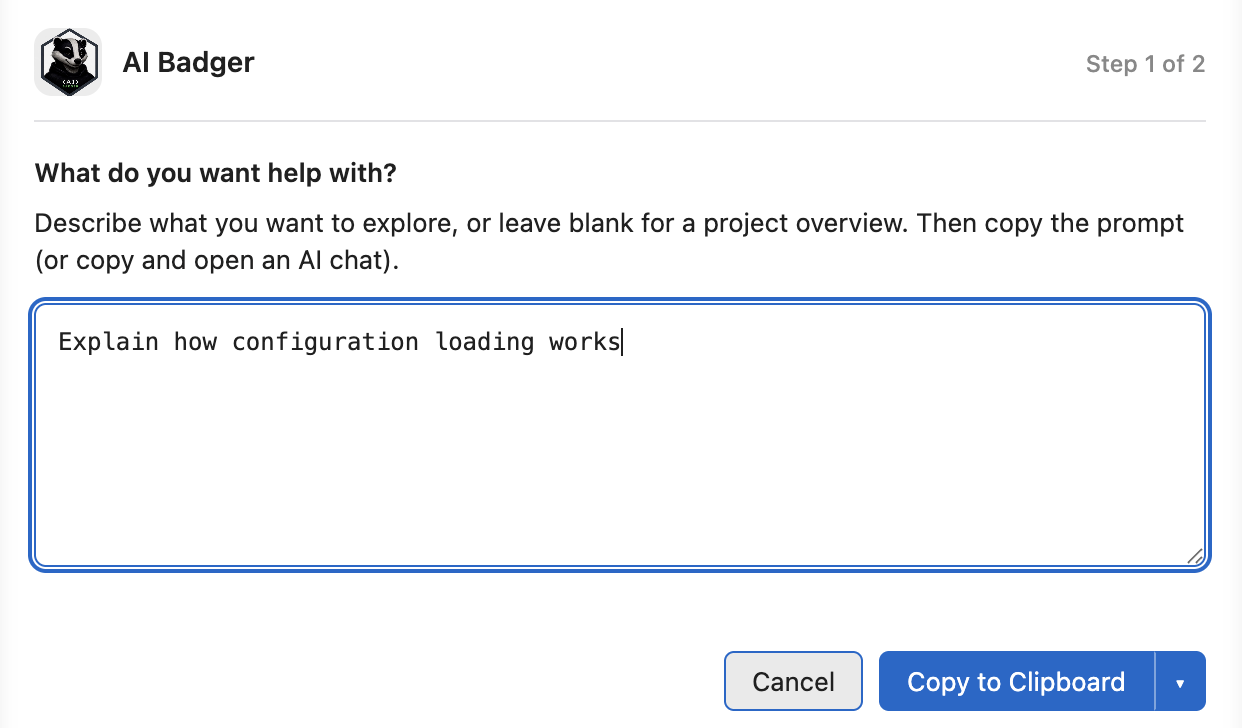
When a larger question needs repository discovery, use AI Badger’s guided smart-context workflow to identify and copy only the code that matters.
Local-first · AI-provider independent · No repository uploads
Quick file copying works immediately without the Badger CLI. Smart context uses the separately installed, open-source AI Badger CLI as its local engine. Neither workflow requires an AI-provider API key.
▶ Try the AI Badger Interactive Demo
- Useful immediately: Copy selected files with their paths without installing a CLI.
- Explorer-native workflow: Start from the project, folder, file, or multi-file selection already in VS Code.
- Focused context: Give your AI chat the relevant code and a clear question instead of the whole repository.
- Local-first processing: Direct copying stays in VS Code; smart context invokes the CLI on your machine.
- Works with your AI chat: Use the generated context with ChatGPT, Claude, Grok, or another AI chat.
- No provider key in the extension: You choose where to paste the generated context.
- Select one or more files in the VS Code Explorer.
- Choose AI Badger: Copy File for AI or Copy Selected Files for AI.
- Paste the formatted files and project-relative paths into your AI chat.
- Start from a project, folder, file, or multi-file selection.
- Describe what you want help with.
- Follow the guided handoff to copy focused repository context into your AI chat.
-
Install AI Badger from the Visual Studio Marketplace.
-
Open a repository in desktop VS Code, then right-click a file to copy it for AI.
-
To use smart project context, install the AI Badger CLI:
brew install pvrlabs/tap/badger
For Windows and other installation methods, see the AI Badger installation guide.
The extension is desktop-only; it is not a vscode.dev web extension.
Use these commands when you already know which files should be included. AI Badger formats the selected files with their project-relative paths and copies them immediately. Nothing is shared until you paste it.
| Icon | Explorer action | Scope |
|---|---|---|
 |
AI Badger: Copy File for AI | One selected file. |
|
AI Badger: Copy Selected Files for AI | Multiple selected files. |
Use these commands to start the smart-context workflow for a specific scope. These commands require the local Badger CLI.
- AI Badger: Ask About Project — Start with the entire open project as the available scope.
- AI Badger: Ask About Folder — Focus the workflow on the selected folder and its contents.
- AI Badger: Ask About File… — Ask a question about one selected file, with relevant repository context available when needed.
- AI Badger: Ask About Selected Files… — Start from multiple files selected in the Explorer.
The project command is available from the Explorer toolbar. File and folder commands are available from Explorer and editor context menus where applicable. You can also find most commands in the Command Palette.
In a Git repository, select one or more changed files in Source Control, right-click, and choose AI Badger: Copy Selected Changes for Review. The extension copies a review request containing the selected files' complete Git diff. Small, readable modified files may also be included in full; deleted, added, untracked, binary, unavailable, or oversized files remain diff-only. Git's staged, unstaged, mixed, deleted, renamed, and untracked changes are represented by the selected diff, and unrelated files are not included.
The complete clipboard request is limited to 256 KiB, and optional full-file context is limited to 32 KiB per file. Binary file contents and Git binary patch bodies are excluded; the selected diff retains Git's compact binary-change summary. For added, untracked, modified, and renamed binaries that still exist, [ADDITIONAL CONTEXT] records the path, change kind, and inferred type. Deleted binaries rely on Git's deletion summary. If the mandatory framing and diff exceed 256 KiB, select fewer files. Nothing is shared until you paste the clipboard contents into an AI chat.
From a Git repository in the Source Control view, choose AI Badger: Copy All Changes for Review. The action copies one self-contained review request for that repository's current staged, unstaged, untracked, renamed, and deleted changes. It does not require the Badger CLI and never includes changes from another repository.
For a multi-repository workspace, choose AI Badger: Copy Workspace Changes for Review from the Command Palette or the aggregate Changes title. It copies one request with a clearly labeled section for every open Git repository that currently has changes. Duplicate repository folder names are numbered so same-named files remain attributable to the correct repository. The operation has no picker and is atomic: if any included repository cannot be prepared or the complete request does not fit, the clipboard is left unchanged.
These Git Source Control actions are available from the repository actions and the Changes group. Both require an explicit user action; nothing is sent anywhere automatically.
| Icon | Source Control action | Current behavior |
|---|---|---|
|
AI Badger: Copy All Changes for Review | Copies the repository review request to the clipboard. |
|
AI Badger: Copy Workspace Changes for Review | Copies all changed open Git repositories as one repository-qualified request. |
 |
AI Badger: Deep Review | Opens editable guidance and, after Copy, asks local Badger for a topology-aware review request. |
Direct repository and workspace review use a 256 KiB complete-request limit and a 32 KiB per-file limit for optional complete text context. Workspace review divides the optional-context capacity equally among its repository sections and reports omitted file context. Deep Review uses Badger's defaults of 512 KiB and 64 KiB respectively unless a caller explicitly supplies different limits. These flows preserve the authoritative diff and omit binary contents while retaining compact Git change summaries. A clean repository or workspace has no changes to copy. Workspace review is implemented entirely by the extension and does not invoke Badger. Badger CLI v0.4.0 is the first released version supporting the separate Deep Review operations api review-context --include-topology and api review-continuation; compatibility remains capability-based, and missing or incompatible executables use the normal recovery flow without a topology-free fallback. Nothing is shared until you explicitly copy and paste the generated request into an AI chat.
Deep Review may receive final findings immediately. If the AI instead responds with only valid FILE:, PREFIX:, or NEAR: selectors, choose Continue Review to copy current supplemental context from the same repository. Findings-only responses finish locally; mixed or malformed responses remain editable. Supplemental context is stateless and may reflect newer filesystem state than the initial review request.
After a successful local Badger operation, the reusable assisted-flow header shows the detected Badger version. The indicator is best-effort and never appears before Badger has successfully run.
- Direct file copying reads only the selected files and writes the formatted context to your local clipboard.
- Direct repository and workspace review run locally in the extension, inspect only the explicitly targeted open Git repositories, and write one completed request to the clipboard only after every repository succeeds.
- Smart context invokes the local AI Badger CLI and does not upload your repository to PVR Labs.
- It does not bundle or host an AI model, and it does not require an AI-provider API key.
- You control what generated context is copied and pasted into ChatGPT, Claude, Grok, or another external AI service.
Smart context sends selected paths and workflow input to the local CLI. If you deliberately paste generated context into an external AI service, that service receives what you pasted under its own terms.
- Verify the CLI with
badger --version. - If you installed the CLI while VS Code was open, restart VS Code so it can see the updated
PATH. - Set
aiBadger.executablePathto the full path ofbadgerwhen it is not on the expectedPATH. - If an operation is reported as incompatible, upgrade the AI Badger CLI.
See the CLI compatibility guide for capability requirements and executable resolution details.
Report Explorer, command, setup, webview, or VS Code integration issues in the extension repository. Report CLI or generated-context issues in the main AI Badger repository.
npm ci
npm run verify
See the release guide for packaging and publishing details.
AI Badger for VS Code is published by PVR Labs.