A customizable gallery that supports all metadata.
Gallery · Metadata · Customization · Search · Installation
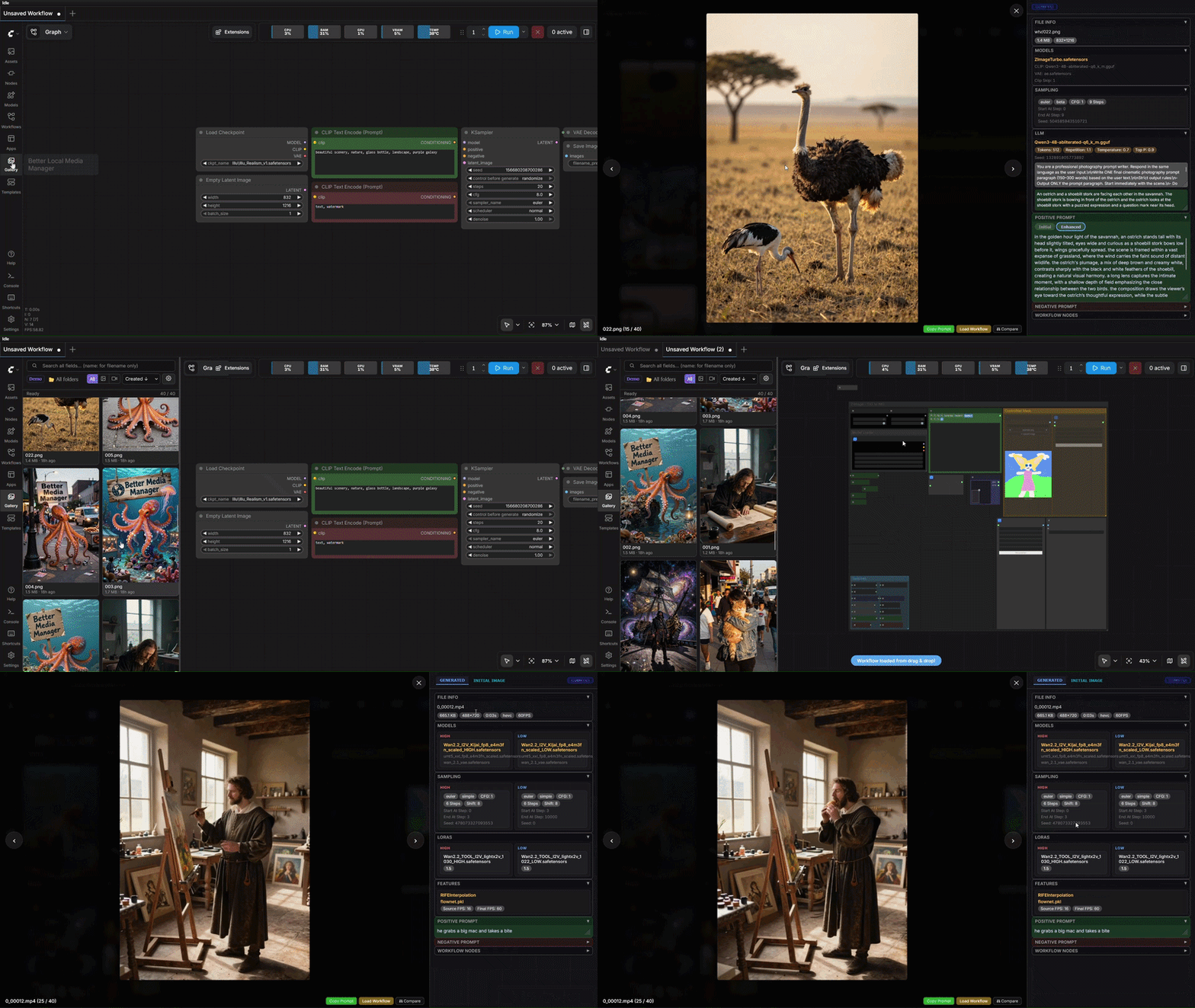
Sidebar Gallery is a ComfyUI extension that adds a media browser to the sidebar. It indexes the images and videos in your output folders, reads the generation metadata embedded in each file, and presents it as a structured, searchable panel. It supports images and videos made with ComfyUI, Automatic1111, Forge, SD.Next, and Fooocus.
The gallery indexes your ComfyUI output folder, together with any other folders you add, into a grid backed by a SQLite database. Browsing and searching remain fast on libraries of tens of thousands of files. The first time the extension runs, it scans your library to build this index, which can take a few minutes if your collection is large; from then on, only new files are scanned. The index can also be rebuilt in full from the settings at any time.
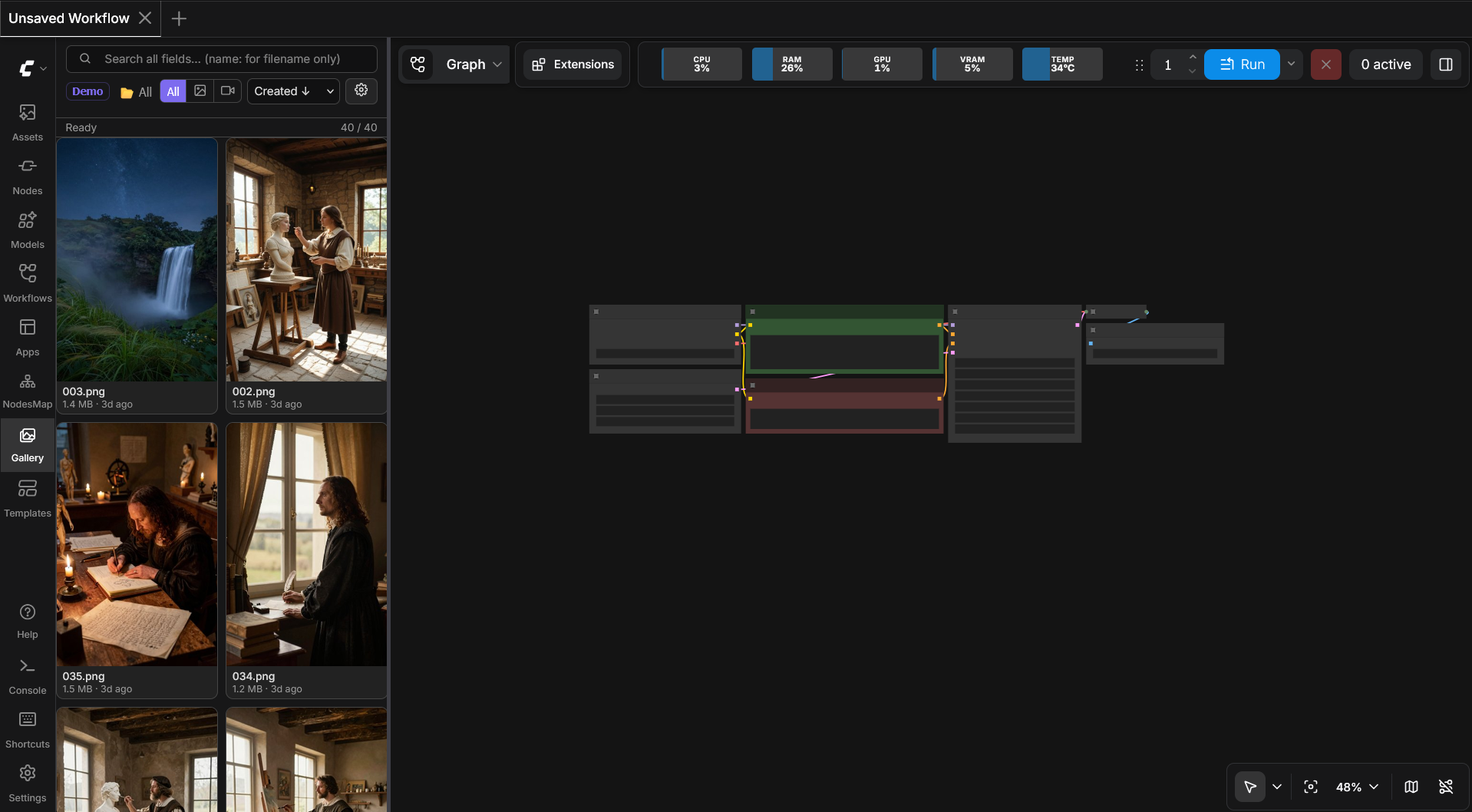
Thumbnails are generated on demand, including for video. You can browse subfolders, filter to images or video, set the sort order, and adjust both the thumbnail size and the number of items per row.
Selecting an item opens it at full size alongside a panel describing how it was made. The panel reads metadata from ComfyUI, Automatic1111, Forge, SD.Next, and Fooocus, and labels each item with its source.
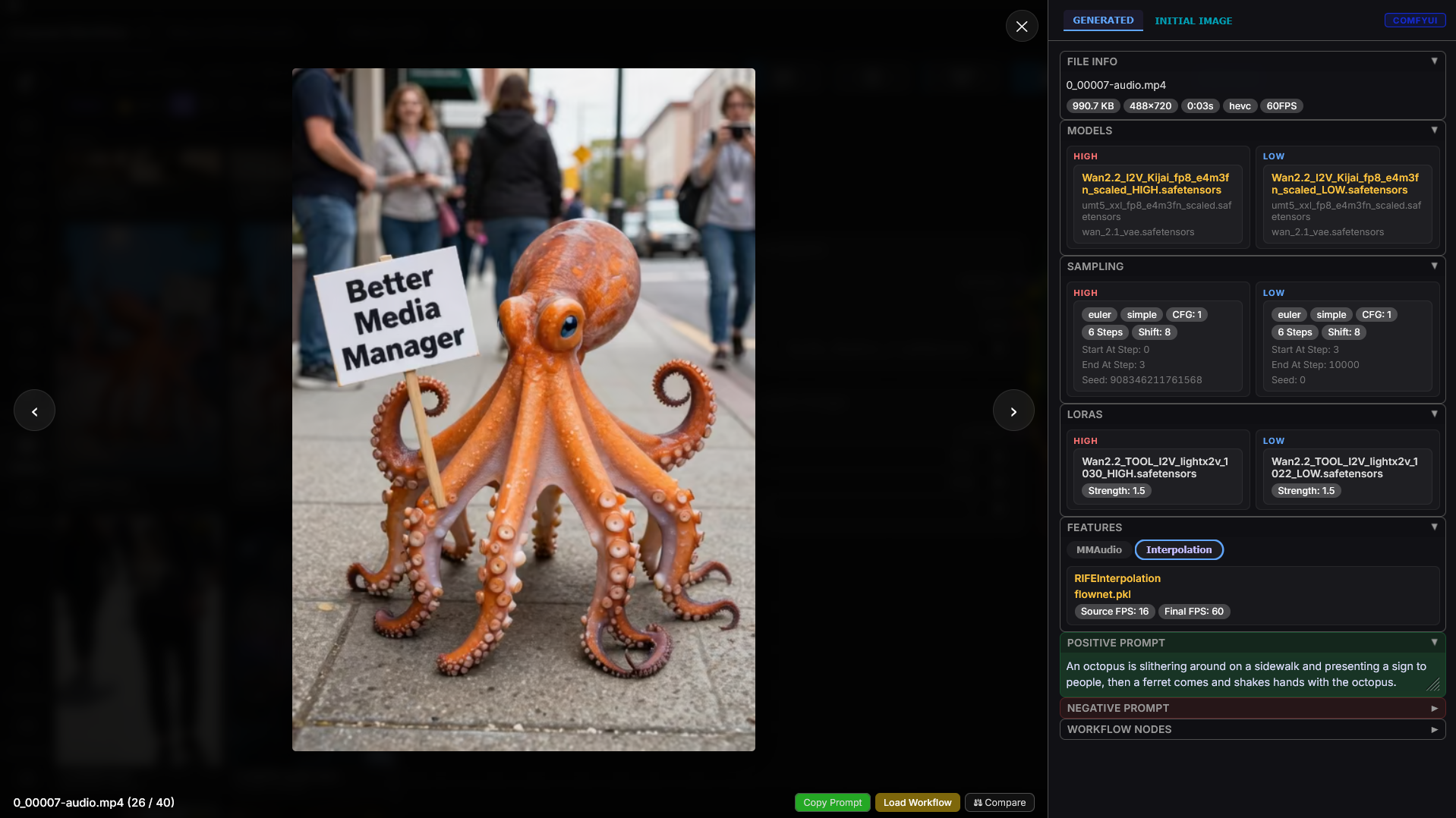
For ComfyUI files, the parser reads the workflow graph rather than a flat parameter string, so a value supplied by another node, such as a seed from a primitive or a step count from a math node, is resolved to the value that was actually used. The panel reports:
- Checkpoint, VAE, CLIP, and clip skip
- Each sampler pass, including custom samplers; passes that perform no denoising, such as a disabled refiner, are omitted
- LoRAs, ControlNet, ADetailer, upscaling, frame interpolation, and MMAudio
- The original prompt and the version produced by a prompt-enhancement model, shown separately
- For img2img, the source image on an Initial Image tab; if that image was itself generated, its own metadata is shown there too
Every node and parameter found in a file is recorded, not just the fields shown by default. Anything that was captured can be added to the panel from the layout editor, including parameters from custom nodes that no built-in layout covers.
Split MoE workflows, such as Wan 2.2, use separate high-noise and low-noise passes. Their models, LoRAs, and samplers are paired and shown side by side. The viewer also provides Copy Prompt, and Compare, which places two items next to each other field by field.
Most of the interface is configurable through the settings panel, which is divided into tabs:
- Layout rebuilds the metadata panel in a two-pane editor (detailed below).
- Appearance sets the colors used throughout the panel.
- Keybindings assigns keyboard shortcuts.
- Settings holds options such as thumbnail size, items per row, and sort order.
Any combination of these can be saved as a named preset, kept on your own machine, and loaded again later.
The layout editor controls how the metadata panel is structured, with separate layouts for each source application and for images and videos. It shows your sections and fields on the left and a live preview on the right that renders the panel exactly as it appears in use.
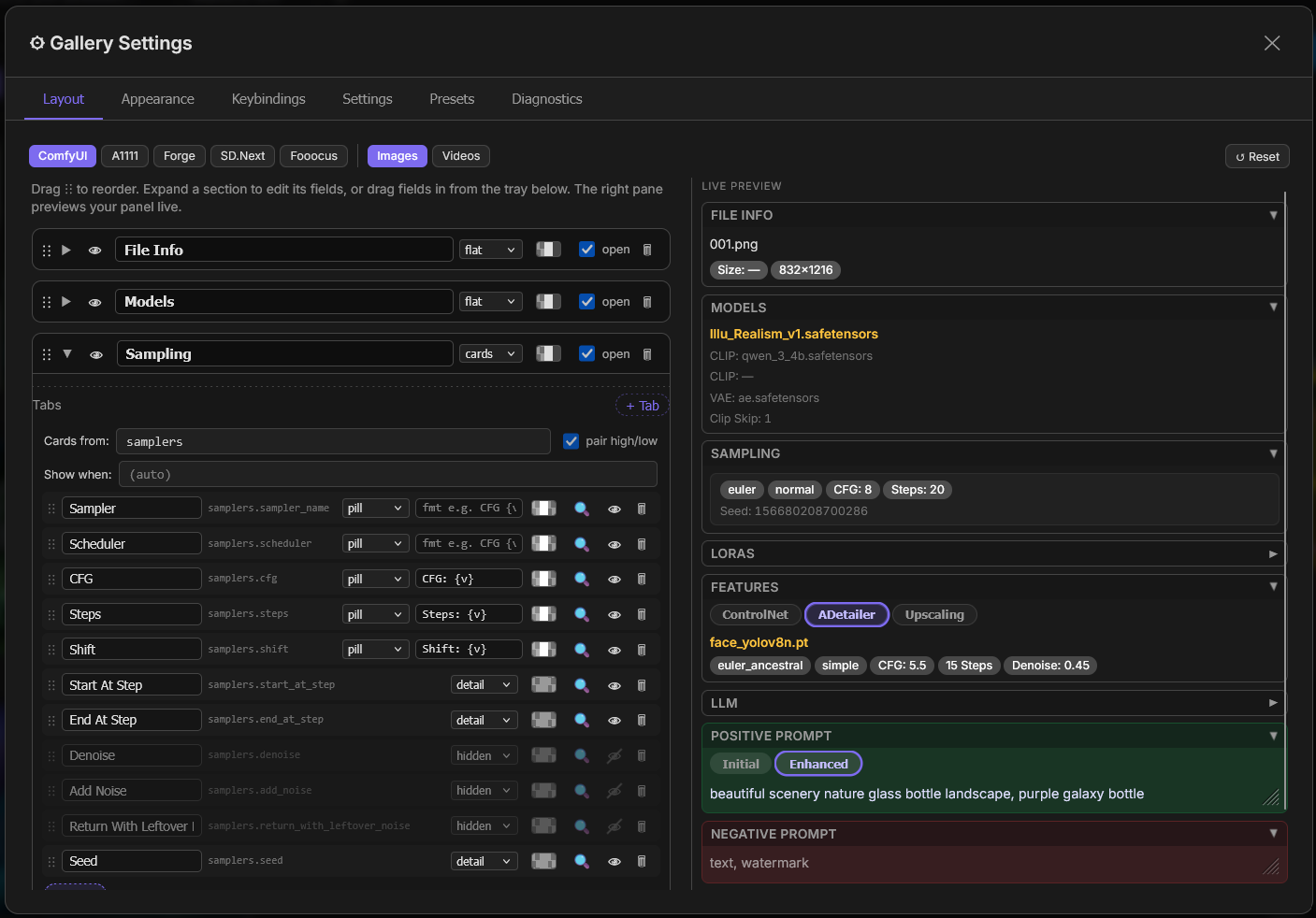
- Sections can be reordered by dragging, renamed, hidden, recolored, deleted, or added.
- Fields can be moved between sections, relabeled, and shown as a key/value row, a pill, a heading, or plain text. Their background, text, and border colors are set independently.
- The field tray lists every metadata path found in your library, grouped and searchable. Dragging an entry onto a section adds it. Individual workflow nodes are listed by their titles.
- Cards display one card per entry in a list, such as one card per LoRA or per sampler, or a single card built from one node.
- Tabs split a section into pill-switchable sub-sections, such as the original and enhanced prompt.
- High and low pairing shows the two halves of an MoE workflow side by side.
Layouts are saved locally by the extension's backend, the same local server that ComfyUI itself runs on, so they persist across browsers and sessions without anything being sent off your computer.
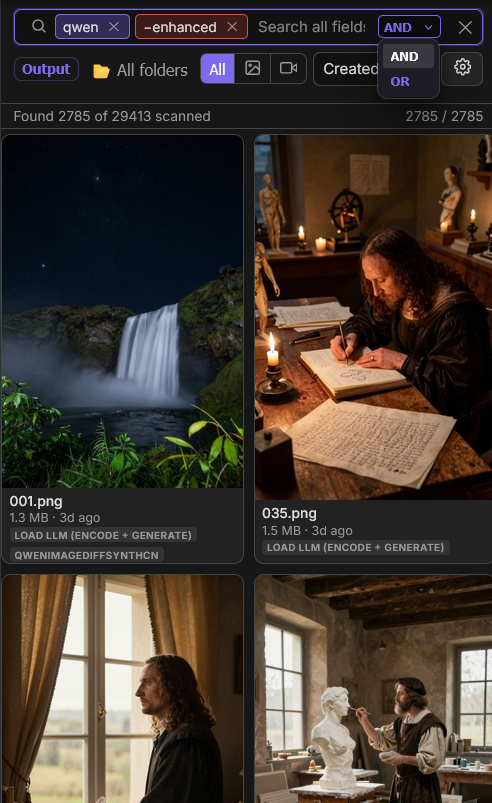
The search bar queries every field at once. A query with no prefix matches anything in the metadata: positive and negative prompts, checkpoint, LoRAs, ControlNet, samplers, and so on. Adding a prefix restricts the query to a single field, for example model:flux or lora:detail. When several terms are combined, a toggle controls whether a result must match all of them (AND) or any of them (OR). Each result lists the fields that matched beneath its thumbnail.
Dragging a thumbnail onto the ComfyUI canvas loads its workflow. Dragging it onto an image-loading node instead, such as Load Image, loads the image into that node rather than loading the workflow. The same workflow can also be loaded from the viewer with the Load Workflow button.
ComfyUI-Manager (recommended): open ComfyUI-Manager, search the custom-node list for Sidebar Gallery, install it, and restart ComfyUI.
Manual: clone into your ComfyUI custom_nodes folder, then restart ComfyUI:
cd ComfyUI/custom_nodes
git clone https://github.com/TokenSpender/ComfyUI-Sidebar-Gallery.git ComfyUI-sidebar-gallery
Either way, it then appears as a Gallery tab in the sidebar.
Video thumbnails work out of the box, via a bundled ffmpeg (the imageio-ffmpeg dependency). Reading video metadata (duration, codec, fps) additionally needs ffprobe on your PATH; without it, thumbnails still work and those fields are just left blank. Images need none of this.