Quickstart
The UI default colors can be easily themed to match the look and feel of your app.
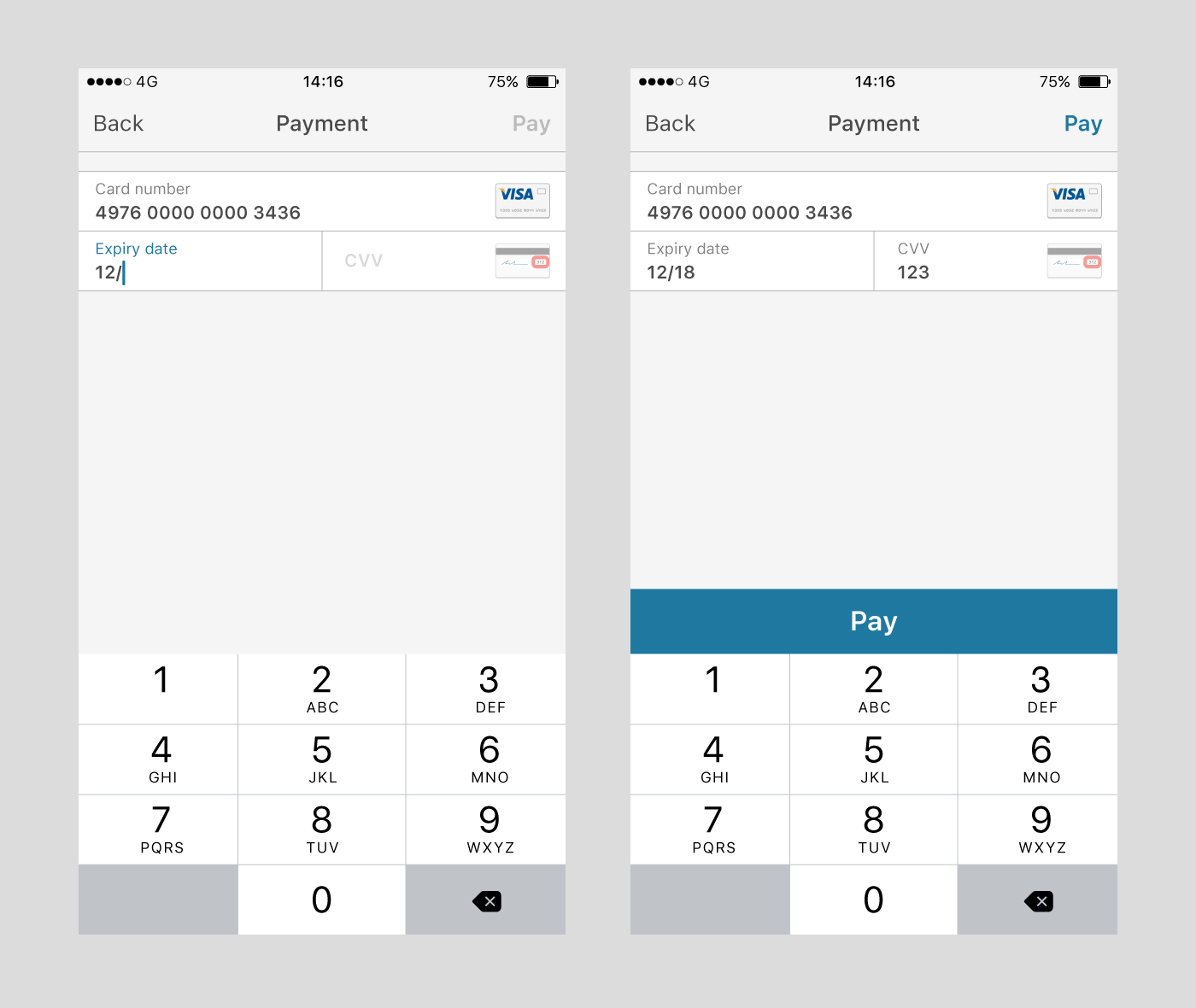
The theme can be configured by changing the tintColor property, which is accessible from the session you created:
myJudoKitSession.theme.tintColor = .yellowColorDepending on the brightness of the selected theme color (used for cursor, field labels and ‘Pay’ buttons), the UI will generate and present a dark or light theme.

If you prefer to change individual components within the UI, such as the color of error text, have a look at the Theme reference for more flexibility.

We have composed an optional security message (see example above) that gives extra security reassurance for your customers while they initiate a transaction within your app. To enable this security message, manipulate the given boolean in your session object:
myJudoKitSession.theme.showSecurityMessage = trueWhile integrating the SDK, you can also change the text to any preferred String:
myJudoKitSession.theme.securityMessageString = "a new string to show in the space"You can adjust the font size of the String as well:
myJudoKitSession.theme.securityMessageTextSize = 14.0In some cases, you might want to configure the navigation bar that is shown during the card entry process. We have made it possible to access the currently visible ViewController instance by accessing it through your judoKitSession object:
let currentlyActivePaymentViewController = myJudoKitSession.activeViewControllerUsing this ViewController, you can access the navigation bar and insert your own logo:
currentlyActivePaymentViewController.navigationItem.titleView = UIImageView(image: UIImage( named:"logo_icon"))As with the navigation bar, through the currently visible ViewController instance, you can access the button via your judoKitSession objects view parameter:
if let judoPayView = self.judoKitSession.activeViewController?.view as? JudoPayView {
    ...
}
Using this JudoPayView, you can access the button and change the parameters:
if let payButton = judoPayView.subviews.filter({ return $0.isKindOfClass(PayButton) }).first as? PayButton {
    payButton.titleLabel?.font = UIFont(name: "Helvetica", size: 14)
}