For those interested in a Perl 5 Language Server, check out https://marketplace.visualstudio.com/items?itemName=bscan.perlnavigator
This is a Raku Extension for Visual Studio Code including a Language Server. Currently it provides
- Definition of Raku language and file associations
- Icon for Raku files
- Syntax Highlighting (thanks to https://github.com/Raku/atom-language-perl6)
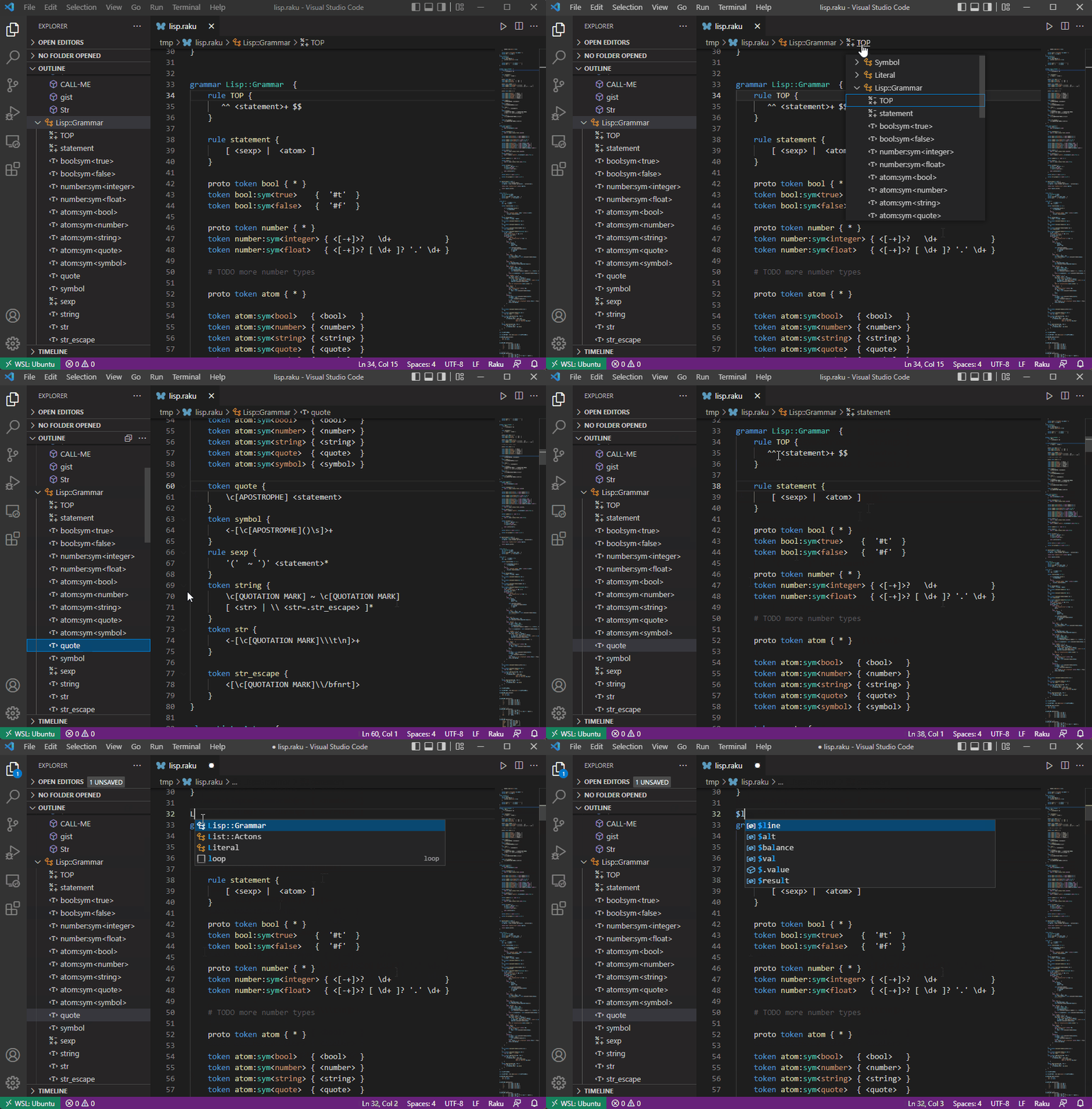
- Snippets for simple loops and grammars
- Language Server providing:
- Syntax Checking - Real-time syntax validation and warnings
- Navigation
- Outline view and breadcrumbs for current file
- Go-to definition for local variables, grammars, and classes
- Workspace symbols - search for subs, classes, and modules across your entire project
- Find all references - locate all usages of a symbol
- Code Intelligence
- Autocompletion for variables, methods, and imported symbols
- Signature help for function parameters
- Refactoring
- Rename symbols across your workspace with intelligent filtering
- Automatically excludes strings, comments, and regex patterns
- Preserves sigils for variables and punctuation for method calls
- Code Formatting
- Format document or selection
- Configurable indentation and style rules
- Smart handling of braces, commas, and whitespace
Install the vscode extension from: https://marketplace.visualstudio.com/items?itemName=bscan.raku-navigator
I also recommend the following vscode settings when using Raku. The word separators are important for highlighting function names that have a hyphen in them, and for variables that include sigils.
"[raku]": {
	"editor.wordSeparators": "`~!#^&*()=+[{]}\\|;:'\",.<>/?",
},
- raku.rakuPath - Specifies the location of your raku install. Defaults to
"raku" - raku.includePaths - Adds locations to the path via a
-Icommand line switch - raku.syntaxCheckEnabled - Enable/disable syntax checking. Defaults to
true - raku.logging - Enable detailed logging for debugging. Defaults to
false
- raku.formatting.enable - Enable/disable automatic code formatting. Defaults to
true - raku.formatting.indentSize - Number of spaces per indentation level. Defaults to
4
Example configuration in settings.json:
{
  "raku.rakuPath": "raku",
  "raku.logging": false,
  "raku.formatting.enable": true,
  "raku.formatting.indentSize": 4
}Rename variables, functions, classes, and other symbols across your entire workspace. Automatically excludes matches in strings, comments, and regex patterns for accurate refactoring.
Usage: Right-click on a symbol and select "Rename Symbol" or press F2.
Locate all usages of a symbol throughout your workspace.
Usage: Right-click and select "Find All References" or press Shift+F12.
Search for any symbol (sub, class, module) across your entire project.
Usage: Press Ctrl+T (or Cmd+T on Mac).
Format your Raku code with consistent style. Supports both full document and selection formatting.
Usage: Right-click and select "Format Document" (Shift+Alt+F) or "Format Selection".