Please also check Claude Code Studio from wluisdev
Native or terminal inside Visual Studio for Claude Code, OpenAI Codex, Cursor Agent, Open Code, Devin, PI, Google Antigravity, and Reasonix — with multi-line prompts, file attachments, and an integrated diff viewer.


Enjoying the extension? Buy me a coffee — every cup helps keep it free. Bug reports, suggestions, and pull requests are welcome on GitHub.
Mentioned in Awesome Codex CLI
- Embedded AI terminal — Run any supported AI coding agent inside a Visual Studio tool window. Auto-detects the solution directory; restarts when you switch solutions. Optionally use Windows Terminal instead of Command Prompt for better emoji/Unicode rendering.
- Native mode (optional) — Show the conversation as a chat in its own document tab instead of an embedded terminal: answers arrive as formatted text, file edits open into a colored diff, and each turn ends with how long it took and what it cost. The tab has its own message box with image paste and file attachments, plus agent, model, effort and permission selectors you can change mid-conversation. Opt-in via ⚙ → Settings... → Terminal; Reasonix and any agent that can't run this way keep using the terminal.
- Multi-line prompts — Press Enter to send, Shift+Enter or Ctrl+Enter for a new line. Toggle "Send with Enter" off in the ⚙ menu to make Enter insert a newline and reveal a Send button.
- File and image attachments — Paste images with Ctrl+V, drag & drop files onto the prompt area, or use the 📎 button. Any file type is accepted (no limit). Text content like Excel cells pastes as text, not as an image.
- Editor selection → prompt — Click 📋 or right-click selected code → Send Selection to Claude Code to insert a formatted snippet (file path + line numbers + syntax-highlighted code fence) into the prompt.
- Integrated diff viewer — For Git projects, the 📊 view shows uncommitted changes in a dedicated tab with search, double-click-to-open, and double-click-line-to-navigate. Optionally auto-opens when you send a prompt.
- Prompt history — Last 50 prompts saved (with attached files). Browse with Ctrl+Up / Ctrl+Down; clear via right-click.
- Claude Code and Codex session history — 📜 toolbar button lists past sessions for the current workspace; view, rename, delete, or resume any session, including the most recent one. Works on Windows and WSL.
- Claude usage in VS — 📊 button (when Claude is active) opens the claude.ai usage page inside a dockable tab. Inline session/weekly progress bars below the prompt update automatically and adapt to the active theme.
- Custom commands (⚡) — Save slash commands or canned prompts and dispatch them to the active agent in one click. Configure via ⚙ → Configure Custom Commands....
- "@" file picker — Type @ in the prompt box (or the native mode chat composer) to search your solution's files and folders and insert one with the keyboard; keep typing to filter, arrow keys + Enter to insert, pick a folder to drill in.
- On Agent Finish — Optionally play a sound, show a notification (with duration, plus token count for Claude Code), and run an action (build/rebuild, run, tests, a script, or a follow-up command) when the agent goes idle. Global defaults plus per-solution overrides. Configure via ⚙ → Settings....
- Auto-send build errors — Optionally send build errors (with warnings for context) to the active agent automatically whenever a Visual Studio build finishes with errors, so it can fix them. Opt-in via ⚙ → Settings... → Behavior.
- Generate Commit Message — Toolbar/menu action that asks the active agent to write a commit message from the current changes and fills it into the Git Changes window. Requires native mode; falls back to the clipboard if the commit message box can't be found.
- Model selection — 🤖 button to switch models: for Claude, Best / Opus / Sonnet / Haiku / Opus Plan plus an effort level; for Codex, its reported models plus a reasoning level (Model default / Low / Medium / High / Extra High / Max / Ultra); for every other agent, the models it reports itself, with Refresh Models to re-read them and Choose in the Agent... to fall back to its own picker; for Devin and Reasonix, a configurable list you can edit via Configure Models....
- Detach / attach terminal — Pop the terminal into a separate VS tab and bring it back at any time. State persists across sessions.
- Theme aware — Follows VS dark/light theme automatically, or force dark, light, or a custom background color via ⚙ → Settings → Theme. Prompt zoom is persisted across sessions; set the terminal's console font and size via ⚙ → Settings → Terminal (Ctrl+Scroll zoom applies for the current session).
- Persistent settings — Layout, provider choice, model, flags, and font sizes all saved to
%LocalAppData%\ClaudeCodeExtension\claudecode-settings.json.
Currently in beta — turn it on via ⚙ → Settings... → Terminal → Use native mode.
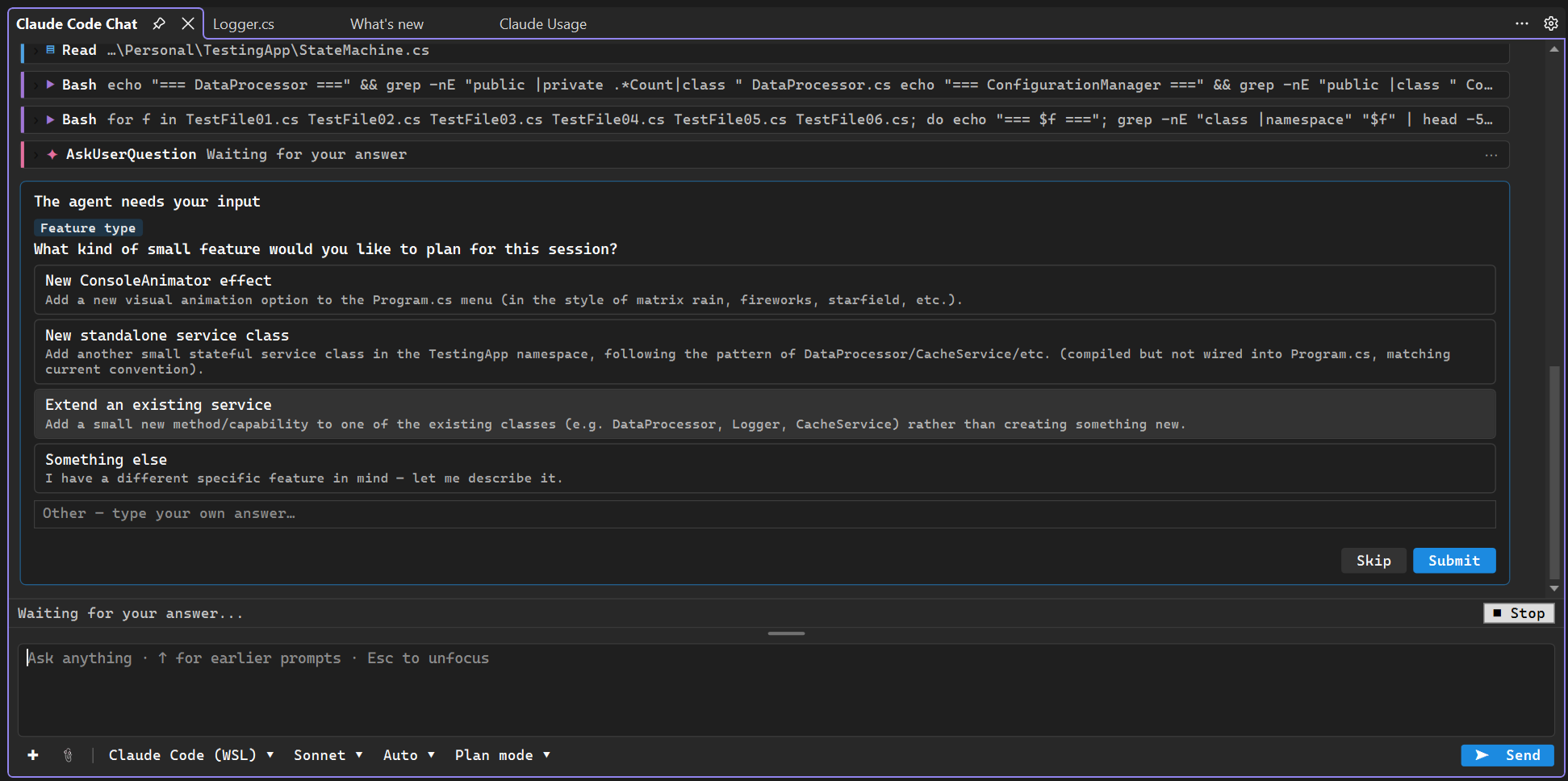
Questions answered in the chat — the agent's multiple-choice questions become clickable cards, each with a free-text answer of your own.
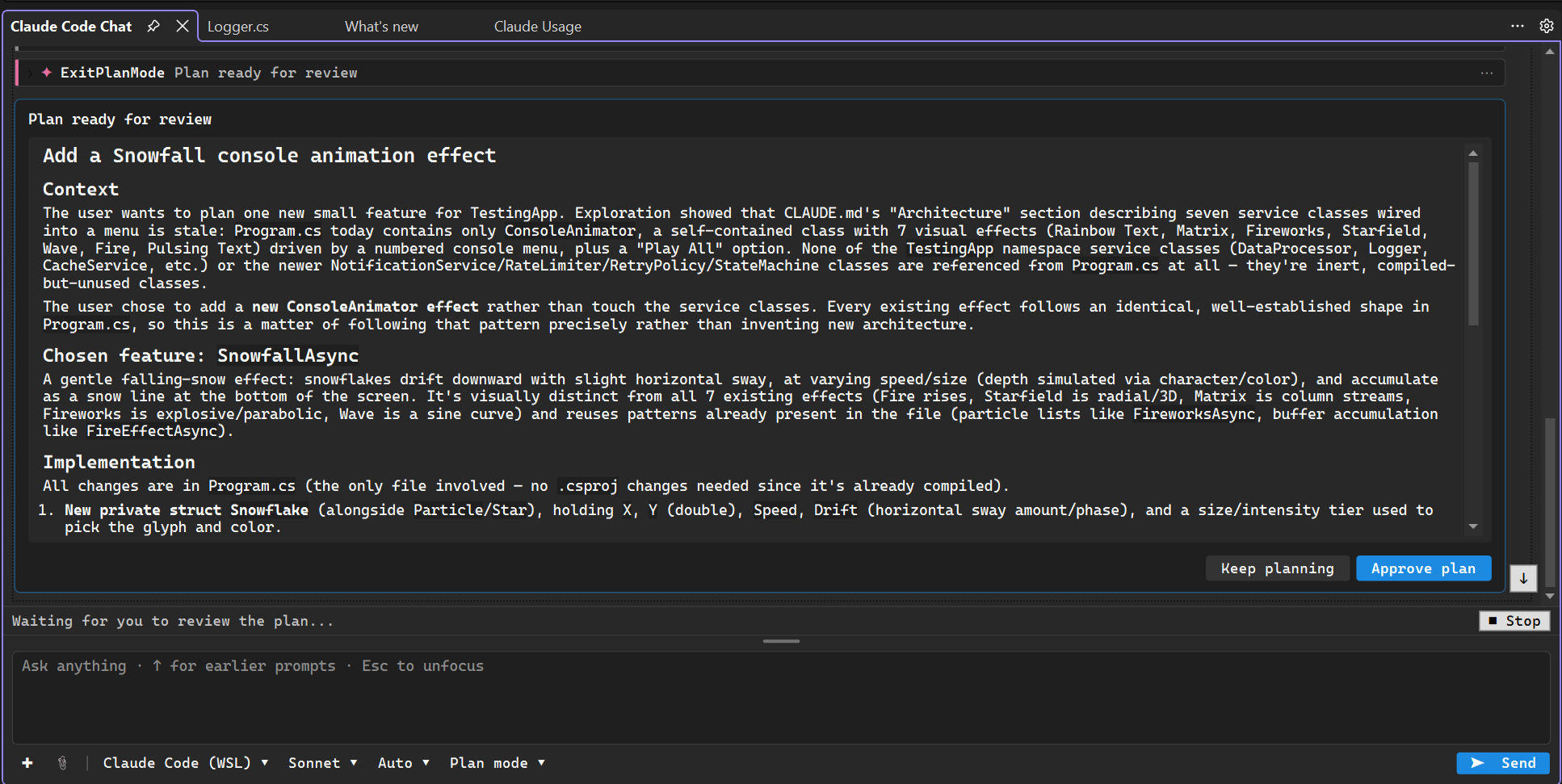
Plan review — in plan mode the agent proposes a plan first; approve it or send it back for changes without leaving the transcript.
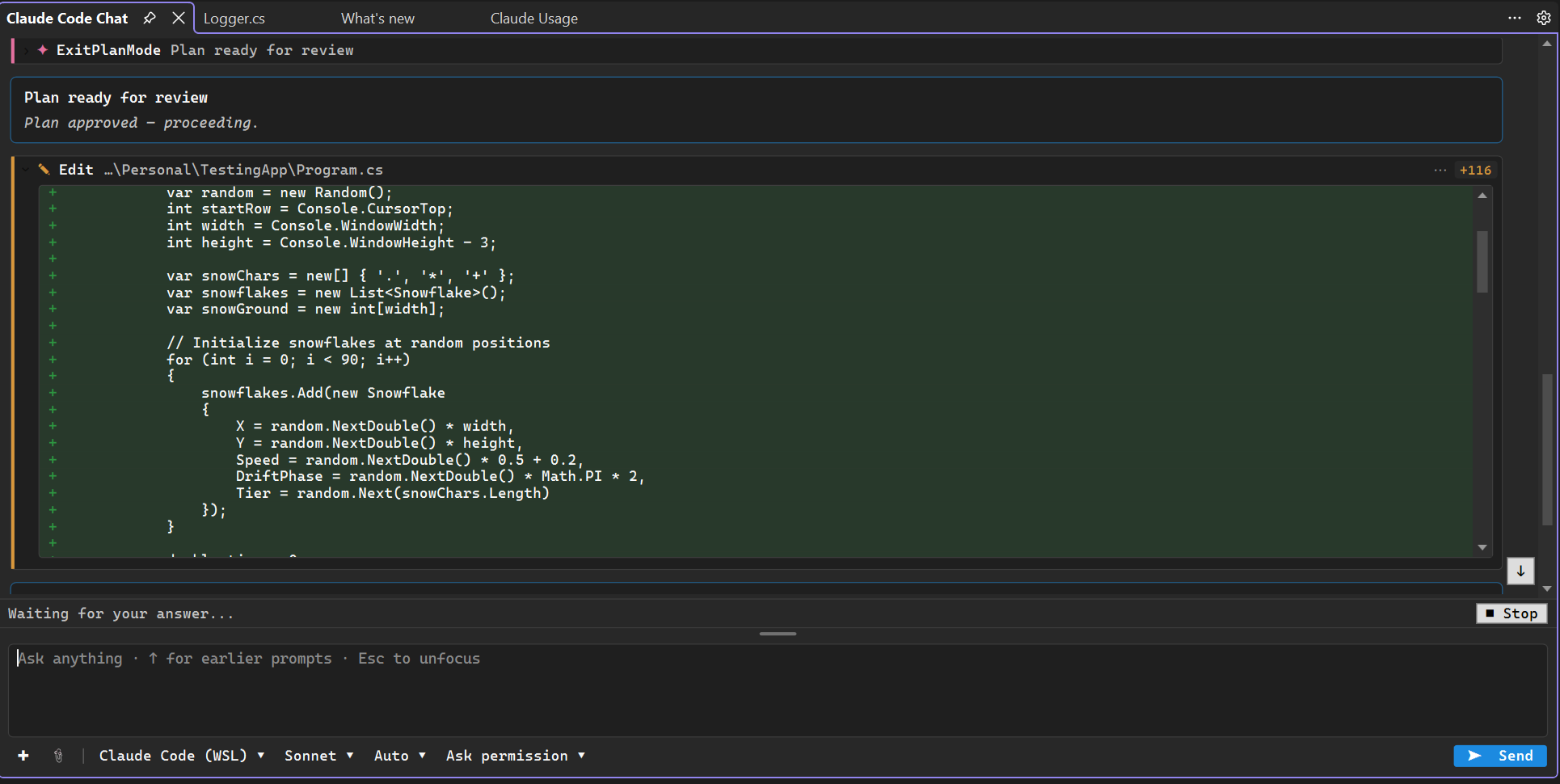
Real diffs for file edits — every edit opens into a colored diff with a line count, so you can see what changed without switching tabs.
By default only Claude Code is shown in the agent picker — use ⚙ → Configure Visible Code Agents... to opt in to the others. The active agent always remains visible.
| Provider | Platform | Command | Subscription / Notes |
|---|---|---|---|
| Claude Code | Windows / WSL | claude |
Claude Pro or higher. Setup docs |
| OpenAI Codex | Windows / WSL | codex |
ChatGPT Plus or higher. Optional --ask-for-approval never toggle |
| Cursor Agent | Windows / WSL | agent / cursor-agent |
Cursor account. Optional --yolo toggle |
| Open Code | Windows | opencode |
Node.js 14+; provider configured via Ctrl+P → "connect providers" |
| Devin | Windows / WSL | devin |
Devin account. Optional --permission-mode dangerous toggle. Native install from Windows Terminal: irm https://static.devin.ai/cli/setup.ps1 | iex |
| PI | Windows | pi |
Node.js + Git for Windows |
| Google Antigravity | Windows | agy |
Google account. Optional --dangerously-skip-permissions toggle |
| Reasonix | Windows | reasonix |
DeepSeek API key (DEEPSEEK_API_KEY). Install with npm i -g reasonix |
If a provider isn't installed, the extension shows the install command automatically when you select it. The Update Agent entry in the ⚙ menu runs the right update command for the active provider (e.g. claude update, npm install -g @openai/codex@latest, cursor-agent update).
- Visual Studio 2022 or 2026 (x64 or ARM64)
- Windows 11
- Plus whatever the chosen AI provider needs (see table above)
- Download the latest VSIX from this page or search for "Claude Code Extension" inside Visual Studio's Manage Extensions... menu
- Double-click the VSIX file to install or install inside Visual Studio, then restart Visual Studio
- First time only: Open the tool window via View → Other Windows → Claude Code Extension
If the terminal opens in a separate window instead of inside the extension panel, open Windows Settings → search "Terminal settings" → set Terminal to Windows Console Host.
Optional — Windows Terminal: For better emoji and Unicode rendering, install Windows Terminal from an elevated Command Prompt:
winget install --id Microsoft.WindowsTerminal -e
Then choose it via ⚙ → Set Terminal Type....
- Click ⚙ → pick your AI provider (use Configure Visible Code Agents... if it isn't listed)
- If using Open Code, run
Ctrl+P→ "connect providers" once to authenticate - Pick a model via the 🤖 button
- Type a prompt, press Enter to send. Attach files with Ctrl+V, drag-and-drop, or 📎
- Watch the agent work in the embedded terminal. For Git projects, open 📊 to see live diffs
⚙ Settings menu (gear button, top-right):
- Pick an AI provider, Configure Visible Code Agents...
- Provider-specific flags: Claude Skip Permissions, Codex Approval Never, Cursor Yolo Mode, Devin Dangerous Mode, Antigravity Skip Permissions
- Configure Custom Commands..., Settings..., About
- Settings... opens the consolidated dialog with tabs for Behavior (send key, large prompts, auto-open Changes, auto-send build errors, font size), Layout (prompt panel position), Terminal type, Theme, Usage, Toolbar, and CLI Paths
☰ Tools dropdown: Holds Update Code Agent, Restart Code Agent, Detach/Attach Terminal, View Code Changes, Session History, Show Usage, Set Working Directory..., Send Build Errors to Agent, and Generate Commit Message. Promote any of these to one-click toolbar buttons — and reorder them by dragging — via ⚙ → Settings... → Toolbar; promoted features leave the dropdown, which hides once they all become buttons.
🤖 Model menu: For Claude — Opus / Sonnet / Haiku, effort level for Opus (Auto / Low / Medium / High / Max), Change Account, Install Caveman plugin. For every other agent — its own models (grouped into submenus when the list is long), Refresh Models, and Choose in the Agent...; Devin and Reasonix instead offer a configurable list, edited via Configure Models....
On Agent Finish: Configure via ⚙ → Settings... → On Agent Finish.... For scripts, enable Close script window when it finishes to auto-close the script console. For Run (F5) and Run without debugging (Ctrl+F5), use Clean solution before running and Rebuild solution before running to control whether the solution is prepared before launch.
Custom commands (⚡): Once you've added a command via Configure Custom Commands..., the ⚡ toolbar button appears. Clicking an entry sends the saved text verbatim to the active agent — useful for slash commands or canned prompts.
This binds a Claude Code skill that shells out to OpenAI Codex to audit pending changes for bugs, security issues, performance problems, and code quality.
- Install Codex CLI (if needed):
npm install -g @openai/codex
codex login
- Create the skill from inside Claude Code — paste this prompt into a Claude Code session:
Create a Claude Code user skill called
codex-reviewat~/.claude/skills/codex-review/SKILL.md. The skill runscodex review --uncommittedagainst the current repo's uncommitted changes. Preconditions: verify git repo, verify uncommitted changes exist, skip non-meaningful diffs (config/lockfiles/whitespace), and verifycodexis on PATH. Ask Codex for bugs, OWASP Top 10 issues, performance problems, and code quality findings — each with file:line, severity, why it matters, and a concrete fix. Codex is the reviewer; Claude relays the output verbatim. After creating the file, run/reload-plugins. - Bind it as a custom command: ⚙ → Configure Custom Commands... → Add... → Name:
Codex Review, Command:/codex-review. - Use it: ⚡ → Codex Review. Claude runs the skill, Codex audits your diff, findings appear inline.
- I know it is a pain, but sometimes in plan mode when there is an AI question after a lot of text, the keyboard does not work to select answer. After some time it will work again. Very hard to fix issue even with advanced models like Fable 5. Probably related to Claude Code CLI itself. anthropics/claude-code#63504 anthropics/claude-code#41501 Use native mode to avoid this issue.
Restored the highlighted feature and menu names in the README so the Marketplace page reads as before.
Listed Generate Commit Message among the Features, and tidied up the repository's internal documentation files.
Fixed Generate Commit Message playing the "On Agent Finish" sound or running its action after the AI wrote the commit message.
Fixed native mode chat occasionally rendering streamed replies with the first few characters of a line missing.
Added a Generate Commit Message toolbar button that asks the agent to write a commit message from the current changes and fills it into the Git Changes window, ready to review alongside the diff. Requires native mode; falls back to copying the message to the clipboard if the Git Changes commit box can't be found.
Fixed restored Codex sessions opening without their earlier messages in native mode, including older interrupted conversations.
Session History now supports Codex on Windows and WSL, including viewing, renaming, deleting, resuming any thread or the latest one, and restoring earlier messages in native mode.
The Claude Code panel and any tabs it created (detached terminal, native mode chat tabs) now stay visible while you debug your project, instead of getting hidden by Visual Studio's own layout behavior (issue #130).
"Send Selection to Claude Code" now also appears in the XAML editor's right-click menu, not just standard code editors (issue #127). The 📎 attach menu has a new "Insert Active File Path" entry that drops a reference to the file open in the active editor tab into the prompt, similar to GitHub Copilot's "Active Document" context (issue #127). Automated sends — auto-sent build/runtime errors, custom commands, and "On Agent Finish" follow-ups — now go to whichever parallel chat tab you last had focused, instead of always the first session.
Exported session transcripts now always start with the session's name, so the file can be pasted straight into a GitHub issue as its details.
Each parallel chat session now shows its own name above the conversation and in its document tab title, so open chats are told apart from the tab strip alone. Attachments and pasted images now stay in the chat tab they were added to, instead of always going to the first session.
Native mode now supports true parallel chat sessions: click the ✚ button to open a new independent session in its own document tab. Each session runs its own agent process, has its own transcript, and can be closed independently. The ↻ button clears the current conversation and starts fresh. Switch between sessions by clicking tabs; all sessions remain active and processing in parallel.
Pressing Esc in the native mode chat box now stops the agent's turn, same as the Stop button. Native mode sessions can now be renamed from the chat tab; the name shows above the conversation and in Session History. Each native mode session can now have its own accent color, replacing the default blue across the whole conversation (message bubbles, welcome banner, session name); pick it from the composer's palette button, no rename required.
Reasonix now always runs in the embedded terminal, even with native mode turned on. The Reasonix model menu now lists the models actually configured on your machine, read from Reasonix itself, instead of a fixed list that could not be used.
Native mode now records why an agent failed to start when the chat falls back to the terminal, including the message the CLI itself printed.
Fixed Reasonix native mode still opening the terminal on later launches, once a leftover Reasonix process from an earlier attempt had already been holding onto the workspace.
Added diagnostic logging for native mode start failures, to help pin down why a provider sometimes still opens the terminal with native mode on.
Fixed native mode (chat tab) not being used when switching AI provider from the ⚙ menu — it now behaves the same as switching on startup or restart, instead of silently dropping to the terminal.
Fixed the Settings window sometimes opening with the Terminal tab scrolled to the middle instead of the top.
Fixed Reasonix (native) getting stuck on first launch behind its one-time "Allow anonymous CLI usage statistics?" console prompt — it is now answered automatically so the agent starts normally.
"Update Agent" now works in native mode too: it opens a console window running the CLI's own updater, and once you close that window the agent automatically restarts and resumes your conversation. Fixed the update failing with "Access is denied" on machines where Visual Studio is not running as Administrator, and fixed Devin (native)'s updater being flagged by Windows Defender.
The Codex welcome card in native mode now shows the model currently selected by the extension and the signed-in ChatGPT account, matching the information already shown for Claude Code. Account detection works for both native Windows and WSL Codex installations, supports API-key authentication, runs in the background, and never reads or exposes the stored access tokens. Codex now also has a reasoning-level selector in both terminal and native chat modes, with Model default, Low, Medium, High, Extra High, Max, and Ultra options. Native chat applies the new level to the next turn without losing the conversation; terminal mode offers to restart Codex so the saved level takes effect. Codex native chat also keeps the composer available during a turn for both Windows and WSL providers: follow-up messages are queued in order, show their queued count in the activity footer, and run automatically on the same thread when the current response finishes. Codex turn footers and Agent Finish notifications now split the CLI's large token figure into processed, cached input, and output counts, making resumed short replies easier to interpret. Claude Code native chat now also honors "Play a different sound when the agent asks a question" for questions, plan reviews, and tool approvals.
Fixed Change Account in native mode: it now opens claude.ai first so you can consciously sign into the desired account before the sign-in step runs, that step now opens in a visible console window, and it switches the WSL account instead of a Windows one the running WSL session never uses. New chats show which account is signed in for WSL too, and that no longer gets stuck blank after a sign-in that was still finishing. Switching agents in the native chat tab now tells you when the switch fails instead of silently leaving the old conversation in place. Fixed Claude Code, Codex, Cursor Agent, Open Code and PI sometimes being reported as "not installed" when they were actually on PATH — a CLI installed while Visual Studio was already running is now detected without needing a restart (issue #124).
Fixed the terminal not letting you scroll up to see earlier output while the agent is generating, and reduced garbled/overlapping text during long sessions (issues #118, #119). The "Edit Custom Command" popup is now bigger and resizable (issue #123). Native mode no longer drops the current conversation when Visual Studio reloads the same project, and it now shows which Claude Code account is signed in when resuming a chat; switching accounts also works reliably instead of silently keeping the old one.
Every agent now has a model picker, in the chat tab and in the terminal's model (🤖) menu — the list comes from the agent itself, with Refresh Models to update it. Reasonix, which publishes no list, gets a Configure Models... editor like Devin's.
Fixed the mouse pointer disappearing after sending a prompt to the terminal, and it no longer jumps away from where you left it.
Chat tab links are now brighter in dark theme, so file and web references stay easy to read against a dark background.
File and web links in the chat tab now work even when the agent wraps the citation in a code snippet, instead of only when it's plain text.
Links in the chat tab are now clickable: web addresses open in your browser, and file references jump straight to that file and line in the editor, even when the agent writes them as plain text instead of a formatted link. Text selection in the chat tab now uses a softer accent colour instead of the harsher default highlight.
Session history no longer counts or previews CLI-injected caveat/skill text as if it were a real prompt. Thanks to @wluisdev for the contribution (issue #120).
Sessions that only contain a typed slash command (like /effort medium), with no real conversation, no longer show up in the session history list.
Updated extension description
Updated extension description
Native mode now in beta phase
- The model picked for Devin now really applies in native mode chat — it used to be only a caption while the agent answered on its own default model.
- Switching the Devin model in the chat takes effect immediately, without restarting the conversation.
- Picking a model Devin no longer offers now says so in the chat instead of silently running another one.
- Fixed the native mode composer placeholder so it reads Ctrl+Up/Down for prompt history instead of a rendered-as-1 arrow glyph.
- Updated the remaining native mode hints and documentation to match the Ctrl+Up / Ctrl+Down prompt history shortcut, including the welcome card tips and the placeholder text.
- Refreshed the default Devin model list to the current lineup: Claude Opus 5 High, Claude Sonnet 5 High, Claude Opus 4.6 Thinking, GPT-5.5 High Thinking, Gemini 3.1 Pro High Thinking, and SWE-1.6.
- The agent (⚙) menu now shows Configure Devin Models... while Devin is active, so you can add, edit, remove, or reorder Devin models from the same menu.
- Native mode chat now cycles prompt history with Ctrl+Up and Ctrl+Down, matching the terminal panel prompt box.
- Switching the Devin model in native mode now asks whether to restart the chat so the new model takes effect immediately.
- Attached images now show a thumbnail on their chip, with a larger, sharp preview when you hover over it — in the native mode chat composer and in the terminal panel alike.
- Native mode still in alpha phase. It will be improved and stabilized in next releases. Please do not use for real work yet.
- Fixed native mode's Antigravity chat not seeing the open project — it now correctly points the agent at your solution folder instead of reporting no active workspace.
- Native mode still in alpha phase. It will be improved and stabilized in next releases. Please do not use for real work yet.
- Fixed an issue where the embedded Windows Terminal font could grow runaway-large for a few seconds after load; a safety limit now prevents it.
- Native mode still in alpha phase. It will be improved and stabilized in next releases. Please do not use for real work yet.
- Native mode's chat now shows an animated indicator on tool calls that are still running, including subagent tasks, instead of a static marker.
- Native mode still in alpha phase. It will be improved and stabilized in next releases. Please do not use for real work yet.
- The @ file/folder picker now also works in native mode's chat composer, not just the terminal-mode prompt box.
- Native mode still in alpha phase. It will be improved and stabilized in next releases. Please do not use for real work yet.
- Native mode now shows which Claude account is signed in, both on the welcome screen and after using Change Account.
- Native mode still in alpha phase. It will be improved and stabilized in next releases. Please do not use for real work yet.
- Added Change Account to the ⚙ menu in native mode: opens claude.ai in your browser to switch accounts, then resumes the conversation.
- Native mode still in alpha phase. It will be improved and stabilized in next releases. Please do not use for real work yet.
- Maintenance release over 89.0, with no functional changes.
- Native mode still in alpha phase. It will be improved and stabilized in next releases. Please do not use for real work yet.
- Accented and non-English characters in a chat prompt now reach the agent intact. Codex in particular rejected them and ended the turn with "exited with code 1"; every agent was affected.
- When an agent does fail to finish a turn, the chat now shows what it reported instead of only its exit code.
- In a Claude Code chat, typing /plan turns on plan mode, and /model or /effort opens the matching picker — without leaving the prompt box.
- /btw now works in the chat: it asks a quick side question with the full conversation as context, answered without touching the work in progress.
- Resuming a session from Session History now shows the earlier conversation in the chat instead of opening it blank.
- The agent list in the ⚙ menu is hidden in native mode, where the chat's own Agent selector switches agents.
- Toolbar controls that only work through the terminal — Update Code Agent and the model menu — are now hidden in native mode, where the chat's own selectors replace them.
- Send Build Errors to Agent, and the auto-send of build and runtime errors, now work in native mode instead of reporting that no agent is running.
- The chat effort slider now applies the level only when you close it, so picking a level no longer restarts the agent once per level you pass through and no longer freezes the chat.
- The effort popup names the level under the slider while you move it, before it is applied.
- Native mode still in alpha phase. It will be improved and stabilized in next releases. Please do not use for real work yet.
- Changing the model, effort level, permission mode or plan mode twice in a row in the chat no longer reports "The agent process exited unexpectedly" and no longer ends the conversation.
- The chosen effort level now survives a model, permission or plan mode change instead of quietly falling back to the default.
- Dragging the chat effort slider applies only the level it is released on, instead of every level it passes over.
- A new chat now opens with a welcome card showing the agent and its version, the model, effort and permission mode in use, the folder it is working in, and a few tips. It disappears with your first message.
- Native mode still in alpha phase. It will be improved and stabilized in next releases. Please do not use for real work yet.
- Chat answers are now formatted: headings, lists, tables, emphasis and code blocks instead of a single block of plain text.
- Tool cards say what the agent did at a glance — the file it read, the command it ran, how many lines changed — and file edits open into a colored diff.
- Ctrl+V in the chat pastes an image from the clipboard as an attachment.
- The chat font and size can be chosen in Settings → Terminal, with every installed font available, and the Ctrl+Scroll zoom is remembered between sessions.
- Pressing Ctrl+Up/Down in the chat message box browses prompt history.
- While the agent works the chat shows a spinner with a changing caption, the elapsed time and the tokens used so far, and each turn ends with a line saying how long it took.
- Turning native mode on keeps the terminal type on Command Prompt and drops the agent-finish idle wait to one second, since the agent reports when it is done.
- Native mode still in alpha phase. It will be improved and stabilized in next releases. Please do not use for real work yet.
- The chat tab now answers Claude Code's multiple-choice questions with clickable option cards, and each question also takes a free-text answer of your own.
- Plan mode is available in the chat tab's permission selector: the agent proposes a plan first, and you approve or send it back for changes from the transcript.
- Effort in the chat tab is now the same slider used elsewhere in the extension, and the agent, model and permission dropdowns follow the current theme.
- The agent selector now tells apart the Windows and WSL versions of the same agent.
- New chat button, a blinking cursor in the message box, a drag handle to resize it, and Ctrl+Scroll to zoom the whole conversation. The size and zoom are remembered.
- While the chat is in its own tab, the panel no longer shows an empty terminal area — the message box gets that space.
- Native mode now opens the conversation in its own document tab, next to your files, instead of the narrow side panel.
- The chat tab has its own message box, so you can type, attach files and drop files straight into it.
- The chat tab also has agent, model, effort and permission selectors: change any of them mid-conversation and the switch is applied right away, with a note in the transcript marking where it happened. With Claude Code the conversation carries over.
- While native mode is on, Detach moves the chat between its tab and the panel.
- Fixed native mode showing an empty panel when the terminal had been detached to a separate tab: the chat now takes that space back, and the detached tab returns as soon as native mode is turned off.
- The Detach Terminal to Separate Tab command is hidden while native mode is on, since there is no terminal to detach.
- New optional native mode: the panel shows the conversation with the agent as a chat, with no embedded terminal — answers stream in as they arrive, thinking and tool steps appear as collapsible cards, and each turn ends with its token count and cost. Turn it on in Settings; it works with every supported agent, and any agent that can't run this way silently keeps using the terminal.
- In native mode the "On Agent Finish" notification and action now fire when the agent itself reports the turn is over, instead of guessing from the terminal screen, so they no longer fire late or not at all. Auto-send of build and runtime errors, custom commands and follow-up messages all go through the same channel.
- Fixed the "On Agent Finish" notification and action sometimes not firing: it now also works for prompts typed directly into the terminal (not only ones sent from the prompt box), no longer gives up on long agent turns that run past 30 minutes, and no longer stays silent when the agent's final answer happens to contain the phrase "to navigate".
- Fixed the terminal opening with larger text after upgrading from an older version, which made long lists (like the session picker) overflow so the selected row scrolled out of view and couldn't be seen while navigating with the arrow keys. Your previous zoom is now carried over to the Console font size setting so the terminal keeps opening at the smaller size you had (issue #115).
- Ctrl+Scroll zoom in the Command Prompt terminal is now remembered: the size you settle on becomes the Console font size setting, so the next session opens at that size without any manual step. In Windows Terminal the zoom still applies only to the current session — use Settings > Terminal > Console font size there.
- Fixed the new Session History sort selector's drop-down being unreadable in dark mode (light text on a white popup); it now follows the current theme.
- Added an opt-in "Auto-send runtime errors to the agent" setting (Settings > Behavior): while debugging, when the app hits an unhandled runtime exception, the exception and its stack trace are sent to the active agent so it can fix it.
- Added a sort selector to the Session History window (last modified, oldest, most tokens, most messages, or title) so you can reliably find a session to resume; your choice is remembered (issue #114).
- Fixed the extension failing with "Error sending prompt: Method not found: ...JToken.ToString..." when submitting a prompt or opening the Settings dialog on version 74 (issue #112).
- Added a Console font size setting (⚙ → Settings... → Terminal) to set the embedded terminal's text size directly, for both Command Prompt and Windows Terminal.
- The terminal no longer auto-zooms at startup, and Ctrl+Scroll zoom now applies only for the current session — use the new Console font size setting for a size that persists across restarts.
- Fixed Ctrl+Scroll zoom in the Command Prompt terminal occasionally freezing or running away during fast scrolling.
- Fixed the terminal sometimes not accepting keyboard input at the very start of a session until it was clicked twice.
- Fixed the Claude Usage panel cutting off content (like usage credits, balance, and buy-credits) instead of letting you scroll down to it.
- Fixed the agent's input box flooding with thousands of repeated pasted-text blocks on Windows 10 right after sending a prompt (issue #83).
- Fixed messages sent to the agent getting prefixed with a growing block of blank lines that accumulated in the agent's input box over a session (issue #108).
- Fixed the v69.0 launch-script fix itself breaking terminal startup on some machines ("'chcp' is not recognized") — the temp launch script is now written without a UTF-8 byte-order mark, which
cmd.execouldn't parse (issue #107).
- Fixed the terminal failing to launch ("The system cannot find the file specified") when the solution/workspace folder path contains " - ", such as
MS-059 - ZZZZ-EC16(issue #106).
- Added a Send Build Errors to Agent toolbar button that sends the current build errors to the agent on demand, even when auto-send is turned off. Promote it to a one-click button (or find it in the ☰ Tools dropdown) via ⚙ → Settings... → Toolbar.
- Fixed build-error prompts getting stuck mid-paste in the agent terminal ("Pasting..." never completing) when there were several errors — they're now delivered as a file reference instead of a raw paste.
- Fixed the Send Build Errors to Agent button silently doing nothing under the Windows Terminal terminal type (it worked fine under Command Prompt).
- Fixed On Agent Finish not triggering after a build-error send (button or auto-send) — it now arms the same as after a normal prompt.
- Renamed the View Changes button/menu item to View Code Changes for clarity.
- Fix issues.
- More reliable sending for Devin: fixed an intermittent issue where the prompt would appear typed into Devin's session but Enter wouldn't submit it. The terminal now waits a bit longer for Devin's interface to catch up before pressing Enter.
- Auto-send build errors to the agent: an opt-in setting that, whenever a Visual Studio build finishes with errors, automatically sends the errors (plus warnings for context) to the active agent so it can fix them. Enable it via ⚙ → Settings... → Behavior.
- The Settings console font list now shows only monospaced fonts, preventing the jumbled terminal text that appears when a proportional font is picked (issue #105). A "Show all fonts" option is available for anyone who needs a font the filter leaves out, and the picker warns whenever the selected font is not monospaced.
- The extension now detects when Windows "legacy console" mode is enabled, which prevented the terminal from ever attaching to the panel, and offers to fix it with one click (no administrator rights needed) followed by a Visual Studio restart (issue #104).
- The tool window title no longer shows a model name for Claude Code and Devin — it now shows just the agent name, since the model can be changed from inside the terminal at any time.
- The model menu no longer marks any model as selected for Claude Code and Devin; picking one still switches the model in the running agent.
- The model (🤖) button now also appears for Codex, Cursor Agent, PI, Antigravity, Reasonix, and Open Code — clicking it opens the agent's own model picker so you can switch models without leaving the terminal.
- Fixed the model menu showing Claude-only options Best and Opus Plan while Devin was the active agent — these picks now appear for Claude Code only.
- Improved the long-standing "keyboard stops working when the agent asks a question" problem after very long answers (e.g. plan mode) — the extension no longer bombards the busy agent with focus changes and console reads that amplified the lock-ups (issue #89).
- When the agent's terminal is genuinely frozen catching up on a huge response, a notification now explains that typing and clicks will recover by themselves in a moment, instead of leaving the keyboard silently dead. Note: the remaining pause after very long answers comes from the Claude Code CLI itself and clears on its own.
- Fixed the @ file/folder picker cutting off long file paths with no way to see the rest — the popup now scrolls horizontally and shows the full path in a tooltip on hover (issue #103).
- Fixed the hidden prompt input box leaving a blank gap where the box used to be after switching to another window (like Solution Explorer) and back (issue #101). Hiding the box also no longer overwrites the saved prompt/terminal split size, so it comes back at its previous height when re-enabled.
- Terminal-only mode: hide the prompt input box to give the terminal more vertical space, while keeping the Send/Attach, Restart, Model, and ⚙ buttons reachable to turn it back on. Toggle from ⚙ → Hide Prompt Input Box or ⚙ → Settings → Layout (issue #101).
- Fixed On Agent Finish firing prematurely while Claude Code was still waiting on its own background agents to finish — the completion notification now holds until the whole turn, background agents included, is actually done.
- Fixed Claude Usage showing outdated numbers and no longer trimming to just the usage bars after a recent Claude.ai layout change — the session and weekly percentages now read correctly again, and the view works regardless of your account's display language.
- Working directory can now be set per solution — switching between solutions no longer carries over a custom working directory from a different one (issue #100).
- Fixed selecting and copying text from the agent's replies under Windows Terminal — the selection assist now engages instantly instead of racing a busy Visual Studio, and right-click now copies the selection and pastes when nothing is selected, matching Command Prompt (issue #99).
- Removed the TUI Fullscreen menu option — Claude Code now always launches in its classic (non-fullscreen) terminal renderer.
- On Agent Finish can now play a distinct sound when the agent stops and waits for your answer (a yes/no or selection prompt) instead of finishing — so you can tell "the agent needs me" apart from "the agent is done" without looking. Opt-in from the On Agent Finish settings.
- Fixed Ctrl+Scroll (zoom) not working in other apps while the extension's terminal panel occupied the same screen area — the extension no longer hijacks the gesture unless Visual Studio is actually the foreground window.
- Fixed the On Agent Finish dialog showing an unwanted scrollbar after the new follow-up field was added.
- Fixed On Agent Finish sometimes watching the wrong terminal's console under Windows Terminal when more than one agent terminal was running at once, so completion detection now reliably tracks the terminal you're actually using.
- The On Agent Finish follow-up field now has a Preset picker with ready-to-use texts, including one that asks the agent to commit and push while keeping only the human author and no AI references in the commit.
- Notification buttons for "send to agent" actions and follow-ups now show much more of the command text instead of cutting it off after a couple of words.
- New installs now come with a Commit & Push custom command pre-added to the toolbar dropdown, ready to send to the agent.
- On Agent Finish actions can now have a follow-up: after the action succeeds (e.g. Build solution), optionally also send a message to the agent (e.g. "Commit and push the changes"). When "Ask before running the action" is on, the follow-up gets its own confirmation notification instead of running silently.
- Session History now has a View button (also on the right-click menu) that opens the selected conversation as readable text in your default editor, so you can skim a past session before resuming it.
- Updating the PI or Antigravity CLI from the model menu now exits the agent with its
/quitcommand before running the update, for a cleaner and more reliable handoff. - Session History now finds your transcripts even when
CLAUDE_CONFIG_DIRis pointed directly at theprojectsfolder instead of the.clauderoot.
- The Claude Code model menu now offers two more picks alongside Opus/Sonnet/Haiku: Best (Fable 5 where available, otherwise the latest Opus) and Opus Plan (Opus while planning, Sonnet during execution).
- Fixed the keyboard occasionally not reaching the terminal when the agent asks a question — clicking into the terminal now reliably keeps focus there while you type your answer, even if you pause before replying.
- On Agent Finish no longer stays silent when the agent ends its turn with a question in its reply (e.g. "Do you want me to also update the tests?") — the finish notification now fires for those turns instead of mistaking the finished reply for a prompt still waiting on you.
- Session History now honors a relocated Claude Code data folder — if you set the
CLAUDE_CONFIG_DIRenvironment variable (e.g. to another drive), it lists and resumes sessions from there instead of the default~/.claudelocation.
- Added a Console font picker (⚙ → Settings... → Terminal) — search your installed fonts with a live preview and choose one that renders your language's characters (Chinese, Japanese, Korean, etc.) instead of the default Cascadia Mono. Applies to both Command Prompt and Windows Terminal.
- The Max and Ultracode effort levels now apply to the current session only and are no longer remembered between Visual Studio restarts — the next launch starts from your last durable level (Low, Medium, High, or Extra High), matching how Claude Code treats these levels.
- The Effort setting for Claude Code (native and WSL) is now a slider in the model (🤖) menu — drag between Low, Medium, High, Extra High, Max, and Ultracode instead of picking from a list, with the current level shown above it. Ultracode needs dynamic workflows enabled (see
/config).
- On Agent Finish now works reliably with Windows Terminal, including full-screen agents like Devin — it reads the terminal's console buffer directly instead of relying on the previous accessibility-based reading, which often never detected completion. Enable it as usual via ⚙ → Settings... → On Agent Finish....
- Fixed the Devin model menu showing the model list repeated many times — the saved model list grew on every Visual Studio start. Existing duplicated lists are cleaned up automatically.
- Fixed View Changes, Session History, and Show Usage disappearing entirely (from both the ☰ Tools menu and the toolbar) when they didn't apply to the current agent or folder — they are now always available, and clicking one when it isn't applicable explains why (View Changes needs a Git repository; Session History is Claude Code only; Show Usage is Claude Code and Devin only) (issue #97).
- Fixed Update Code Agent for Devin (native) — it now actually updates the CLI to the latest version. The previous
devin updatecommand only printed instructions, and the installer was blocked while Devin was still running ("Access is denied"); the update now stops any running Devin first so it completes. - On Agent Finish is now available with Windows Terminal (experimental) — previously it worked only with Command Prompt. Enable it as usual via ⚙ → Settings... → On Agent Finish...; a note in Settings flags the Windows Terminal support as experimental.
- Added Devin as a native Windows AI agent — the Windows-native Devin CLI alongside the existing Devin (WSL). Install it from Windows Terminal with
irm https://static.devin.ai/cli/setup.ps1 | iex, then enable it from the agent menu via "Configure Visible Code Agents...". Once installed it runs in both Windows Terminal and the regular Command Prompt, it honors the Dangerous Mode toggle, and Show Usage opens the Devin usage page. - Configurable Devin models — the model (🤖) menu now lets you choose from a user-editable list of Devin models, and a new "Configure Models..." entry lets you add, edit, remove, and reorder them. Seeded with SWE-1.6, Claude Opus 4.6 Thinking, Claude Opus 4.8 High, GPT-5.5 High Thinking, and Gemini 3.1 Pro High Thinking. Both Devin (native) and Devin (WSL) share the list.
- Renamed the former "Windsurf" provider to Devin throughout the extension to match the CLI's branding; the WSL provider is now listed as "Devin (WSL)". Existing selections continue to work.
- Fixed mouse-wheel scrolling in Claude Code's "TUI Fullscreen" mode scrolling the agent even when another window (such as Notepad) was layered over the terminal area — the wheel now only scrolls the agent while the terminal is focused.
- Restored mouse-wheel scrolling in Claude Code's "TUI Fullscreen" mode — scrolling the wheel over the terminal now moves smoothly through the conversation one line at a time, instead of doing nothing. For native Claude Code, Page Up/Page Down are set to scroll one line and Shift+Page Up/Page Down keep the half-page jump (issue #96).
- Added the ability to rename past sessions in the Session History window — right-click a session (or select it and press F2), or use the new "Rename" button, to give it a custom title. Renamed sessions stand out with their own highlighted layout, and custom titles persist across Visual Studio restarts; clear the title to restore the auto-generated preview (issue #95).
- Added a filter box and a "Renamed only" toggle to the Session History window so you can quickly find a session by title, preview text, or date. The "Renamed only" choice is remembered across restarts, and the window layout was tidied up for less clutter.
- Fixed "On Agent Finish" sometimes notifying that the agent had finished while it was still working, after clicking inside the terminal — selecting or clicking text in the Command Prompt freezes the screen, which was misread as the agent going idle (issue #94).
- Raised the default idle time before a turn is detected as finished from 3 to 5 seconds.
- Added Reasonix (DeepSeek-native coding agent) as a supported AI agent. Install it with
npm i -g reasonix, then enable it from the agent menu via "Configure Visible Code Agents..." (issue #93).
- Fixed the agent terminal being flooded with "[Pasted text +N lines]" blocks on startup and on every setting change when "TUI Fullscreen" was enabled — fullscreen rendering now keeps its flicker-free drawing without taking over the mouse, which was the source of the flood (issue #92).
- Added a "TUI Fullscreen" option to the Claude Code model menu to switch the agent between fullscreen (flicker-free) and classic terminal rendering on demand.
- Fixed the agent terminal gradually stopping accepting keyboard input while "On Agent Finish" was enabled with the Command Prompt terminal — the background check that watches for the agent finishing no longer bounces keyboard focus out of the terminal or prompt, so typing keeps landing throughout a turn.
- Fixed right-clicking elsewhere in Visual Studio sometimes failing to show the context menu and instead pasting the clipboard into the agent terminal (issue #90). The extension no longer intercepts the right mouse button at all — paste into the agent through the prompt box (Ctrl+V, then Send), which works the same in every terminal mode.
- Fixed Visual Studio hanging when an agent finished while the Settings dialog was open with "On Agent Finish" enabled — the finish notification and action now wait until the dialog is closed.
- Fixed keyboard and mouse input dropping out in the agent terminal while the agent was working — typing, arrow keys, and clicks stopped landing for a while and then recovered on their own. Terminal focus no longer merges an unrelated window's input queue, so input stays responsive even while the agent is busy.
- Clicking into the terminal or the prompt box no longer pulls focus back and forth for several seconds afterward, so focus settles immediately on whichever one you clicked.
- NOTE: this is a big release, for both trying to fix the terrible input issue in console and new features.
- Please be patience and report any issues you find! Also if you don't like the extension, please just do not use and do not give bad review.
- Features/Fixes:
- You can now promote frequently used features — Update Code Agent, Detach/Attach Terminal, Restart Code Agent, View Changes, Session History, Show Usage, and Set Working Directory — to one-click toolbar buttons from the new "Toolbar" tab in Settings, where you can also reorder them; features you don't promote stay in a compact Tools (☰) dropdown that hides when empty.
- Fixed "On Agent Finish" sometimes never firing when the agent's final answer ended with a numbered list — such answers are no longer mistaken for a waiting prompt.
- Clicking into the prompt box now reliably keeps keyboard focus, so typing lands without having to click several times; clicking the terminal also holds focus longer while the agent is working.
- Fixed the embedded terminal sometimes becoming visible but not accepting typing, arrow keys, or pasted prompts after clicking it — terminal focus is now restored reliably for Command Prompt and Windows Terminal (issue #86).
- When "On Agent Finish" skips its action because no files changed, it now stays silent — no notification or sound — instead of announcing the skipped turn.
- Fixed the agent picker, tool-window title, model menu, and usage controls showing a stale provider after another agent was already running.
- Fixed WSL provider launches for workspaces with special characters in the path and made custom WSL executable paths safer.
- Fixed Code Changes diffs for filenames with spaces and Git renames/copies, and prevented same-named attachments from overwriting each other.
- Protected shared Claude usage cookies on disk and prevented the Claude usage panel from accepting messages from non-Claude pages.
- Fixed Visual Studio hanging intermittently and right-click context menus failing to appear throughout the IDE while the extension was enabled — the embedded terminal's right-click paste no longer blocks or swallows right-clicks outside the terminal.
- Fixed right-clicking in one Visual Studio instance pasting into another instance's terminal when two instances run side by side and overlap on screen (such as during F5 debugging) — each instance now only responds to right-clicks on its own terminal when that terminal is actually the window on top.
- Added an opt-in Send selection as reference only setting — when enabled, Send Selection inserts just the file path and line numbers instead of the selected code, letting the AI agent read the file directly (Settings → Behavior). Thanks to @iwiwb for the contribution (issue #84).
- Fixed prompts being flooded with thousands of duplicated "[Pasted text]" blocks or repeated characters on every send — sending now pastes the real text through the terminal's own paste instead of typing it character by character, which the agent could turn into a runaway loop (issue #83).
- Fixed the PI agent: sending a prompt no longer fills the terminal with garbage and crashes it (Command Prompt), and no longer freezes Visual Studio for about a minute before the text appears (Windows Terminal) (issue #82).
- Fixed a prompt sometimes landing in the wrong window's terminal when two Visual Studio instances are open at once — the prompt now always goes to the terminal of the instance you sent it from.
- Non-English text (such as Chinese, Japanese, or Korean) typed in the prompt box now reaches the terminal correctly instead of arriving as garbled characters (issue #79).
- Agent output in the terminal is now readable under a light Visual Studio theme — accent colors like cyan and blue are painted in darker, legible tones instead of washing out against the light background (issue #80).
- Terminal zoom (Ctrl+Scroll) and right-click paste now keep working after the agent's interface is fully up, not just during startup — previously both stopped responding once the agent took over the terminal (issue #78).
- Terminal zoom (Ctrl+Scroll) and paste now keep working when signed in with a custom API key — previously some sessions left the mouse zoom and right-click paste unresponsive, and the extension now falls back automatically so both behave the same as a normal sign-in (issue #76).
- Replying to the agent's questions with the arrow keys is now reliable when "On Agent Finish" is enabled — while the agent waits for your answer the completion watcher leaves the focused terminal alone instead of fighting you for keyboard focus, so you no longer have to click the terminal repeatedly before a keystroke registers.
- Removed the Fable option from the Claude model menu — choose Opus, Sonnet, or Haiku.
- Changes to "On Agent Finish" settings now take effect for a turn that is already running — the new settings are applied when the agent finishes, instead of only on your next prompt.
- Arrow keys now work reliably while navigating the agent's question and selection menus in plan mode when "On Agent Finish" is enabled — the completion watcher recognizes the menu sooner and stays backed off as you move between options, instead of eating keystrokes.
- Fixed "Restart code agent" leaving the panel blank after an "On Agent Finish" notification had fired — previously the panel could stay broken until Visual Studio was reopened (issue #73).
- Arrow keys and typed answers now work reliably when replying to the agent's questions in the console while "On Agent Finish" is enabled — the completion watcher now backs off while the agent waits for your reply.
- "On Agent Finish" scripts can now close their console window automatically when they finish.
- "On Agent Finish" Run and Run without debugging actions can now clean and rebuild the solution before launching, and those preferences are saved.
- Loading or switching solutions now avoids repeated terminal attach attempts and no longer keeps retrying the same failed launch, reducing blank terminal panels after a new solution opens.
- Fixed "Restart code agent" leaving the panel blank on machines where the previous agent session shuts down slowly (issue #73) — the restart now waits for the old session to fully terminate for every provider before launching the new one, instead of only for WSL.
- Clicking the agent terminal now reliably focuses it even when the machine is busy (issue #74) — previously the focus could be silently taken back by Visual Studio right after the click, making the terminal impossible to select while the agent was working hard.
- Fixed the agent terminal staying stuck on a previously chosen custom background color after switching the theme back to Automatic, Dark, or Light — the terminal now always matches the selected theme.
- Opening or switching solutions no longer restarts the code agent several times in a row — the agent now starts once in the right folder, which also fixes most cases of the panel coming up blank right after loading a new solution.
- When the launch does fail to attach, the extension now waits for the old session to fully shut down and retries for longer before giving up.
- The terminal now retries the whole launch a few times when it comes up blank after "Restart code agent" or when switching solutions, recovering on its own from the brief startup failures that previously left the panel empty until you clicked restart again.
- More fixes for the panel staying blank after "Restart code agent": the panel now repairs itself when its hosting area was torn down, and attach failures show an error instead of silently leaving the panel empty until Visual Studio is reopened.
- More fixes for the terminal coming up blank after "Restart code agent": the restart now retries once when the terminal closes itself right after launch, and reports an error with a log file path instead of silently leaving the panel empty.
- Clicking the agent terminal now reliably focuses it with a single click, so you can immediately answer the agent's questions — previously it could take a second click before typing reached the terminal.
- The "On Agent Finish" run-script action now correctly runs
.cmd/.batand.ps1scripts and keeps their window open afterward, so you can read the output instead of the console flashing closed (or a PowerShell script just opening in an editor).
- The "On Agent Finish" notification now greys out with an explanation when Windows Terminal is selected, since it only works with the Command Prompt terminal — previously it could be enabled there but silently did nothing.
- Removed the "Don't bring Visual Studio to the foreground on terminal click" setting. Windows requires the Visual Studio window to be activated for typing to reach the embedded terminal, so the option could not work reliably and has been retired; clicking the terminal always brings Visual Studio forward again.
- Fixed the terminal coming up blank after "Restart code agent" (and other agent restarts) when an "On Agent Finish" notification was enabled — previously the panel could stay empty until Visual Studio was reopened.
- Added the new Fable model to the Claude model menu — select "Fable - Most powerful" to switch the running session to Claude's top-tier model.
- Fixed the "Don't bring Visual Studio to the foreground on terminal click" setting: clicking the terminal no longer pulls the whole Visual Studio window forward when the option is enabled, so overlapping window layouts stay intact.
- Configurable CLI executable path settings, now in a "CLI Paths" tab in the Settings window: point any provider at a specific executable, or leave it empty to use the default detection. A warning appears on save if a path doesn't exist.
- The Prompt / Paste Image box now has a drag grip on its bottom edge so you can resize the prompt area directly without hunting for the splitter below the buttons. The grip keeps a minimum prompt size so the input stays usable.
- New "Custom background color" theme option under Settings → Theme: pick any color with the color picker or type a hex value (e.g. #F4ECFF) to set the terminal panel and console background.
- The Settings window is now organized into tabs (Behavior, Layout, Terminal, Theme, Usage), making each group of options easier to find.
- New "Send prompt with" choice adds a Ctrl+Enter option: Enter inserts a newline and Ctrl+Enter sends, so a stray Enter tap no longer submits an incomplete prompt.
- Prompt font size and the inline usage bar options (show/hide and auto-refresh) can now be set directly in Settings, plus a "Reset to Defaults" button.
- Running multiple Visual Studio instances no longer causes the selected AI agent and model to get mixed up across windows. Each instance now keeps its own provider/model choice in memory and only writes it to the shared settings file on shutdown.
- New opt-in setting to prevent clicking the embedded terminal from bringing the entire Visual Studio window to the foreground. Useful when overlapping multiple VS instances and you want to interact with the terminal without rearranging your layout. Enable via Settings → "Don’t bring Visual Studio to the foreground on terminal click".
- The prompt panel can now be docked on the left or right (a side-by-side split) in addition to the top or bottom. Pick the position under Settings → Layout.
- Fixed the prompt becoming unresponsive to the keyboard (cursor not blinking, arrow keys not switching agents) while the embedded terminal still accepted typing — clicking in the extension now restores keyboard input without restarting Visual Studio.
- Fixed the prompt and its attached files being sent two or three times when the Send button (or Enter) was pressed again before a send finished.
- Fixed updating the PI agent failing because the extension tried to type "exit" — it now quits PI with CTRL+D twice before running the update.
- The "On Agent Finish" settings now open in their own window via a button in Settings, and you can keep different settings per solution — turn on "Use custom settings for this solution" to override the global defaults for just the project you're in.
- Fixed the embedded terminal breaking when you switch to a different solution while the agent-finish notification is enabled. Pending notifications are now cleared when a new solution loads.
- The agent-finish notification and action no longer trigger while the agent is waiting for your input (a yes/no confirmation or a selection prompt); they now wait for the real completion after you answer.
- Fixed the agent-finish watcher occasionally interfering with typing in the terminal — it no longer reads the console while you're actively typing there.
- Fixed the agent-finish notification taking much longer than the idle time you set — it no longer waits until you click away from the terminal, so it appears at the configured time.
- Fixed Visual Studio occasionally freezing while an agent-finish action ran (such as running the app).
- Added an optional notification when the agent finishes a task — play a sound and/or show a Visual Studio bar with how long it took (and, for Claude Code, how many tokens it used). It works by noticing when the terminal goes idle, so it covers any agent running in the Command Prompt terminal.
- The notification can also trigger an action when the agent is done: build or rebuild the solution, run it (with or without debugging), run your tests, run a script like deploy.cmd, or send a follow-up command back to the agent. Configure it under Settings, "On Agent Finish".
- Added an "@" file picker in the prompt box: type "@" to search your solution's files and folders and insert one without leaving the keyboard. Keep typing to filter, use the arrow keys and Enter (or click) to insert, and pick a folder to drill into it.
- Fixed the Claude Usage panel showing the claude.ai homepage and cookie banner instead of your usage, and not staying signed in across Visual Studio restarts.
- Added Antigravity to the marketplace tags so the extension is discoverable when searching for it.
- Fixed the Session History dialog showing "0 sessions found" when the project path contains non-English characters (e.g. Japanese) — the session list now loads correctly for these paths.
- Added a "Disable clipboard" option in the Settings dialog for users whose clipboard is held by another app (clipboard managers, Remote Desktop, security tools). When enabled, prompts are saved to a temporary file and a short reference is typed into the terminal with simulated keystrokes instead of being pasted.
- Fixed a system-wide keyboard and mouse freeze (and prompts occasionally landing in the wrong window) that could happen while sending a prompt when another app was contending for the clipboard. Input handling now runs independently of the editor, so it stays responsive during a send.
- Fixed the Update Agent button for Antigravity — it now exits the agent correctly before updating, so the installer runs instead of being typed into the running agent.
- Fixed Devin not launching when a new solution is opened while the terminal was already running — it would fall back to a plain command prompt until you manually restarted the agent. Devin now loads automatically like the other providers.
- Sending a prompt no longer aborts with a "Clipboard Verification Failed" pop-up when a clipboard manager or background app briefly holds the clipboard — the send now proceeds and a tolerant comparison ignores harmless line-ending differences. Strict abort behavior is still available via a new opt-in toggle in the Settings dialog.
- Clicking the embedded terminal now brings Visual Studio to the foreground even when another app is on top.
- Internal build fix for the editor context menu registration. No user-facing changes.
- XAML controls and their code-behind moved into a dedicated UI/ folder. No user-facing changes.
- Internal source tree reorganized into Controls/, ToolWindows/, Models/, and Package/ folders for easier navigation. No user-facing changes.
- Splitter between terminal and prompt can now be dragged fully to the top or bottom to hide either panel.
- Auto-reopened Claude Usage tab no longer steals focus on solution load.
- Show Usage menu item now displays a checkmark when the usage view is open.
- Consolidated layout, terminal type, theme, send behavior, auto-zoom, and auto-open changes into a single Settings... dialog in the ⚙ menu.
- Added an opt-out for the "Theme Changed" restart prompt for users who auto-switch themes when debugging.
- README cleanup: trimmed version history to user-visible features. Fixed outdated Update Agent button reference (now a menu item) and clarified installation source.
- README slim-down and shorter marketplace description.
- Inline usage bars now readable on light theme.
- Agent menu shows only Claude Code by default; new Configure Visible Code Agents... entry to opt in to the others.
- Antigravity: added Skip Permissions toggle.
- New AI provider: Google Antigravity (Gemini 3.5 Flash).
- New Disable Auto Zoom on Startup setting (useful on 4K / high-DPI displays).
- Faster terminal startup zoom.
- Usage page auto-confirms corporate proxy block screens.
- Send large prompts as file (opt-in) — avoids paste truncation on big prompts. PR #51, rbuss93.
- Reliable prompt sends: chunked paste with clipboard verification prevents truncation and wrong-content sends.
- Claude Usage tab no longer steals focus during background refresh.
- New AI provider: PI Coding Agent.
- No more duplicate "Theme Changed" dialogs; restart prompt skipped when new theme matches the agent's current color.
- New Set Theme... option to force Dark or Light theme regardless of VS theme.
- Fixed large prompt truncation.
- Inline usage bars no longer go stale when auto-refresh is off.
- Light theme support for Command Prompt.
- Toolbar declutter: 12 buttons reduced to 6 via grouped dropdowns.
- Mouse cursor stays visible while typing in the prompt area.
- Resilient clipboard handoff to terminal — retries longer and names the locking process on failure.
- UTF-8 codepage for the embedded Command Prompt — fixes garbled non-ASCII output.
- Usage page auto sign-out on Change Account.
- New Switch Account button in the Claude Usage tab for swapping between accounts and organizations.
- Claude Code session history — new 📜 button lists past sessions; resume any session or the most recent one with one click.
- Drag & drop file attachments onto the prompt area.
- Inline usage bars fixed after a claude.ai page layout change.
- Inline usage bar labelled Weekly limit.
- New Extra usage row when extra-usage billing is active.
- Auto-Refresh Off now stops all background bar refreshing.
- Usage window no longer steals focus on startup.
- Send with Enter toggle restored.
- Usage tab no longer blinks during background refresh.
- Usage bars persist after closing the usage tab.
- Inline usage bars update on load.
- Closing the usage tab with its X keeps inline bars updating.
- Shift+Enter and Ctrl+Enter reliably insert newlines.
- Fixed cursor disappearing and zoom landing on the wrong VS tab after startup.
- Fixed terminal zoom restore not applying on startup.
- Fixed terminal zoom restore landing on the Claude Usage tab.
- Claude Usage tab scrolls to top on refresh.
- Claude Usage tab: Ctrl+Scroll zoom with cursor fix.
- Fixed Claude Usage tab cursor disappearing and unwanted zoom on scroll.
- Fixed Claude Usage progress bars not showing fill.
- Claude Usage tab: shared login across VS instances.
- Fixed Claude Usage tab failing when multiple VS instances are open.
- Claude Usage tab UI polish.
- Enter always sends the prompt; Shift+Enter or Ctrl+Enter inserts a newline.
- Fixed Claude Usage progress bars on wide panels.
- Claude Usage Limits in Visual Studio — new 📊 button opens a dockable tab with claude.ai plan usage; inline session and weekly progress bars below the prompt.
- Custom Commands — configure reusable commands via the agent menu; the ⚡ toolbar button dispatches them to the active agent.
- Closing VS no longer closes unrelated Windows Terminal windows.
- Cut / Copy / Paste / Select All available in the prompt context menu.
- Qwen Code provider removed.
- More space for the prompt area.
- Cursor Agent: Yolo Mode toggle.
- Splitter boundary fix.
- Install Caveman plugin from the model menu.
- Automated marketplace publishing (no user-facing changes).
- Detects winget-installed Claude Code.
- Fixed
claude: command not foundin WSL.
- Invert Layout option in the settings menu.
- Fixed repeated WSL install popups.
- Fixed floating terminal window on slower machines.
- Devin model selection — Opus / Sonnet / Codex / Gemini Pro.
- Devin Show Usage menu item.
- Devin (WSL) provider added with full integration.
- Fixed CMake / Open Folder project directory detection.
- 📋 toolbar button inserts the editor selection into the prompt as a formatted snippet with file path and line numbers.
- Icon-based toolbar with compact emoji icons.
- Fixed detach icon on theme switch.
- Toolbar button color consistency across themes.
- File attachment chips moved to free up toolbar space.
- Removed the 5-file attachment limit — now unlimited.
- Fixed image / file not found by AI (consolidated temp folder).
- Fixed prompt paste failing when text was selected in the terminal.
- Change Account option in the Claude model menu.
- Terminal hidden from taskbar.
- Terminal layout refreshes on solution load.
- Added Windows Terminal install command to the "Not Found" dialog.
- F5 / Ctrl+F5 / Shift+F5 forwarded from the embedded terminal to Visual Studio debug commands.
- Extension icon shown on tool window tabs.
- Auto-focus detached terminal when the extension regains focus.
- Performance: non-blocking solution / project open and provider switching.
- Faster process termination on shutdown.
- Windows Terminal commands (model switch, effort, usage, language) fixed.
- Codex flag updated to
--ask-for-approval never. - Terminal lifecycle and layout stabilization.
- Fixed terminal zoom tracking.
- Fixed Windows Terminal paste and text selection.
- Detach Terminal: prompt area auto-expands on detach.
- Terminal and prompt zoom persistence across sessions.
- Detached state persistence fix.
- Detach Terminal: splitter stays visible; prompt font zoom (8–24pt).
- Multiple Detach Terminal fixes (fill tab, re-attach layout, double re-attach, prompt sending with diff open).
- Detach Terminal into a separate VS tool window tab; state persists.
- Fixed Show Usage for Windows Terminal.
- Adjusted Windows Terminal initial zoom.
- Windows Terminal support with seamless embedding, auto-detection, and install link.
- Fixed Show Usage menu navigation.
- Set Working Directory dialog now follows VS theme.
- Prompt history now saves and restores file attachments.
- Special character rendering fixed (UTF-8 + Cascadia Mono).
- Diff viewer falls back to VS bundled git when
gitisn't on PATH. - Clipboard contention retry logic.
- Effort Level Selection (Auto / Low / Medium / High / Max) in the model menu.
- Show Usage and Set Language menu items.
- Codex: Full Auto toggle.
- Codex Windows native support (previous Codex renamed "Codex (WSL)").
- Fixed "too many arguments" error when workspace path contains spaces.
- Updated documentation.
- Terminal embedding no longer requires Windows Console Host as the default terminal.
- Fixed terminal embedding on fresh VS launch / solution change.
- Workspace change now handles all providers correctly.
- Claude Code: Skip Permissions toggle.
- Double-click a diff code line to open the file at that line.
- Opus selection automatically opens the thinking mode selector.
- Fixed file attachment for non-standard file types.
- Major diff view performance fix for repositories with many changes.
- Cursor Agent native Windows support (previous renamed "Cursor Agent (WSL)").
- Improved WSL path conversion logic.
- Fixed WSL UNC path conversion bug.
- Diff view encoding fixes and auto-scroll improvements.
- Diff view performance improvements and search box.
- Auto-open Changes on Send option.
- Improved file change detection and auto-scroll behavior.
- Diff view available only for Git projects.
- Repository-wide diff tracking.
- Auto-Scroll for the diff view.
- Performance improvements for large repositories.
- Fix extension description.
- Diff tool performance optimizations.
- Ctrl+Scroll zoom on the diff view (50%–300%).
- More tracked file types (
.csproj,.sln, etc.).
- Integrated Diff Tool — built-in diff view in a new tab.
- Clarified free-for-commercial-use license.
- Data privacy documentation.
- "Add Image" renamed to "Add File" with broad file type support.
- Multiple file attachment support.
- Fixed Excel cell paste (now pastes as text instead of an image).
- Fixed UI lag when typing in the prompt textbox.
- Performance improvements.
- Fix Sonnet model selection issues.
- Open Code support added.
- Fixes for supported providers.
- ARM64 support for Visual Studio.
- Clipboard preservation and restoration.
- Claude Model Selection dropdown (Opus / Sonnet / Haiku).
- Fixed instructions and about screens.
- Qwen Code support.
- Fix terminal hiding on tab switching.
- Native Claude Code support for Windows.
- Clickable image chips to open attached images.
- VS 2026 support.
- Prompt history with Ctrl+Up / Ctrl+Down.
- Updated install instructions.
- Simplified window titles for Claude Code variants.
- Fixed WSL agent detection right after system boot.
- Claude Code (WSL) support.
- Unified exit logic across providers.
- Codex now runs in WSL.
- Improved Codex exit handling.
- Update Agent button added with per-provider update commands.
- Fixed terminal not opening when VS restarts with a solution loaded.
- Cleaner single-border UI.
- Terminal initializes on solution open.
- Improved solution switching.
- Cursor Agent (WSL) support with automatic detection and installation guide.
- Internal code reorganization (no functional changes).
- Fixed extension re-initialization when switching between windows.
- Automatic temp directory cleanup on startup.
- Simpler image naming.
- OpenAI Codex as a second AI assistant option.
- Theme support (follows VS light / dark).
- Helpful install instructions if Claude Code is not found.
- Fixed image pasting.
-
Initial release: embedded AI assistant terminal in Visual Studio.
-
In rare cases for some machines terminal might lauch outside the extension and fatal error "Stop code: KERNEL_SECURITY_CHECK_FAILURE (0x139)" can happen. Workaround right now is to run VS.NET as Administrator.
This extension is provided free of charge under the MIT License.
- Free for All: The extension is free to use for personal, educational, and commercial purposes
- Output Ownership: All prompts, source code, and generated outputs belong to the user
- Internal Use: Commercial organizations may use this extension internally without restriction
- No Reselling: The extension itself may not be sold commercially
- No Unauthorized Clones: Creating derivative extensions requires author permission
- Local Storage: Up to 50 prompts are cached locally at
%LocalAppData%\ClaudeCodeExtension\claudecode-settings.json - Cloud Processing: All prompts are sent to the configured AI provider
- Data Retention: Follows each provider's data usage policy:
- No Third-Party Access: Data is only accessible to the configured model provider
For licensing inquiries or permission requests, please contact the author at dliedke@gmail.com.
Claude Code Extension for Visual Studio - Enhancing your AI-assisted development workflow
Build 100% Vibe Coding with Claude Opus/Sonnet, Claude Code, GPT, Codex, Qwen Code and Antigravity