Developer Guidelines
Here are a few guidelines when working on this project ranging from technical to methodical guidelines:
The Definition of Done (DoD) has to be fulfilled when the issue wants to receive the status DONE.
- All acceptance criteria in the description are fulfilled
- The code is merged to the main branch OR the GitHub WIKI is updated
- All relevant documentation is updated
- Document should always be updated when noted in the Issue
- Issues regarding ONLY documentation have to be closed via a comment stating the changes made to the wiki
- Code changes done on the main-branch have to be done via a pull request
- Reviewer HAS to be someone other then the main contributor of the incoming branch
- An issue will be closed at the end of the sprint review when
- The majority of the developers say the quality is good AND the stakeholder doesn't have any problems with it
- This means issues should only be closed during the sprint review
When a developer makes new changes to the codebase a new branch should be used and merged via a PR that is linked with the fitting issue. naming for branches should be: feature/issuenumber-shorttitle => Example: feature/6-backend-setup
Commits should follow the following best practices rules:
A commit should be a wrapper for related changes. For example, fixing two different bugs should produce two separate commits. Small commits make it easier for other developers to understand the changes and roll them back if something went wrong. With tools like the staging area and the ability to stage only parts of a file, Git makes it easy to create very granular commits.
Committing often keeps your commits small and, again, helps you commit only related changes. Moreover, it allows you to share your code more frequently with others. That way it‘s easier for everyone to integrate changes regularly and avoid having merge conflicts. Having large commits and sharing them infrequently, in contrast, makes it hard to solve conflicts.
You should only commit code when a logical component is completed. Split a feature‘s implementation into logical chunks that can be completed quickly so that you can commit often. If you‘re tempted to commit just because you need a clean working copy (to check out a branch, pull in changes, etc.) consider using Git‘s «Stash» feature instead.
Resist the temptation to commit something that you «think» is completed. Test it thoroughly to make sure it really is completed and has no side effects (as far as one can tell). While committing half-baked things in your local repository only requires you to forgive yourself, having your code tested is even more important when it comes to pushing/sharing your code with others.
Begin your message with a short summary of your changes (up to 50 characters as a guideline). Separate it from the following body by including a blank line. The body of your message should provide detailed answers to the following questions: – What was the motivation for the change? – How does it differ from the previous implementation? Use the imperative, present tense («change», not «changed» or «changes») to be consistent with generated messages from commands like git merge. Having your files backed up on a remote server is a nice side effect of having a version control system. But you should not use your VCS like it was a backup system. When doing version control, you should pay attention to committing semantically (see «related changes») - you shouldn‘t just cram in files.
Best practices Source: https://gist.github.com/luismts/495d982e8c5b1a0ced4a57cf3d93cf60
To merge into main branch we use Pull Requests. Pull requests should have the same naming as a commit message and be squashed during the merge.
- Install .NET 7 & Visual Studio 2022
- Install RavenDB (https://ravendb.net/learn/inside-ravendb-book/reader/4.0/2-zero-to-ravendb#setting-ravendb-on-your-machine)
- Change RavenDB port to 6969 (currently our connection string for local development) and create Dev database
- Start docker images needed for identity server
The objective of this section is to provide instructions for setting up a local instance of the project. Any further requirements involved in deploying testing or production systems were omitted, since they may differ significantly.
The following are prerequisites that need to be installed on the local system.
- Python 3.8.0
- Anaconda
- .NET 7
- CUDA 11.7
To avoid interfering with your global Python installation, it is logical to establish an Anaconda environment and solely operate within it. In the settings of the Core backend application, you can designate the Python path to that particular environment.
To be able to run CUDA install the required Pytorch packages with the following command (Check first if your graphics card supports CUDA). conda install pytorch torchvision torchaudio pytorch-cuda=11.7 -c pytorch -c nvidia
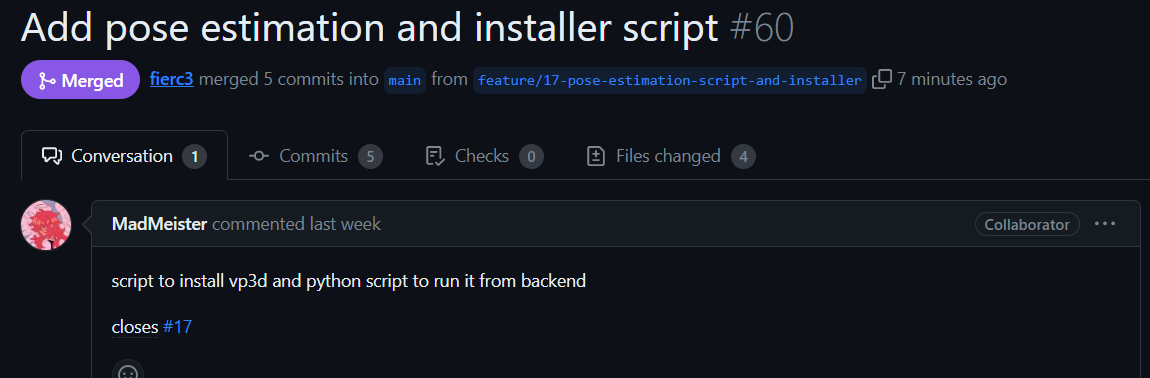
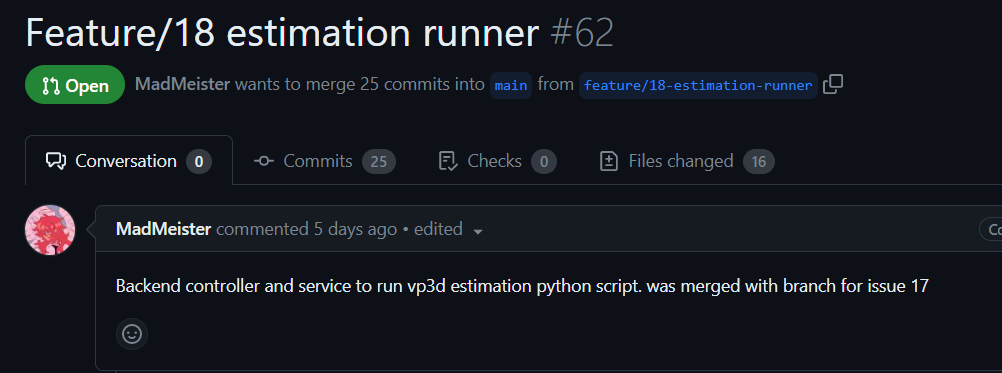
To help with the rest of the VideoPose3D installation an installer script was written. It installs ffmpeg, detectron2 and videopose3d, which are all required for the execution of PoseEstimation. To ensure that detectron2 and videpose3d work with this setup 2 forks were created that made a few changes so that it can be used easily in this project.
Once the installer has finished, the next step is to open the Poseify .NET Solution in Visual Studio and update the application settings to match update paths
- Core Appsettings
- EstimationScriptLocation: Location of estimate_pose.py
- UploadDirectory: Directory where uploads are temporarily stored before being processed and stored in the database
- OverridPythonVersion: Add the path to the created Conda environment
Before the Solution can be started a few docker images need to be running. The following is the official Poseify docker installation guide which can also be found online on Github in English:
Open Powershell or the preferred command line. HINT: The following installation guide was only tested on Windows but should also work on Linux (the Powershell commands need to be translated into the language of another shell if Powershell is not available).
Setup args $rvn_args = "--Setup.Mode=None --License.Eula.Accepted=true"
Start docker on port 6969 docker run -p 6969:8080 -e RAVEN_ARGS=$rvn_args ravendb/ravendb
dotnet dev-certs https -ep $env:USERPROFILE.aspnet\https\aspnetapp.pfx -p dotnet dev-certs https --trust
docker network create --subnet=172.18.0.0/16 poseify-net
docker pull microsoft/mssql-server-linux:2022-latest
docker run --net poseify-net --ip 172.18.0.18 -e "ACCEPT_EULA=Y" -e "MSSQL_SA_PASSWORD=<pw>" -p 1433:1433 -d mcr.microsoft.com/mssql/server:2022-latest
Connect to mssql server and execute the script setup.sql
3.5 Starting identityServer Image with HTTPS (image currently not available on dockerhub, please request directly)
docker run --net poseify-net --ip 172.18.0.19 --rm -it -p 8000:80 -p 8001:443 -e ASPNETCORE_URLS="https://+;http://+" -e ASPNETCORE_HTTPS_PORT=8001 -e ASPNETCORE_Kestrel__Certificates__Default__Password="<pwhttps>" -e ASPNETCORE_Kestrel__Certificates__Default__Path=/https/aspnetapp.pfx -v $env:USERPROFILE\.aspnet\https:/https/ identityserverposeifydev:1.0.0
Run the following command in the ClientApp folder.
npm install
With these steps done the BFFWeb and Core can be deployed via Visual Studio and be accessible on localhost. If there are any errors with python and videopose3d it is recommended to check the package list to compare if all the correct versions were installed.
Base the implementation of new endpoints on the structure of existing endpoints.
Look at this dummy sample of an endpoint returning a user profile from ravenDb:
using Microsoft.AspNetCore.Mvc;
using Raven.Client.Documents;

namespace Backend.Controllers {

    [ApiController]
    [Route("[controller]")]
    public class UserProfileController : ControllerBase
    {

        private readonly ILogger<UserProfileController> _logger;
        private readonly IDocumentStore _store;

        public UserProfileController(ILogger<UserProfileController> logger)
        {
            _logger = logger;
            // read ravendb store via lazy loading
            _store = DocumentStoreHolder.Store;
        }


        [HttpGet(Name = "GetCurrentUserProfile")]
        public ActionResult<UserProfile> Get(string guid)
        {
            _logger.LogDebug("UserProfile GET requesed");
            UserProfile? data = null;

            // get session for raven db
            using (var session = _store.OpenSession())
            {
                // use linq or rql to load Userprofile
                data= session.Query<UserProfile>().Where(x => x.InternalGuid == guid).FirstOrDefault();
            }

            if(data == null)
            {
                return NotFound();
            }

            return data;
        }
    }
}
The following points are essential to follow:
- Try using ProblemDetails to describe issues that occurred in the backend . Use Serializable classes to display data from the backend
- Use JSONIgnore to hide data not relevant for the frontend
using System.Collections.Generic;
using System.Text.Json.Serialization;

[Serializable]
public class UserProfile
{
    public string DisplayName { get; set; } = "";

    public string Token { get; set; } = "";

    public string ImageUrl { get; set; } = "";

    [JsonIgnore]
    public string InternalGuid { get; set; } = "";

}
- Install Node 16.X
- Run NPM INSTALL if node modules has changed
- Start BFF via Visual Studio
Use the existing api.ts helper class to write API calls. For most use cases the helper method fetchWithDefaults can be used for fast and correctly handling of API calls.
Important to note:
- Keep api.types.ts up to date. When backend has a new return data type then the interface should also be available as typescript interface. We want to avoid using any as a API data type
export interface IApiData{
    // extend when new endpoint is defined
    data: string | IUserProfile;
}
- Problemdetails is handled in the frontend with a custom interface