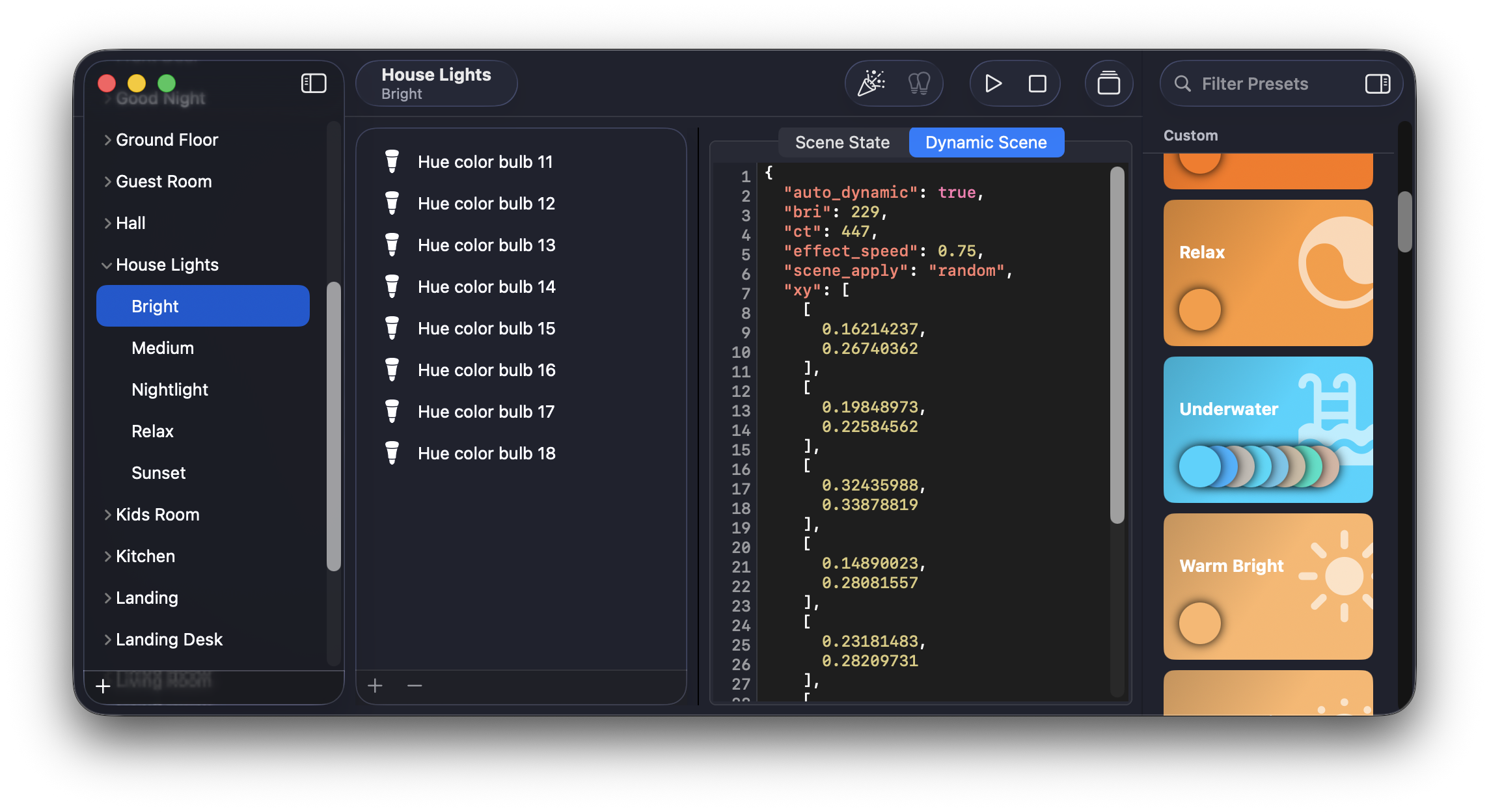
Scene Manager facilitates managing Groups and Scenes used by the deCONZ REST API. Traditional scene management applications provide an interactive way to define the state of a Scene - attributes like 'brightness' and 'color' of Lights are adjusted "live" and stored as a Scene once the user is satisfied with the values for all of the Lights in the Group. The deCONZ REST API provides a way to define Scenes by specifying the values each attribute of a Light in a Scene should be set to - but this requires addressing Groups, Scenes, and Lights by their numeric identifiers.
Scene Manager allows the user to address Groups, Scenes, and Lights by their names and define Scenes without disturbing the current state of the Lights. It specializes in replicating identical light states across many Lights and Scenes over providing an interactive way to set values for the Lights' different attributes.
As an example, most of my Groups define scenes for 'Bright', 'Medium', 'Relax', and 'Nightlight' light levels. Providing the exact same values to the Scenes across different groups is very time-consuming, if at all possible, via interactive Scene managers. Scene Manager allows me to apply these pre-set values very easily to the appropriate Scene in each Group and make spot modifications to the state of individual Lights where needed.
Besides easing the administrative burden of managing Scenes, a secondary goal for this project was to familiarize myself with SwiftUI and Swift Concurrency. Scene Manager requires at least macOS 26 to run and is currently built with Swift 6 and its strict concurrency model.
Scene Manager also requires a recent version of the deCONZ REST API with a few additions that remain to be merged in by the maintainers. Scene Manager requires deCONZ functionality that allows:
- The Lights of a Scene to be a subset of the Lights in the Scene's Group
- Querying all of the Scenes known to the API
- Controlling supported Hue devices over the manufacturer-specific
0xfc03cluster - Modifying and recalling scenes for supported Hue devices with a manufacturer-specific command
- Storing definitions for Dynamic Scenes as part of a Scene
Such a version of the deCONZ REST API is available here.
- Add, remove, and rename Groups and Scenes
- Add and remove Lights to/from Groups and Scenes
- Modify the state of a Light in a Scene
- Save the state of a Light as a Preset
- Create and modify Dynamic Scenes in Scenes
- Apply Dynamic States to Scenes
- Changing the current state of a Group is not possible through the application
- There is no indication of when an operation has successfully completed. This is a pretty big deal, but currently the deCONZ REST API does not provide a success or failure indication for Zigbee commands. It only does so for the REST commands.
Scene Manager needs to know the URL for the deCONZ REST API, as well as have a valid API Key to access the API endpoints. Both are provided through the 'Settings' (Scene Manager -> Settings...) menu bar item. If the deCONZ gateway is unlocked, Scene Manager can acquire a key for itself by clicking on the 'Acquire Key' button.
Read here for help on how to generate and acquire an API key as well as how to unlock the gateway to allow Scene Manager to acquire a key on its own.
The deCONZ REST API provides the ability to create Groups, which directly map to Zigbee Groups. These Groups allow to broadcast or multi-cast commands to many devices, delivering a payload to them at very nearly the exact time. For Lights, this prevents the "popcorn" effect created by single-casting a message to each Light sequentially.
For Scene Manager, Groups are containers of two things: Scenes and Lights. It is possible to create a new, empty Group by using the "+" button on the left-hand side sidebar. Groups can be renamed or deleted by right-clicking on them. Deleting a Group also deletes all Scenes in it - this is handled by the deCONZ REST API automatically.
When a Group is selected, Lights can be added to it or removed from it by using the "+" and "-" buttons in the Lights list respectively. Only Lights that are not currently part of the Group will be displayed as available for adding. Adding Lights to a Group does not affect any of its Scenes, but removing a Light from a Group also removes it from any of the Group's Scenes where it was a member - this is handled by the deCONZ REST API automatically.
The deCONZ REST API also provides the ability to create Scenes, which directly map to Zigbee Scenes. These Scenes allow to broadcast or multi-cast commands to select members of a Group, instructing them to move to some pre-defined attribute values without needing to specify the values - they've already been stored in each member of the Scene beforehand. For Lights, this allows setting and very quickly recalling preset values of a Light's state.
For Scene Manager, Scenes are containers of Lights having a specific light state. A new Scene can be created under a Group by right-clicking on the Group. Scenes can be renamed or deleted by right-clicking on them.
When a Scene is selected, Lights can be added to it or removed from it by using the "+" and "-" buttons in the Lights list respectively. Only Lights that are part of the Scene's Group will be displayed as available for adding. When adding Lights to a Scene, Scene Manager will store the last snapshot it has of the Light's state as its light state for that Scene - it can be overwritten immediately by proving a new light state. Removing a Light from a Scene does not affect the list of Lights that are part of the Scene's Group. However, removing the last Light from a Scene will also delete the Scene - this is handled by the deCONZ REST API automatically.
Light States represent the attributes, and their values, that make up a light state. These include things like whether a Light is 'on' or 'off', its level of brightness, and color (or color temperature). It may also include things like the time in 10ths of a second the Light will take to reach those values when it is asked to recall a particular scene.
Light States are displayed in Scene Manager as JSON objects that follow the definitions used by the
deCONZ REST API. Scene
Manager does not support Hue and Saturation values. A JSON object is not the most intuitive representation for
the state of a Light - it's not easy to know what color the xy parameter is representing, or just how
bright a value for bri really is. However, it does make for quick editing and is easy to replicate across
Lights and Scenes - which is what Scene Manager aims to do well.
A Light State can be pasted in to the editor field, or a Preset can be dragged and dropped into it. It is then applied to Lights in a Scene by using the 'Apply to Selected' button. Multiple Lights that are members of the Scene may be selected and the Light State will be stored for all of them. As a convenience, the state can be applied to all Lights that are members of the Scene by clicking the 'Apply to Scene' button.
Dynamic Scenes can be thought of as collections of attributes that Light members of a scene will cycle through. The speed at which the transitions occur is configurable. Dynamic Scenes rely on first recalling a "regular" scene that sets its Light members in an initial state. The collection of attributes is then streamed to the scene (at the Zigbee level, this is a separate, manufacturer-proprietary command) and the Lights' firmware takes care of figuring out where in the collection of attributes it is starting from and how to cycle through it.
The initial state of the Dynamic Scene is set by recalling a scene. As a convenience, Scene Manager can modify
the Light State of scene members with the values in the Dynamic Scene collection by clicking the 'Apply to Scene'
button when in the Dynamic Scene editor. Scene Manager uses an additional attribute, 'scene_apply', to decide how
to apply the values in the collection to the scene. sequence assigns the states in order and deterministically
to the members of a scene, random will apply values randomly, and ignore will not modify the scene (though it
will update the definition of the Dynamic Scene).
While Dynamic Scenes support 'effects', and they will be applied to a scene if present, the lights' firmware does not seem to (at the time of this writing) apply them to lights when cycling through the values in the collection, nor does it seems to cycle through the values in lights that receive an 'effect' as their starting state.
Dynamic Scenes are at their best when used for "ambiance" or "mood" lighting, where the changes between colors are subtle, harmonious, and performed slowly. Light effects or "animations" do not perform particularly well as Dynamic Scenes.
Light states that will be used by many Lights or in many Scenes can be saved as Presets. Available Presets are shown in a list in the right-hand side inspector pane. Presets can be dragged and dropped into the Editor to recall their values. From there, they can be applied to individual Lights, or to an entire Scene.
Presets can contain either one specific set of attributes or a collection of attributes that can be applied to the whole scene and which the members of the scene will cycle through. The latter are referred to as 'Dynamic Scenes'.
A new Preset can be created from the contents of the Light State Editor by clicking the 'Store as Preset' icon in the toolbar. Presets can be renamed or deleted by right-clicking on them.
Presets are stored as .json files inside the application's sandbox container. The application copies a selection of sample Presets into the sandbox container if the directory is empty on startup.