
Browse, navigate, export, and process EA models on Windows, Mac OS, and Linux, also with AI.
itemis EA Bridge reads your .qea(x) and .eap(x) project files directly (incl. MySQL/MS SQL databases). Open a model, explore its full UML hierarchy, view element properties, and render diagrams — all inside VS Code, on any OS, without EA.
Export your models in a terminal and pass them to code templates for quick and easy code generation, or use AI to analyze your model or to customize code generation templates.
⚠️ Early stage: This extension is still in development and may contain bugs. Feedback and bug reports are welcome.
EA's native tooling requires a full installation and is limited to Windows. EA Bridge removes both constraints, for architects who need to browse models and for engineers who need to process them in pipelines.
| before | with EA Bridge | |
|---|---|---|
| OS support | Windows only | Windows · MacOS · Linux |
| EA required | Yes | No |
| Speed | Slow (COM API) | FAST — Rust backend, direct file access |
| AI tool integration | EA ecosystem only | AI skill + MCP server for Claude Code & Copilot; JSON for any other tool |
| CI / CD pipelines | Not suitable | First-class CLI support |
Open a .qea(x) or .eap(x) file (incl. MySQL/MS SQL databases) in VS Code and navigate the complete UML model as a tree, even on a MacBook or a Linux workstation.
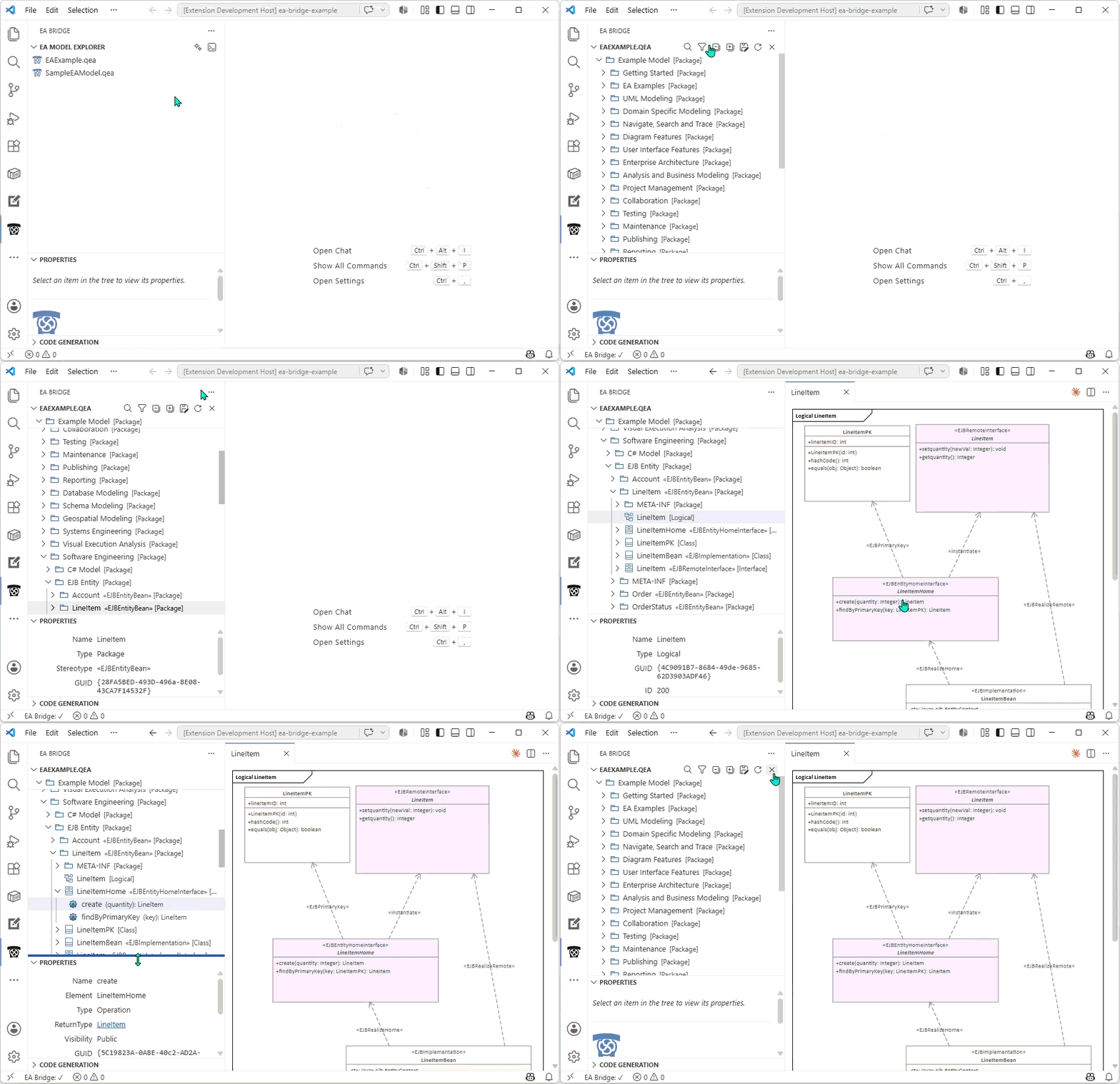
- UML hierarchy tree — mirrors EA's own package and element structure, with type-specific icons
- Element property panel — name, type, stereotype, tagged values, attributes, operations, and connectors on selection
- Diagram rendering (experimental) — view EA diagrams natively in VS Code, rendered directly from the model database without EA
Diagram rendering is experimental. Some element shapes, label positions, and compartment visibility settings may not yet match EA's own rendering. Fidelity is being improved continuously.
EA Bridge turns your model into a queryable knowledge base for AI assistants: an ea-bridge AI skill teaches the assistant how to work with EA models, and a bundled MCP server hands it the tools (model queries, code generation, diagram export).
One-command setup: run EA Bridge: Set up AI Assistant from the command palette to equip the open workspace.
Your data remains local — the assistant constructs queries, while the bundled CLI does the data processing on your machine.
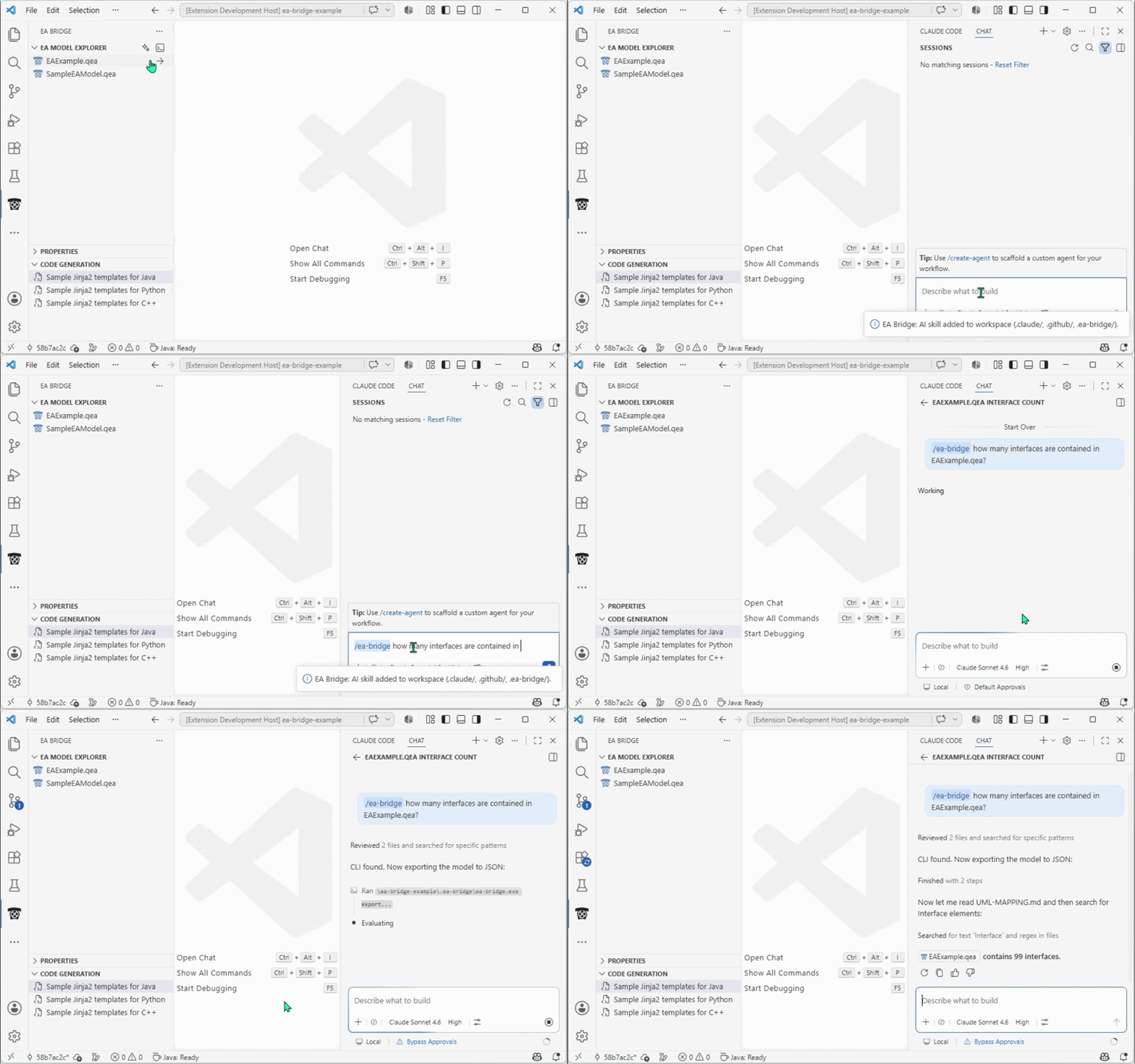
Ask questions about your model:
"Count interfaces in EAExample.qea"
"How many classes in my EA model have outgoing dependency connectors?"
"Which elements carry the stereotype«Service»?"
For concrete questions like these, the AI does not read your model into its context. Instead, it translates the question into a jq query, which the CLI evaluates against the model and returns only the result. For example:
"Count interfaces in EAExample.qea"
> ./ea-bridge query EAExample.qea '[.elements[] | select(.elementType=="Interface")] | length'
> 99
This has two benefits. It scales to large models, because a multi-MB model never has to enter the AI's limited context window. And your model contents stay local — the AI only constructs query strings, while the CLI does the actual data processing on your machine. The full JSON export is used only as a fallback for broad, open-ended questions where the surrounding context matters.
Trigger and customize code generation:
"Generate Python code for MyModel.qea into folder out-python."
"Extend the Python templates to add the Author and ModifiedDate of each element to its docstring."
"Add a@sinceJavadoc tag to every generated Java class using the element's version field."
The AI invokes the CLI and the bundled Jinja templates on your behalf (no manual command line required).
It can also edit the Jinja templates directly in your workspace, so the change is version-controlled and reusable across your whole team.
Export diagrams as SVG:
"Export all diagrams of MyModel.qea as SVG."
"Render the Communication Stack diagram to docs/architecture.svg."
The AI lists the diagrams in your model and renders any number of them to standalone .svg files in a single pass — headlessly. No EA installation needed, and when driven from Claude Code, not even an open VS Code window.
Export any EA model to a stable, versioned JSON format with a single command. Pipe it into Jinja templates, custom scripts, or AI tools — on any OS, on any CI runner, without a Windows agent or EA seat.
ea-bridge export model.qea --output model.json# Or pipe directly into downstream tooling
ea-bridge export model.qea | python gen-cpp.py - ./src-gen-cpp/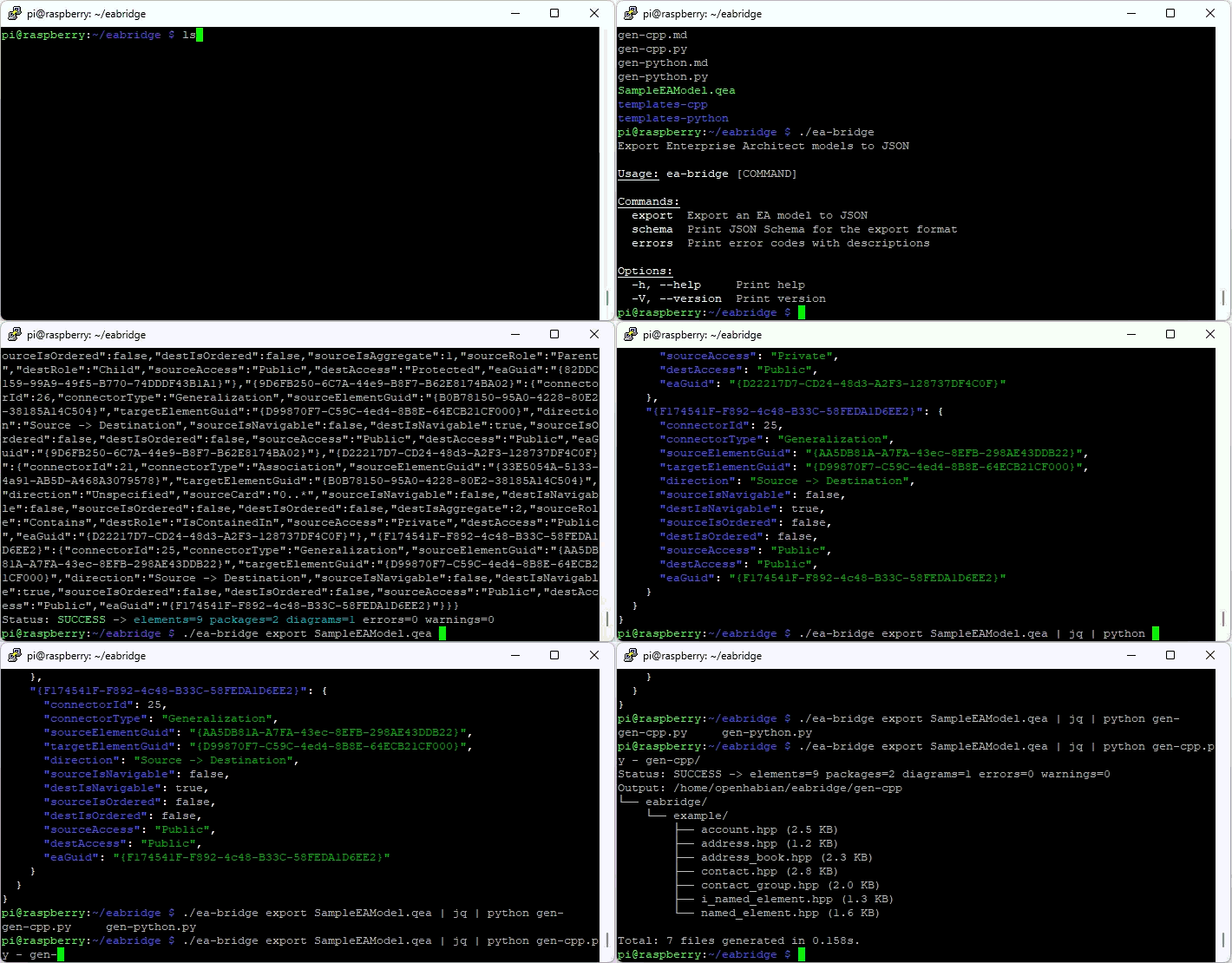
- Cross-platform CLI — pre-built binaries for Windows (x64), macOS (x64 + ARM), and Linux (x64 + ARM)
- Versioned JSON schema — stable contract for downstream tools
- Sample codegen templates — Jinja templates for common code generation patterns ship with the extension, ready to be customized and extended
- AI-ready — feed the JSON export to Claude, Copilot, or any LLM-based tool to analyze the model or to let AI customize your code generation templates
- CI-friendly — JSON to stdout, diagnostics to stderr, documented exit codes
Run ad-hoc SQL queries directly against your EA model — no separate database client needed. Launch it from the CLI, or right from the EA Model Explorer panel via Open in SQL Console.
ea-bridge sql model.qea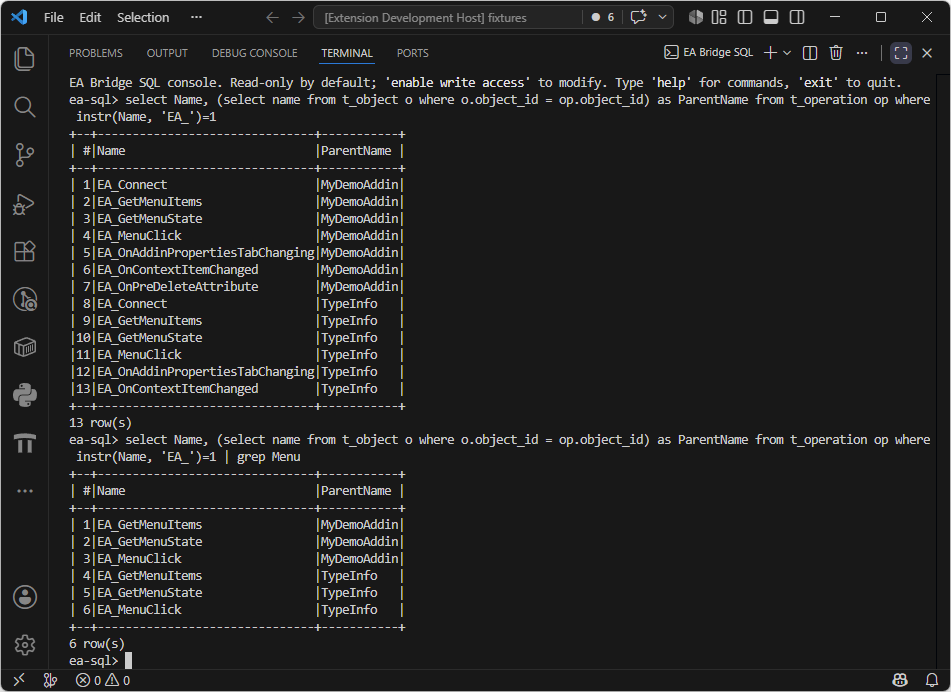
- Read-only by default — explore freely; write access must be enabled explicitly and requires sign-in
- Works across all supported databases — full SQL on
.qea/.qeaxand remote MySQL/MariaDB and MS SQL connections; table browsing on legacy.eap/.eapxfiles tables,columns <table>— quickly inspect the underlying schemaselect ... | grep <pattern>— filter results with a case-insensitive regex
This extension is currently a work in progress. Some features may be missing. We appreciate your patience and feedback as we continue to improve it! If you encounter any issues or have feature requests, feel free to open a ticket on our issue tracker. For urgent cases, contact us directly.
The following features are planned for implementation:
- Diagrams: are not yet complete; initial focus is on structural diagrams, behavioral ones are added soon.
- Properties: or model elements may still be missing.
- Remote Databases: MS SQL and MySQL/MariaDB are now supported, others like Oracle, PostgreSQL, and Cloud connections not yet.
- Licensing: is not yet fully implemented; itemis EA Bridge is and remains free for small to medium-sized models, but large models (with 1000+ elements) can currently only be loaded after (free) login — payed licenses are planned once the product reaches a higher level of maturity.
→ Submit an issue if you need a specific diagram, element, or property to be loaded, or if a database adapter is missing for you.
- GitHub Repository — issues and changelog
- Report a Bug
EA Bridge is developed by itemis. Enterprise Architect is a trademark of Sparx Systems. EA Bridge is an independent tool and is not affiliated with or endorsed by Sparx Systems.