


Installation and configurataion | Demo | What is next?
Fast, robust and feature rich WiFi configuration script for dmenu-compatible launchers like wofi/rofi/tofi/fuzzel. Option "edit" automatically redirects to the selected network in nm-connection-editor, internal editing is planned as well. Proper pin entry and signal icons.
Please note that nmcli is slow itself, which you will only notice when prompting a full rescan. This script might move to iwctl later.
Some of them are on Python (ewww...), some of them simply dont work, some of them behave weirdly or have interface logic that just doesnt work for me. Also, I enjoy the process of bash scripting)
Make sure that you have a dmenu-compatible menu (wofi/rofi/tofi/fuzzel, bemenu, dmenu itself, etc), and nm-connection-editor:
- Install a menu:
sudo pacman -S fuzzel #Arch
sudo apt get fuzzel #Ubuntu
- Install nm-connection-editor (it is likely present by default in GNOME and KDE):
sudo pacman -S nm-connection-editor
sudo apt get network-manager-gnome
By default these commands will put it in ~/.local/bin/network.sh:
cd ~/.local/bin/
curl -o network.sh https://raw.githubusercontent.com/litvinov-git/dmenu-network/refs/heads/main/network.sh
chmod +x ./network.sh
- If you want it to appear on your desktop/app launcher, install the desktop file as well:
cd ~/.local/share/applications
curl -o network-menu.desktop https://raw.githubusercontent.com/litvinov-git/dmenu-network/refs/heads/main/network-menu.desktop
Note: for the application to appear on your desktop, you will likely need to log out and back in
This script supports all dmenu-compatible launchers, you can easily configure your launcher and its password entry mode in the beggining of the script:
# CONFIGURATION
menu() {
	fuzzel --dmenu --placeholder="$1" #place the command to call your menu here, using the first argument ($1) as a placeholder or prompt
}

menu_pin() {
	fuzzel --dmenu --password='*' --placeholder="Password" #command to call your menu in the pin entry mode, but if you dont care you can use it in the regular mode
}Note: I personally use fuzzel in dmenu mode, which is what you can see on demo and in the defaults.
The most common options to do so are:
-
A hotkey bind in your DE/WM (KDE, GNOME, hyprland, sway, etc.), check the documentation on the option you use
-
The desktop file
Note: if you did everything like in this guide, your executable (shell command to launch the script) is /home/your-user/.local/bin/network.sh or ~/.local/bin/network.sh if you call it through the shell (in your terminal).
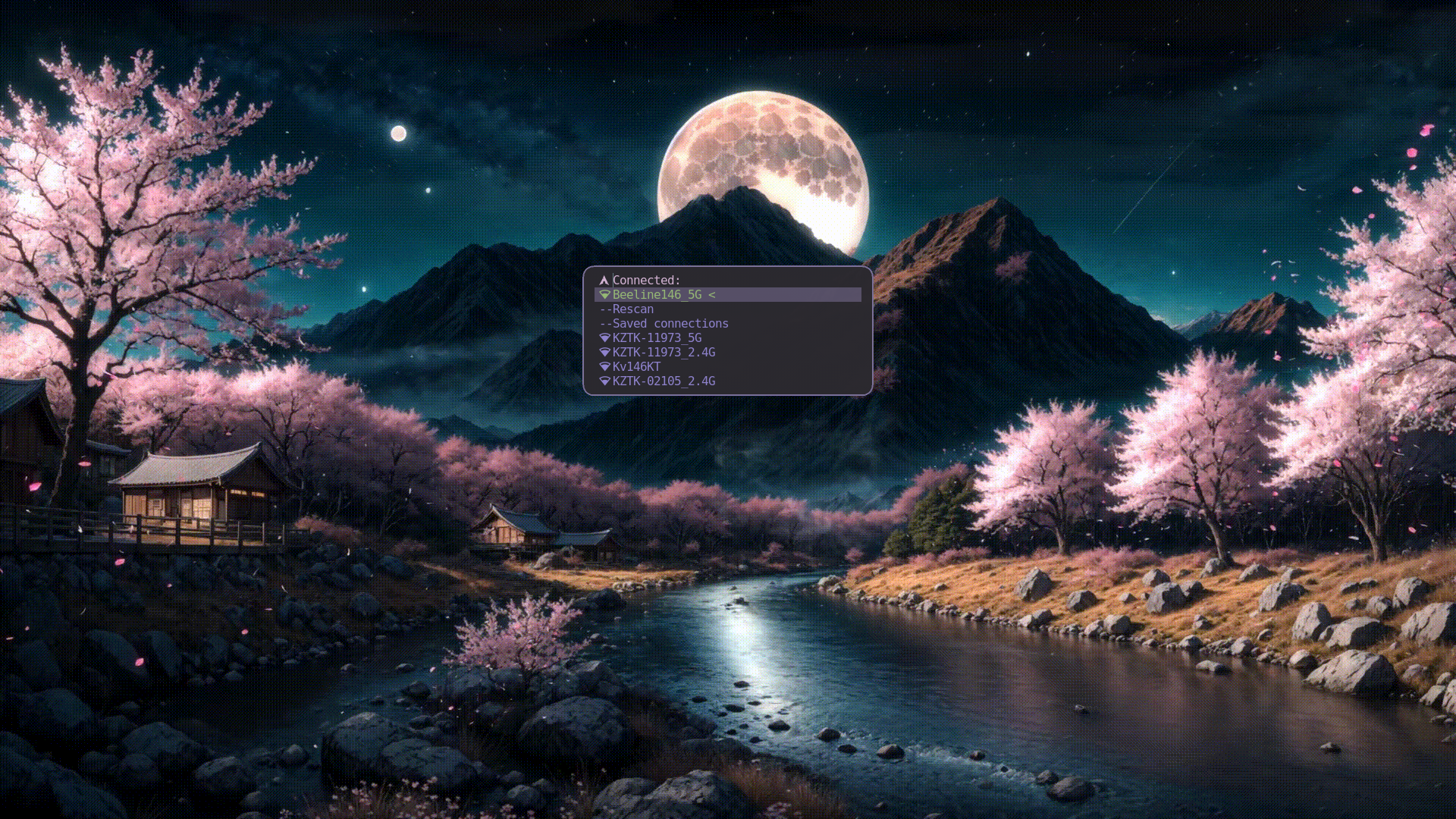
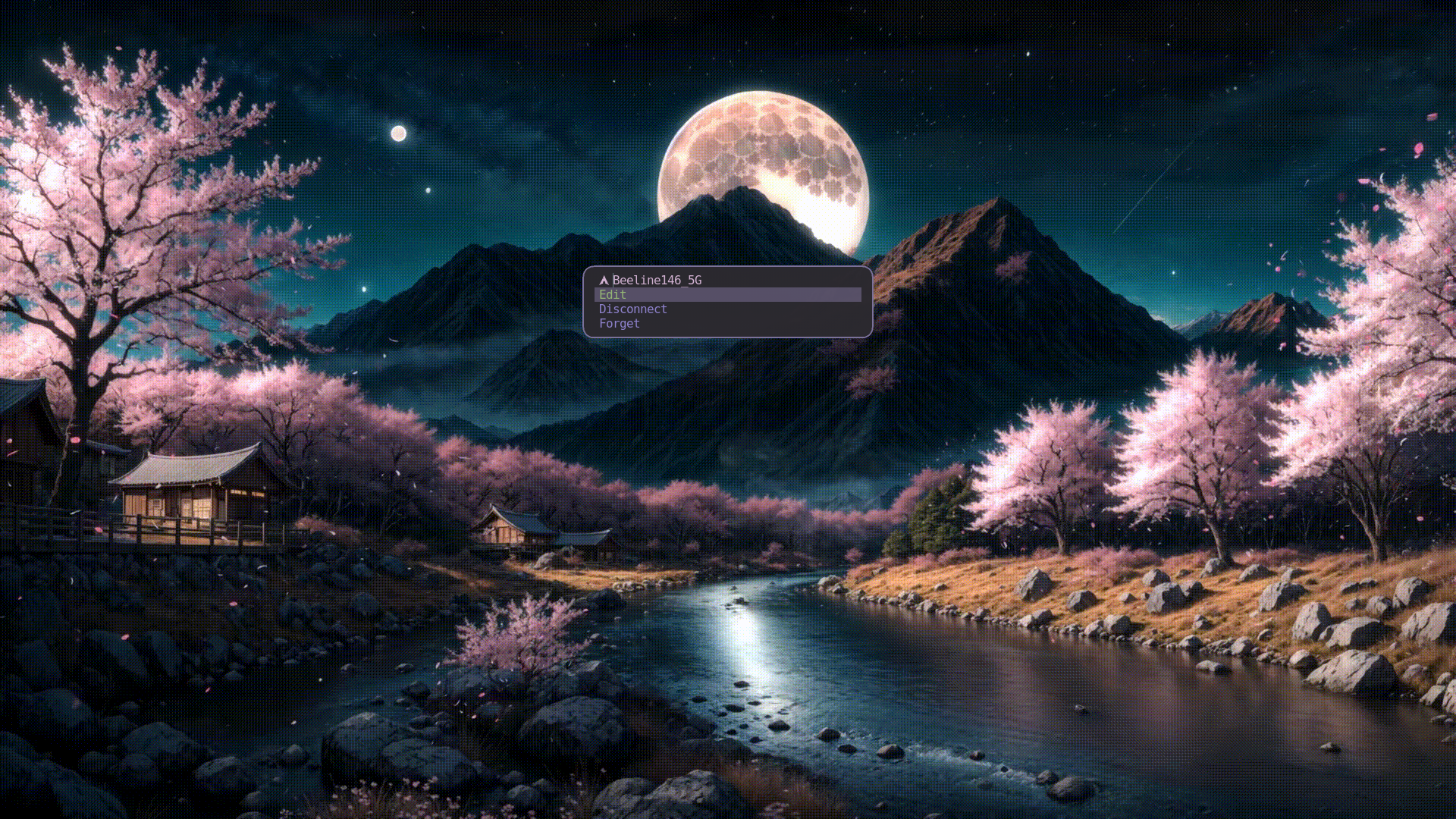
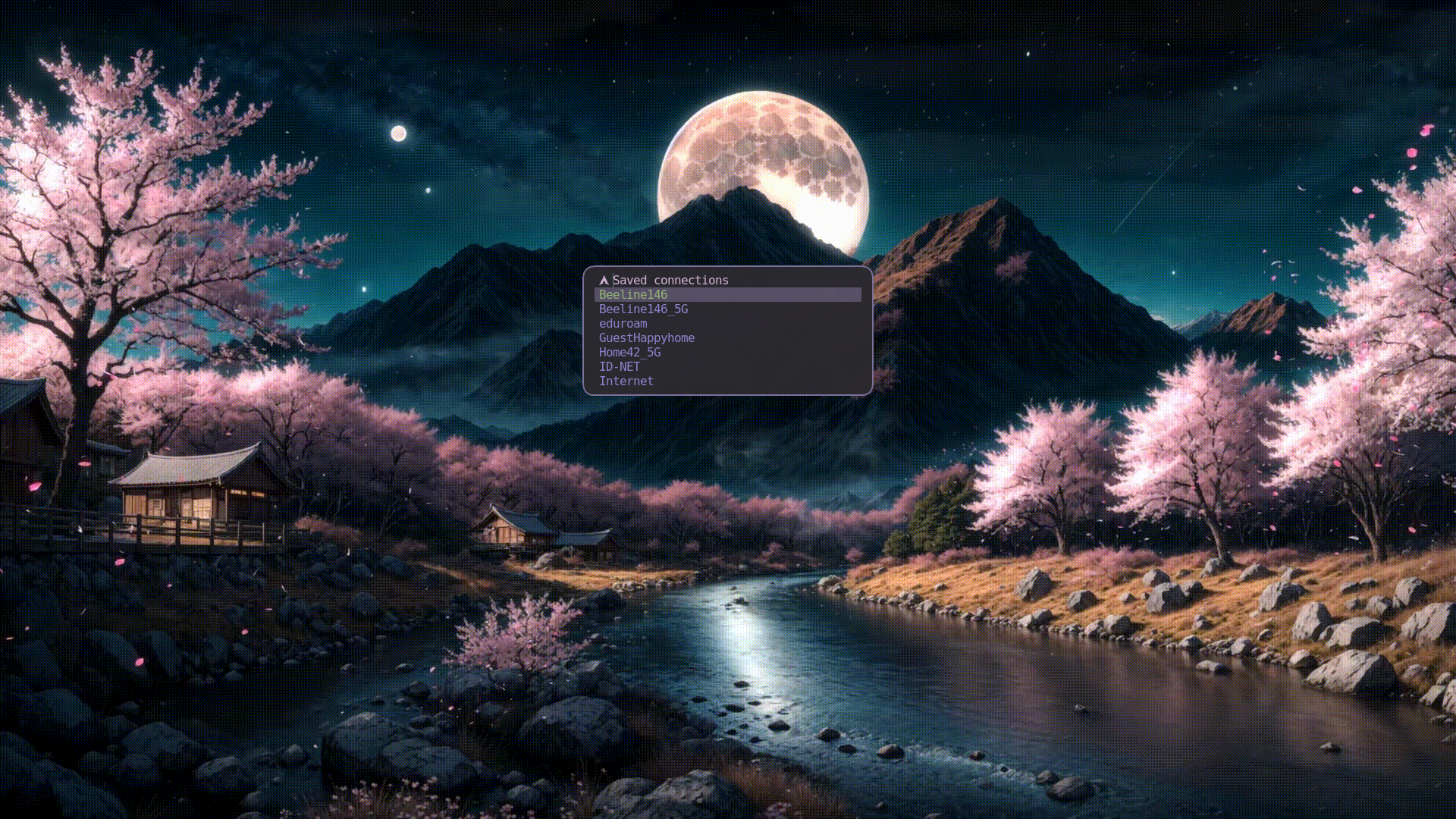
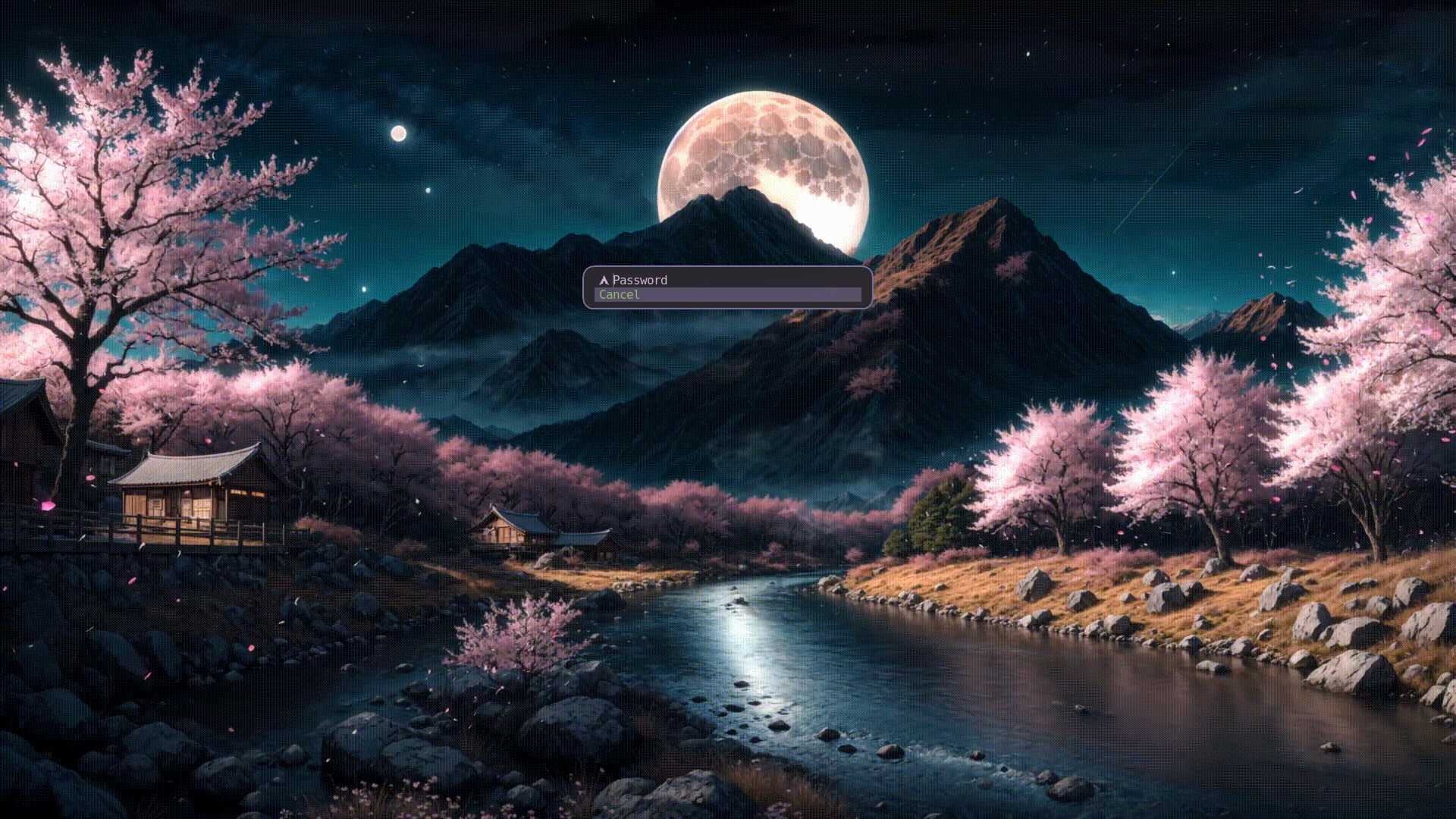
What I want to have in the end of my dmenu scripting journey is an extensive collection of scripts nested into a single settings menu that would allow to tweak any hyprland or a similar WM based system in a matter of seconds. I dont use any shell, bar or widgets, so scripts are the main way for me to interact with my system.
Therefore, expect more scripts in the future)