
A versatile automation script for Windows 10 and 11 deployment that leverages Microsoft's official Media Creation Tool (MCT). This wrapper provides enhanced functionality for creating installation media and performing automated in-place upgrades, using only Microsoft-hosted sources.
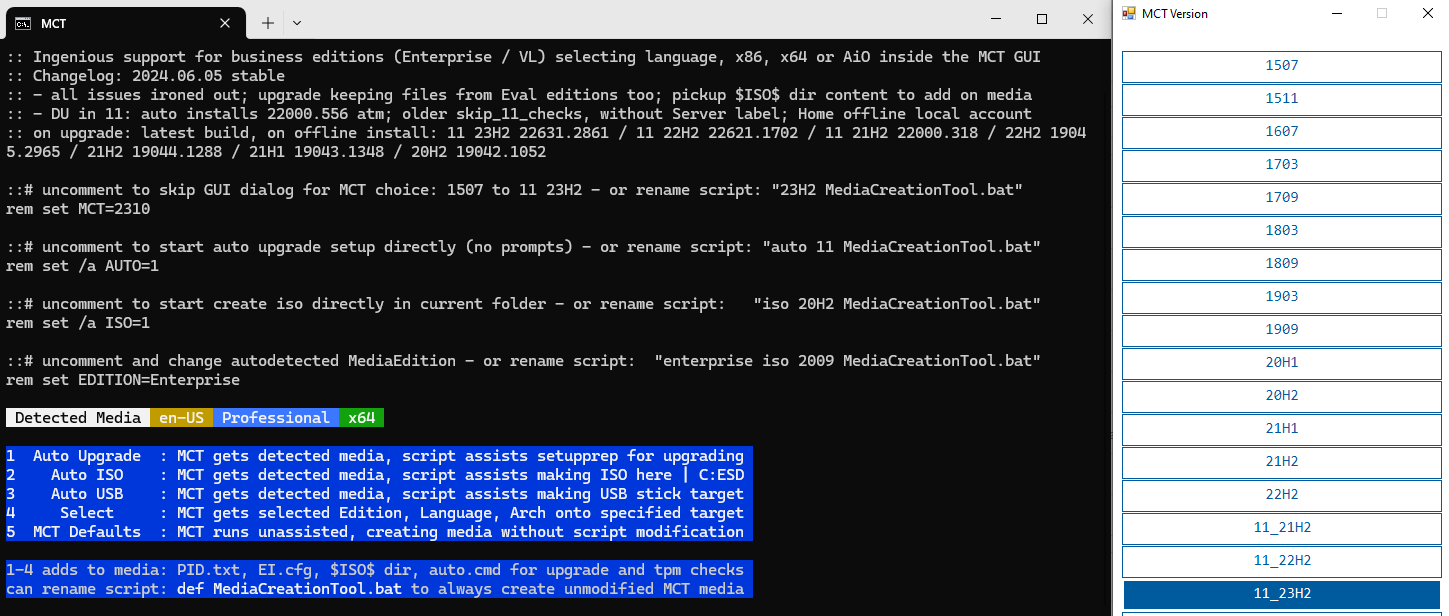
For fast, unattended operations, rename the script file to include your desired options before running it. Here are some common examples:
-
Create the latest Windows 11 Pro ISO:
iso 11_24H2 pro MediaCreationTool.bat -
Automatically upgrade the current PC to the latest Windows 10:
auto 22H2 MediaCreationTool.bat -
Create an untouched, default Windows 11 USB/ISO:
def 11_24H2 MediaCreationTool.bat -
Create a German language Windows 11 Enterprise ISO:
iso 11_24H2 enterprise de-DE MediaCreationTool.bat
- Universal Support: Creates media for all Windows 10/11 versions, from 1507 to 24H2.
- Flexible Operation: Can be run via a simple GUI menu or completely automated through filename-based commands.
- Automated Media Creation: Generate ISO or USB media with minimal user interaction.
- Advanced In-Place Upgrades: Supports upgrading across different editions (e.g., Enterprise LTSC to Professional) while preserving files and applications.
- Windows 11 Bypass: Automatically integrates solutions to bypass TPM, CPU, and other hardware checks during setup.
- Customizable Media: Adds useful tools and configurations to the created media, such as unattended answer files and post-setup scripts.
You can control the script's behavior by selecting a preset from the launch menu or by renaming the script file to include specific keywords.
When you run the script, you'll be presented with the following options:
- Auto Upgrade: Performs a direct in-place upgrade of the current system using media settings detected from your OS. It includes advanced support for cross-edition upgrades.
- Auto ISO: Automatically creates an ISO file in the script's current directory (or
C:\ESDif run from a zip archive). You can override the detected OS settings by renaming the script (see below). - Auto USB: Assists in creating a bootable USB drive. For data safety, you must still manually select the target USB drive in the MCT interface.
- Select: Opens the standard MCT interface to let you manually choose the Windows Edition, Language, and Architecture.
- MCT Defaults: Runs the official Media Creation Tool without any script modifications or assistance. The script will exit after launching the tool.
For fully unattended operation, rename the .bat file to include the desired parameters. The script will parse its own name to configure the session.
- Action Keywords:
auto: Initiates an automatic in-place upgrade.iso: Creates an ISO image file.
- Configuration Keywords:
- Version: e.g.,
11_24H2,22H2,1909. - Edition: e.g.,
Enterprise,Professional,Education. - Language: e.g.,
en-US,de-DE. - Architecture:
x64orx86. - Unmodified Media:
defcreates default, untouched media, skipping all enhancements. - Disable Updates:
no_updatedisables the download of dynamic updates during setup.
- Version: e.g.,
Examples:
auto 11_24H2 enterprise MediaCreationTool.bat: Performs an in-place upgrade to Windows 11 24H2 Enterprise.iso 22H2 pro x64 MediaCreationTool.bat: Creates an ISO for Windows 10 22H2 Professional (64-bit).
Presets 1-4 add the following enhancements to the created media for improved deployment flexibility:
auto.cmd: A powerful script added to the media root for re-running the automated upgrade process. It handles cross-edition upgrades and bypasses Windows 11 hardware checks.$ISO$Folder: If a folder named$ISO$exists where you run the script, its contents will be copied to the root of the installation media. This is useful for including drivers or post-setup scripts.sources\PID.txt: Pre-selects the specified edition when booting from the media to avoid prompts.- (Windows 11 Only)
sources\EI.cfg: Skips the product key prompt for consumer editions. - (Windows 11 Home Only)
AutoUnattend.xml: An answer file injected intoboot.wimthat enables the option to create an offline local account during the initial setup (OOBE). - (Windows 11 Only)
boot.wimPatch: Thewinsetup.dllfile within the boot image is patched to disable hardware requirement checks when performing a clean install from the bootable media.
To prevent these modifications, use the MCT Defaults preset or add def to the script's filename.
This tool provides a seamless experience for installing Windows 11 on unsupported hardware.
- For In-Place Upgrades: The Auto Upgrade preset (or running
auto.cmdfrom the media) automatically bypasses the TPM/CPU/RAM checks. The process may temporarily display a "Windows Server" label; this is expected and can be ignored. - For Clean Installs: Media created with this tool will automatically bypass hardware checks when booted for a clean installation, thanks to the patched
boot.wim.
Important: Simply running setup.exe from the media within Windows will not bypass the hardware checks. You must use the auto.cmd script for an in-place upgrade on unsupported systems.