Installation
Summary: StartER is a web application framework for educational purposes based on React / Express. Whether you are a beginner or an experienced developer, this guide will walk you through installing and configuring your first StartER application in a few minutes.
A web framework provides a structure and starting point for creating an application, allowing you to focus on completing a project.
There are many tools and frameworks available for building a web application. However, we believe StartER is a good choice for prototyping modern, full-stack web applications while remaining a great learning tool.
If you're new to web development, this guide will help you get familiar with the ins and outs of the tool without feeling overwhelmed.
If you're at a more advanced stage, StartER will provide a solid foundation for deepening your knowledge and a playground for your own experiments.
StartER combines what we believe to be the best packages in the JS ecosystem to build a robust and enjoyable environment. However, we welcome discussions and suggestions. Who knows, maybe you'll join the StartER development team?
Before creating your first StartER application, make sure you have Git and Node.js installed on your local machine. Additionally, you need a GitHub account to use the StartER repository as a template.
The StartER GitHub repository is a template repository. To use it:
-
On GitHub, go to the StartER main page (https://github.com/rocambille/start-express-react).
-
Above the file list, click Use this template and select Create a new repository.

- Use the Owner drop-down menu to select the account you want to assign the repository to.

- Enter a name for your repository and an optional description.

-
Choose the repository's visibility. For more information, see About repositories.
-
Click Create repository.
Now you can clone your repository.
-
On GitHub, navigate to your repository's main page.
-
Above the file list, click <> Code.

- Copy the repository URL under "HTTPS", "SSH", or "GitHub CLI", depending on your preference.
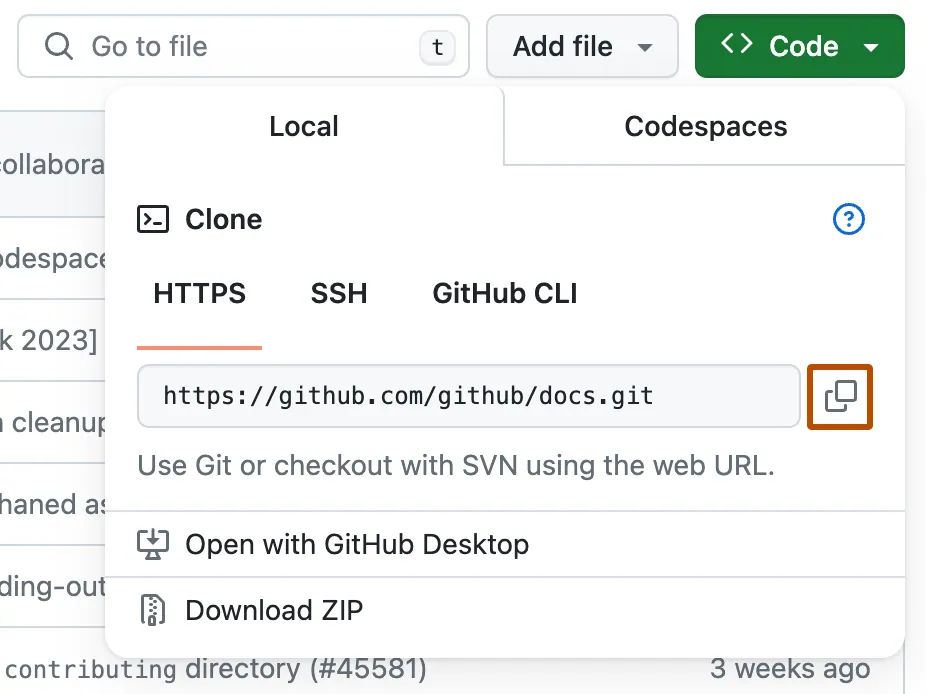
-
Open the terminal on your machine.
-
Change the current working directory to the location where you want to clone your repository.
-
Type
git clone, then paste the URL you copied earlier.git clone git@github.com:YOUR-USERNAME/YOUR-REPOSITORY
-
Press Enter to create your local clone.
$ git clone git@github.com:YOUR-USERNAME/YOUR-REPOSITORY
> Cloning into `Spoon-Knife`...
> remote: Counting objects: 10, done.
> remote: Compressing objects: 100% (8/8), done.
> remove: Total 10 (delta 1), reused 10 (delta 1)
> Unpacking objects: 100% (10/10), done.
-
Change the current working directory to your local clone.
cd YOUR-REPOSITORY
Now you can install the dependencies into your project's local node_modules directory.
npm installDepending on the application's runtime environment, you may find it useful to have different configuration values.
To achieve this, StartER uses a .env file to separate environment variables from the code. During a fresh installation of StartER, your application's root directory will contain a .env.sample file that defines the current environment variables. After installing StartER, copy this .env.sample file under the name .env.
cp .env.sample .envHere are the required variables that you must fill in with your own values:
| Variable | Description |
|---|---|
| APP_BASE_URL | Base URL of the application (used for magic links). |
| APP_SECRET | Secret key used to sign authentication tokens (JWT). Treat it like a password: anyone who knows it can forge login sessions. Choose a long, random string. |
Note
StartER uses a "Zero-Config" architecture with SQLite, so there is no need to configure a database server.
APP_PORT and SMTP_URL variables are available in the .env.sample file but are optional. They allow you to change the server port (5173 by default) and to configure an SMTP server (disabled by default).
Tip
To generate a robust APP_SECRET, you can use the following command in your terminal:
openssl rand -hex 32For a detailed description of each variable and advanced options, see the Directory structure page.
Once the application is built and configured, generate your local database (database.sqlite file) from the provided default schema:
npm run database:syncWe recommend checking that the installation and configuration are correct before continuing:
npm run install:checkThen, launch the development server:
npm run devOnce the server is started, your application will be accessible in your web browser at http://localhost:5173.
Tip
To test sending emails locally, you can use Mailpit with Docker (you must have Docker Engine installed on your machine). Configure the SMTP_URL variable in the .env file:
SMTP_URL=smtp://mailpit:1025
You can start your application with Mailpit using the command:
docker compose up --build-
Share non-sensitive variables: you can include additional variables in your application's
.env.samplefile. This helps team members easily identify the required configuration. -
Never commit secrets: your
.envfile should never be added in a Git commit. Each workstation (local machine or server) requires its own configuration, keeping sensitive credentials safely out of the repository's history and avoiding critical security risks.
Now that you've created your StartER application, you might be wondering what you need to learn next. We strongly recommend checking out the following documentation:
- First exercises (for beginners who enjoy doing)
- Directory structure (for beginners who enjoy reading)
- One server (for experienced beginners)




AI co-creation
Getting started
Explanations
How-To Guides
Reference
Digging deeper