Execution of command
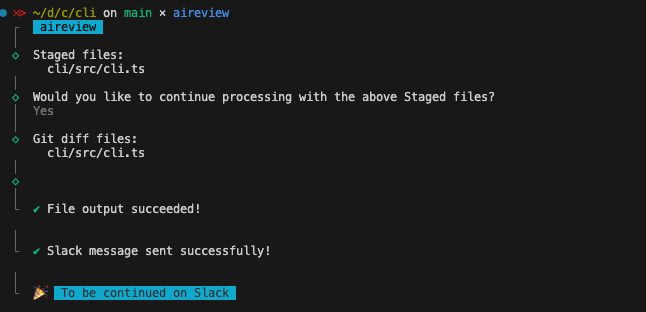
Image of code review request in Slack
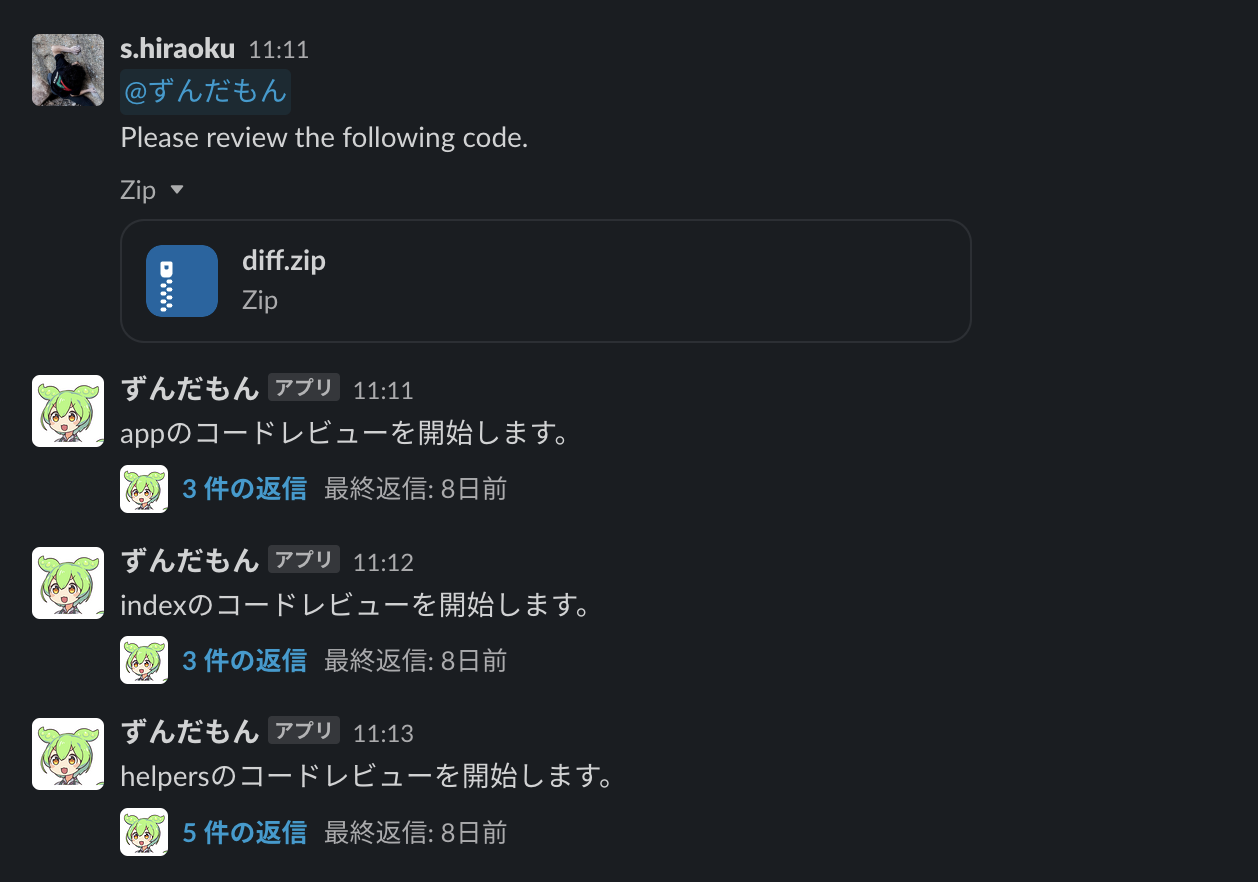
Review Results Display in Slack
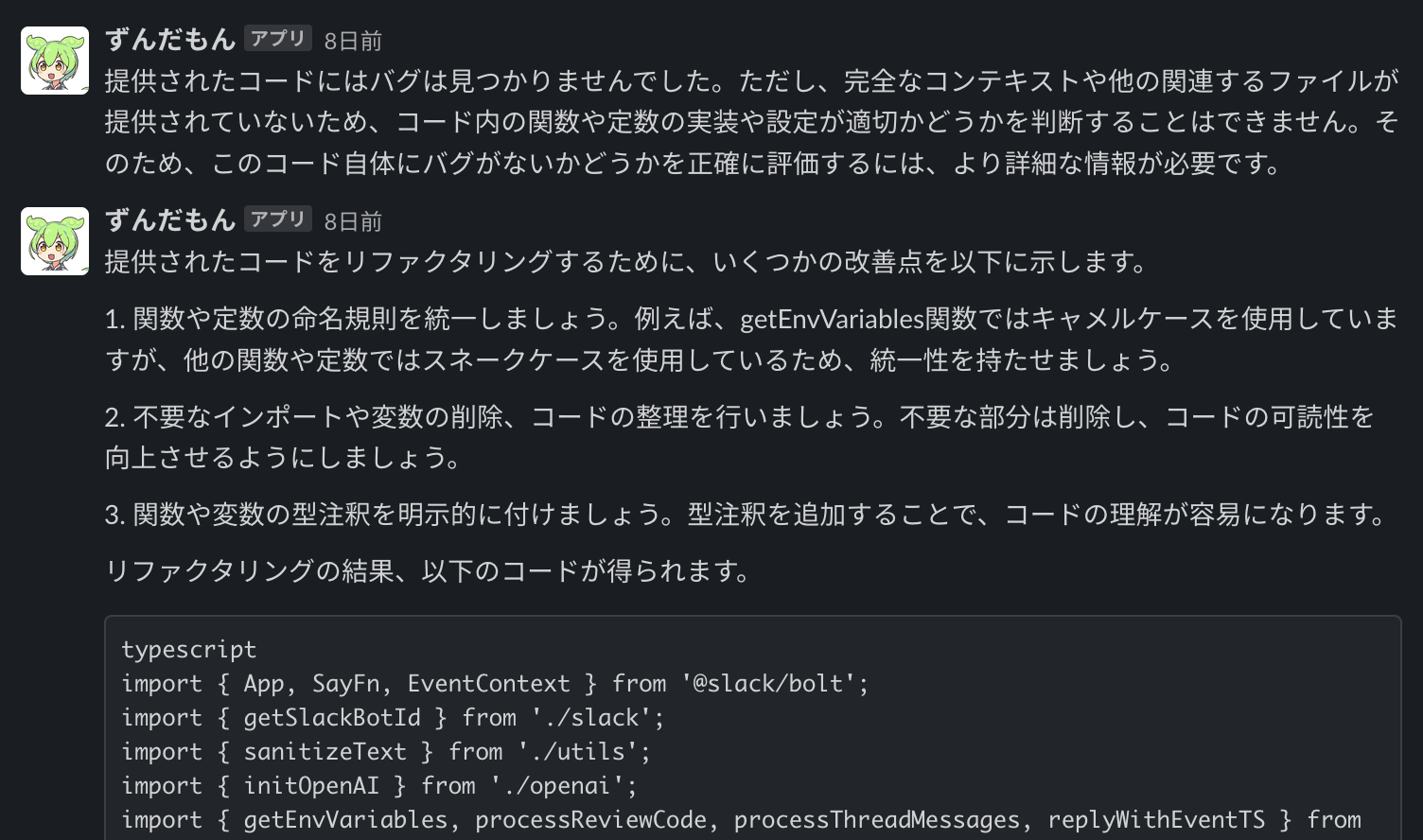
AI code review of changes from git diffs.
- OpenAI API
- Slack account
- Google Cloud (optional)
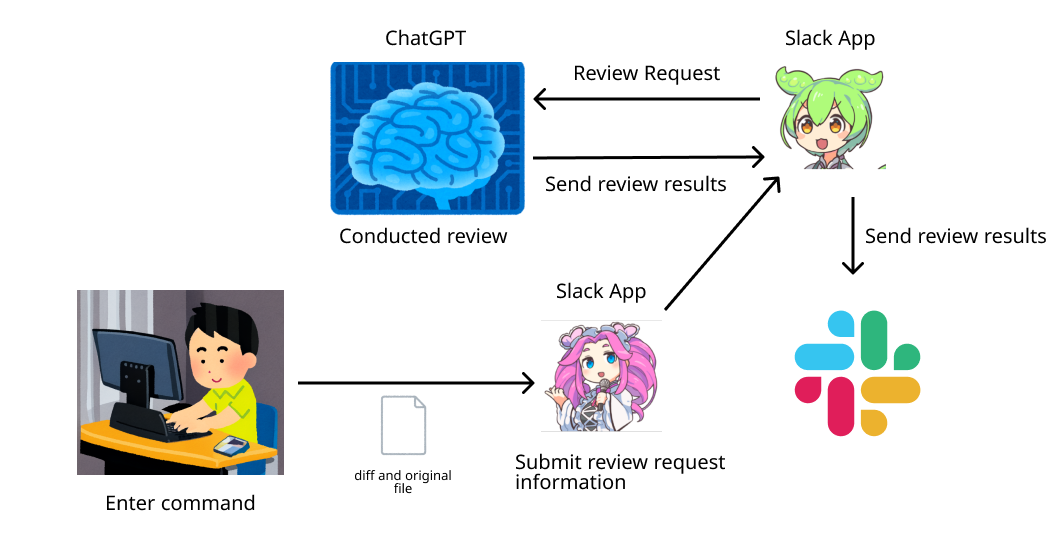
You can obtain review results through the following procedure and flow:
- Register the file to be reviewed in the staging area
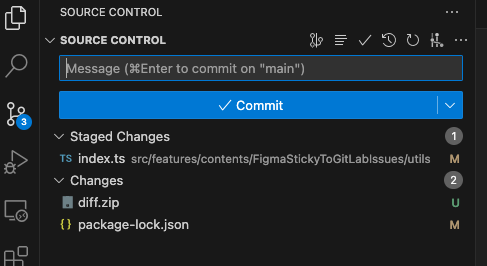
- Execute the
aireviewcommand in the local terminal
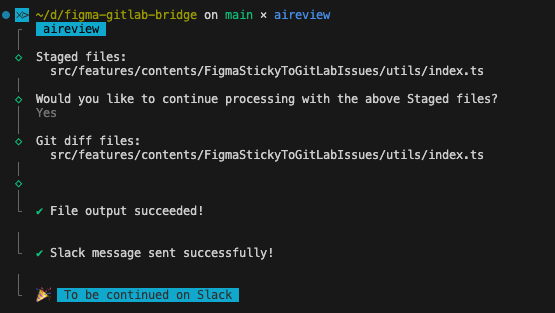
- The necessary information is sent to Slack
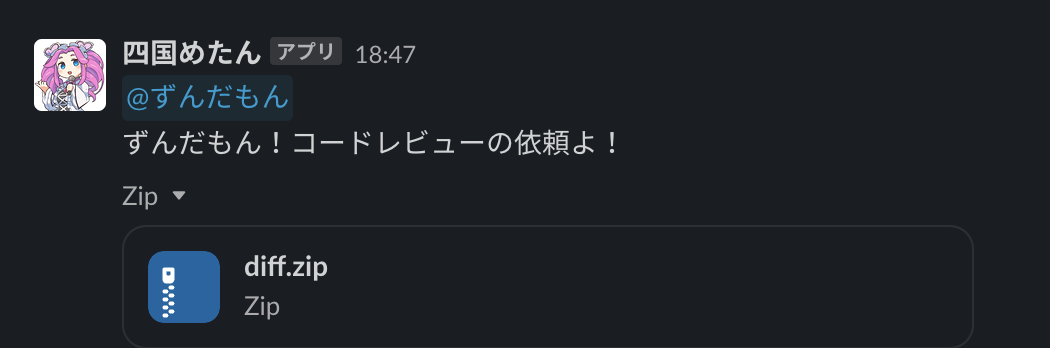
- Check the review results
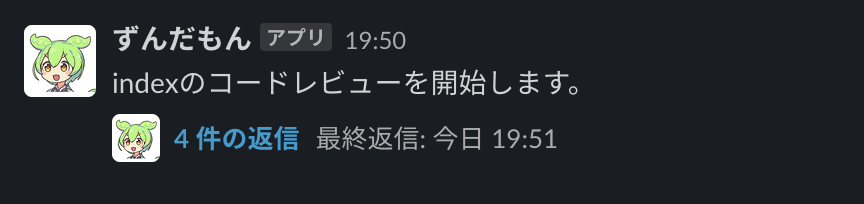
The review results are output in the thread
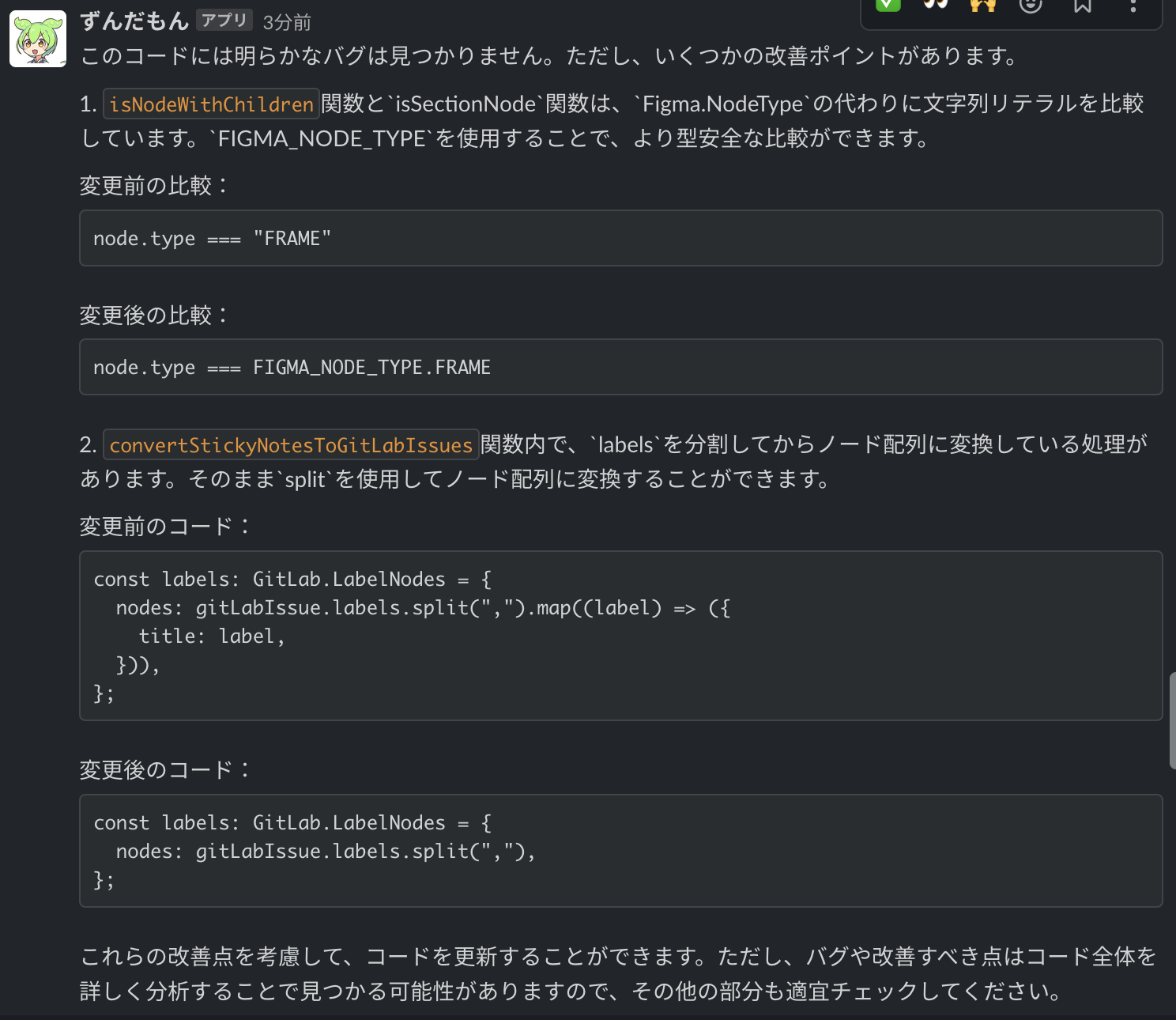
- If you have further questions, you can use mentions to ask questions.
The following preparations are necessary for the setup:
-
Preparation of the
aireviewcommand We will set up an application to run a CLI command namedaireviewlocally. -
Setup of two Slack Apps We will set up the following two Slack Apps:
- A Slack App to receive review requests and notify on Slack.
- A Slack App to receive those requests, inquire with ChatGPT, and display the results on Slack.
- Setup of Slackbot We will set up a Slackbot application to execute the necessary behavior for reviews upon receiving messages from the Slack App.
So, we will proceed with the setup as mentioned. As per the title, we will have Zundamon perform the reviews. Therefore, we will create a Slack App for Zundamon. Also, a Slack App is necessary to send review requests, so we will use Shikoku Metan for this purpose.
The application for executing the review command can be built and run locally, but it is also registered in the npm registry, so you can install and use it from here.
Slackbot provides two ways to run: building and executing locally, and deploying and running on Cloud Run. You may first want to try it locally, customize and adjust, and once you're familiar with the way it works, consider using Cloud Run.
Since my environment is Mac, I will explain the setup steps for Mac. If you are using Windows or something else, please adapt the installation steps accordingly to your situation.
This application requires a Slack workspace and channels. It retrieves review information and displays review results in the workspace channels. Please make sure these are set up beforehand.
Let’s begin by creating a Slack App for sending review requests. This is for the "Shikoku Metan" Slack App.
- Go to the Slack API page and click
Create an App. - Select an app name and workspace, then create the app.
Next, move to the OAuth & Permissions page to set up Scopes. Configure the necessary permissions under Scopes.
The detailed settings are omitted, but please set the necessary permissions as follows. For more details, refer to the official site.
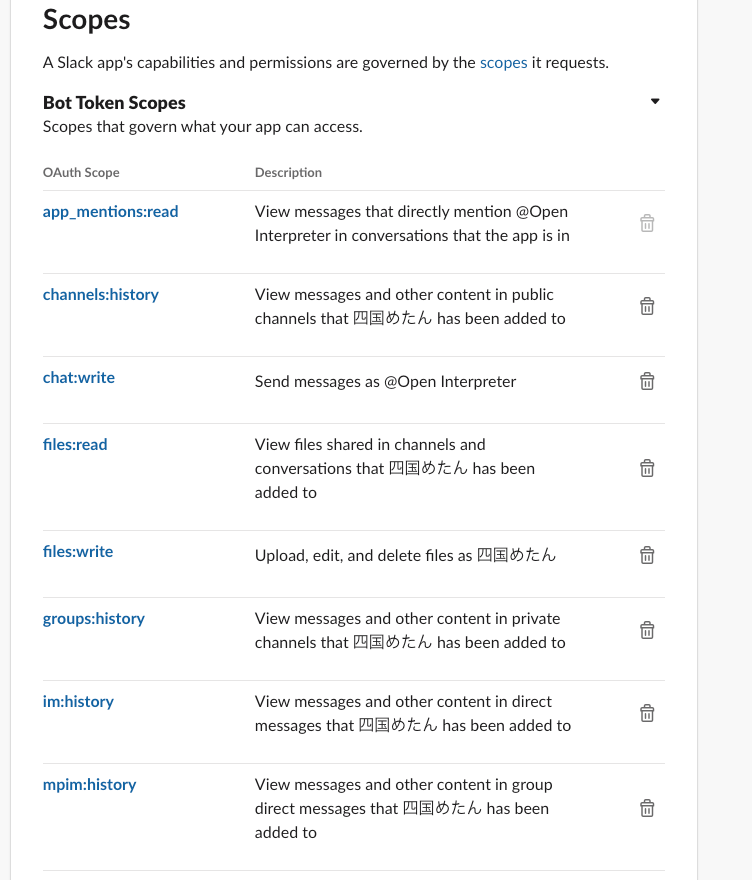
After completing the settings, install the app to your workspace.
Click Install to Workspace to install the application in your workspace. At this point, you will be provided with an OAuth Access Token, so make sure to note it down.
Set up Display Information as you prefer.
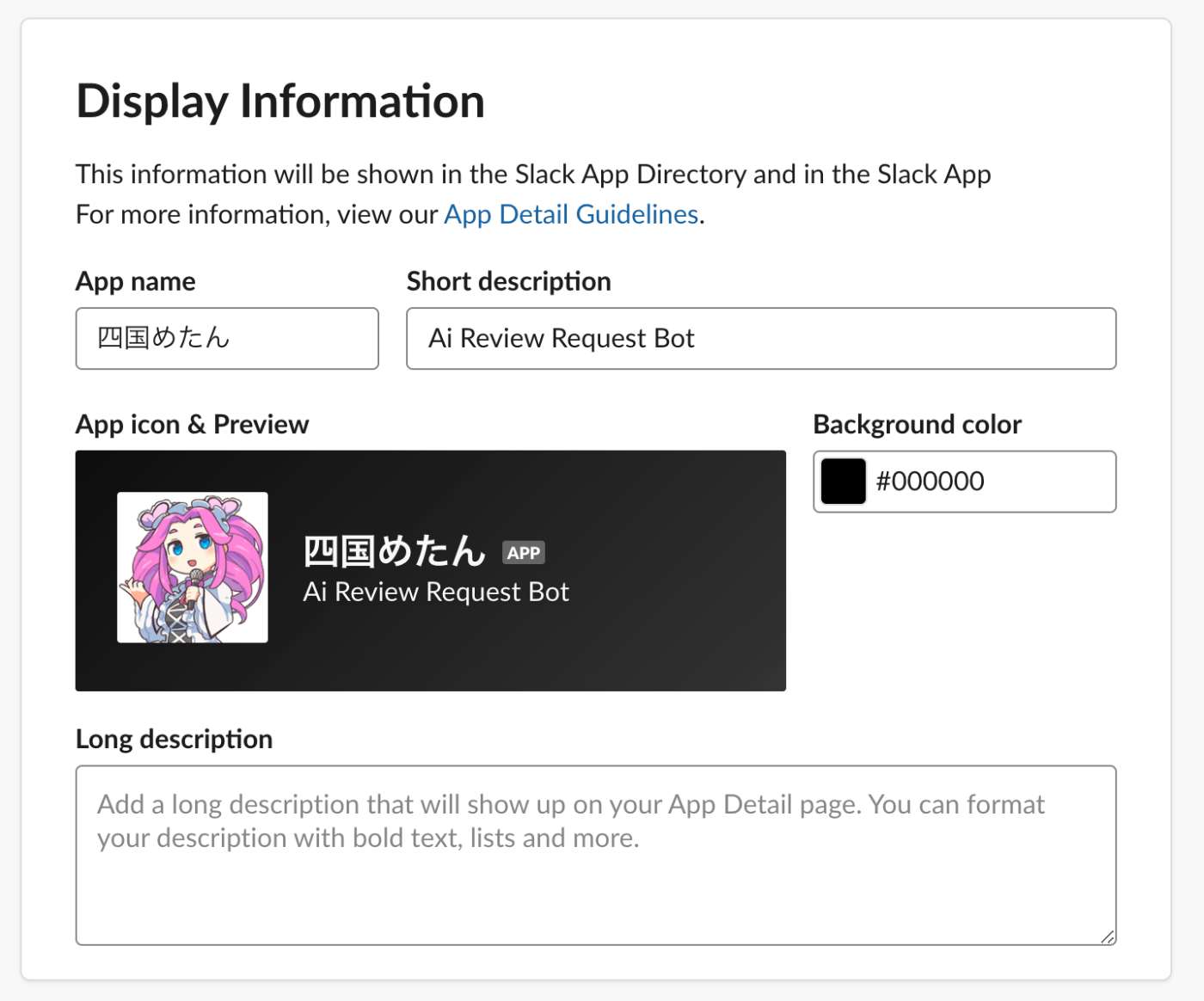
Create a Slack App following the same procedure as before. This will be for "Zunda Mon".
The settings for Scopes are as follows.
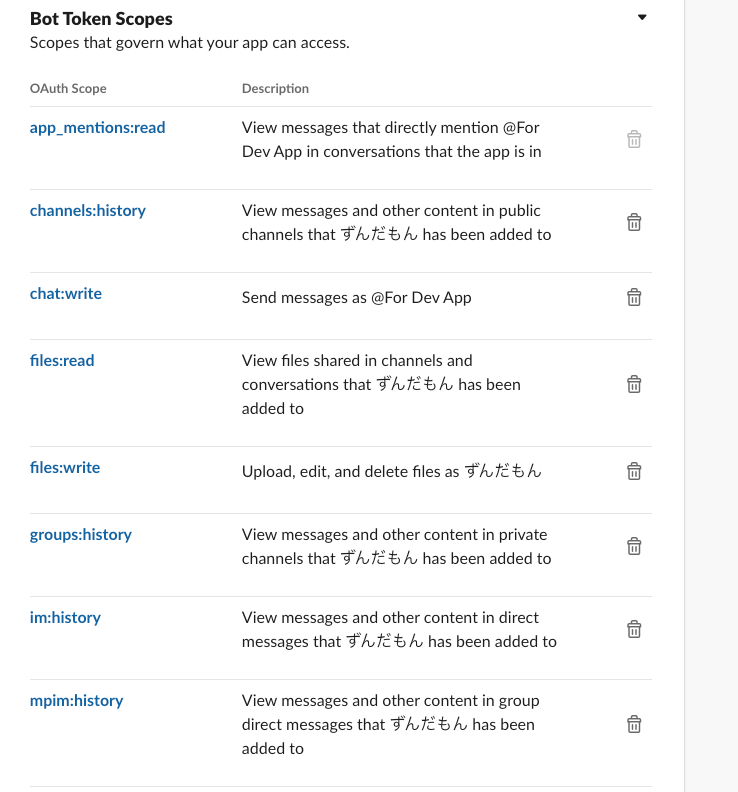
Set up the Display Information as well.
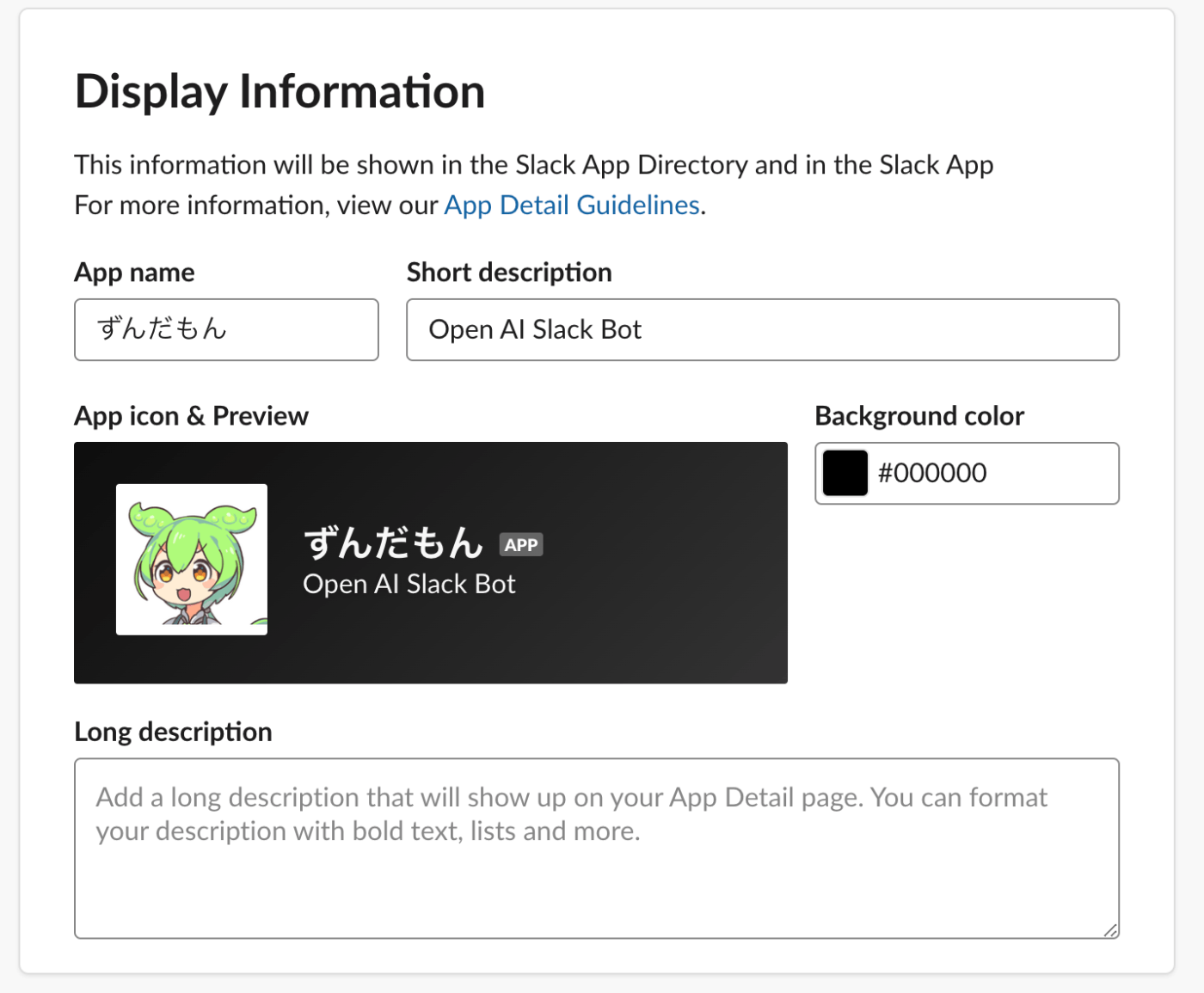
With that, the creation of the Slack App is complete.
Please register the created app in the Slack channel where review exchanges will occur.
You can install the CLI command from the npm repository or build it locally.
To install from the npm repository, execute the following command:
pnpm install -g @hiraoku/aireview-cliTo run locally, execute the following in the root directory:
Build:
pnpm run cli:buildExecute CLI command:
pnpm run cli:startThis will make the CLI command executable.
Next, create a .env file. You can set up the .env file by adding the option --init to the CLI command.
If installed via npm:
aireview --initIf built locally:
pnpm run cli:start --initThe .env file will have settings for the review request bot, which will be for "Shikoku Metan". The settings are as follows:
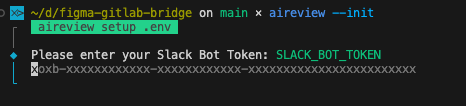
SLACK_BOT_TOKEN
Set the OAuth & Permission's OAuth Tokens for Your Workspace from the "Shikoku Metan" Slack App.
Set the token that starts with xoxb-.
SLACK_REVIEWER_BOT_ID Set the member ID from the Workspace where the Slack App is registered. Note that you must set the ID of the reviewer's bot, so please set "Zunda Mon"'s member ID.
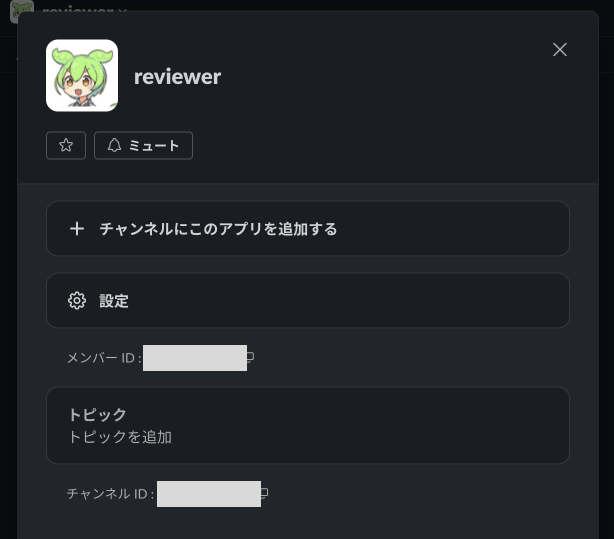
SLACK_CHANNEL_ID Set the channel ID of the workspace channel that was created for exchanging review requests. Be careful not to set the Slack App's channel ID.
The CLI command configuration is now complete.
There are two ways to run the Slackbot: locally or using Cloud Run.
First, set up your .env file. This will be the settings for the Slack App (Zunda Mon) that inquires to ChatGPT and displays the results in Slack, as well as the settings for ChatGPT.
SLACK_SIGNING_SECRET
From the Basic Information page, retrieve and set the Signing Secret.
SLACK_BOT_TOKEN
Set the OAuth Tokens for Your Workspace from the Slack App's OAuth & Permissions.
Set the token that starts with xoxb-.
OPENAI_API_KEY Set the OpenAI API key.
OPENAI_MODEL Set the OpenAI Model.
Next, install ngrok. ngrok is a tunneling/reverse proxy tool that allows direct access from the outside to a local server port (localhost) inside the network.
brew install ngrok/ngrok/ngrokExecute the following in the root directory
to run the server:
pnpm run devNext, configure ngrok to use the same port as the Slackbot server.
ngrok http 3000Set the Request URL in the Slack App's Event Subscriptions to the URL displayed in the ngrok command.

First, create a project at Google Cloud Console.
Next, install Google Cloud SDK.
$ brew install --cask google-cloud-sdkTo deploy, execute the following command.
gcloud run deploy code-review-slack-bot \
  --source . \
  --memory 2048Mi \
  --project $PROJECT \
  --allow-unauthenticated
Please specify the project you set earlier in the Google Cloud Console for $PROJECT.
After deployment is finished, a URL like https://code-review-slack-bot-XXXXXXXXXXX.a.run.app will be displayed. Set this URL in the Request URL on the Event Subscriptions page of your Slack App, just like you would do for local startup.
There is a chance that the first deployment may fail to start the container due to an error. This could be because the environment variables are not set. In that case, proceed to the next step without making changes.
Then, open Google Cloud Console again and go to Cloud Run.
You will see a service created called code-review-slack-bot. Open Deploy new revision.
Here, click on the Variables & Secrets tab and set the environment variables. Use the contents of the .env file from your local setup for reference.
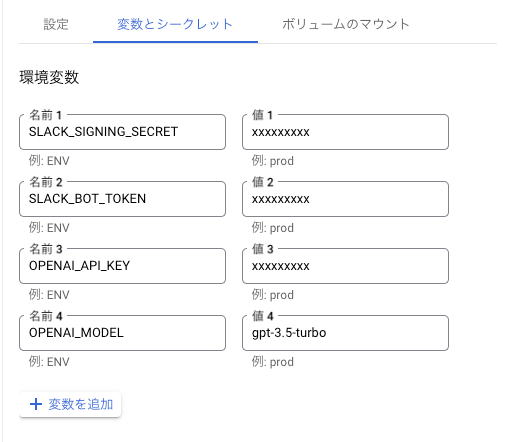
That completes the setup.
With these settings, you will be able to perform code reviews.
- Perform code review of code registered for staging in git and output the results to Slack
- Two Slack-bots are used: a Slack-bot that makes review requests and a Slack-bot that outputs review results, but the characters can be customized.
- Code review accuracy and prompts can be easily adjusted to customize the code review to suit your needs.