



Reference:
-
Using Unity Editor 6000.2.10f1 (Unity 6.2)
-
Windows:
-
linux:
-
macOS:
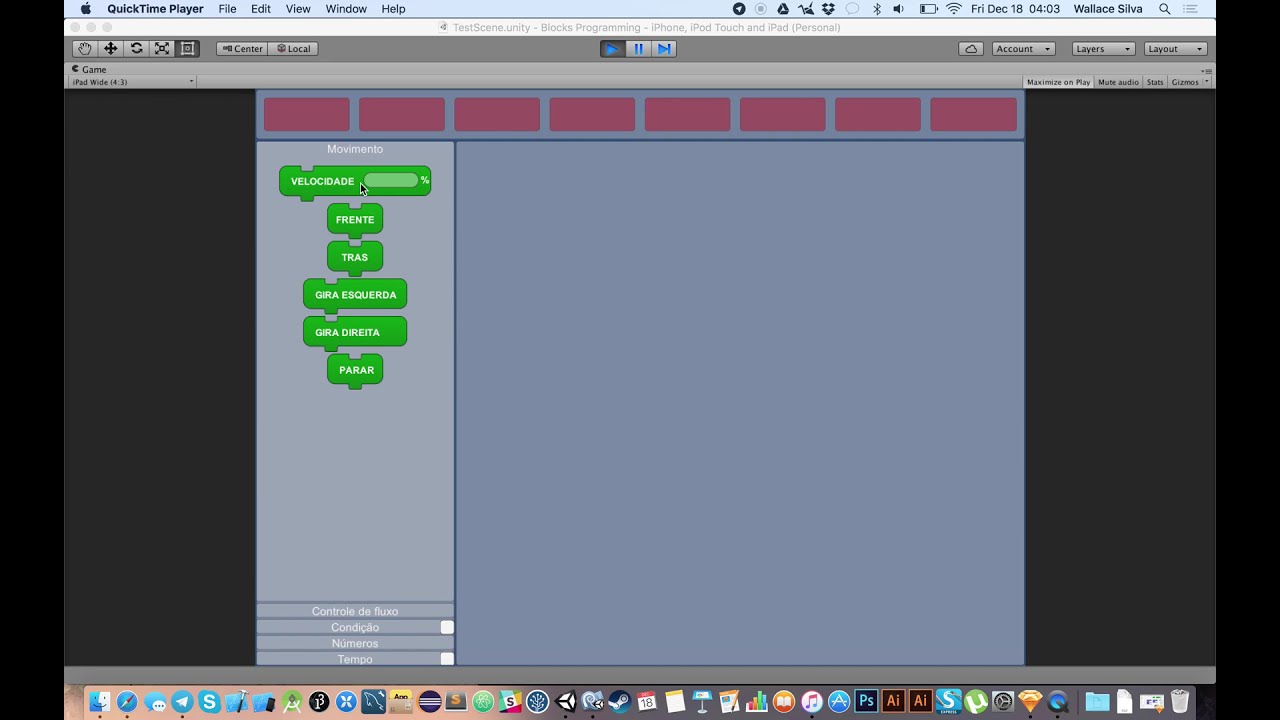
The editor uses a connection-based visual block system inspired by Scratch/Logo:
Block— Abstract base class for all blocks. Manages drag-and-drop, a list ofConnectionobjects (each with a socket type, connection type, and relative position), and code generation viaGetCode().Connection— Inner class ofBlock. Represents a slot that can attach to another block's complementary slot (Male↔Female, matchingConnectionType). Types:Regular,Logic,Number,Forbidden.SimpleInstructionBlock— Linear block with a top input and a next output. Generates a single instruction string.BlockWithArgument— ExtendsSimpleInstructionBlockto add a numeric argument slot.StartBlock— Entry-point block; generatesto start ... endwrapper.IfThenBlock/IfThenElseBlock/WhileBlock/ForeverBlock— Control-flow blocks with dynamic height/width based on nested content.NumberBlock— Base for numeric value blocks (constant, sensor read, operation).ConditionBlock/ConditionOperatorBlock— Logic/comparison blocks.
Each block's GetCode() recursively calls GetCode() on attached blocks to produce a Logo-like string. The IndentLogoCode() method in Block post-processes the flat string into indented output using [ / ] markers.
StartBlock.GetCode()
  → "to start"
  → next.GetCode()          (e.g. IfThenBlock)
      → "if (...) [\n"
      → then.GetCode()      (e.g. SimpleInstructionBlock chain)
      → "\n]"
  → "end"
RobotController— High-level robot API (move, turn, LED, sensor read). Delegates to component controllers.BoardController— Parses command strings (e.g."abcd, setpower 50") and dispatches to the robot API.WheelController— Animates wheel rotation based on speed.LEDController— Toggles LED emission viaMaterialPropertyBlock.UltrasonicSensorController— Distance measurement via downwardPhysics.Raycast.ColorSensorController— Surface color/light detection via downwardPhysics.Raycast.SpeakerController— Audio playback and procedural tone generation.RobotConfiguration—ScriptableObjectdefining robot variants and enabled sensors/actuators.
ScenarioController— Activates one of several pre-built scenarioGameObjects byScenarioTypeenum.
- Create a new
MonoBehaviourclass extendingBlock(or an existing subclass). - In
Start(), callbase.Start()and populatethis.connectionswithConnectionobjects. - Implement
GetCode()to return the block's Logo-like code string, appendingconnectionNext.GetAttachedBlock()?.GetCode()for sequential chaining. - Create a prefab with
RectTransform,LayoutElement, and (optionally)Shadowcomponents. - Register the prefab in the appropriate
BlocksPalletesection inBlocksPallete.cs.
EditMode unit tests live in Assets/Tests/EditMode/. Run them from Window → General → Test Runner → EditMode in the Unity Editor.
The tests cover code generation for all block types and the Connection attach/detach behaviour.
A live control panel for testing the robot simulation without leaving the Unity Editor.
Open: Window > Blocks > Robot Simulation
Features:
- Board power toggle — powers the
BoardControlleron/off; commands are only dispatched when the board is powered. - Configuration panel — displays the active robot variant, max speed, and lets you switch the active scenario from a dropdown.
- D-pad movement controls — Forward / Backward / Turn Left / Turn Right / Brake buttons, with a speed slider.
- Live sensor readings — ultrasonic sensors shown as distance progress bars; color sensors shown as color swatches with light-level bars. Updates every frame.
- LED controls — per-LED on/off toggle showing current state.
- Raw command input — type any
BoardControllercommand (e.g.setpower 3,ledon 0,beep) and press Enter or Send. - Log — timestamped history of all issued commands and events.
The window requires Play Mode to be active; it shows an info message otherwise.