Frequently Asked Questions
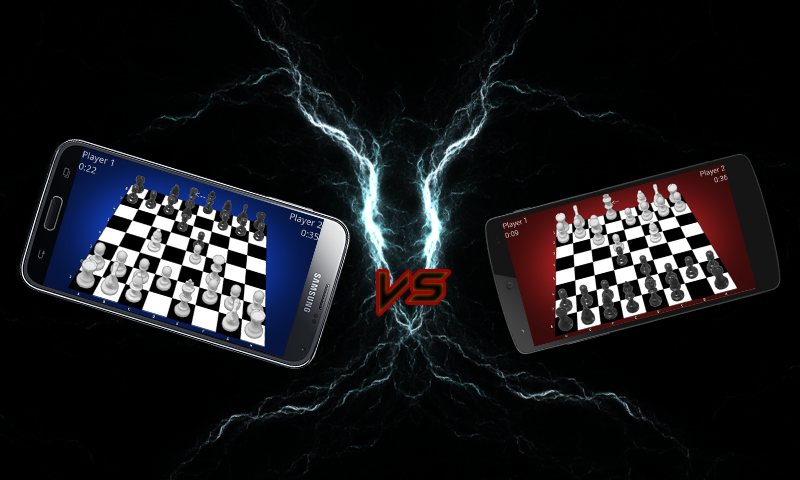
To get started with the Board Library, you should know how to (conceptually) make a piece and then add that piece to a board for game play.
The first step to making a Piece is to open a sample image of an existing Piece, and reuse the same size of that Piece for your own custom image.
The size of the Piece image is 54px in width and 138px in height. If your new Piece is the same size (54 X 138) it will be drawn in the correct position and at the correct height. Some of us have used Gimp to edit the original image, but if you have Photoshop it would edit it just as well.
There is a sample piece within the Knighted project linked here and another here.


Which look like the following images: 

The second step is to add your images in your drawable folder and then reference the images in your Piece class’ firstColor() and secondColor() methods.
The following is a sample Piece from the Knighted, ChessWars, and United Kingdoms apps:
public class Knight extends Piece {

	public Knight(Context context, AttributeSet attrs) {
		super(context, attrs);
	}

	@Override
	protected int firstColor() {
		return R.drawable.n__;
	}

	@Override
	protected int secondColor() {
		return R.drawable.n_;
	}

	@Override
	public void setUpMoves() {
		move_1 = INVALID_MOVE;// Not ready to move yet
	}

	protected String pieceLetter() {
		return "N";
	}
}
The next step to making a Piece is to add your Pieces to the board in XML.
The following is a sample of the Piece being used in an Android XML file in the Knighted game:
<us.the.mac.knighted.KnightedBoard
    xmlns:android="http://schemas.android.com/apk/res/android"
    xmlns:board="http://schemas.android.com/apk/res/us.the.mac.knighted"
    xmlns:tools="http://schemas.android.com/tools"
    android:layout_width="match_parent"
    android:layout_height="match_parent"
    tools:context=".Knighted" >

    <us.the.mac.knighted.pieces.Knight board:square="d4" board:color="white" />
    <us.the.mac.knighted.pieces.Knight board:square="f5" board:color="black" />

</us.the.mac.knighted.KnightedBoard>
After taking the previous steps you may only need to add more Pieces to your game or create the move logic for each one of your pieces.
When creating your Piece logic you should consider the available methods within [The Board Library Javadocs] (http://the-mac.us/board/javadoc), because there are 100+ methods available to customize your application and move logic. Although the Piece(s) for your game are typically pretty easy to set specific move locations as legal squares, an example of how the Knight in ChessWars, Knighted and United Kingdoms sets up its moves is as follows:
/**
 * This is called each time a piece moves, and should use the MOVE constants
 * (MOVE_UP, etc.). When assigning the move values from 1 - 8, you can use a
 * clockwise motion (move_1 - top left, move_2 - top, etc.). These moves are
 * used set up the direction of movement and final position of a move.
 * For example with the Knight in Knighted or Chess:
 *
 * move_1 = fromCurPos(MOVE_UP_LEFT + MOVE_LEFT); // 6
 * move_2 = fromCurPos(MOVE_UP_LEFT + MOVE_UP); // 15
 * ...etc.
 *
 *   14| 15| 16| 17| 18
 *   ------------------
 *   6 | 7 | 8 | 9 | 10
 *   ------------------
 *  -2 |-1 |pos| 1 | 2
 *   ------------------
 * -10 |-9 |-8 |-7 | 10
 *   ------------------
 * -18 |-17|-16|-15|-14
 *
 */
@Override
public void setUpMoves() {

	move_1 = validateMove(MOVE_UP_LEFT + MOVE_LEFT);// 6
	move_2 = validateMove(MOVE_UP_LEFT + MOVE_UP);// 15;
	move_3 = validateMove(MOVE_UP_RIGHT + MOVE_UP);// 17;
	move_4 = validateMove(MOVE_UP_RIGHT + MOVE_RIGHT);// 10;
	move_5 = validateMove(MOVE_DOWN_RIGHT + MOVE_RIGHT);// -6;
	move_6 = validateMove(MOVE_DOWN_RIGHT + MOVE_DOWN);// -15;
	move_7 = validateMove(MOVE_DOWN_LEFT + MOVE_DOWN);// -17;
	move_8 = validateMove(MOVE_DOWN_LEFT + MOVE_LEFT);// -10;
}

private int validateMove(int move) {

	int possibleMove = fromCurPos(move);
	Piece p = getPieceAt(possibleMove);

	boolean hasPiece = p != null;
	boolean isOpponent = hasPiece && p.isOpponent(color);

	if(isOpponent || !hasPiece)
		return possibleMove;

	return INVALID_MOVE;
}
The remaining Piece(s) may have different logic than this depending upon your game, but the concept should still be the same. In some cases the move_# variables may not be enough (for example with a Bishop from Chess), so an ArrayList and the Square.setPossible(boolean possible) method may be a friend when extending moves across the board.
The Java documentation for the Piece.setUpMoves() method can be found here, or click/copy the following link:
http://the-mac.us/board/javadoc/us/the/mac/board/Board.Piece.html#setUpMoves().
If you are looking to make more moves for a piece (WITHOUT USING move_1 … move_8 AGAIN) on the board, you can create your own container to hold more moves, such as a List, and/or ArrayList of Integers.
For a good example, you can create the following list
List<Integer> customPossibleMoves = new ArrayList<Integer>();
You can also manually set up your moves on the board by calling the Piece.setUpLegalSquare method and passing it the position that you would like to be legal for that piece.
Of course, this would be after setting up your custom moves:
Integer move = customPossibleMoves.get(0);
setUpLegalSquare(move);
The implementation of the Piece.setUpLegalSquare method is below, so if you would like to customize your your own version of it with more restrictions than just (move < 64 && move > -1) on the board, you can:
/** This sets up a move position as a legal square to be displayed
 * @param move The currently clicked square to check if it is a legal move
 **/
protected void setUpLegalSquare(int move) {
	if(move < 64 && move > -1)
	{
		Piece other = getSquareAt(move).piece;
		getSquareAt(move).setPossible(other == null || other != null && other.color != color);
	}
}
As a side note The Piece.setUpLegalSquare is called after the Piece.setUpMoves in normal operation. This all happens in a method called Piece.showMoves, and the implementation is as follows:
protected void showMoves() {
	setUpMoves();
	setUpLegalSquares();
	invalidateSquares();
}
An example of how to extend your moves can be found here: https://github.com/the-mac/TheBoardLibrary/issues/2
All Board subclasses will be aware of current piece movements, and the provided piece on that movement square.
Optionally, the Piece class can implement the Board.EndGamePiece interface, allowing a call to the endingMove boolean method. That being said, the following is an example of how to end the game based on the state of one piece:
public class ChessBoard extends Board {
	...
	public void currentPieceMovement(Square sq) {
		...
		Piece piece = sq.piece;
		if (piece instanceof EndGamePiece && ((EndGamePiece) piece).endingMove()) {
			// GAME ENDS HERE ~ OPEN DIALOG OR EXIT ACTIVITY
		}
	}
}
If your game ends based on more than one piece, you can simply check the states of those pieces .
To get the latest changes from the Board Library, you should pull from the repo (https://github.com/the-mac/TheBoardLibrary.git) and make sure you only have one jar file in your libs folder.
For example, if you start with an older jar file:
board.14.07.19.2.jar	Update 14.07.19.2	29 days ago
board.14.07.19.2.jar.properties	Update 14.07.19.2.2	29 days ago
And you then pull and end up with an additional jar file:
board.14.07.19.2.jar	Update 14.07.19.2	29 days ago
board.14.07.19.2.jar.properties	Update 14.07.19.2.2	29 days ago
board.14.07.26.1.jar	Update 14.07.26.1	22 days ago
You should remove the old jar file then rename the properties file, and you should end up with the following files (for whatever version of the library you update to i.e., board.14.MM.DD.#.jar & board.14.MM.DD.#.properties):
board.14.07.26.1.jar.properties
board.14.07.26.1.jar
If your exception is
java.lang.IllegalArgumentException: Unknown URI

content://us.the.mac.board.content.provider/content/move/update/_
then it seems that your application needs a provider (or database connection), so all you would do is add the following line to your AndroidManifest.xml file:
<provider android:name="us.the.mac.board.BoardContent" android:authorities="us.the.mac.board.content.provider"/>
To view more detail on this issue, see issue # 1, here: https://github.com/the-mac/TheBoardLibrary/issues/1