3. Getting Started (Part 2)
STIM is a website that allows you to create simple works of interactive fiction. Simply visit STIM on your desktop browser or mobile device. Click the New STIM button, and come up with a name for your game. For our tutorial, I'm going to use HelloWorld.
After you hit save STIM will keep that name in memory. You can see it again and change it by clicking on the gear icon.
Let's create our first block of text. Let's create a simple game where you move around in a cave. Click on the Add Paragraph icon and type in the following in the large text area.
You are standing in the middle of a cold, musty cave.
The walls are glowing with lichen, and there is a subtle breeze caressing your cheek.
The air smells of old rot, and you hear grumbling coming from a tunnel to the north.
Add the label : "Cave Center". Then hit Save Changes.
You will see the dialog go away, and a new block has been created on the right. You'll see the "paragraph" icon next to the words "Cave Center"
Click the blue button "Save STIM". Your changes have been saved in the browser's local storage.
Click the "reload page" icon, just for the sake of this tutorial. It's the last one on the right, in the same block as the gear icon. Normally you would not want to blow away your work! Reloading the page blows away whatever unsaved state you had. It might be useful if you are starting fresh.
Now that your work is "gone", click the red Load STIM button. It will prompt you for a game name. You must type precisely the same name you used before to save the game, for this to work. Since I used "HelloWorld" as my game name, I type that in and whoosh! Your first paragraph is back!
Our cave story is rather dull. We only have one text block, with nothing to do. Let's fix that by adding a "Choice Block".
Click Add Choice(s) and you'll see a new dialog come up. This dialog displays information about the choices you want your player to make. Right now in this early state of STIM we can only go to other paragraph blocks, or other choice blocks. Let's give the cave dweller the choice to go North into another part of the cave.
Note STIM is very "linear" in the way it renders content. When it encounters a block of text, it will display that text, and then move down one block. If the next block is more text, it'll render that, and so on until it hits a "choice" block. It will display those choices and wait for the player to make a selection. Think of this like a waterfall with a very narrow channel. Content "falls" down until you get to a choice.
In our choice dialog let's type "Go North into the tunnel" in the Choice Text field. In the Label field let's type "Dragon Den". We haven't created that block yet, but we can anticipate it by giving it a label now. You can also create choices with no labels, and go back later to fill them in. ( In a future version of STIM, you'll be able to see all the labels from a menu for more ease of choice)
Give our choice block a label itself : "Choice of the Dragon" and save.
You should see something like the image below:
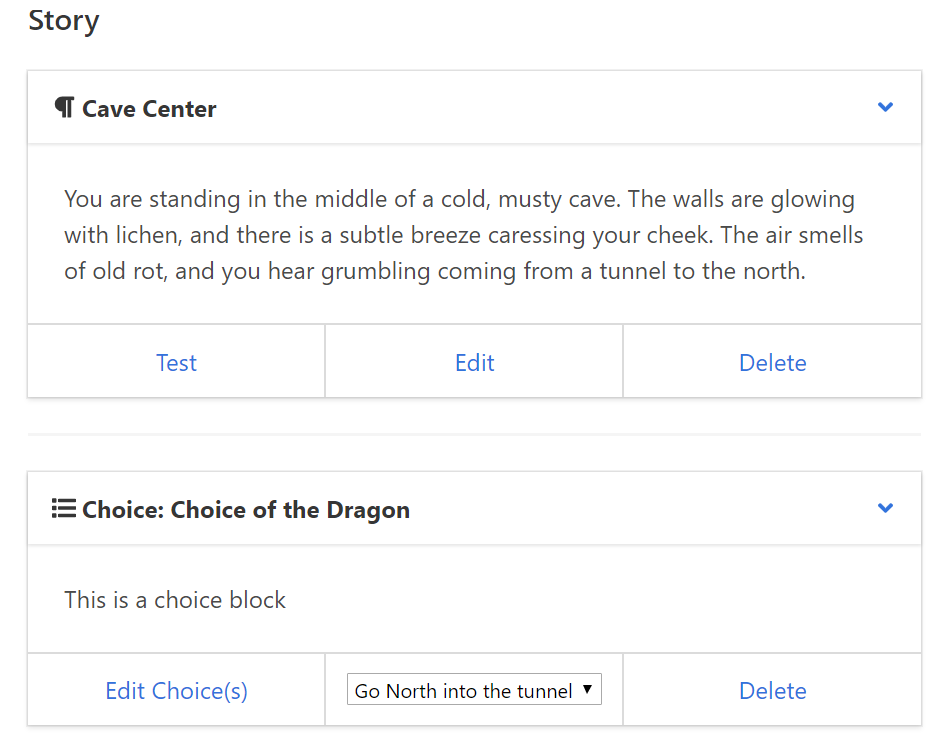
There will now be a new block in your game. You can see all the choices by clicking the dropdown. You can re-open the choice list by hitting "Edit Choice(s)". We'll do that later.
Now, let's create the other room of our cave. Create a new paragraph. Label it "Dragon Den" and paste the following text into the big box:
You stumble into the den of a very large, sleeping dragon. The breeze you felt was the breath of the snoring serpent. The lichen on the walls illuminate a pile of gold as tall as a mountain. On the peak of this mountain is a coiled green dragon.
And, let's give ourselves an escape route. Add a new choice block labelled "Escape Route" and add a choice called "Go South" pointing to the block called "Cave Center".
Save your game.
Now, let's try out our game.
Choose "Export HTML" , and you will see a download happen of a file called "HelloWorld.zip". If you want, you can download it again by clicking the link "Click here to download".
If you open this file locally, you will see a folder called "stim". Inside that are some files. One is called "index.html" This is the place where your game lives. You cannot just load this file in your browser. There are restrictions on running JavaScript locally which will prevent the game from running. This is not a bug, it's just how browsers treat local pages.
Instead, let's use itch.io to host our game.
After getting an account and logging in, go to New project.
Under title, type "Cave Demo"
Scroll down to "type of project" and choose "HTML - you have a zip file"
Scroll down to "upload files" and choose your HelloWorld.zip file.
After it uploads, choose the option of "this file will be played in the browser"
Scroll down to "save and view page" and click it.
You should then see a new page with your game. You'll see a big button that says "Run game"
Click it and you'll see something like this:
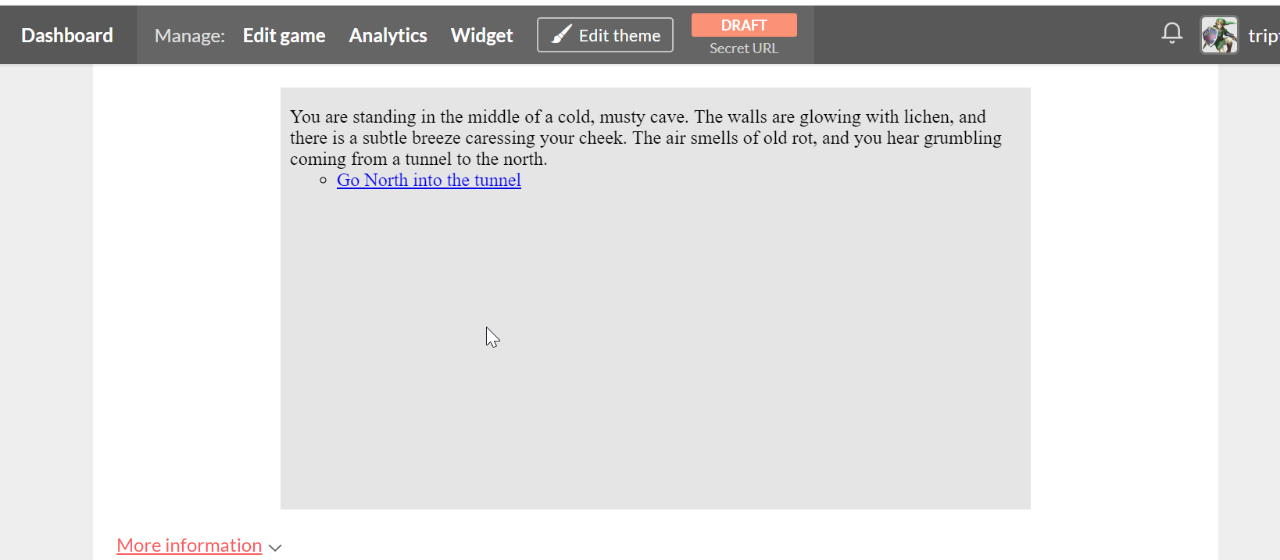
Click the "Go North into the Tunnel" link.
You will see the second block of text. Oh no! We have run into a Dragon! What will happen next?
Click "Go South" to escape!
This may seem like a trivial example of an interactive fiction work, but you now have all the tools you need to make simple games. As time goes on, there will be many, many more features.
If you go back and expand upon your game, you might want to rearrange your blocks. To do this, you can click the rearrange icon to the right of the gear.
You will see a list of your story blocks - something like this:
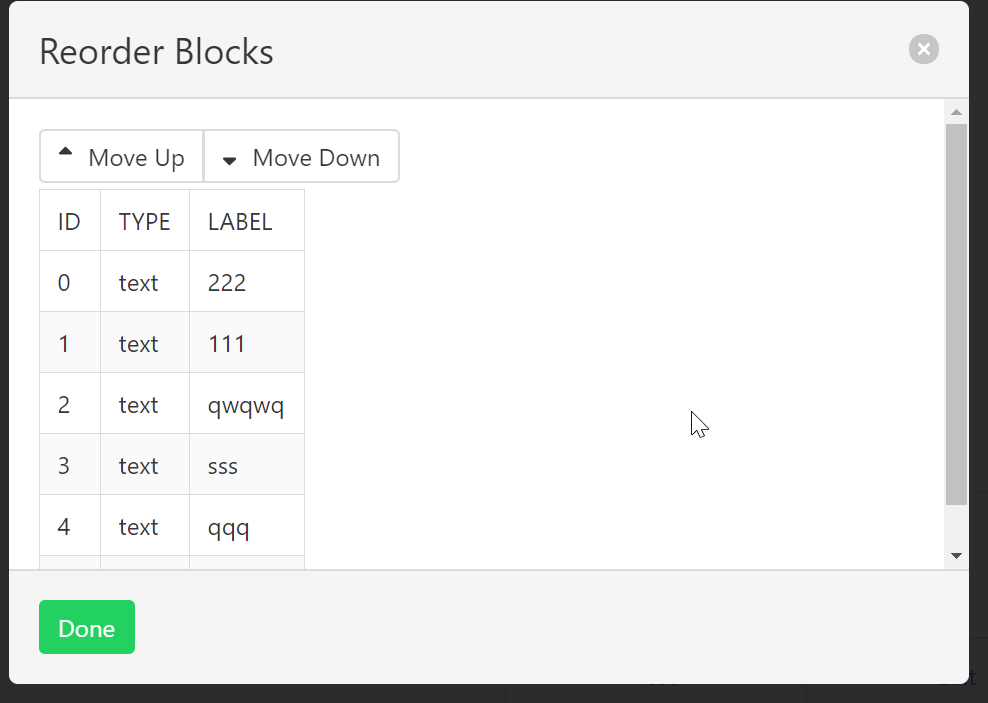
To move a block, simply click on it and choose move up or move down . Remember STIM flows the story from top to bottom. Only branching at Choice blocks.
When you are finished editing, be sure to save your game!
If you send this zip file to a friend, they can actually load this game back into STIM. All you need to do is choose "Import HTML" , choose the HelloWorld.zip file ( don't unzip it! ) and your game will be loaded back into STIM with all the blocks in the proper order.
Once your game is done, please share it! I would love to know if you created something.
In the future, you will have all kinds of formatting, color, and image options. And you will be able to do transitions, sounds, and more!
Hope you have fun.