Running the Project
Here, we'll discuss how to setup and run the project on your local machine.
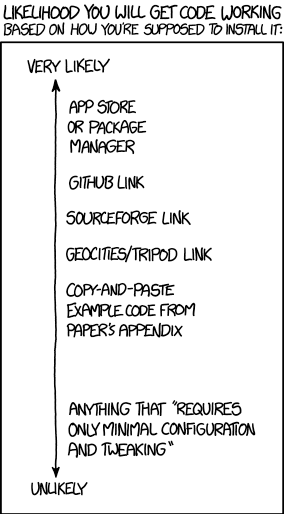
Image Source: xkcd #1742 by Randall Munroe CC-BY-NC 2.5
This project requires that you have installed Julia version 1.11 or higher. It probably works with earlier versions, but I haven't tested them, and you're likely to run into dependency conflicts. If you really want to try running on an earlier version, you can delete the erroring compat lines in Project.toml.
Additionally, in order to use the provided Makefile, you will need to have GNU Make installed on your system. If you don't have it, you can still run the Julia commands manually, but using the Makefile is more convenient, so I recommend installing it.
After cloning the repository, run make setup in the project directory. This will create a new Julia environment and install all necessary dependencies.
When manually running the project, it reads simulation parameters from SimulationConfig.toml. By default, this file contains a sample configuration that is likely whatever someone was testing most recently.
Note
Developers, please avoid committing changes to just SimulationConfig.toml to avoid cluttering up the commit history. At the same time, I'm not going to add it to .gitignore, since having a sample config file in the repository is useful. Feel free to commit changes to it as part of changes to other parts of the repo.
In general, the config file is divided into the following sections:
This section contains the parameters that define the Hubbard model and simulation setup. The names should be self-explanatory, but for completeness:
| Parameter | Description |
|---|---|
num_colors |
Number of colors (or spin states) to include in the model. |
t |
The strength of the hopping term. |
U |
The interaction strength. |
u_test |
The chemical potential used when computing the ED of the system. Ultimately, this value should cancel-out in the final results, but if you want to change it (e.g., to test numerical stability), you can do so here. |
Note
The names used in this section correspond to the variable names used in the code. Whenever you see one of the above names used, it is (almost certainly) referring to the value specified in this section of the config file.
This section contains parameters that control which results are computed and plotted.
| Parameter | Description |
|---|---|
width |
The width of the generated plots (in pixels). |
height |
The height of the generated plots (in pixels). |
T_min |
The minimum temperature to compute and plot. |
T_max |
The maximum temperature to compute and plot. |
T_step |
The step size between consecutive temperatures. |
u_min |
The minimum chemical potential to compute and plot. |
u_max |
The maximum chemical potential to compute and plot. |
u_step |
The step size between consecutive chemical potentials. |
T_fixed_plots |
A list of fixed temperatures at which to generate plots of observables as functions of chemical potential. |
u_fixed_plots |
A list of fixed chemical potentials at which to generate plots of observables as functions of temperature. |
overlay_data |
A path to a directory containing CSV files to overlay on the generated plots. (See Overlaying CSV Data) A value of "none" can be used to indicate that no overlay should be used. |
observables |
A three-dimensional array specifying which observables to generate plots for. (See Specifying the Observables to Plot) Note that regardless of this value, all computed values (for all observables) will be exported to CSV files. (See Understanding the Output) |
nlce_orders |
The NLCE orders to plot. See [TODO] |
Important
Throughout the codebase, (including here), temperature refers to the physical temperature in Kelvin multiplied by the Boltzmann constant (
In order to overlay CSV data onto the generated plots, the overlay_data parameter may be set to a path (either absolute or relative to the project root) to a directory containing the relevant CSV files. This path may traverse through an arbitrary number of zip files (e.g., data/overlays.zip/dir/more_data.zip/overlay_files) or none at all.
The directory must contain the files mu_vals.csv and T_vals.csv, which contain the chemical potential and temperature values of the dataset, respectively, in the first column. Additionally, for each observable to be overlaid, there must be a corresponding CSV file named <observable_name>.csv containing the observable's values in a 2D grid with temperatures along the rows and chemical potentials along the columns. All CSV files must not contain headers. Some files of this format are included as part of the Grids Test and can be used as examples.
This enables allows <observable_name> to be used in the overlay section of the observables parameter. (See Specifying the Observables to Plot)
In order to avoid cluttering the generated plots with too many observables, the observables parameter may be used to specify which observables to plot and split them over a number of subplots. This parameter is a three-dimensional array, but it makes more sense to think of it as a list of lists of lists.
The outermost list contains one entry for each subplot to generate. Each subplot entry is itself a list containing exactly two lists (either of which may be empty). The first list contains the names of the generated observables to plot. These can refer to any of the observables defined in by the code. (See [TODO]) The second list contains the names of any observables to overlay from the CSV files specified in the overlay_data parameter. (See Overlaying CSV Data)
See Understanding the Output for an explanation of how the generated plots are structured.
These parameters define the structure of the graph on which the Hubbard model is simulated. At the moment, this contains the single parameter num_sites, which specifies the number of sites in the graph. The constructed graph will take the form of a linear chain with periodic boundary conditions. In the future, support for additional graph structures may be added, and this section will be updated accordingly.
Once you have configured the simulation parameters to your liking, you can run the simulation using make run (or just make) in the project directory. This will execute the simulation with parameters from SimulationConfig.toml, and generate the plots and CSV files in the output/ directory.
Caution
The script does not clear the output/ directory before running. If you run the simulation multiple times, it will retain any old files that are not re-generated in more-recent runs. Ensure that you do not confuse old output files with ones generated from the current run.
Tip
You can run make clean to delete all files in the output/ directory in order to start fresh!
Some parts of the simulation can take advantage of multiple CPU cores to speed up execution. To enable multi-threading, set the JULIA_NUM_THREADS environment variable to the desired number of threads before running the simulation. See the Julia documentation for more details.
Tip
If you are running the project manually, you can also use the --threads flag to set the number of available threads.
The Makefile only allows for running the simulation with parameters from SimulationConfig.toml. However, for more advanced use-cases the main script can be run directly by running julia --project=. src/Main.jl [global_args] <command> [command_args] in the project root directory. A description of the available arguments can be found by running with --help (eg. julia --project=. src/Main.jl --help or julia --project=. src/Main.jl <command> --help) or by examining the parse_cli() function in Main.jl.
Because those descriptions already exist, I will not describe them in-depth here, but I will go over the basic commands and their purposes:
| Command | Description |
|---|---|
simple |
Runs a simulation using the parameters from SimulationConfig.toml. This is the same command used by make run. |
diagonalize |
Diagonalizes and computes observables for a single cluster specified by the cluster info file. The command requires that you provided a cluster index. This starts at 1 and increments up to the number of clusters specified in the cluster info file. |
merge |
Performs NLCE on the computed observables from the diagonalize command. |
Important
When passing results to the merge command, they must be specified in the same order as they were computed by the diagonalize command. E.g., the first entry must be the result of the diagonalize command with cluster index 1, the second entry must be the result of the diagonalize command with cluster index 2, and so on.
Additionally, SimulationConfig.toml must have been the same for all diagonalize calls and for the call to merge. This is because of various consistency assumptions made throughout the code and may be relaxed in the future.
Warning
The cluster indices used by the codebase do NOT correspond to the order they are defined in the cluster info file. Do not assume that they are the same! For details, see [TODO].
Note that some of the arguments above refer to a "cluster info file". This is a file containing information about the clusters used in the NLCE calculations. This file should be available to the research group as nlce_triangle_iso_8.json, however, because it is the product of unreleased research, I will not be documenting it here unless I receive an explicit go-ahead. I have also added it to the gitignore. If you are part of the research group and have any questions about its format, please reach out to me, Prof Ibarra, or another member of the group directly.
All output files are saved in the output/ directory. This includes generated plots in PNG format and CSV files containing the computed observables at each combination of temperature and chemical potential.
The CSV files are named according to the observable they contain (e.g., Energy.csv) and contain a 2D grid of values with temperatures along the rows and chemical potentials along the columns. The first row and first column contain the corresponding chemical potential and temperature values, respectively (for ease of reference). These are generated for every computed observable at every combination of temperature and chemical potential, regardless of whether they are plotted or not.
Because it would be unreasonable to plot all of this data, plots are only generated for specific fixed values of temperature and chemical potential. (See plot Plotting Parameters) Each plot is saved as a PNG file named according to the fixed parameter value (e.g., observable_data_<T|u>_<value>.png). Each plot contains one or more subplots, as specified in the observables parameter of the configuration file. (See Specifying the Observables to Plot)
Each plot is divided into multiple subplots (as specified in the observables parameter). Each subplot contains one or more curves corresponding to the generated observables specified for that subplot, as well as data from CSV files overlaid as dashed lines. (See Overlaying CSV Data) Each plot will also have a title containing the most-relevant parameters of the simulation.