MCP Integration
SuperLocalMemory v2.1.0 includes a universal mcp-server that provides native integration with 17+ IDEs including Claude Desktop, Cursor IDE, Windsurf, and more. This local-first, mcp-protocol based integration enables AI assistants to naturally access your memory system without manual commands.
Keywords: mcp-server, claude-desktop, cursor-ide, windsurf, universal-integration, model-context-protocol
MCP (Model Context Protocol) is Anthropic's open protocol that allows AI assistants to connect to external tools and data sources. SuperLocalMemory's MCP server provides:
- 12 Tools - AI-accessible functions (remember, recall, search, status, learning, etc.)
- 6 Resources - Data feeds (graph, patterns, recent memories, learning status)
- 2 Prompts - Context injection templates
- 100% Local - No cloud dependencies, runs entirely on your machine
With MCP, you can say:
You: "Remember that we use FastAPI for all REST APIs"
Claude: [Automatically uses the remember tool] ✓ Saved to memory
No slash commands needed. The AI assistant naturally uses your memory system.
SuperLocalMemory runs an MCP server locally on your machine. When you open Claude Desktop, Cursor, or any supported IDE, it automatically connects to this server. Every time you ask your AI assistant to remember something or search your memory, it's making a direct local call — no cloud, no delays, complete privacy.
These IDEs are automatically detected and configured when you run ./install.sh:
| IDE | Config File | Status |
|---|---|---|
| Claude Desktop | ~/Library/Application Support/Claude/claude_desktop_config.json |
✅ Auto |
| Cursor | ~/.cursor/mcp_settings.json |
✅ Auto |
| Windsurf | ~/.windsurf/mcp_settings.json |
✅ Auto |
| Continue.dev | .continue/config.yaml |
✅ Auto |
These IDEs require manual configuration (see detailed steps below):
| IDE | Manual Setup | Documentation |
|---|---|---|
| ChatGPT Desktop | Settings → MCP | Setup Guide |
| Perplexity AI | App Settings | Setup Guide |
| Zed Editor | JSON config | Setup Guide |
| OpenCode | MCP config | Setup Guide |
| Antigravity IDE | Settings | Setup Guide |
| Cody | Custom commands | Setup Guide |
| Aider | Smart wrapper | Setup Guide |
Total: 17+ supported tools
git clone https://github.com/varun369/SuperLocalMemoryV2.git
cd SuperLocalMemoryV2
./install.sh
The installer will:
- Detect installed IDEs (Cursor, Windsurf, Claude Desktop, Continue)
- Install MCP Python package if not present
- Create MCP configuration files automatically
- Configure each detected IDE
Claude Desktop:
- Restart Claude Desktop completely
- Look for "superlocalmemory-v2" in available tools
- Test: "Save this to memory: Test memory"
Cursor:
- Restart Cursor IDE
- Open AI assistant panel
- Test: "Remember that we prefer TypeScript"
Windsurf:
- Restart Windsurf
- Check MCP tools list
- Test: "What's in my recent memories?"
Continue.dev:
- Reload VS Code window (Cmd+Shift+P → "Reload Window")
- Open Continue panel
- Test: Type
/slm-rememberto see the skill
Platform: macOS, Windows
Steps:
- Open ChatGPT Desktop App
- Go to Settings → MCP Servers
- Click Add Server
- Enter configuration:
{
  "name": "superlocalmemory-v2",
  "command": "python3",
  "args": [
    "/Users/yourusername/.claude-memory/mcp_server.py"
  ],
  "cwd": "/Users/yourusername/.claude-memory",
  "env": {
    "PYTHONPATH": "/Users/yourusername/.claude-memory"
  }
}- Replace
/Users/yourusernamewith your actual home directory - Click Save and restart ChatGPT
Verify: Ask ChatGPT "What tools do you have access to?" - should see SuperLocalMemory tools.
Platform: macOS, Web
Steps:
- Open Perplexity App
- Navigate to Settings → Integrations → MCP
- Click Add MCP Server
- Paste configuration:
{
  "superlocalmemory-v2": {
    "command": "python3",
    "args": [
      "/Users/yourusername/.claude-memory/mcp_server.py"
    ],
    "cwd": "/Users/yourusername/.claude-memory"
  }
}- Save and restart Perplexity
Verify: Ask "Do you have memory tools?" - should list SuperLocalMemory.
Platform: macOS, Linux
Config File: ~/.config/zed/settings.json
Steps:
- Open
~/.config/zed/settings.jsonin a text editor - Add MCP configuration:
{
  "mcp": {
    "servers": {
      "superlocalmemory-v2": {
        "command": "python3",
        "args": [
          "/Users/yourusername/.claude-memory/mcp_server.py"
        ],
        "cwd": "/Users/yourusername/.claude-memory",
        "env": {
          "PYTHONPATH": "/Users/yourusername/.claude-memory"
        }
      }
    }
  }
}- Save and restart Zed
- Open AI assistant panel
Verify: Check available tools in Zed's AI panel.
Platform: Cross-platform
Config File: ~/.opencode/mcp.json
Steps:
- Create or edit
~/.opencode/mcp.json:
{
  "mcpServers": {
    "superlocalmemory-v2": {
      "command": "python3",
      "args": [
        "/Users/yourusername/.claude-memory/mcp_server.py"
      ],
      "cwd": "/Users/yourusername/.claude-memory"
    }
  }
}- Restart OpenCode
- Check MCP tools list
Platform: Cross-platform
Steps:
-
Open Antigravity settings
-
Navigate to Extensions → MCP
-
Add server with Python command:
- Command:
python3 - Script:
/Users/yourusername/.claude-memory/mcp_server.py - Working Dir:
/Users/yourusername/.claude-memory
- Command:
-
Apply and restart
Note: Cody uses custom commands instead of MCP. These are auto-configured by install-skills.sh.
Manual Setup:
- Edit
.vscode/settings.json(VS Code) or Cody settings (JetBrains):
{
  "cody.customCommands": {
    "slm-remember": {
      "description": "Save to SuperLocalMemory",
      "prompt": "Execute: python3 ~/.claude-memory/skills/slm-remember/main.py \"${input}\""
    },
    "slm-recall": {
      "description": "Search SuperLocalMemory",
      "prompt": "Execute: python3 ~/.claude-memory/skills/slm-recall/main.py \"${input}\""
    }
  }
}- Reload VS Code or JetBrains IDE
Usage: Type /slm-remember in Cody panel.
Note: Aider uses the smart wrapper instead of MCP.
Setup:
- Run the install script (already done if you installed SuperLocalMemory)
- Use
aider-smartinstead ofaider:
# Instead of: aider myfile.py
# Use:
aider-smart myfile.py
What it does:
- Automatically injects recent memories as context
- Uses standard
slmCLI commands - No configuration needed
| Tool | Purpose | Example AI Request |
|---|---|---|
remember() |
Save memory | "Remember that we use FastAPI" |
recall() |
Search memories | "What do we use for REST APIs?" |
list_recent() |
Show recent memories | "Show my recent memories" |
get_status() |
System statistics | "What's my memory system status?" |
build_graph() |
Rebuild knowledge graph | "Rebuild my knowledge graph" |
switch_profile() |
Change profile | "Switch to work profile" |
search() |
Search memories (OpenAI MCP spec) | Used by ChatGPT Connectors |
fetch() |
Fetch memory by ID (OpenAI MCP spec) | Used by ChatGPT Connectors |
backup_status() |
Auto-backup status | "What's the backup status?" |
memory_used() |
Feedback for learning (v2.7) | Implicit when recalled memory is used |
get_learned_patterns() |
Retrieve learned patterns (v2.7) | "What patterns have you learned?" |
correct_pattern() |
Correct a learned pattern (v2.7) | "I prefer Vue, not React" |
| Resource | Content | Access |
|---|---|---|
memory://graph/clusters |
Knowledge graph clusters | Read-only |
memory://patterns/identity |
Learned patterns | Read-only |
memory://recent/{limit} |
Recent memories feed | Read-only |
memory://stats |
System statistics | Read-only |
memory://learning/status |
Learning system status (v2.7) | Read-only |
memory://engagement |
Engagement metrics (v2.7) | Read-only |
- Context Injection - Automatically provides recent memories to AI
- Identity Profile - Injects coding preferences from pattern learning
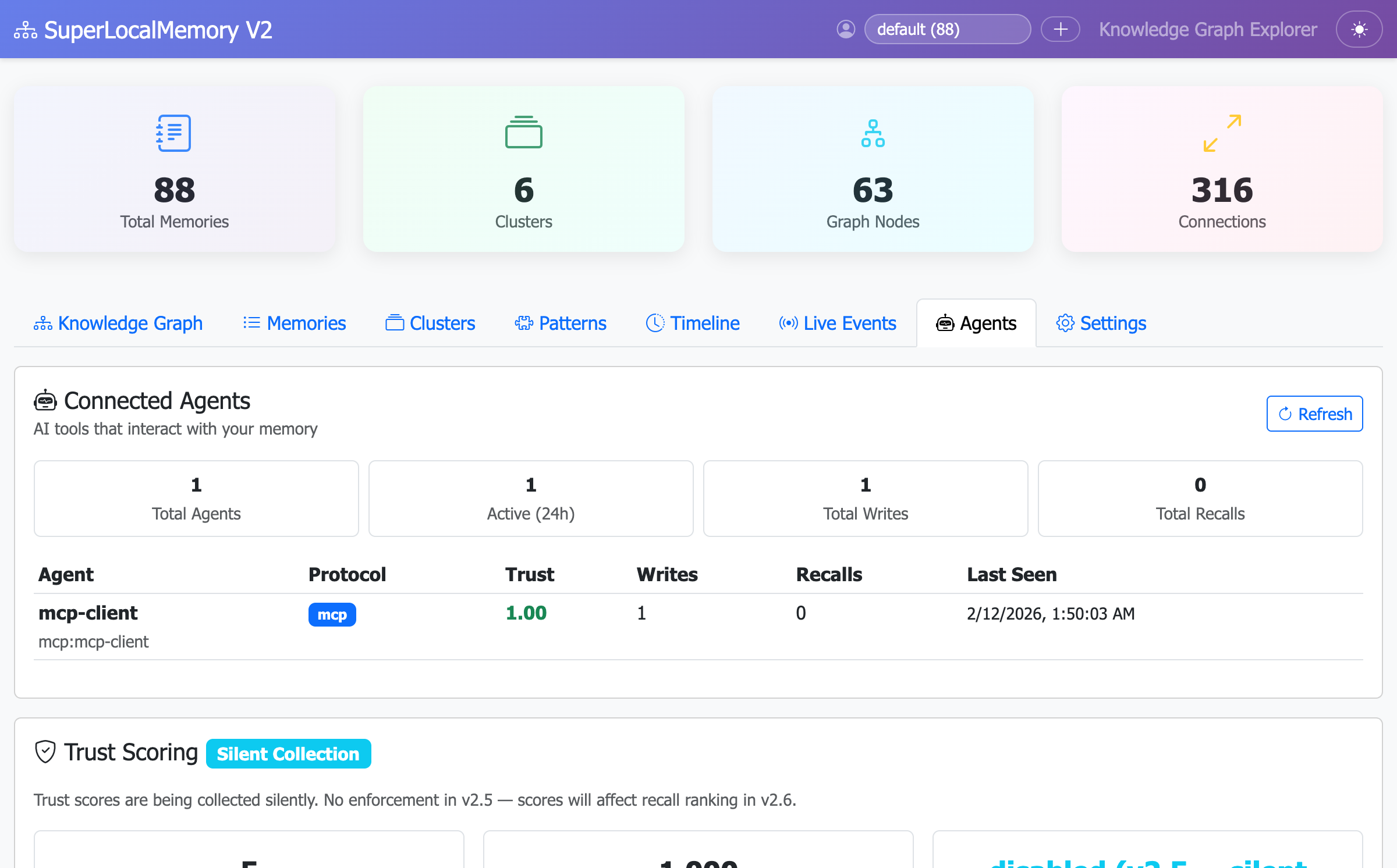
Once you've configured MCP in your IDE, check the dashboard to confirm the connection is active:
# Start the web dashboard
python3 ~/.claude-memory/ui_server.py

# Dashboard opens at http://localhost:8765
# Navigate to the "Agents" tab
You should see your IDE listed as a connected MCP client:
Key indicators:
-
Protocol: Shows
MCP(agent-to-tool) - Trust Score: Starts at 1.00 (full trust)
- Last Seen: Recent timestamp means active connection
- Memory Operations: Count of remember/recall calls this session
Note: The Agents tab (v2.5 feature) tracks all MCP connections in real-time. This view helps you verify that your IDE is successfully connected and communicating with SuperLocalMemory.
Problem: IDE doesn't list SuperLocalMemory tools
Solutions:
-
Check Python path:
which python3
# Output: /usr/bin/python3 or /opt/homebrew/bin/python3
Update config file with correct path.
-
Verify MCP package:
pip3 install mcp
-
Check install path:
ls ~/.claude-memory/mcp_server.py
# Should exist
-
Restart IDE completely - Quit and reopen, don't just reload.
-
Check logs:
- Claude Desktop:
~/Library/Logs/Claude/mcp.log - Cursor:
~/.cursor/logs/mcp.log
- Claude Desktop:
Solution: Make script executable:
chmod +x ~/.claude-memory/mcp_server.pySolution: Install required packages:
cd ~/.claude-memory
pip3 install -r requirements.txtSolution: Check Python version:
python3 --version
# Must be 3.8+Solution: Create directory:
# Claude Desktop (macOS)
mkdir -p ~/Library/Application\ Support/Claude

# Cursor (macOS)
mkdir -p ~/.cursor

# Windsurf (macOS)
mkdir -p ~/.windsurf
[More troubleshooting: MCP-TROUBLESHOOTING.md →]
For detailed manual setup instructions for all IDEs, see:
Includes:
- Step-by-step configuration for each IDE
- Platform-specific paths (macOS/Windows/Linux)
- Troubleshooting for each tool
- Custom MCP client examples
- Universal-Architecture - Understand the universal architecture
- Universal-Skills - Learn about slash-command based access
- Installation - Initial setup guide
- Home - Back to wiki home
Created by Varun Pratap Bhardwaj