4. Gameplay Debugger Overview
Note If you're not familiar with Gameplay Debugger, you can refer here.
LockOnTarget has its own category in Gameplay Debugger, that can be activated by pressing the ' (apostrophe) key and pressing the corresponding number on the numpad.
General information is displayed as long as the category is active.

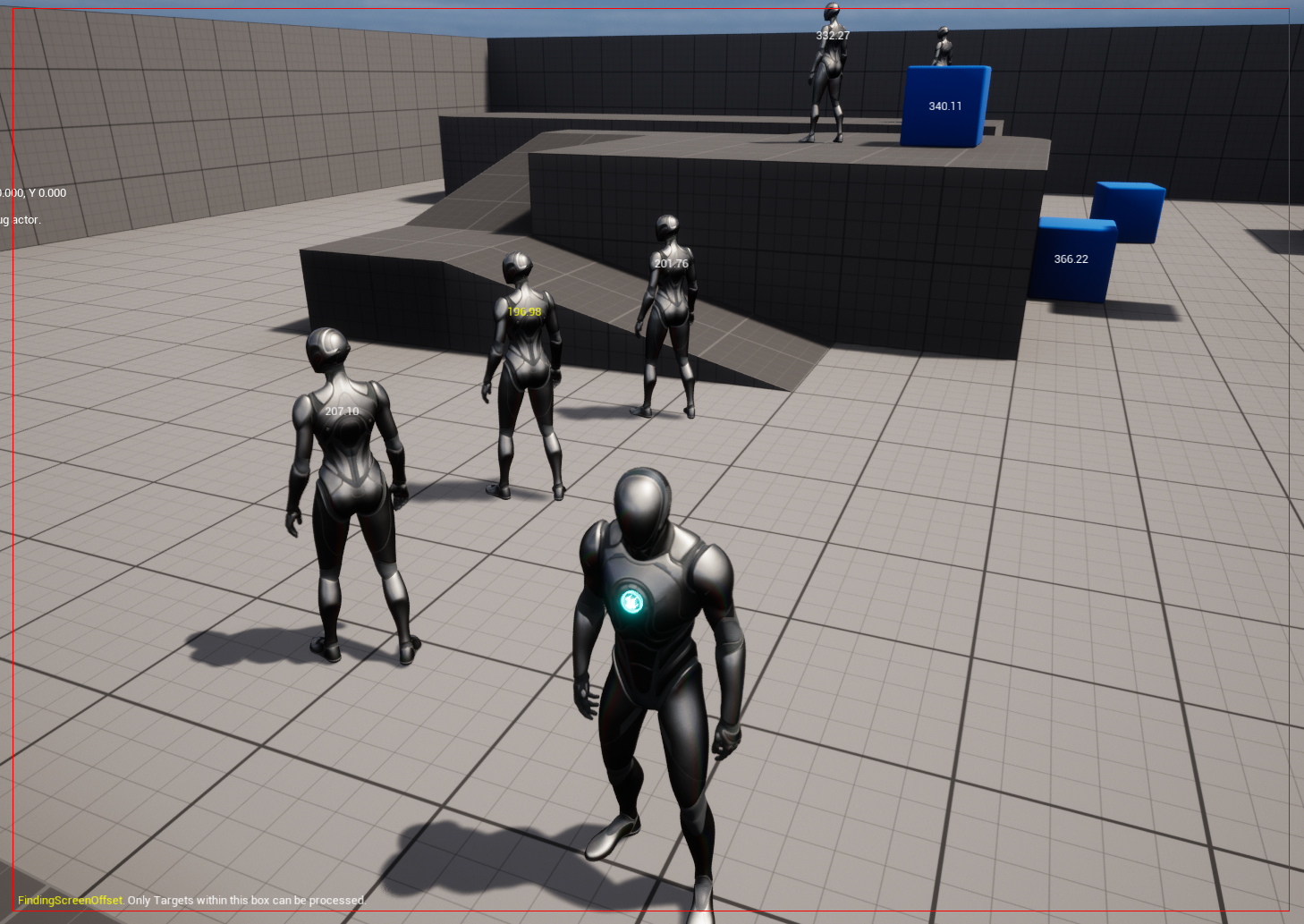
WeightedTargetHandler simulation can be activated by pressing the K button. During the simulation, you can see weights, the best one is marked yellow.
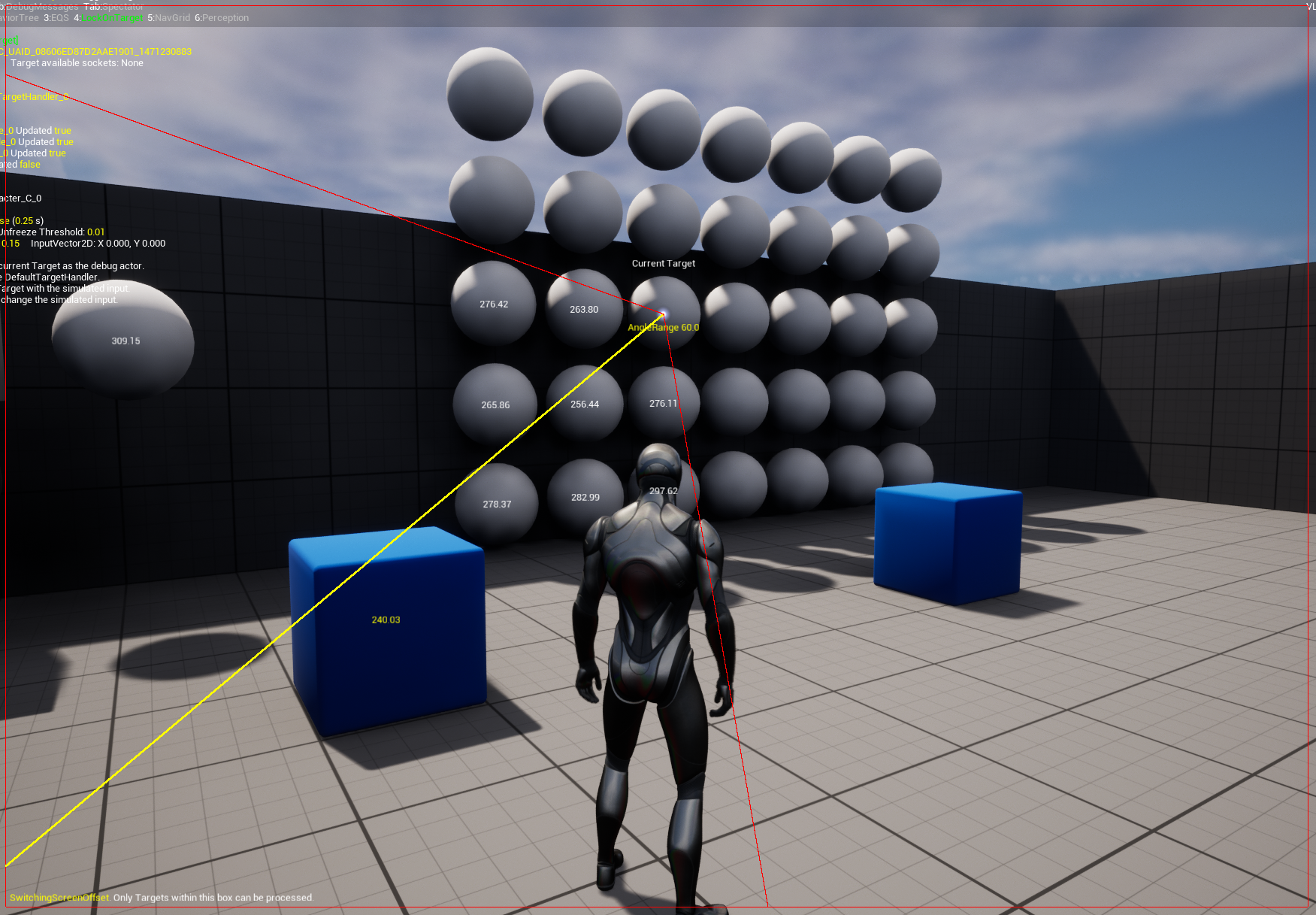
While the target is locked, you can simulate the input direction by pressing Shift+MouseScrollUp/Down and switch the Target in that direction by pressing the L button.
This is just for convenience. I didn't find a way to change the debug Actor displayed in the top right corner, which is used by some AI categories, such as AI and BehaviorTree.
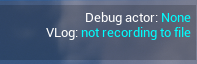
By pressing Enter when any Target is captured, you can change/set that Target as a debug Actor or clear it if there's no Target.

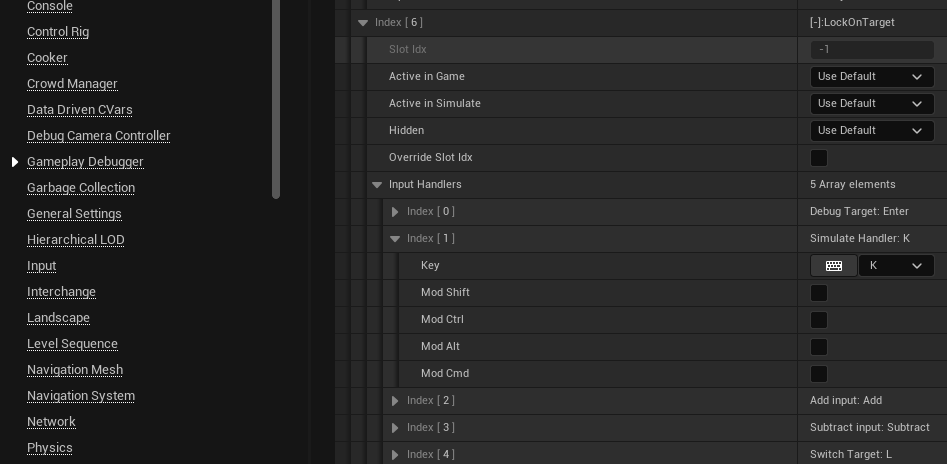
Note: All input handlers can be changed in the ProjectSettings.GameplayDebugger section. In addition, you can change the default appearance of the category, e.g., you can disable the LockOnTarget category and it won't be activated by default.