Features Speedtest
Connect DOCSight to a self-hosted Speedtest Tracker instance to track your actual internet speed alongside DOCSIS signal data.
The speed card on the dashboard shows your latest result with color coding against your booked tariff:
| Download ratio | Color | Meaning |
|---|---|---|
| 80% or more | Green | Getting what you pay for |
| 50-79% | Amber | Below expected, worth monitoring |
| Below 50% | Red | Significant underperformance |
The same logic applies to upload. If no booked speed is configured, the card defaults to green.
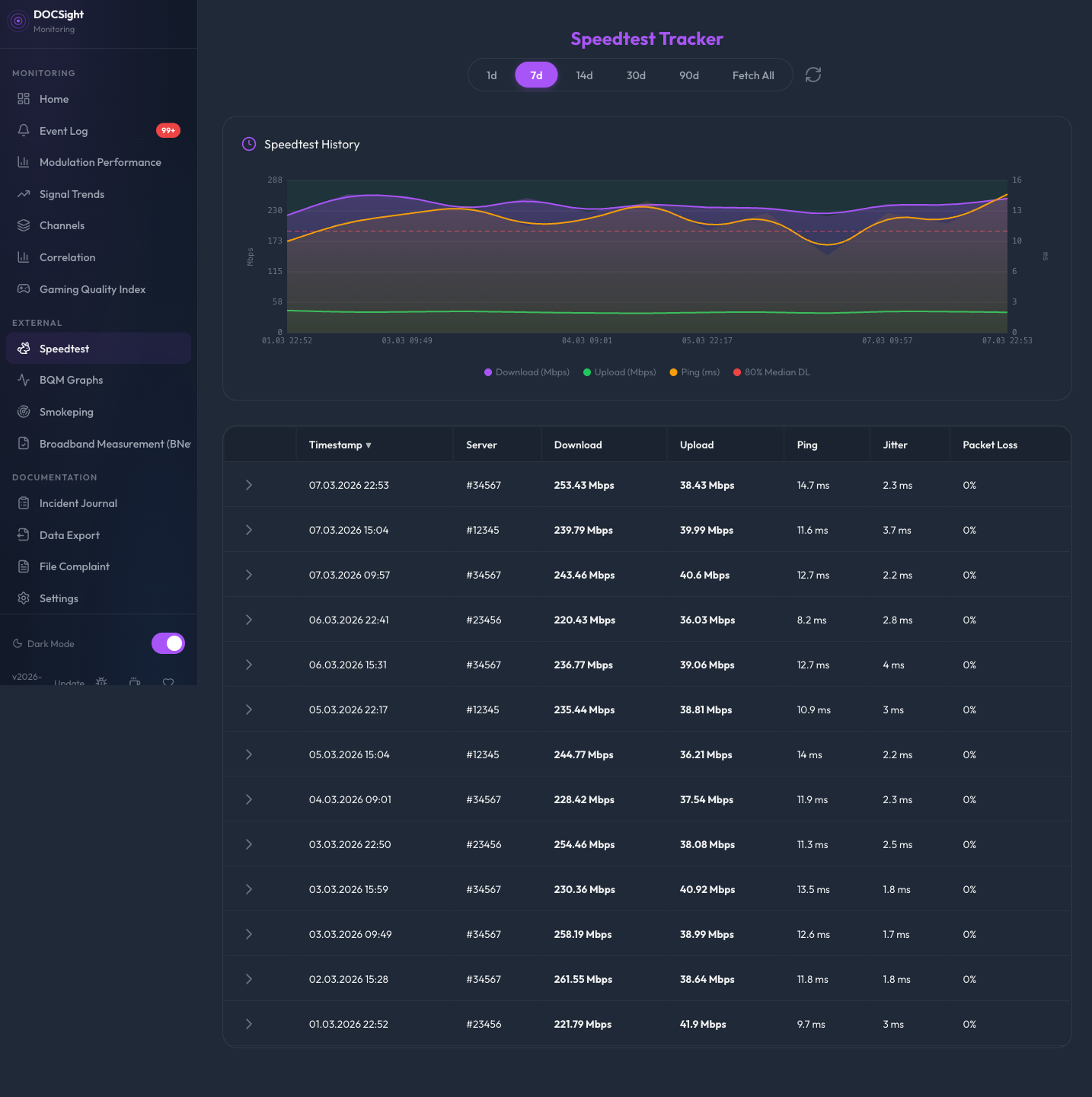
A sortable table showing all results with download/upload speed, ping, jitter, packet loss, and Ookla server ID. Hover over the server ID to see the full server name. Poor results are automatically highlighted.
Use the date range filter above the table to narrow down to a specific period.
A line chart showing download and upload speed over time. Useful for spotting patterns like evening slowdowns (congestion) or sustained degradation.
DOCSight syncs results from your Speedtest Tracker instance and caches them locally in SQLite:
- First sync: Pulls up to 2,000 historical results
- Subsequent syncs: Only fetches results newer than the last cached ID (delta sync)
- Poll interval: Checks for new results every 5 minutes (300 seconds)
- Dashboard: The latest result is always fetched fresh, independent of the cache
This keeps the speedtest view fast even with thousands of results.
Speedtest results appear in the Correlation Analysis timeline. For each speed test, DOCSight finds the closest modem snapshot (within 2 hours) and shows the signal health at the time of the test. This makes it easy to prove that a speed drop coincided with signal degradation.
Speedtests can be triggered automatically when DOCSight detects signal degradation. Smart Capture monitors for events like modulation downgrades or SNR drops and fires a speedtest at the exact moment the problem occurs. See Smart Capture for configuration and details.
See Speedtest Tracker Setup for connection instructions (URL and API token).
To enable color coding, tell DOCSight your contracted speeds:
- Settings UI: Set "Booked Download" and "Booked Upload" (in Mbit/s) under Integrations
-
Environment variables:
BOOKED_DOWNLOAD=250andBOOKED_UPLOAD=40 - Auto-detection: Some modems (Fritz!Box, CM3500) report provisioned speeds automatically